
iOS and Android Countdown Widgets
Widgets can be added to your mobile device's home screen to display the countdown and title of a trip, building excitement every time a traveler opens their phone.
In this article:
How to set up an iOS Widget
How to set up an Android Widget
How to set up an iOS Widget
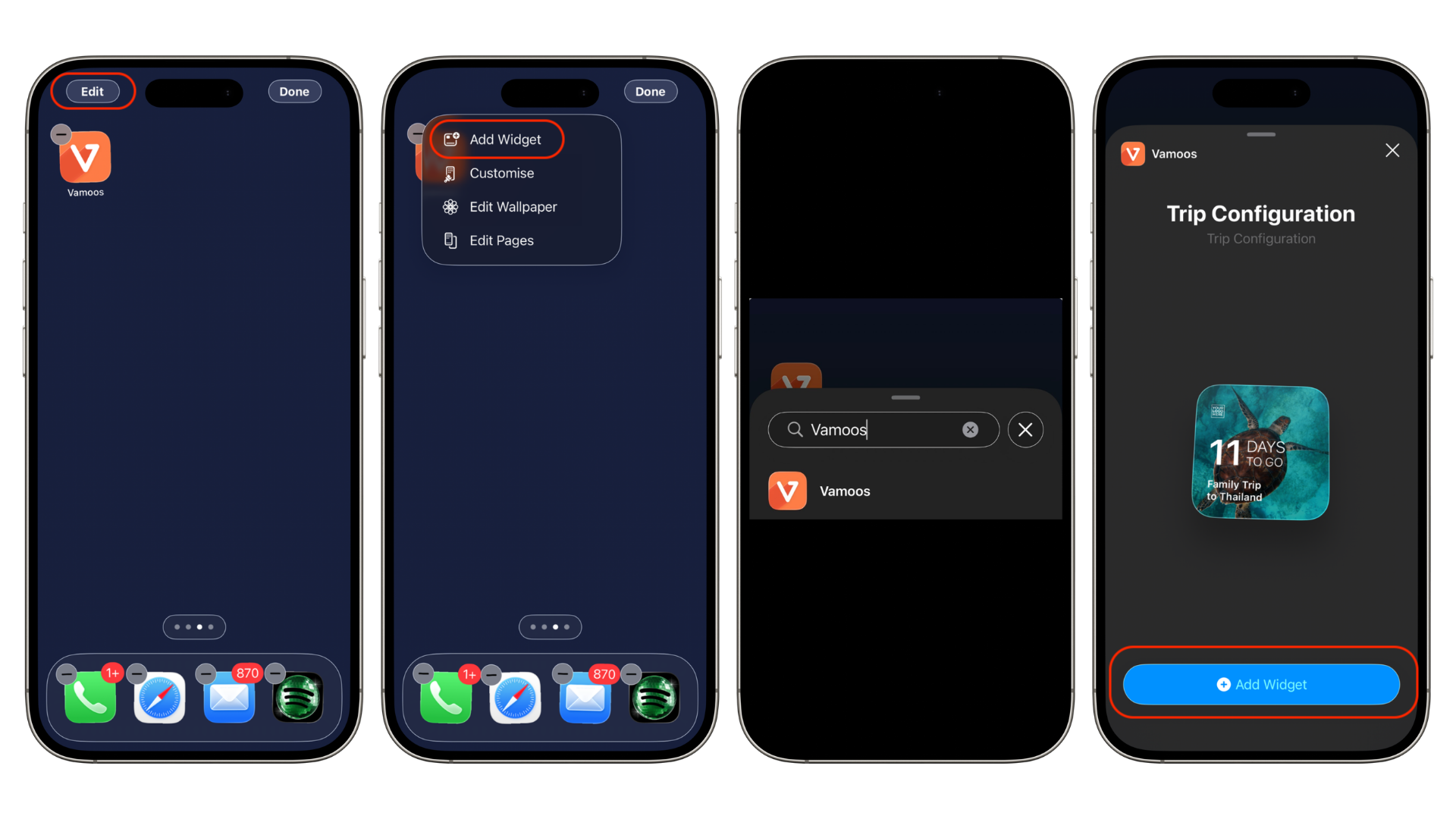
Step 1: Press and hold on your device's home screen and hit 'Edit' in the top left corner.
Step 2: Select 'Add Widget' and in the search bar, look for Vamoos.
Step 3: Select 'Add Widget', and this will now appear on your home screen.
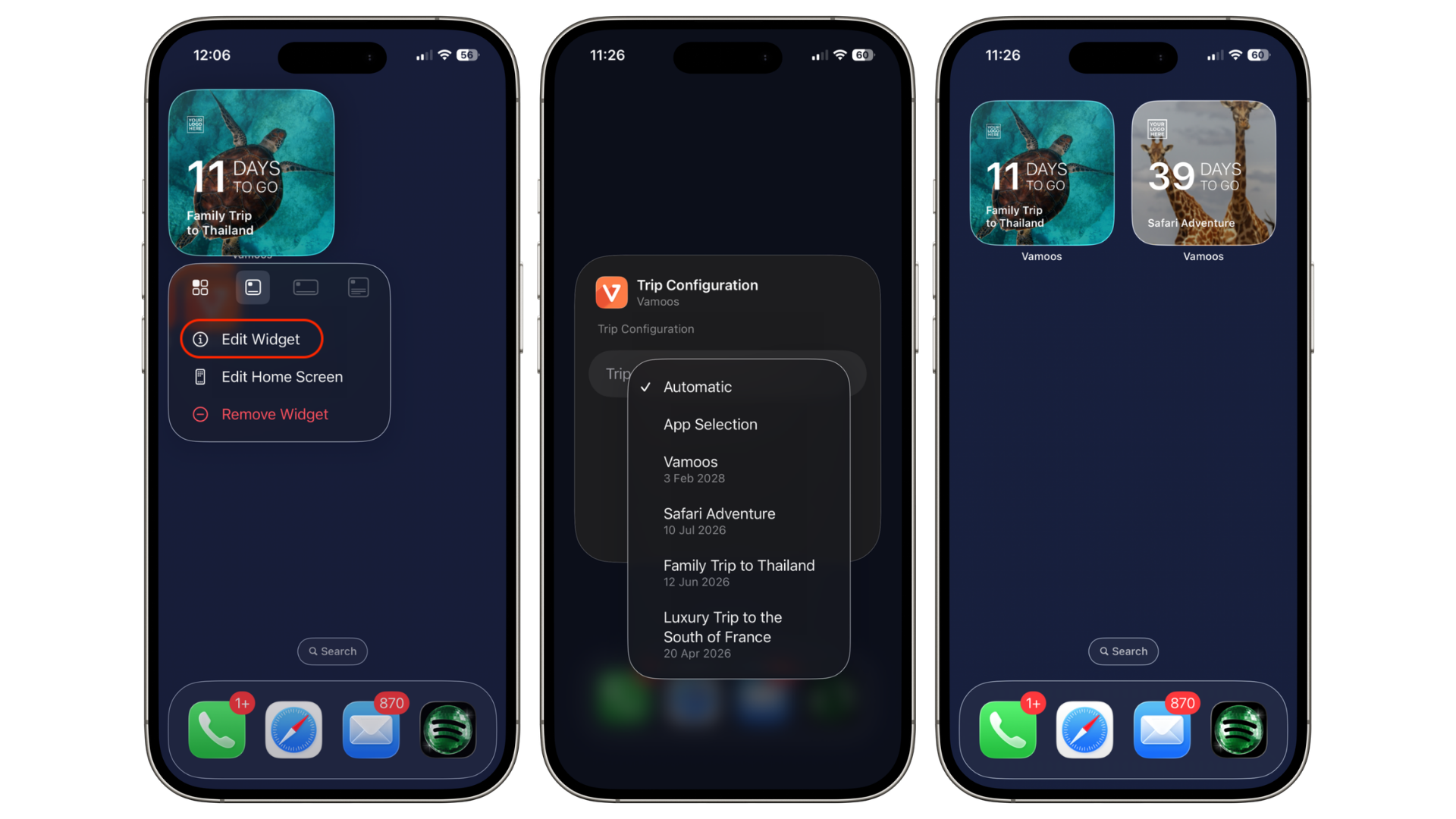
If you are signed in to multiple Vamoos trips, you can then change the trip the widget displays:
Step 4: Press and hold the widget on your home screen.
Step 5: Click 'Edit Widget' and select the Trip Configuration and choose your desired trip.
Step 6: Repeat all of the above to add as many widgets as you'd like.
How to set up an Android Widget
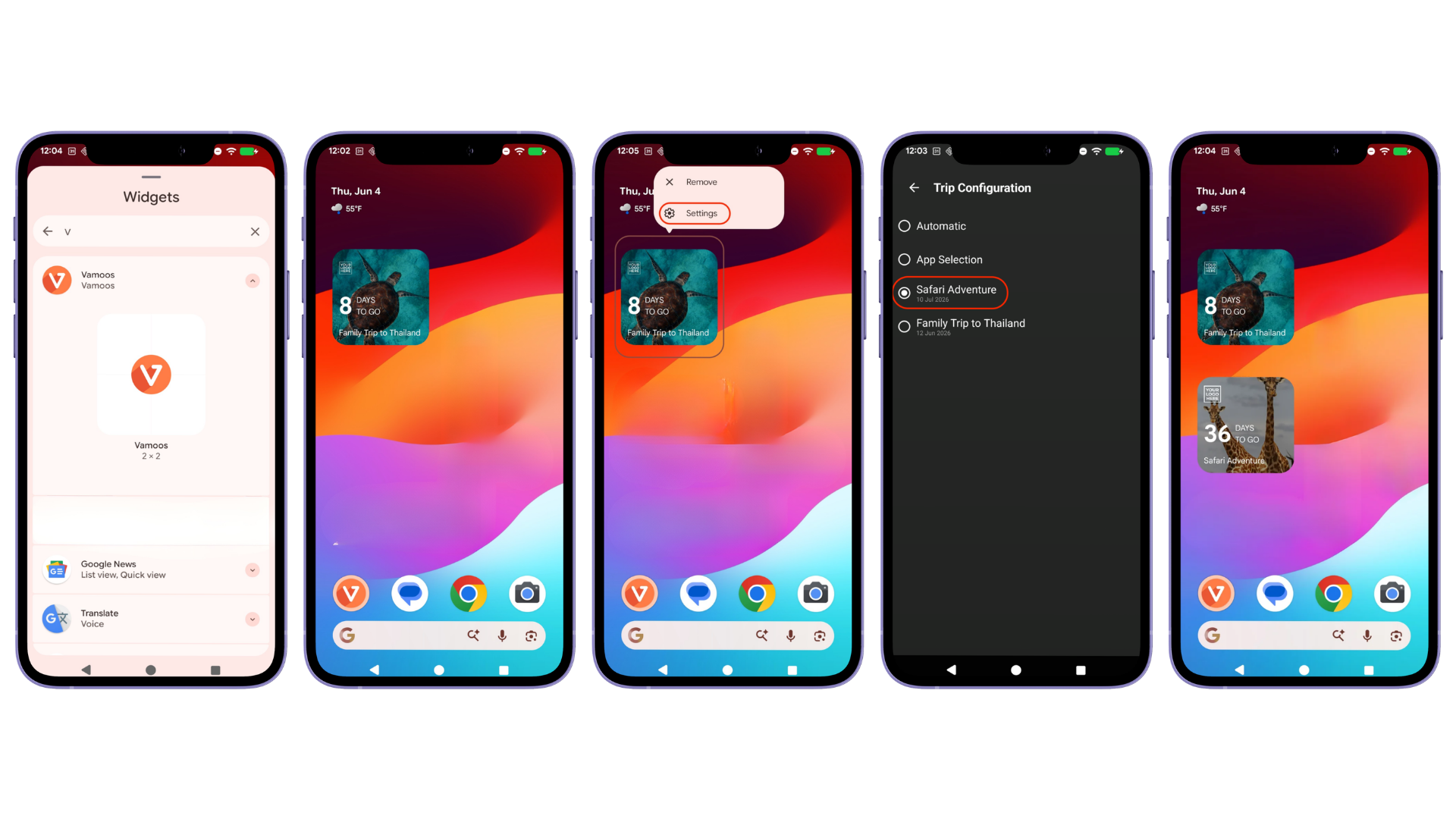
Step 1: Press and hold on your device's home screen and tap on Widgets. (on some phones, it might look like a small icon or be grouped with 'Home screen settings').
Step 2: Select Vamoos from the available list of apps.
Step 3: Select (2X2) and click on Add so the Widget is added to your homescreen.
If you are signed in to multiple Vamoos trips, you can then change the trip the widget displays:
Step 4: Press and hold the widget on your home screen.
Step 5: Select Settings and choose your desired trip.
Step 6: Repeat all of the above to add as many widgets as you'd like.
If you have any further questions or need help with this, contact us at support@vamoos.com.