
Single Sign-On: sync trips across different devices
✅ For travel companies
Sync past trips across devices effortlessly with our new Single Sign-On feature. Customers can enjoy seamless access to their entire travel history anytime, anywhere.
In this article:
What is Single Sign-On?
Single Sign-On (SSO) allows customers to log in to the Vamoos app using their Apple or Google accounts.
By doing this, your customers can associate all their past holidays with their own personal Vamoos account. This means that if they change devices, they can simply click one button and bring up all their past trips associated with their account.
If customer names and emails are added in the Vamoos Portal, they don’t need a User ID or Passcode. Logging in with Apple/Google automatically downloads their latest holiday.
If emails aren’t added, they can still use Apple/Google login, but must load trips using User ID & Passcode.
What are the benefits of Single Sign-On?
Quick login across devices (phone, tablet, browser) with backed-up trips. It makes changing from a phone to a tablet or web browser a seamless experience as it remembers and backs up their trips between devices.
For custom white-label apps, you can use an OpenID-compatible login so customers only need one set of credentials for both your site and app.
SSO paves the way for features like personalisation (different flights/documents/activities per traveller), group login tracking, and more.
How does it work for customers on the app?
The Vamoos login screen now includes “Sign in with Apple” (iOS) or “Sign in with Google” (Android).
Clicking this opens a pop-up to authenticate with their chosen account.
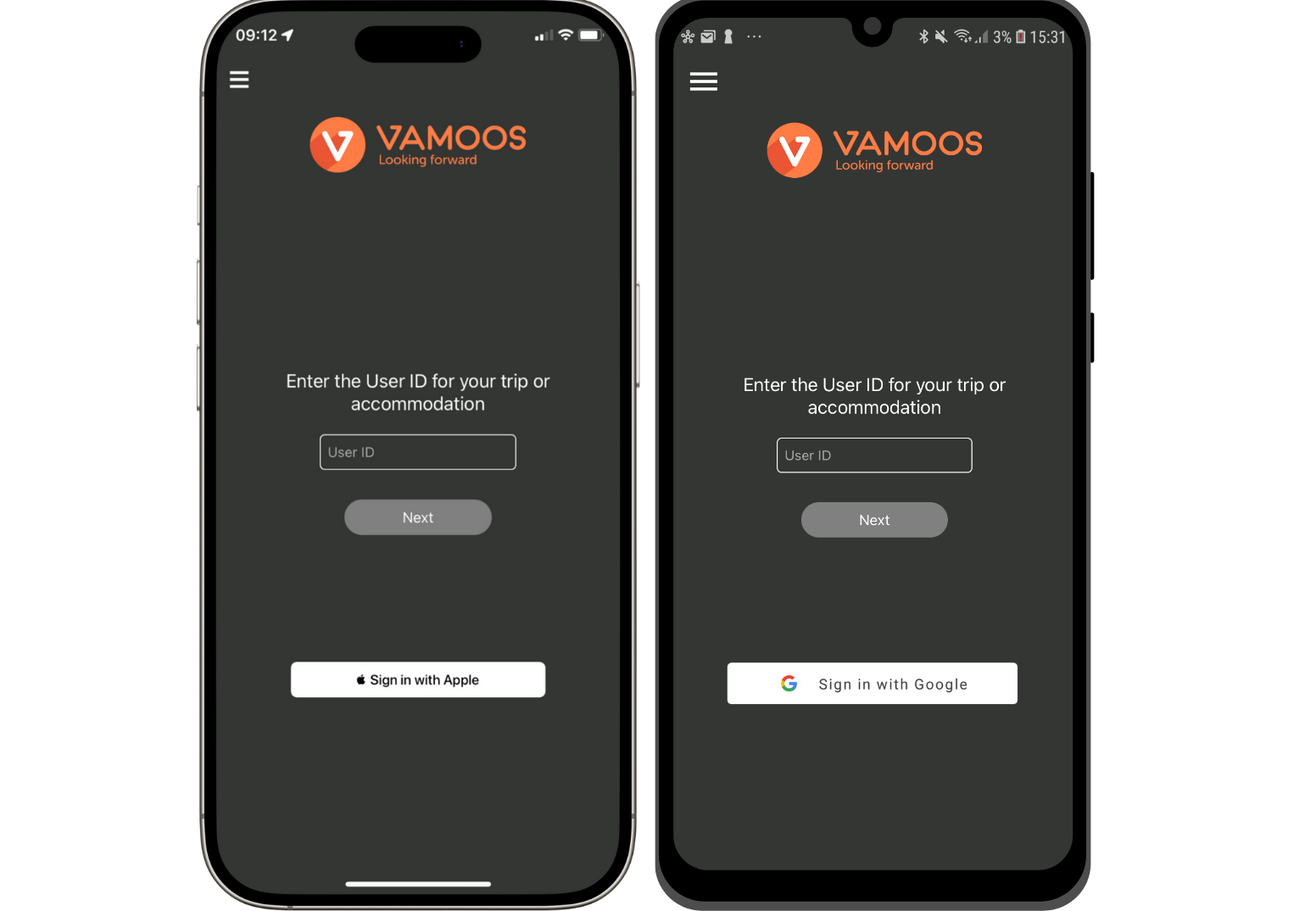
Once logged in:
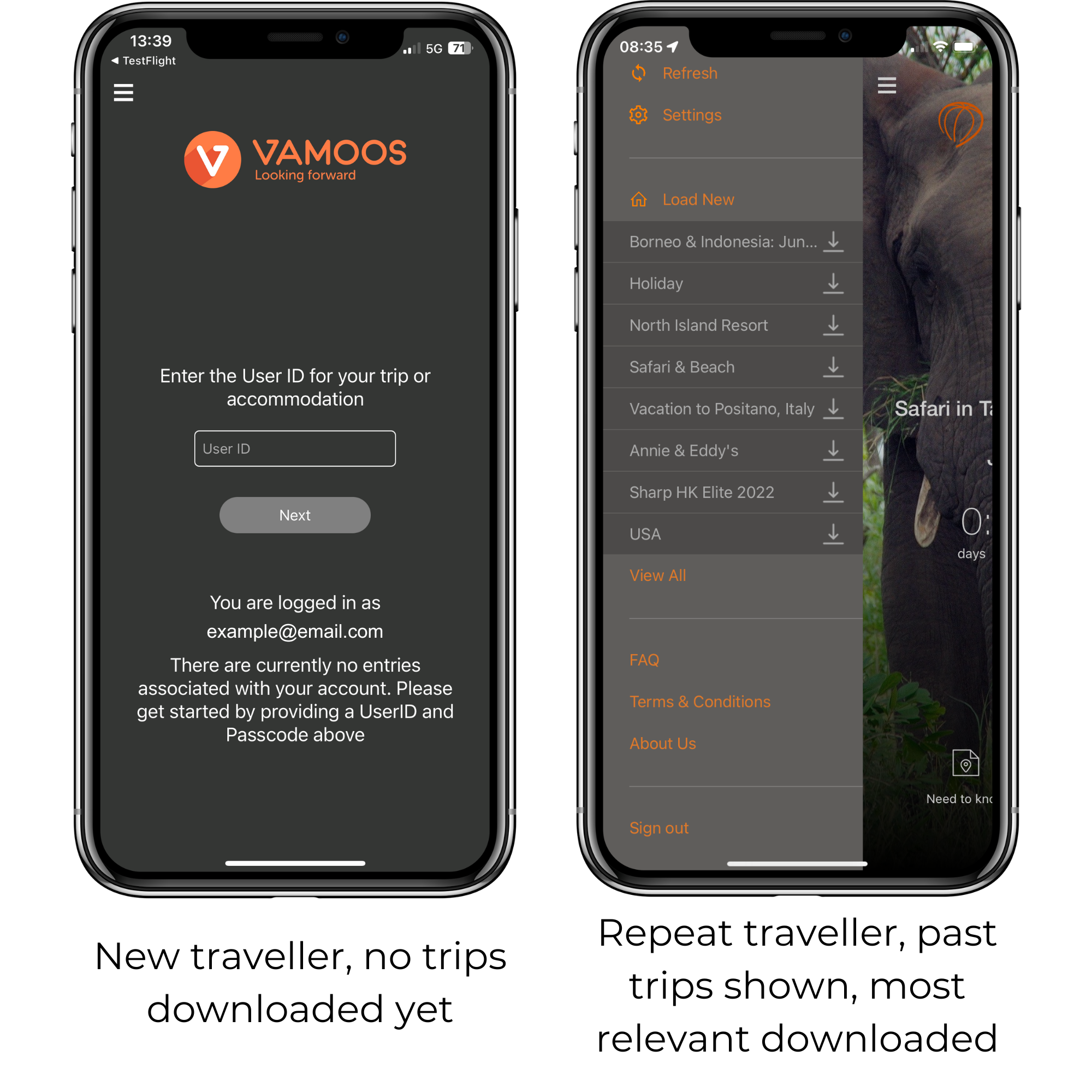
If trips were already accessed on that device, they are now linked to the account.
If no trips were loaded, the customer enters a User ID & Passcode to associate them with their account.
Trips remain tied to their Apple/Google login, so switching devices is seamless - logging in again restores all past trips.
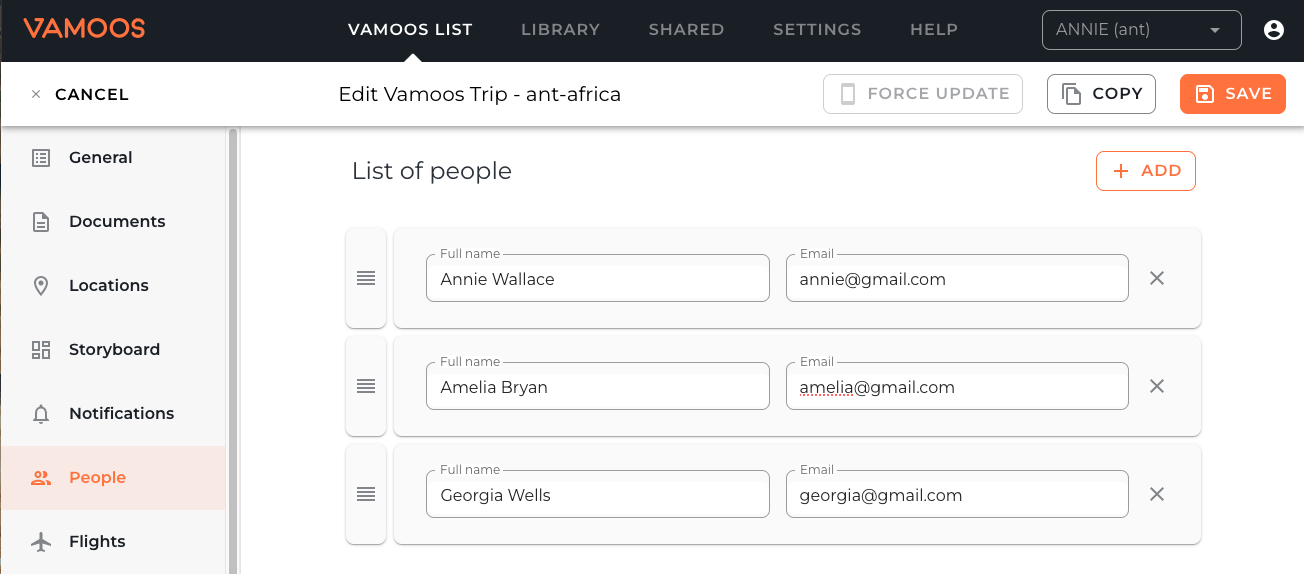
How does this work if the customer’s email addresses are in the Vamoos Portal?
Add customer emails under the People section of the Portal.
When customers log in with Apple/Google (using that same email), their trip downloads automatically, along with past trips linked to that email.
This creates a smoother, more secure login process.
How does this work for Custom White-Label Apps?
With your own white-label app, you can choose login options:
Recommended: Allow Apple/Google login, still sharing trip info via User ID & Passcode but with trips saved to accounts.
Integrate with your own OpenID-compatible login (same credentials as your website).
Offer a combination of User ID & Passcode, Apple/Google login, or your OpenID login.
Note: To integrate your own system, it must be OpenID compatible. Contact support@vamoos.com for details.
FAQs
Q: What if I only know the lead booker’s email, not the whole group?
A: Customers can share trips by entering other group members’ emails, giving them access.Q: What if a customer logs in with Apple/Google using a different email than the one shared with us?
A: If no trips appear, they’ll see a message prompting them to add an alternative email address to their account.Q: What if I don’t want to enter customer emails in the Portal?
A: Nothing changes. You can still share trips using User ID & Passcode, but customers benefit from trips being backed up across devices.Q: Can I restrict access so customers must log in with email only (no User ID & Passcode)?
A: Yes. We can disable User ID & Passcode for your company so only Apple/Google login is supported. Contact us to enable this.Q: I want to add emails but don’t want customers to access trips too early. How do I prevent this?
A: Simply wait until you’re ready before entering their email addresses, or share the User ID & Passcode instead.
If you have any further questions or need help with this, you can contact us at support@vamoos.com.