
Top tips for choosing great images
✅ For travel companies
As Vamoos is such a visual app, choosing great, high-quality imagery is really important to make your itineraries stand out and wow your clients from the start.
In this article:
Homescreen images
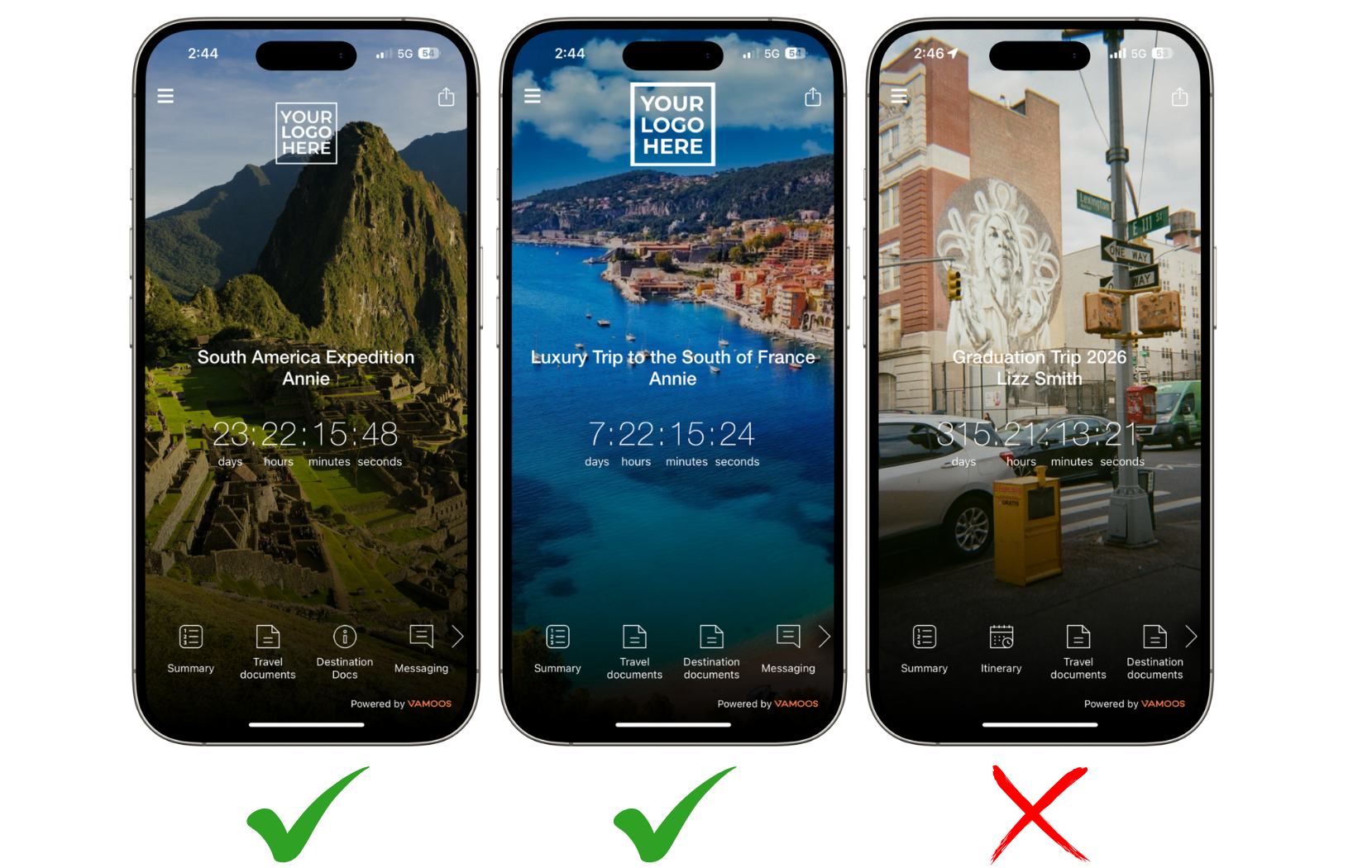
The homescreen is the first thing your clients will see when they log in. Choose a strong image that will impress them immediately. The best images are:
High quality
Phones and tablets are high-definition, so images should be too. Aim for 2048 x 2048 px. Most images above 1920 x 1080 px work well, but the most important dimension is height — aim for ~2000 px.Not too busy or white
As the overlay text is white, busy or pale images don’t look good. Remember your logo sits on top too. Simple landscapes or seascapes work best.Not cropped
Don’t crop to iPhone-only sizes — it won’t look good on an iPad. Vamoos auto-crops to fit each device.
Requirements:
Allowed file types: jpg, jpeg, png
Max file size: 12 MB
Recommended dimensions: 2048 x 2048 px
Examples: the first two images below are strong — crisp, simple, and make the overlay text stand out. The third is blurry, busy, and too pale, so the features get lost.
Storyboard images
The Vamoos Storyboard brings itineraries to life by letting you add an image for each section or day. The best images are:
High quality
As above, aim for 2048 x 2048 px (or at least above 1920 x 1080 px).Focal point in the centre
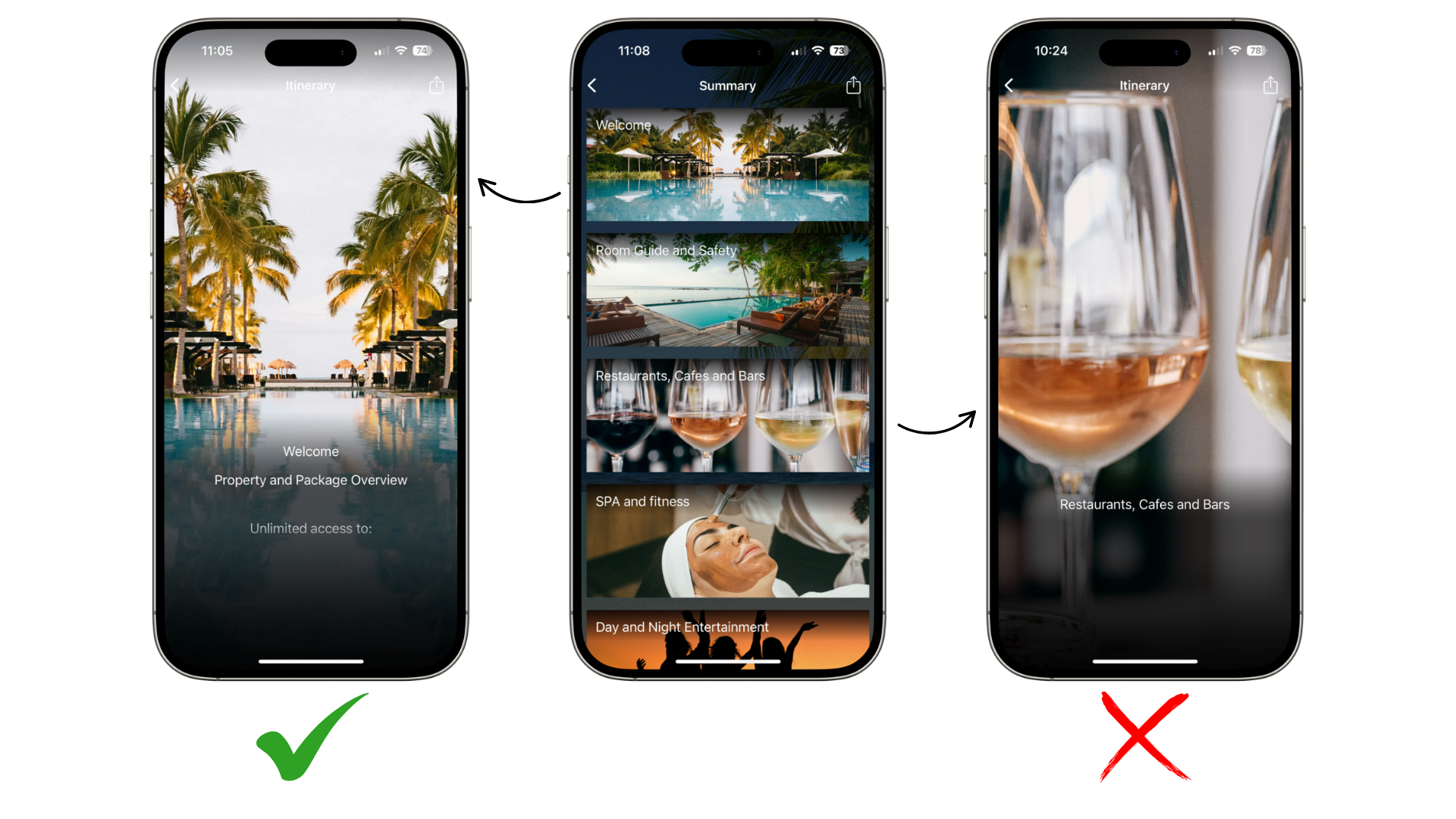
The storyboard has two views: summary and detailed. A centred focal point ensures the image looks good in both.
Requirements:
Allowed file types: jpg, jpeg, png
Max file size: 12 MB
Recommended dimensions: 2048 x 2048 px
Example: both images look fine in the summary view, but only the pool works in the detailed view because it is centred.
Where to find great imagery
Stock image websites: these are fantastic for high-quality, royalty-free travel images. We recommend:
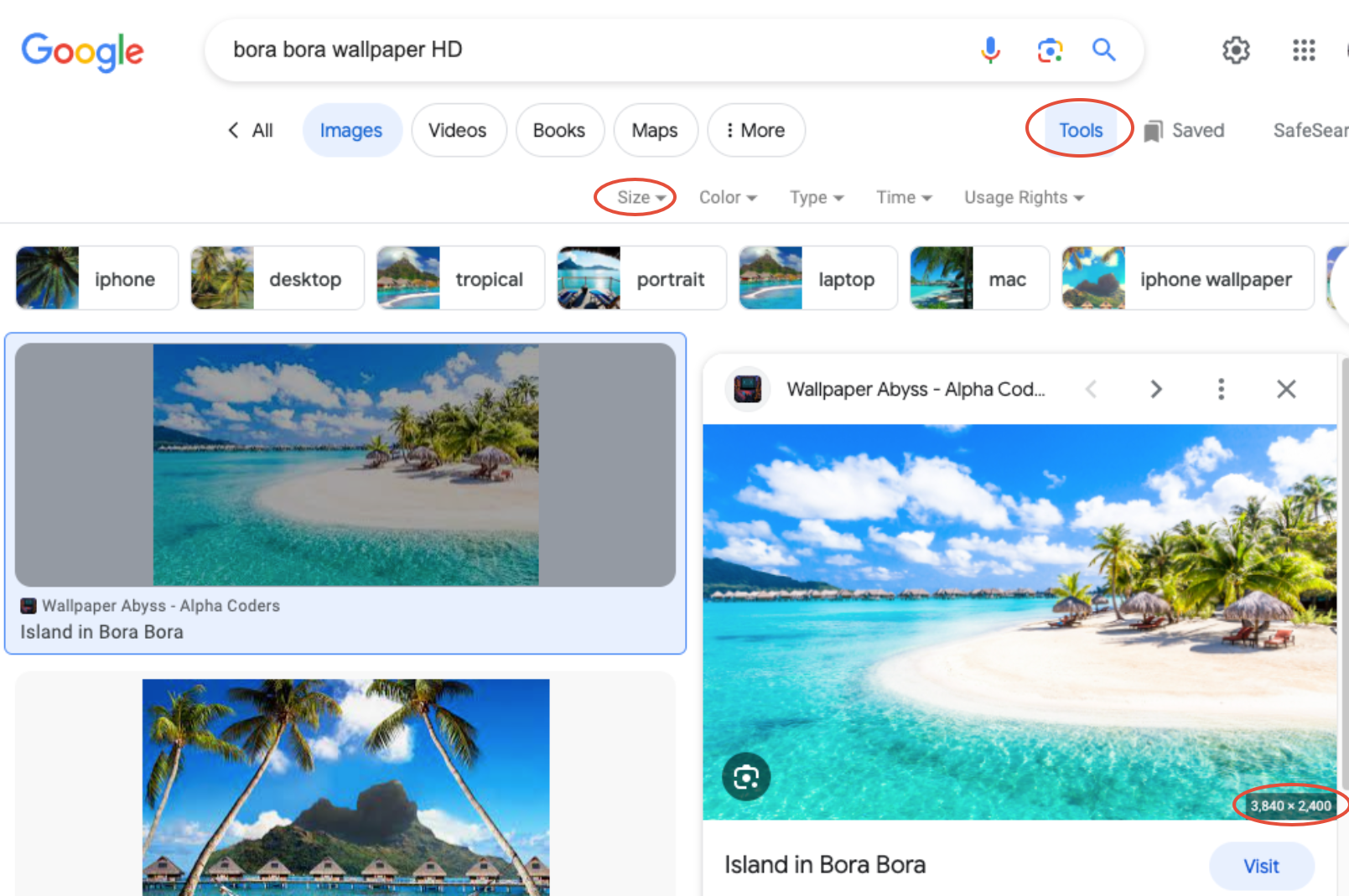
Google Images: a good option if you use search tools. Filter by “Large” images, and try search terms like Wallpaper, HD or Background. You can also filter by usage rights. Always check the dimensions in the bottom right corner.
If you have any further questions or need help with this, contact us at support@vamoos.com