
Creating templates and duplicating Trips
✅ For travel companies
Save yourself time by setting up templates in Vamoos. Rather than creating a new record from scratch for each booking, use a template and cut down your workload. Even the most bespoke trips will have shared sections you can reuse.
In this article:
How do I create a template trip?
There isn’t an official template section in Vamoos, so it’s important to name your template trips clearly so you can find them quickly in your Vamoos List.
Create a generic trip for a destination (or type of holiday) and add any shared information. Examples of what to include:
Homescreen image (e.g. a destination-specific photo used for all trips)
Destination-based documents (e.g. useful phrases, tipping advice, reading lists)
Pre- and post-departure notifications (e.g. “3 days before: don’t forget your passport!”)
Enable Vamoos messaging
Link an Inspiration brochure for future travel

TOP TIP: add the word TEMPLATE to the passcode or client reference box to make templates easy to search for in your Vamoos List.
How do I duplicate a trip?
To duplicate a trip, locate it in your Vamoos List. There are two ways to copy:
Scroll to the right on your Vamoos List and click the Duplicate icon.
Open the trip and press the COPY button in the top bar.
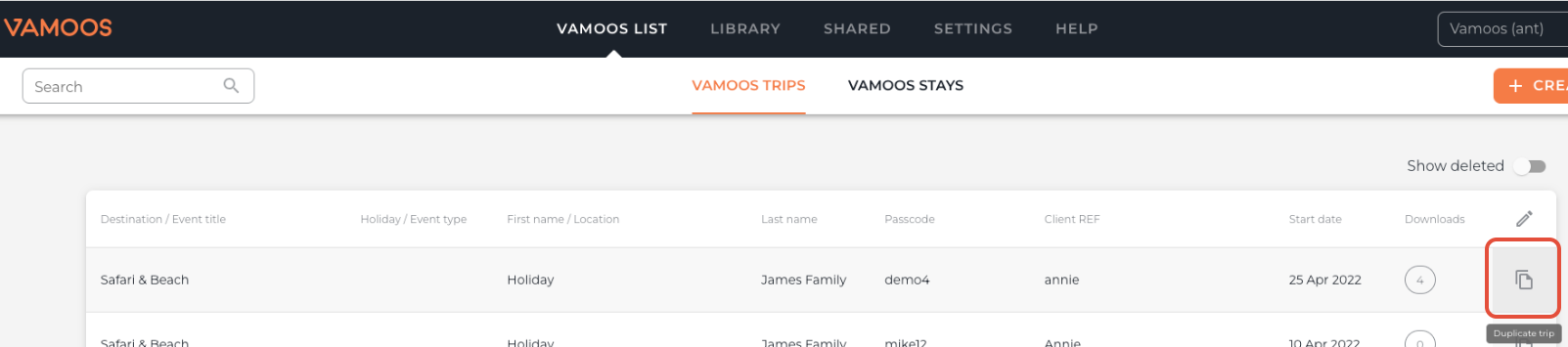

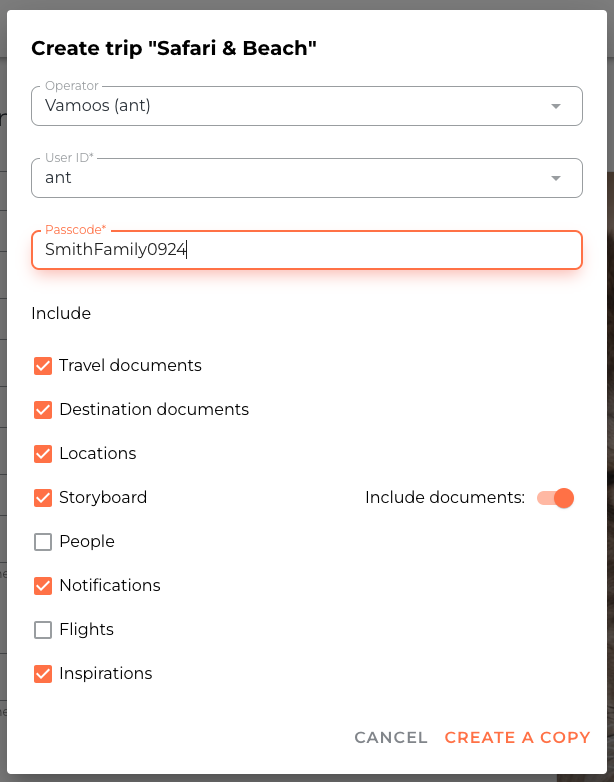
Once you click Copy or Duplicate, a pop-up will appear. Here you can:
Assign a new passcode
Choose which sections to copy across by ticking the boxes
Click Create a Copy, and your new trip will open automatically, ready for editing.
If you have any further questions or need help with this, contact us at support@vamoos.com.