
Promote Vamoos to your clients
✅ For travel companies and hotels
In this guide, we’ll show you how to create promotional content for Vamoos in Canva - so you can send clients a polished preview of the app!
In this article:
Step 1: Create a free Canva account
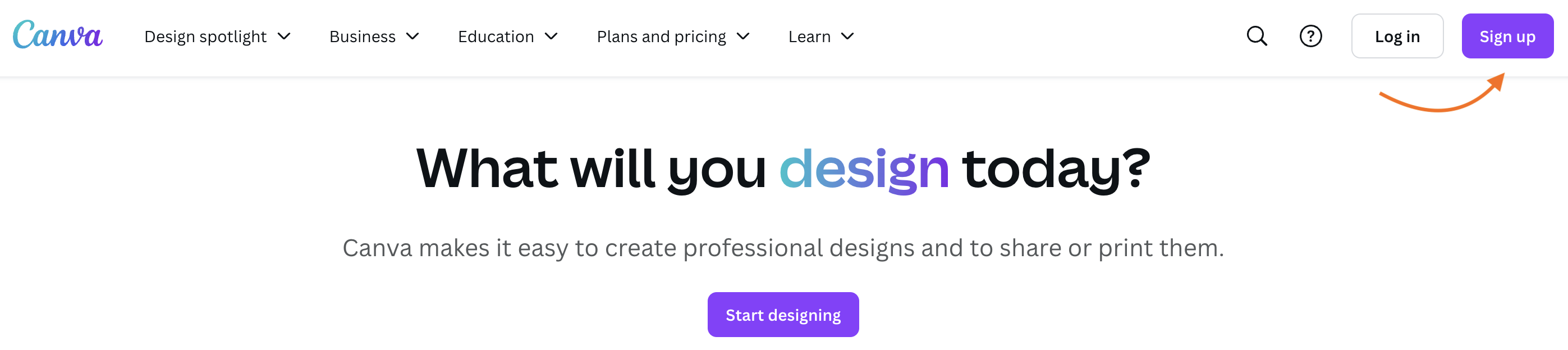
Go to canva.com and create a free Canva account, or log in if you already have one.
Step 2: Take mobile screenshots of your Trip or Stay
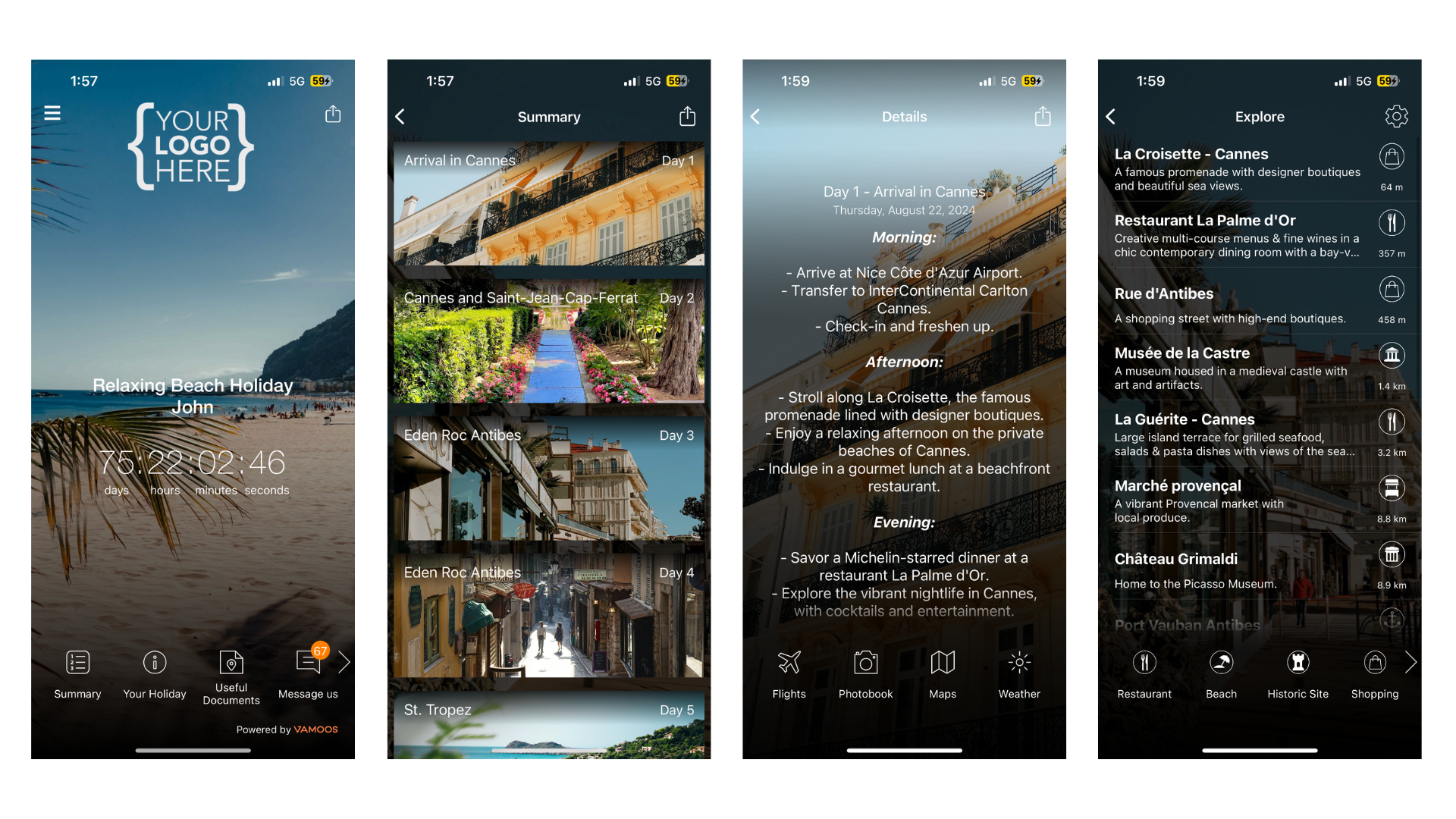
Open the Vamoos app on your mobile and log into the Trip or Stay you want to showcase.
Take screenshots of the features you’d like to promote:
Trips: Home page, Summary + Details page, Map, or Explore.
Stays: Gallery, Directory, Daily Activities, Map, or Info page.
Send the screenshots to your desktop and save the files.
Step 3: Begin a presentation on Canva
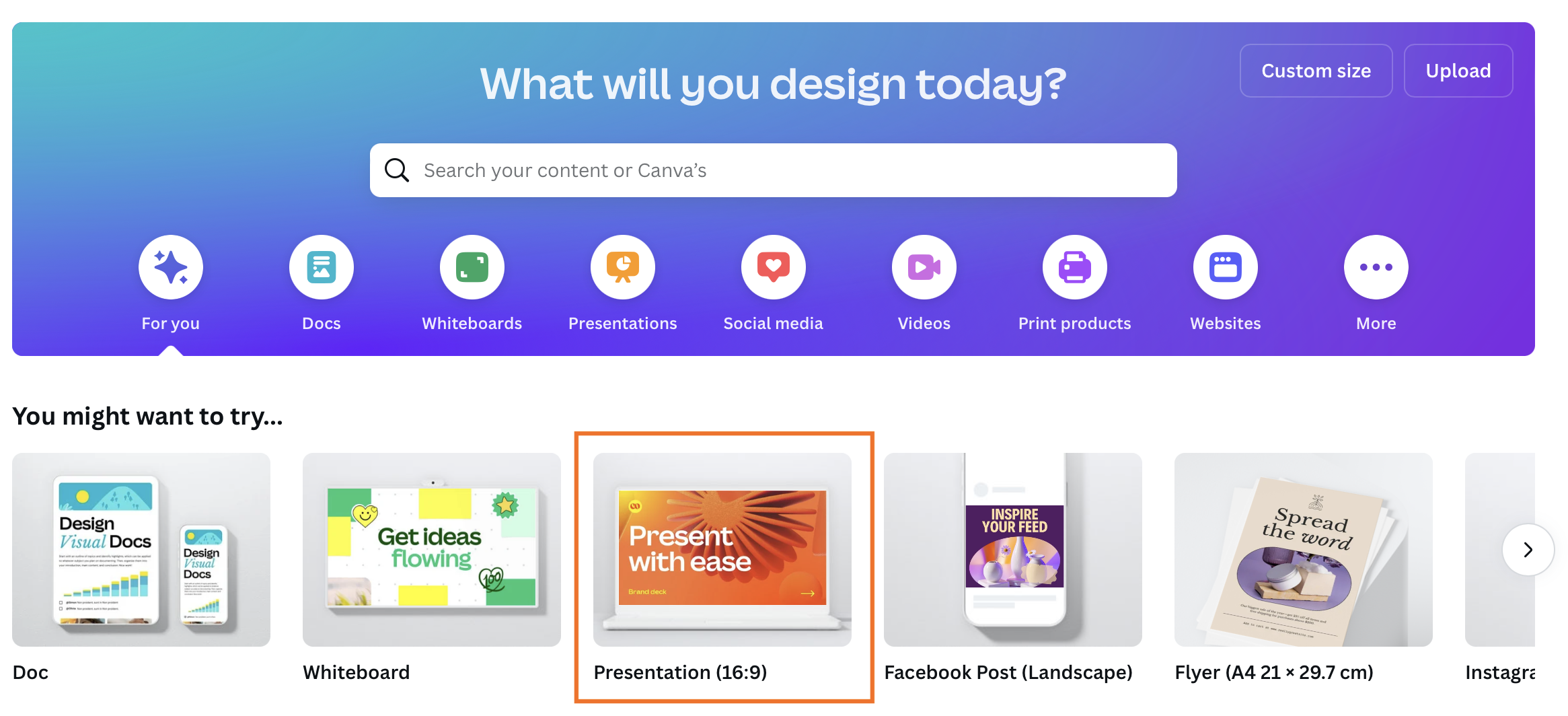
Open Canva and create a new Presentation. For single screenshots, choose Poster.
Go to Uploads on the left menu, click Upload files, and bring in your Vamoos screenshots.
Step 4: Create your promotional screenshots
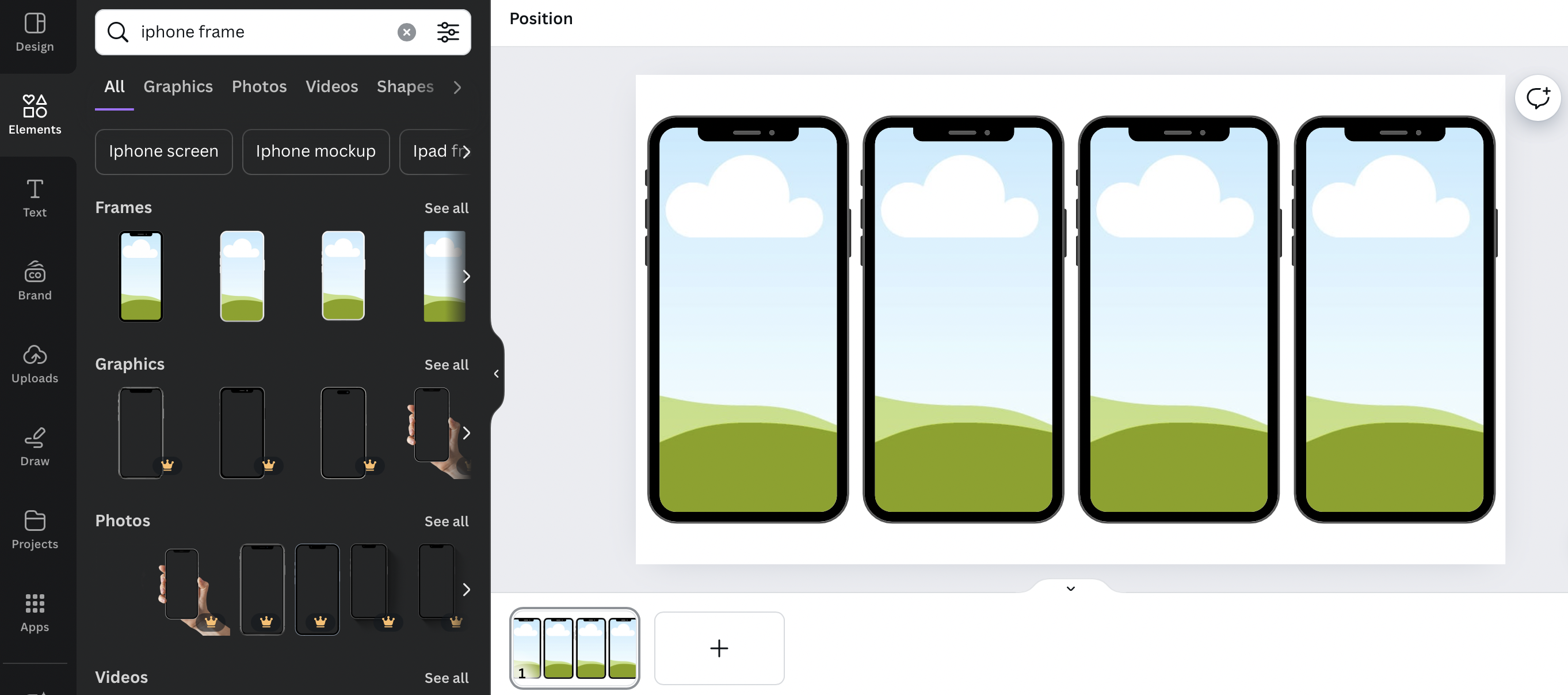
Go to Elements in Canva and search for “New iPhone frame”.
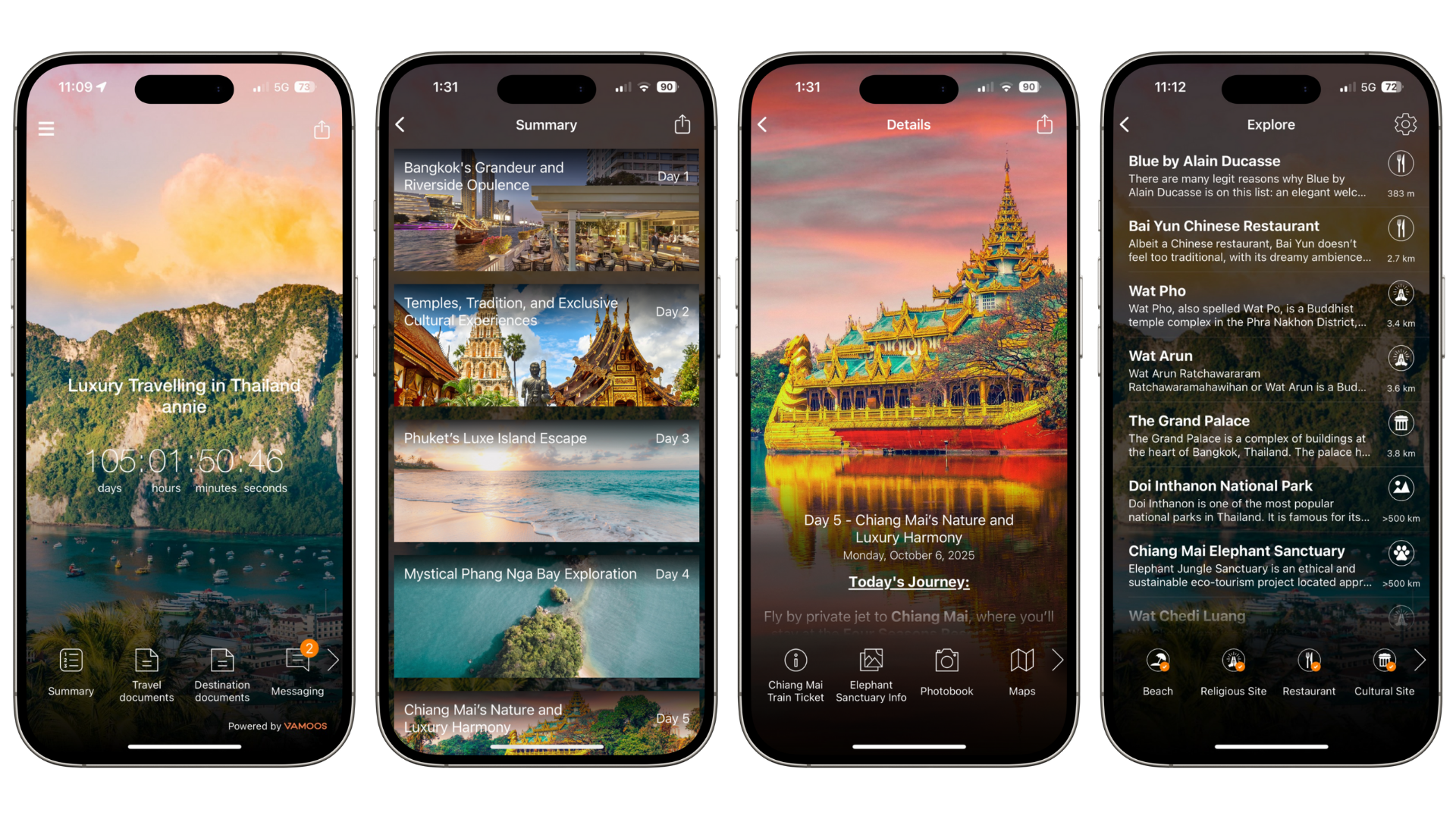
Add 2–4 frames to your presentation, resize, and space them evenly.
Drag and drop your Vamoos screenshots into each iPhone frame.
Once complete, click Share in the top right and download the file in your preferred format.
Step 5: Send the material to (prospective) clients
You now have professional-looking promotional screenshots that show clients exactly what Vamoos will look like for their Trip or Stay.
Use these images on your website, in client proposals, or send them directly to prospective clients to preview the experience.
If you have any further questions or need help, you can contact us at support@vamoos.com.