
Vouchers: display local promotions
✅ For Hotels & Accommodation
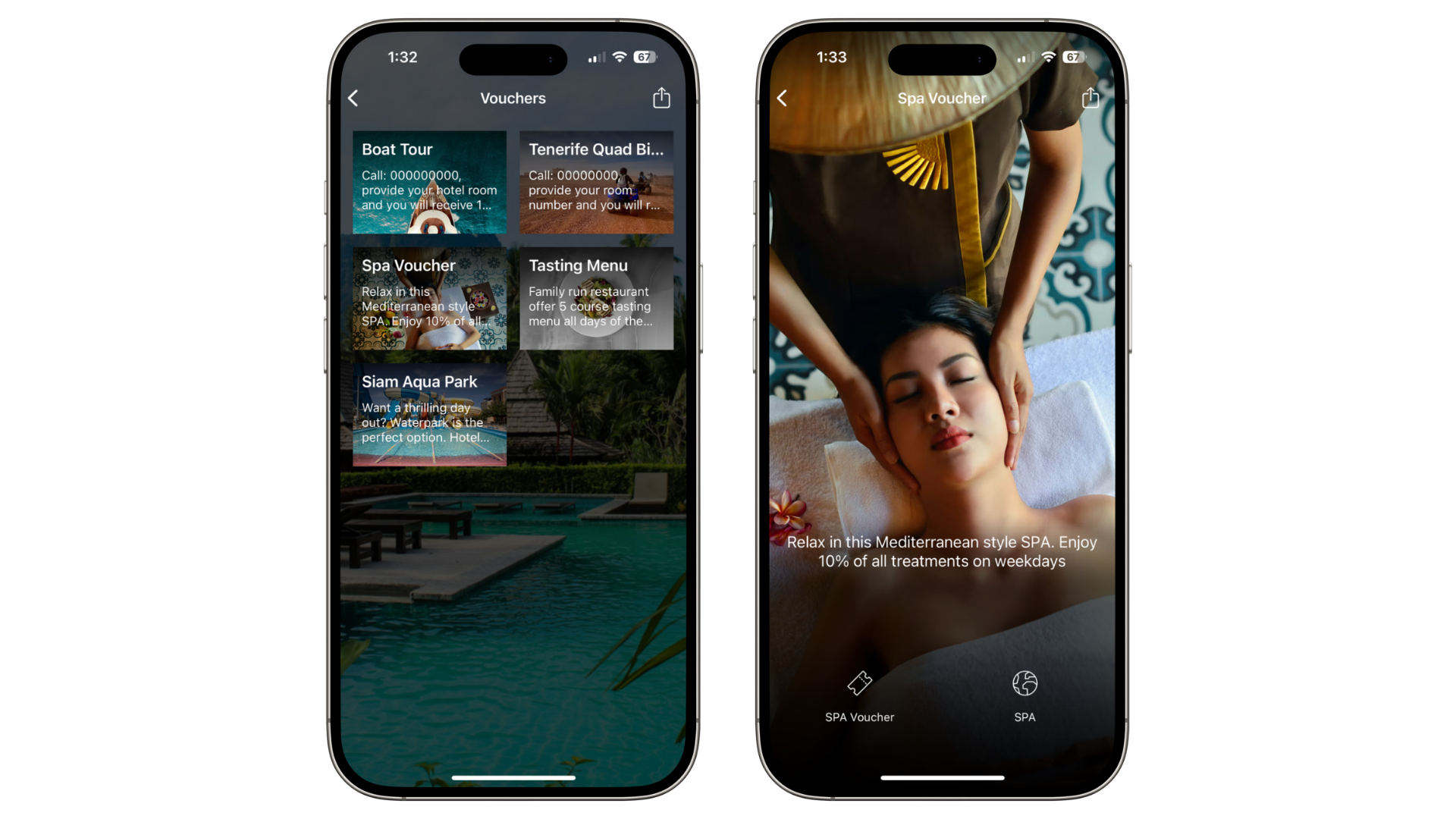
Vouchers on your app are a great way to offer guests exclusive deals and promotions for your property and local vendors’ goods and services.
In this article:
Introduction to Vouchers/Menus
Display local promotions exclusively for your guests.
Help partners promote the best activities in your area.
Easily update offers as they become available or expire.
Include in-house offers to maximise upsell.
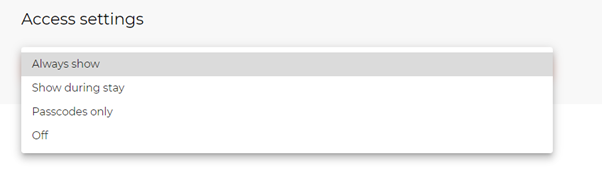
Access settings
Control who can view vouchers via Access Settings.
Make vouchers:
Visible at all times
Visible only during a guest’s stay
Visible only with passcodes
Hidden
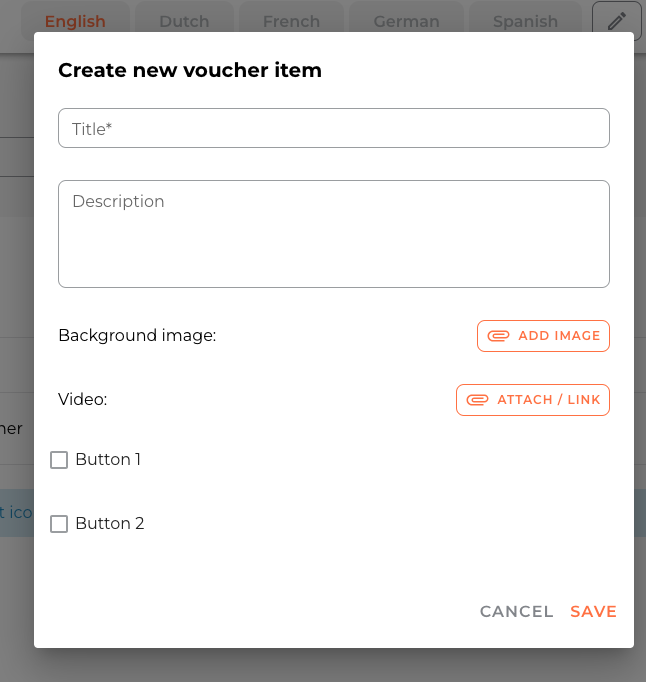
Creating a voucher
Go to Vouchers/Menus in the left-hand menu.
Select + Add.

Voucher details
Title: name of the voucher/menu.
Description: overview or details of the offer.
Background image: image related to the voucher/menu.
Video: optional promotional video.
Buttons: add up to two CTAs with PDFs or URLs.
Tick to enable a button, give it a name, and choose an icon.
Click Attach to link a PDF or URL.
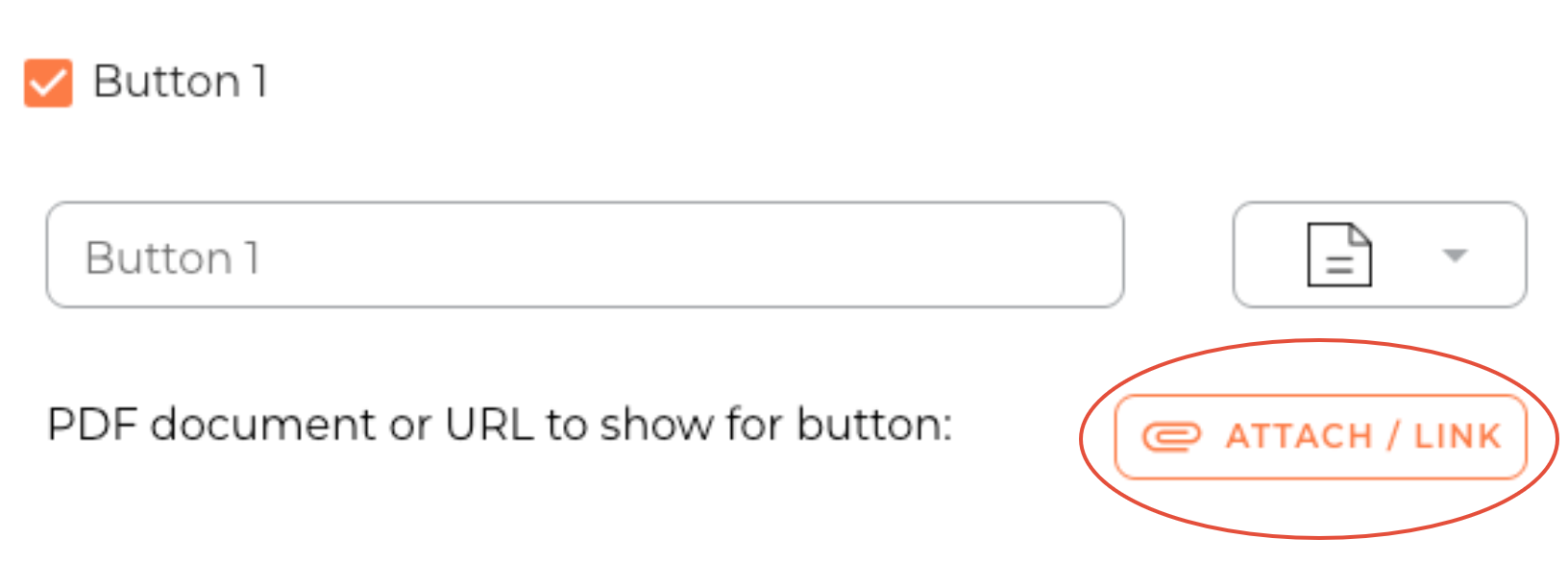
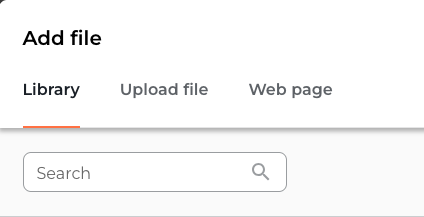
Upload from your library, your computer, or paste a URL.
Click Save when finished.
Activate vouchers
Choose which vouchers are displayed to guests.
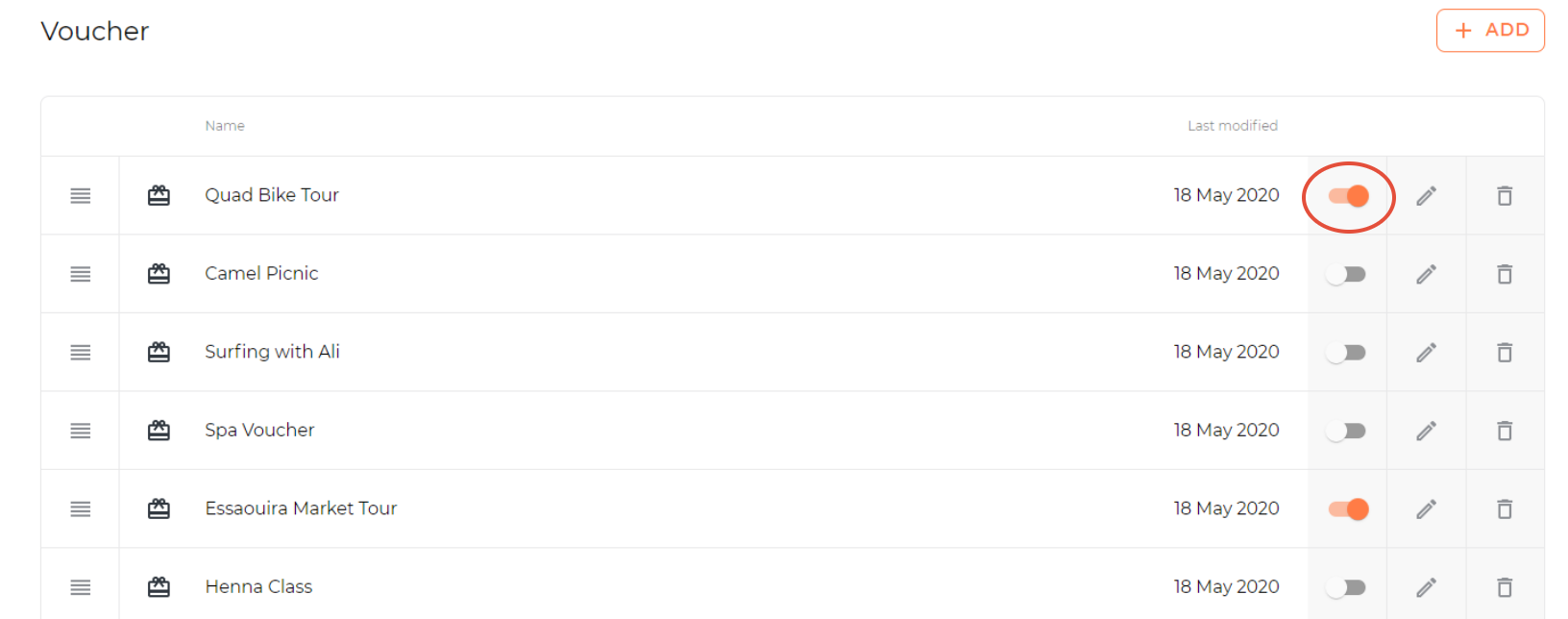
New vouchers are active by default.
Toggle the switch to deactivate or reactivate any voucher.
Use activation to manage seasonal availability and promotions.
Editing vouchers
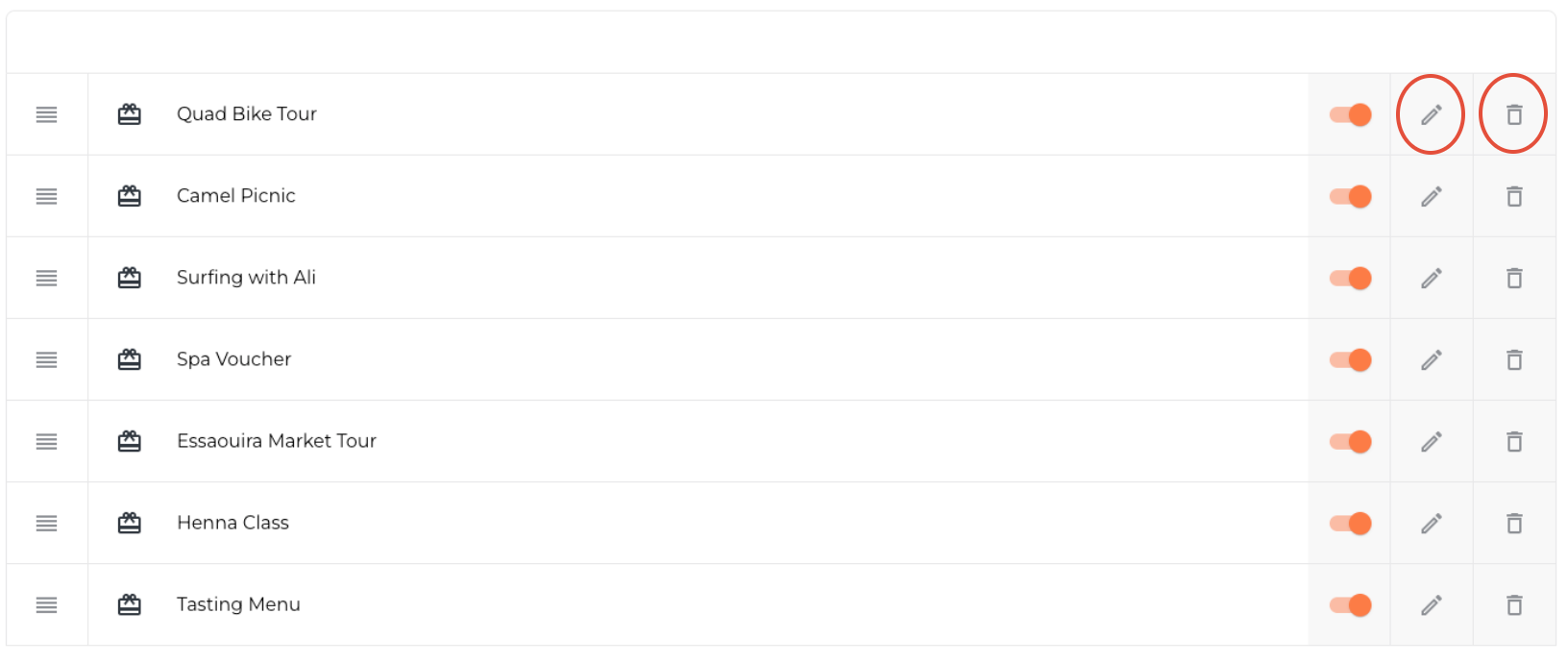
Click the pencil icon to edit a voucher.
Click the bin icon to delete a voucher.
TOP TIP: Use Vouchers to stimulate bookings and on-site sales—e.g., a discount in your boutique or a set-menu dinner voucher.
If you have any further questions or need help with this, contact us at support@vamoos.com.