
Messaging: communicate with your guests
✅ For Hotels & Accommodation
Start engaging with your guests from the minute they book, and give them an easy way to communicate with your staff whenever needed.
In this article:
Introduction to Messaging
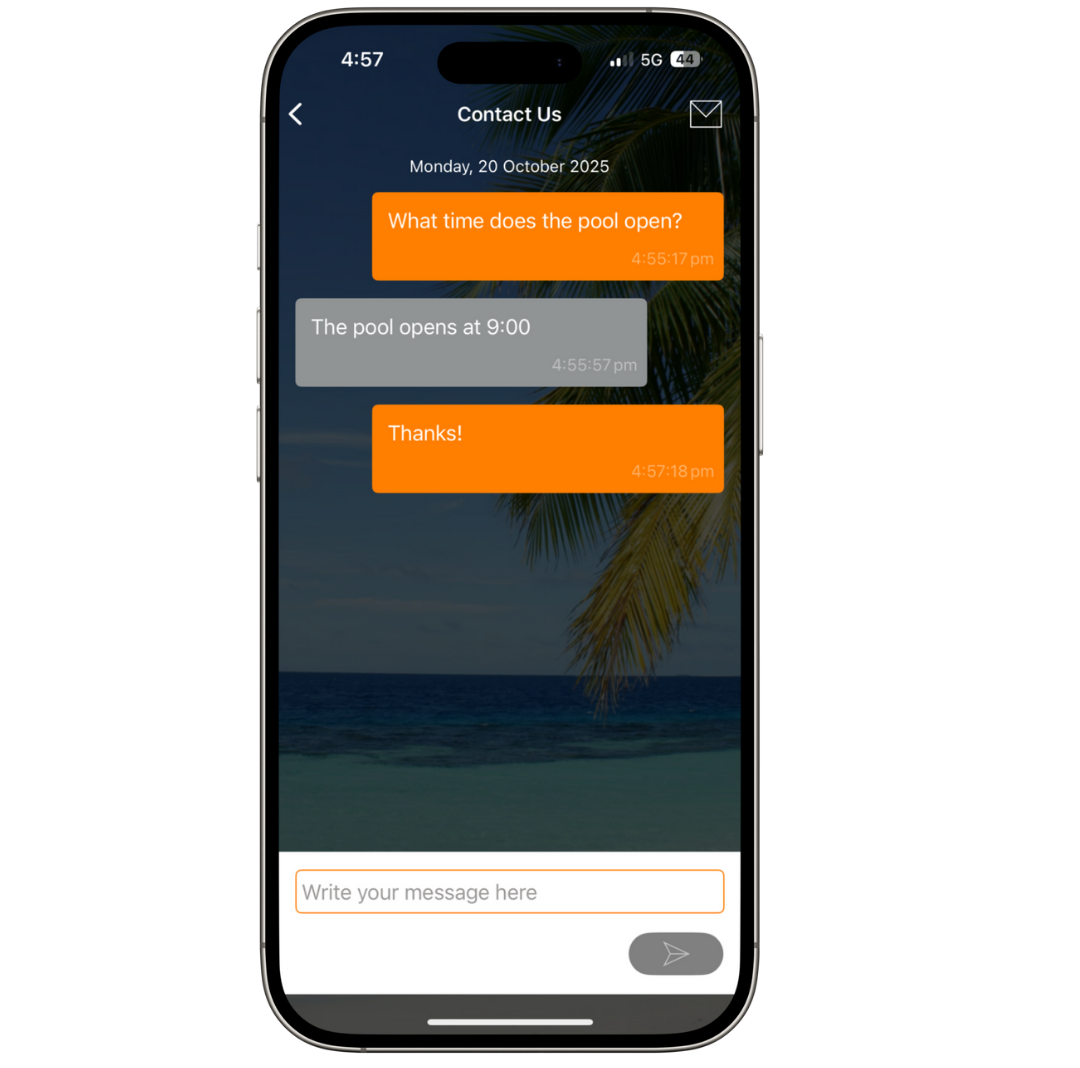
Messaging on the Vamoos app gives guests a simple way to stay in touch.
It provides you with a ready-made communication channel.
With a simple chat layout, it’s easy for guests to use without hassle.
Access settings
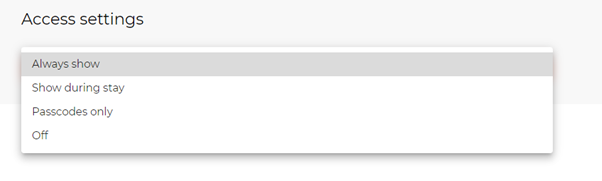
Control who can see Messaging via Access Settings.
Daily Activities can be shown always, only during stay dates, only to those with passcodes, or hidden entirely.
How to set up Messaging
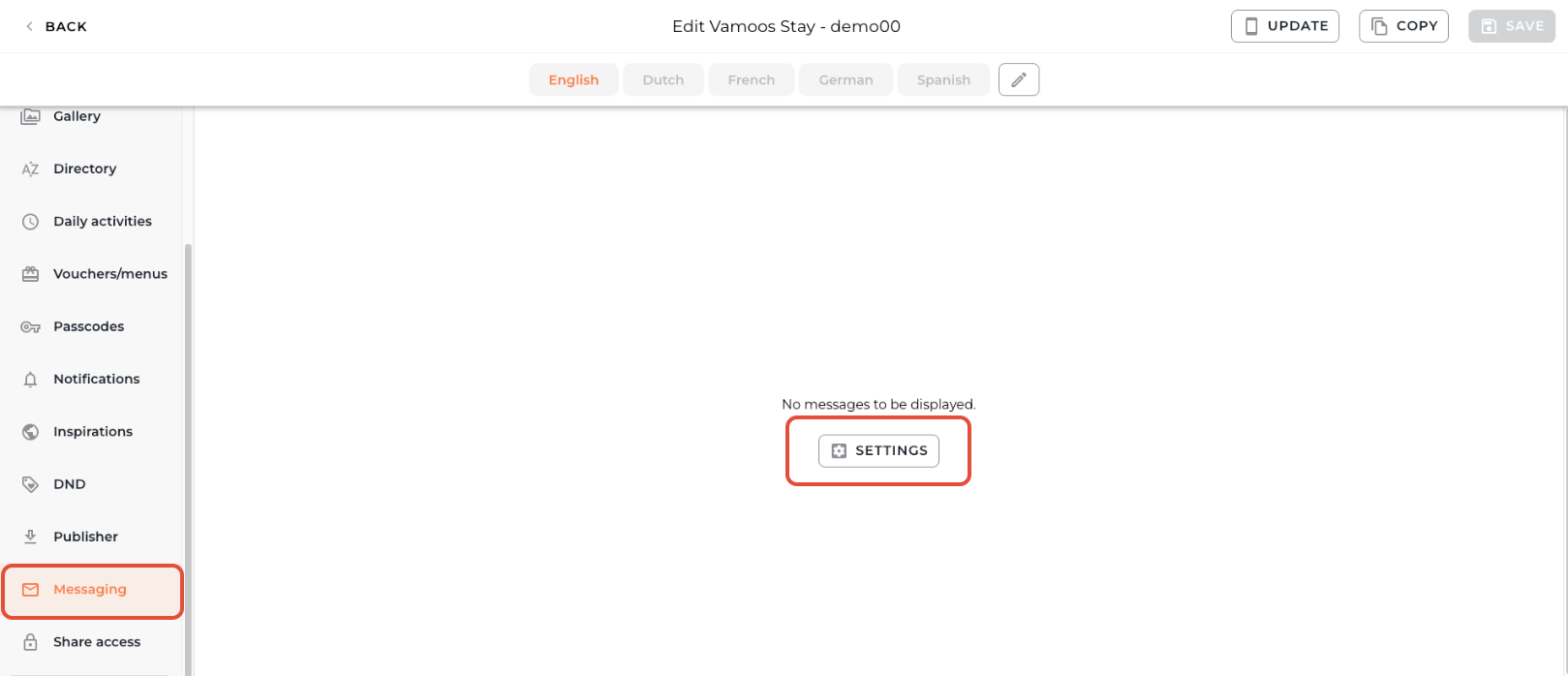
Go to your Vamoos List and open or create a property.
Open the Messaging section from the left-hand menu.
Messaging is off by default – click Settings to enable it.
Add one or more email addresses where incoming guest messages should be delivered.
Different emails can be set for before/after vs during a stay, so different teams can respond at the right time.
You can also set date ranges for when the “during” email is active.
Receiving and replying to messages
When a client sends a message, you can reply in two ways:
Via Email
Via the Vamoos Portal
Replying via email
When a client sends a message, the linked email address will receive a notification.
Simply hit Reply in your inbox, type your response, and it will be delivered back to the client’s app.
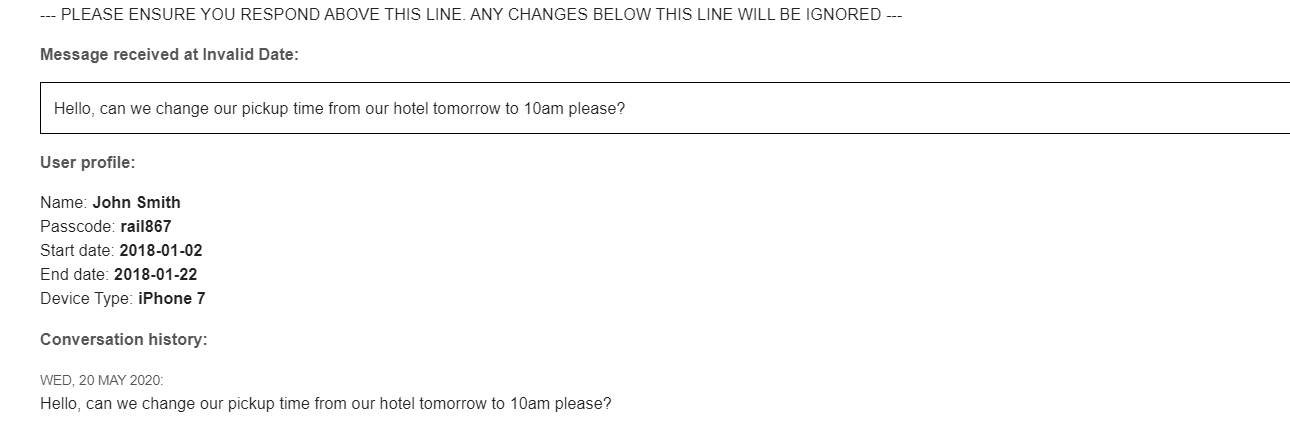
TOP TIP: Remove any email signatures when replying, so only your message is sent back into the app.
Replying via the Vamoos Portal
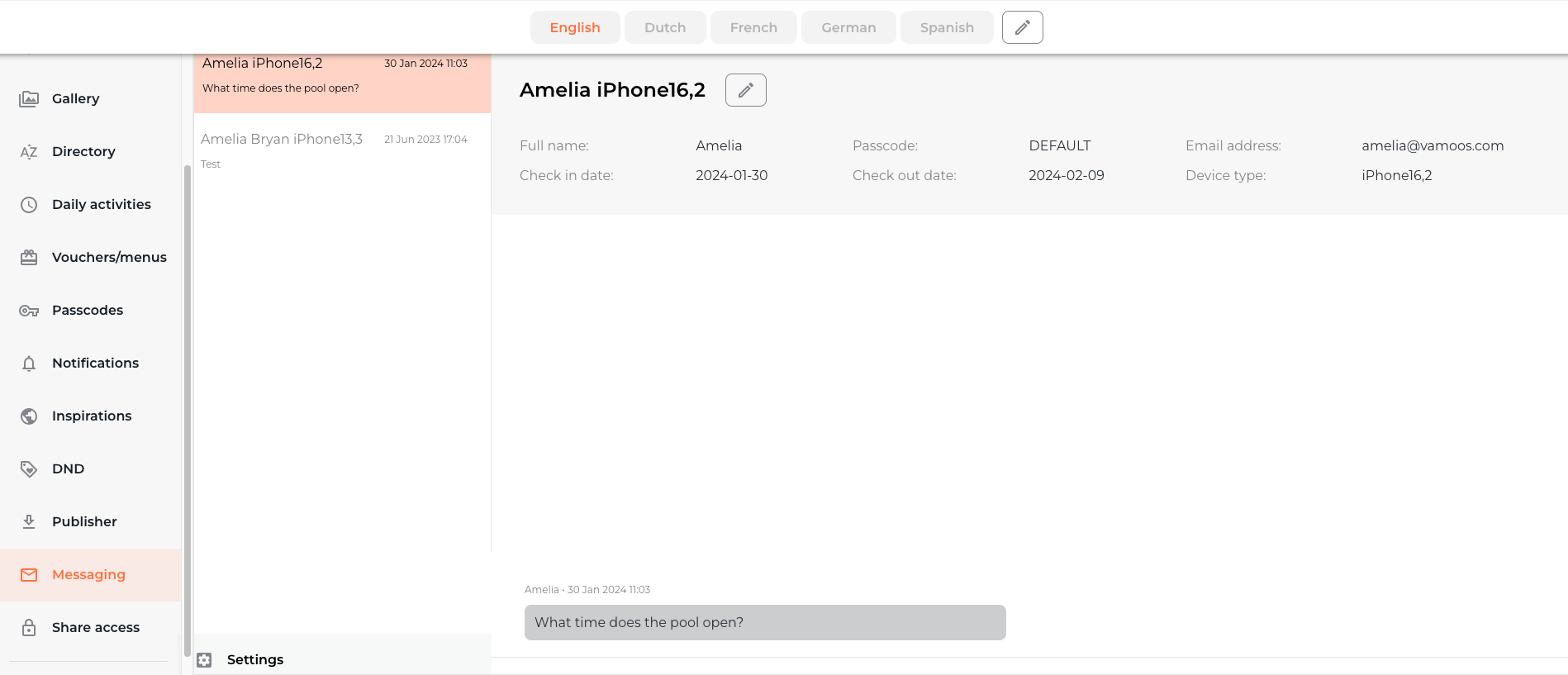
All incoming messages also appear in the property’s Messaging section.
Reply directly in the chat box and see the full conversation history.
If your guests have provided their details, you’ll see who is messaging, plus their check-in and check-out dates.
If you have any further questions or need help with this, contact us at support@vamoos.com.