
Passcodes: allow access to certain features
✅ For Hotels & Accommodation
Create a tiered access level and limit access to certain areas of your Vamoos Stay with Passcodes
In this article:
Introduction to Passcodes
While your app can be accessed without a passcode, you can create various passcodes that allow you to dictate who has access to certain features throughout the app
You can create multiple passcode groups, each offering different levels of access to the app's features
Setting up Passcodes
To create a passcode, go to your Vamoos list, open the property you have been editing and go to Passcodes in the menu down the left-hand side
To create a Passcode, click on Add
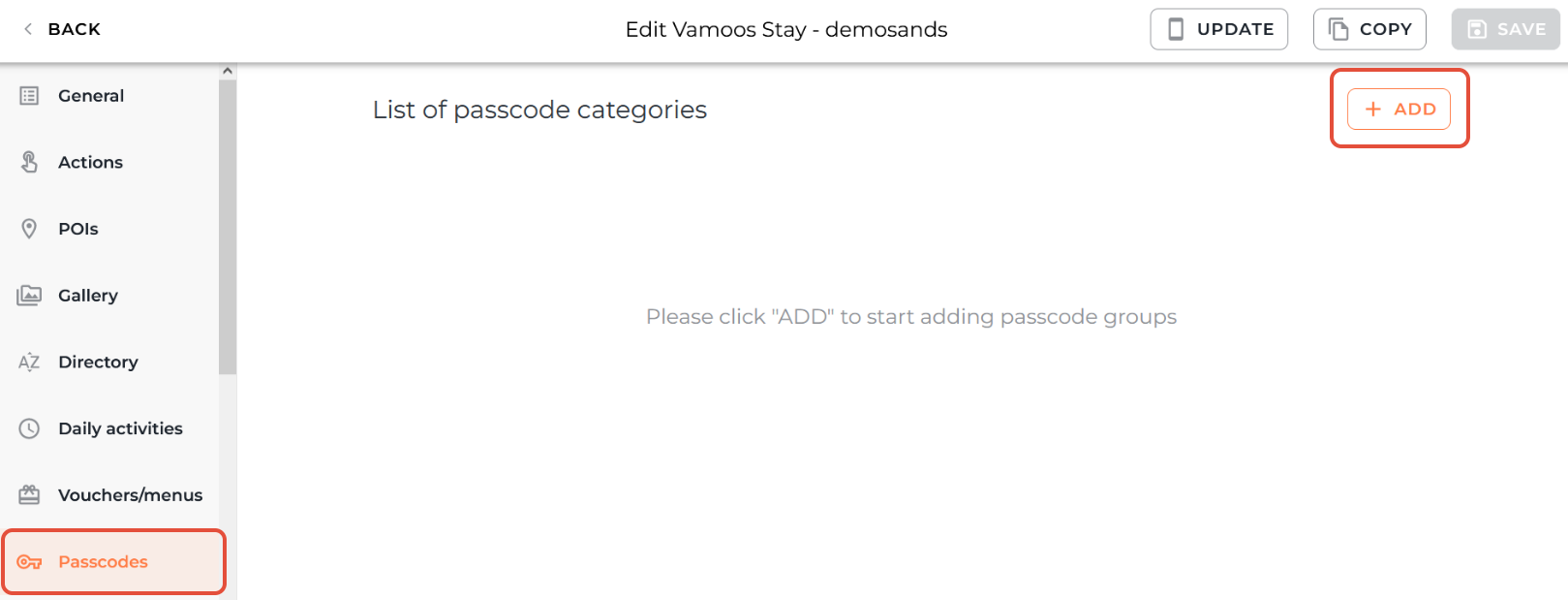
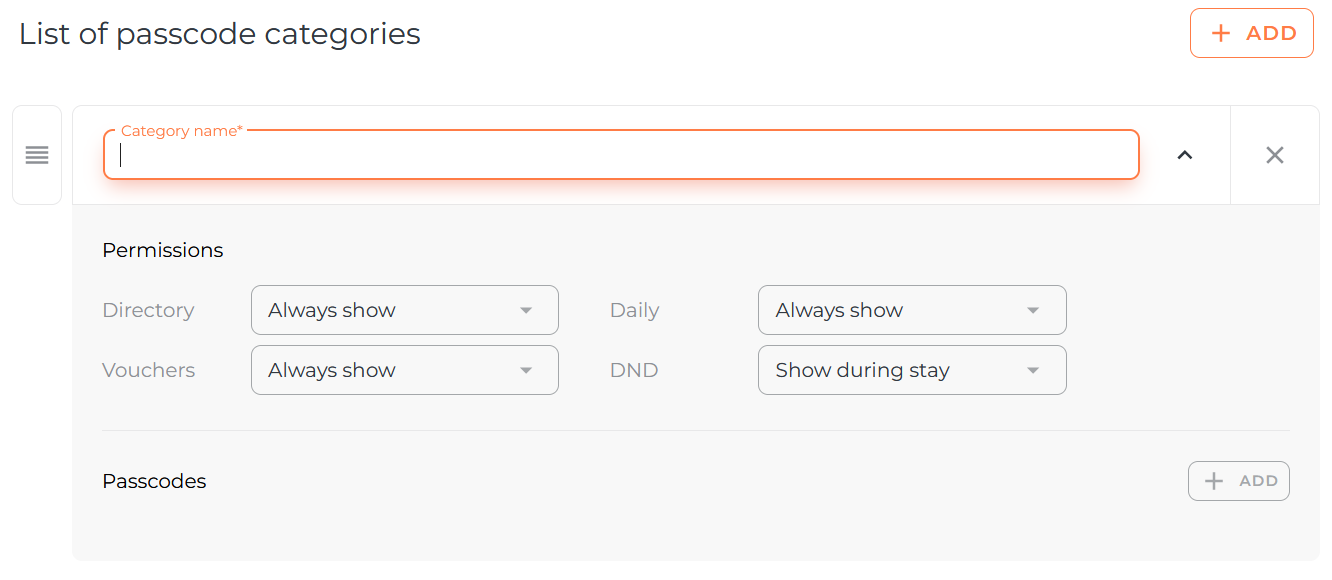
You can then give your Passcode a Category name. Choose a name which describes which access this will provide
For example, this could be Guests for a 'Guest Only' feature


Setting Passcode permissions
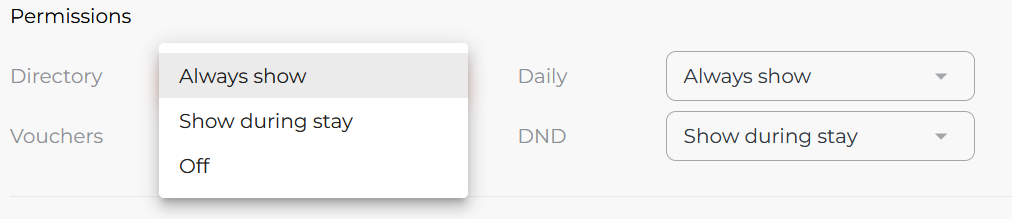
Choose which features will be accessible with this passcode
Always show: This feature will always show with this passcode
Show during stay: This feature will only show within your guests' check-in and check-out dates
Off: This feature will not show with this passcode

Creating a Passcode
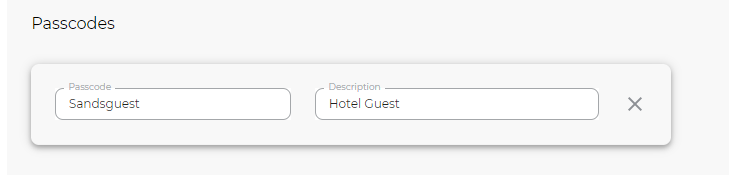
Next, you will need to create the passcode that your guests will be given to access these features
You can insert the passcode as well as a description of the accessibility
You can create numerous passcodes for this accessibility
Remember to press Save once you have created your Passcode/s
TOP TIP: By creating Guest Only areas to your Vamoos Stay, this can subtly build up some anticipation for your guest to gain access to restricted areas of the app. For example the Vouchers can be created exclusively for in-house guests etc.
If you have any further questions or need help with this, you can contact us at support@vamoos.com.