
STAYS Library: store images and documents
✅ For Hotels & Accommodation
The Vamoos Library lets you upload and store images, files, and links in one place. You can then easily use these items in any Stay you create — no need to upload them multiple times.
In this article:
Library Introduction
Store images, files, and links in one location for easy reuse across multiple Stays.
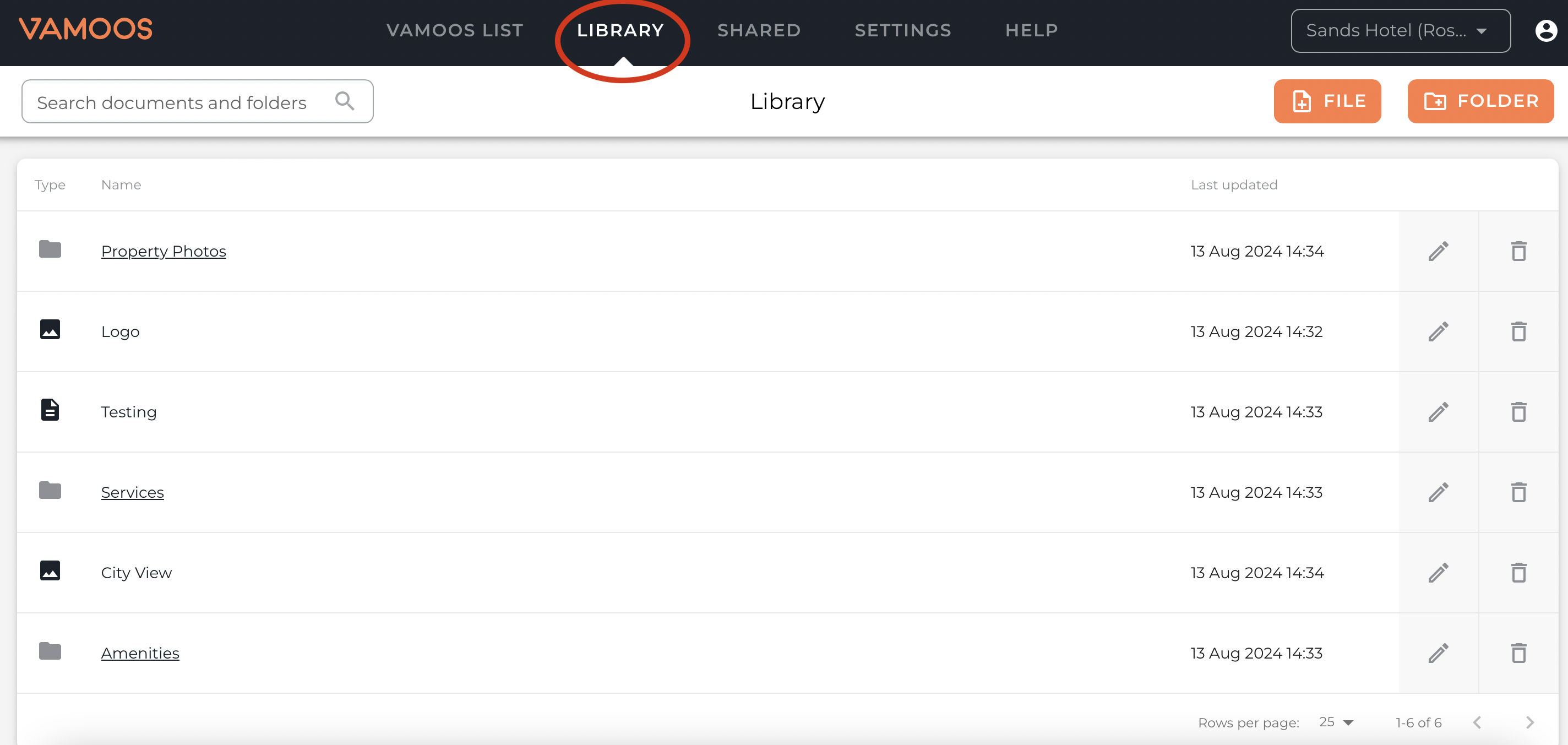
Access the Library via the top menu in your Vamoos portal.
Upload files by pressing the FILE button, or create folders with the FOLDER button.
TOP TIP: Create folders first if you know how you’ll categorise your items (e.g. by location, property, or type of information).
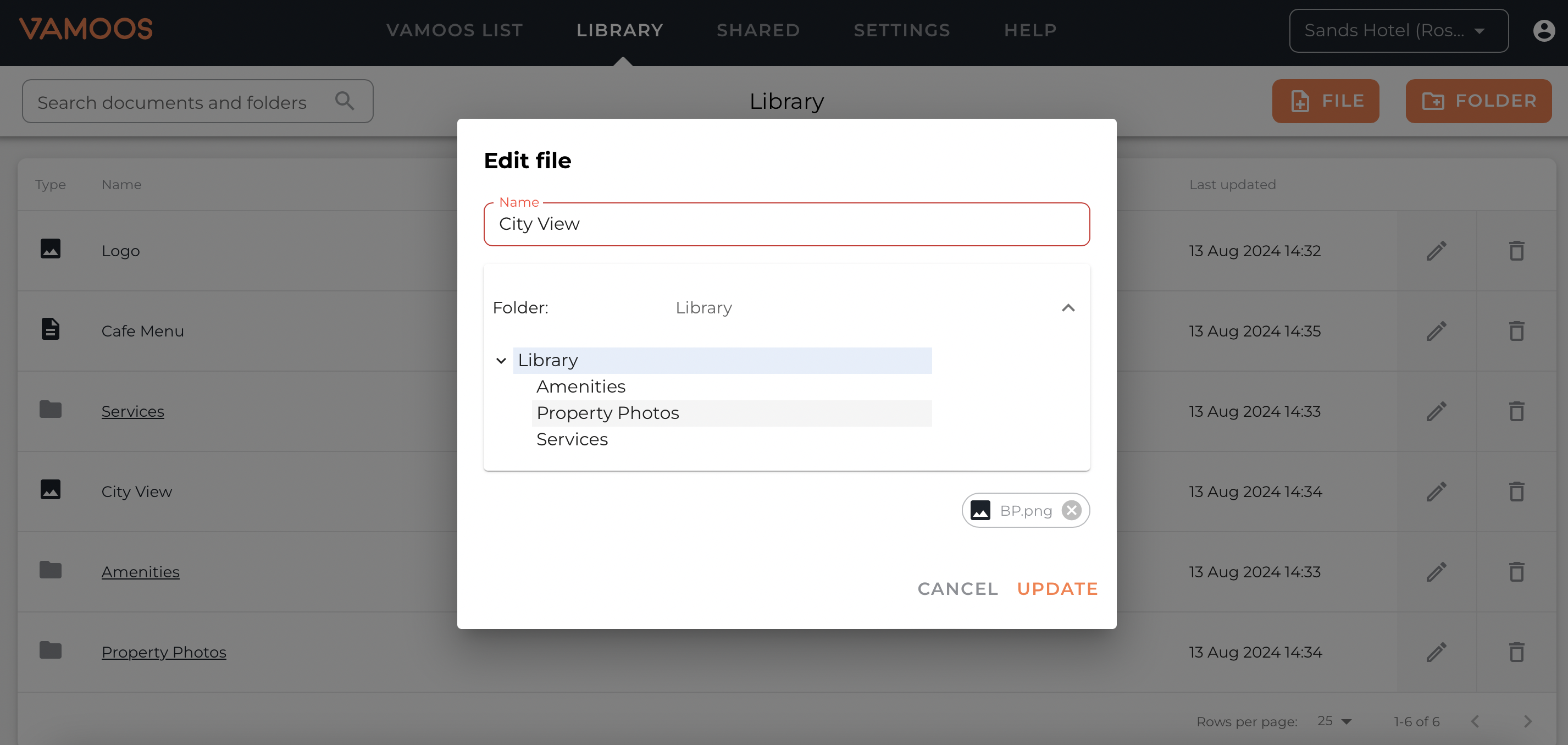
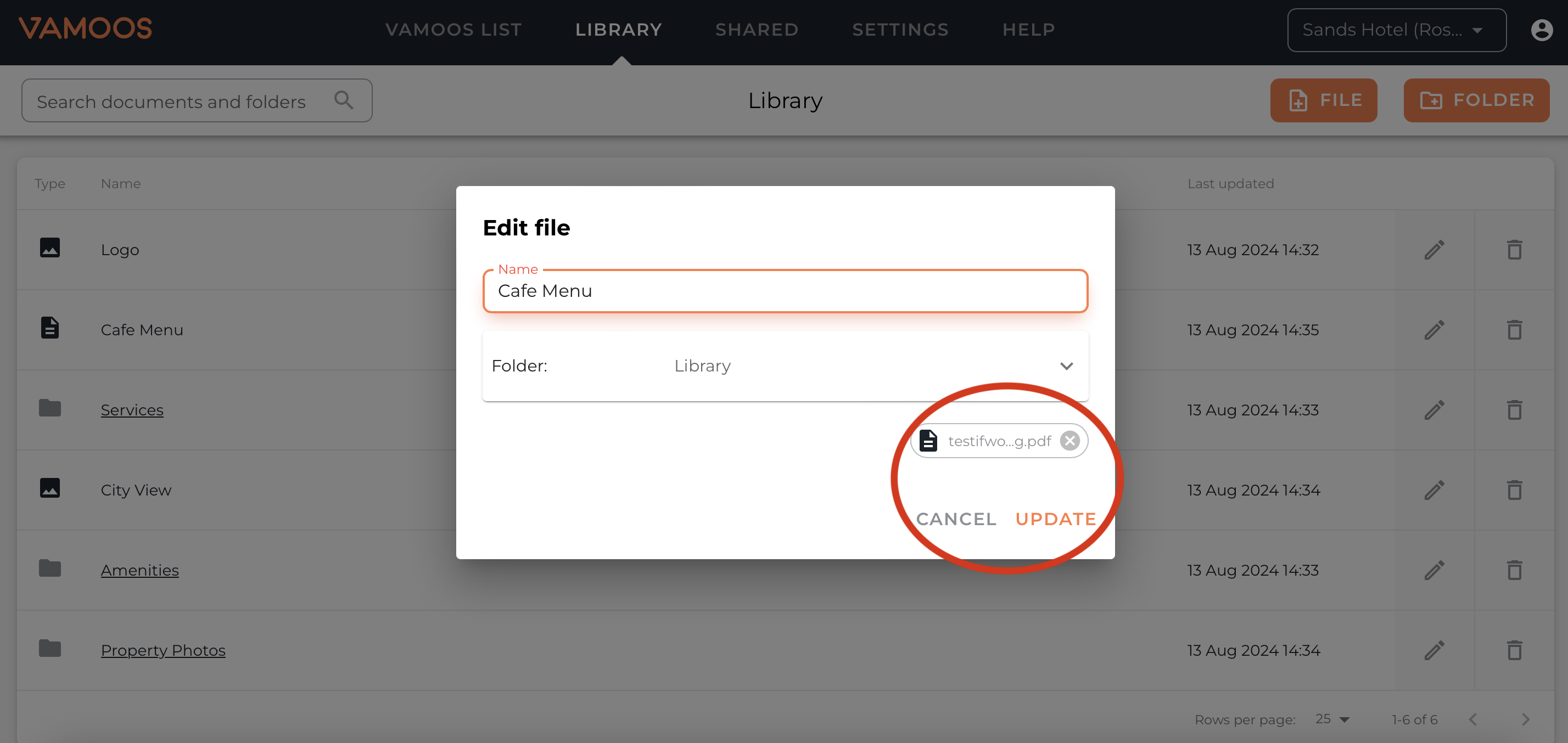
Move files into folders or rename them using the Edit file option.
Sort files into folders using the Folder dropdown menu.
Images
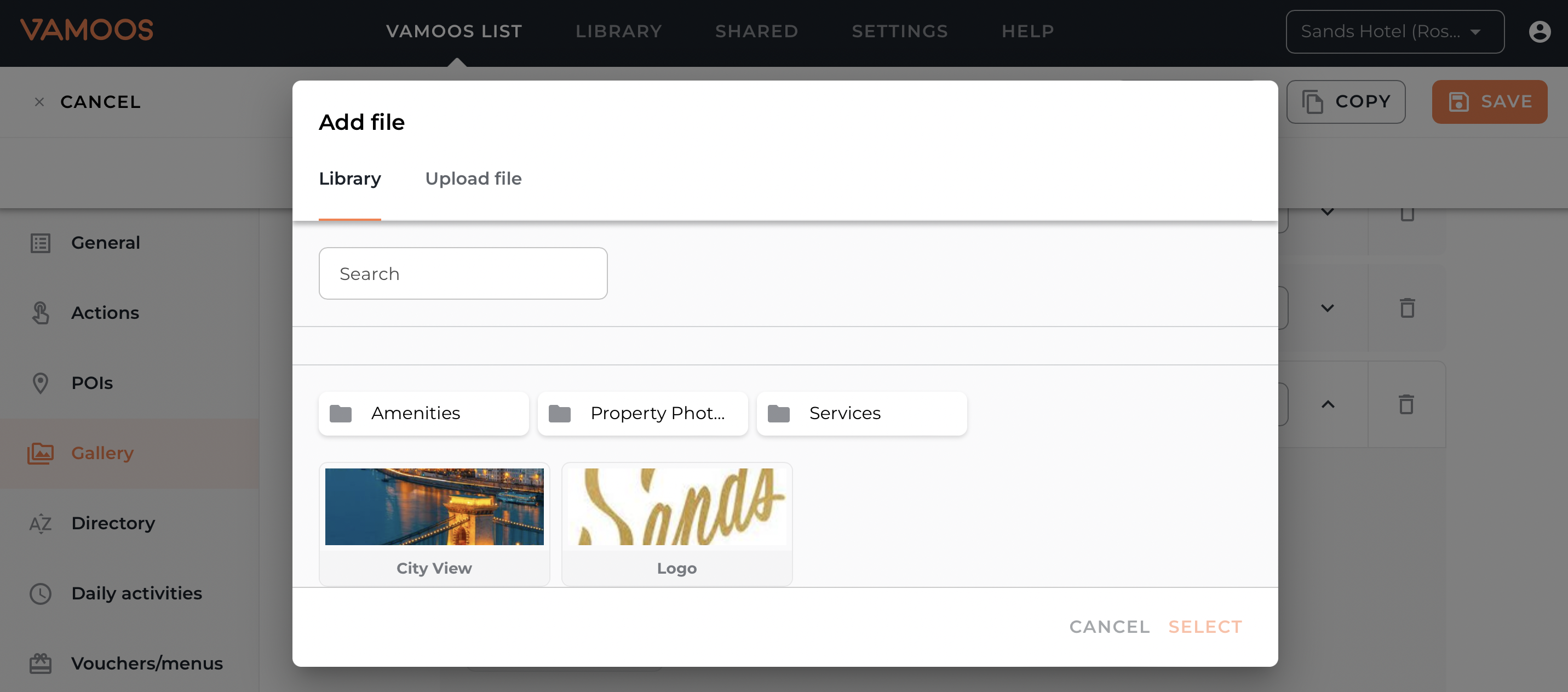
Upload images you’ll use across multiple Stays (e.g. logos, property photos).
Accepted formats:
.jpg,.jpeg, or.png(not PDF).Use Library images in: General photo, Gallery, Overlay Logo, POIs, Inspirations, Directory, Daily Activities, and Vouchers.
Files & Links
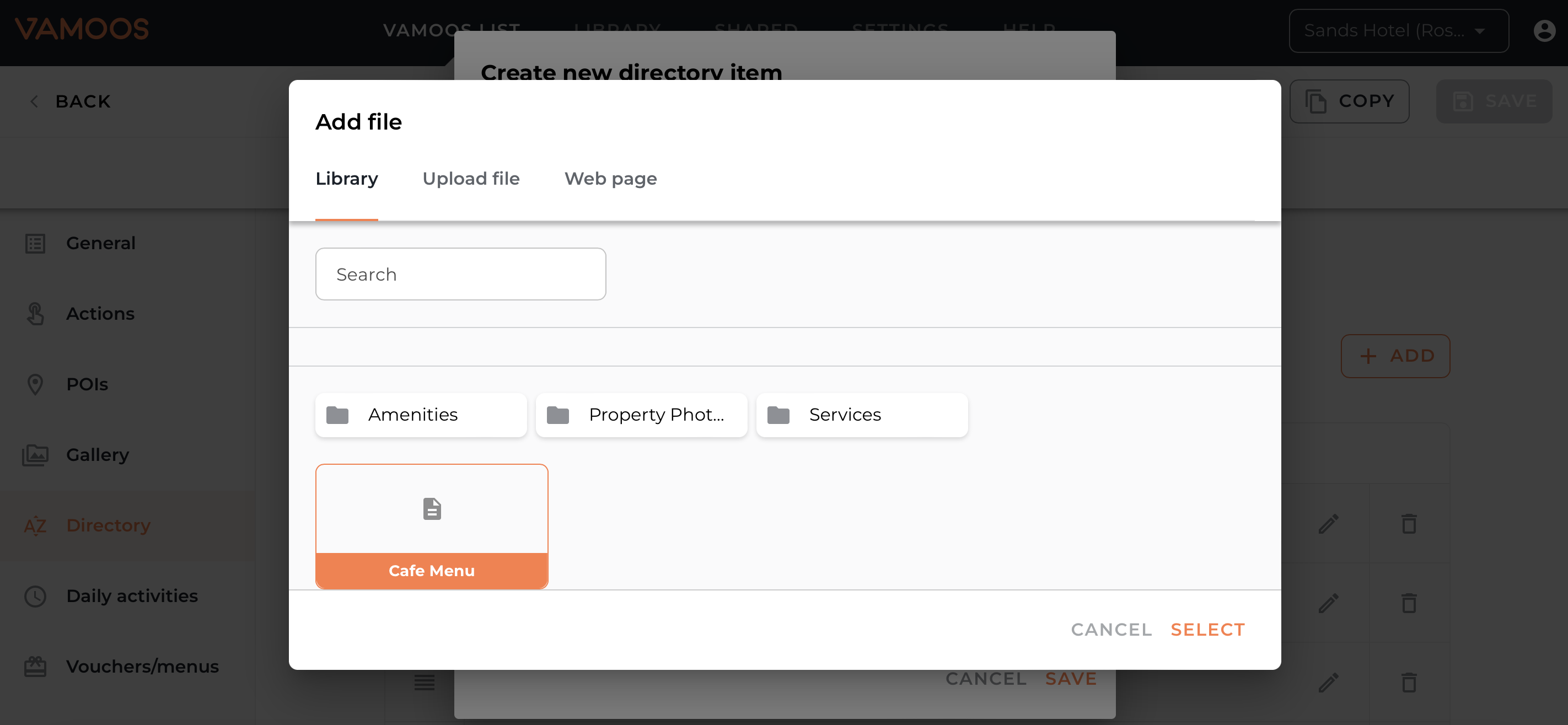
Upload documents (PDF) and web links you’ll use across Stays.
Files and links from the Library can be added to: Actions, Directory, Daily Activities, Vouchers, and POIs.
Updating a Library Item
If you update a PDF in the Library, it will automatically update in all Stays where it was added from the Library.
If a file was uploaded directly from your desktop (not via Library), it will not update.
FAQs
Q: Can I add multiple files to a folder at once?
A: Yes, if uploading new files directly into a folder. If files already exist in the Library, they can only be moved one at a time.
If you have any further questions or need help with this, contact us at support@vamoos.com.