
Inspirations: a digital brochure for re-booking and upselling
✅ For Travel Companies
Inspirations functions as a digital brochure in the app where you can showcase new holidays, upsells, or additional services — designed to encourage repeat bookings.
In this article:
Introduction to Inspirations
Inspirations is a digital brochure within the app that lets you advertise other trips, tours, or services you offer.
When clients return from a holiday, they’re already thinking about the next, this is a perfect opportunity to get key information about your other trip/tours in front of them so they book another holiday with you
You can tailor Inspirations by destination or traveller type, so clients see only what’s most relevant.
A built-in Contact Us button makes it easy for clients to reach you directly.
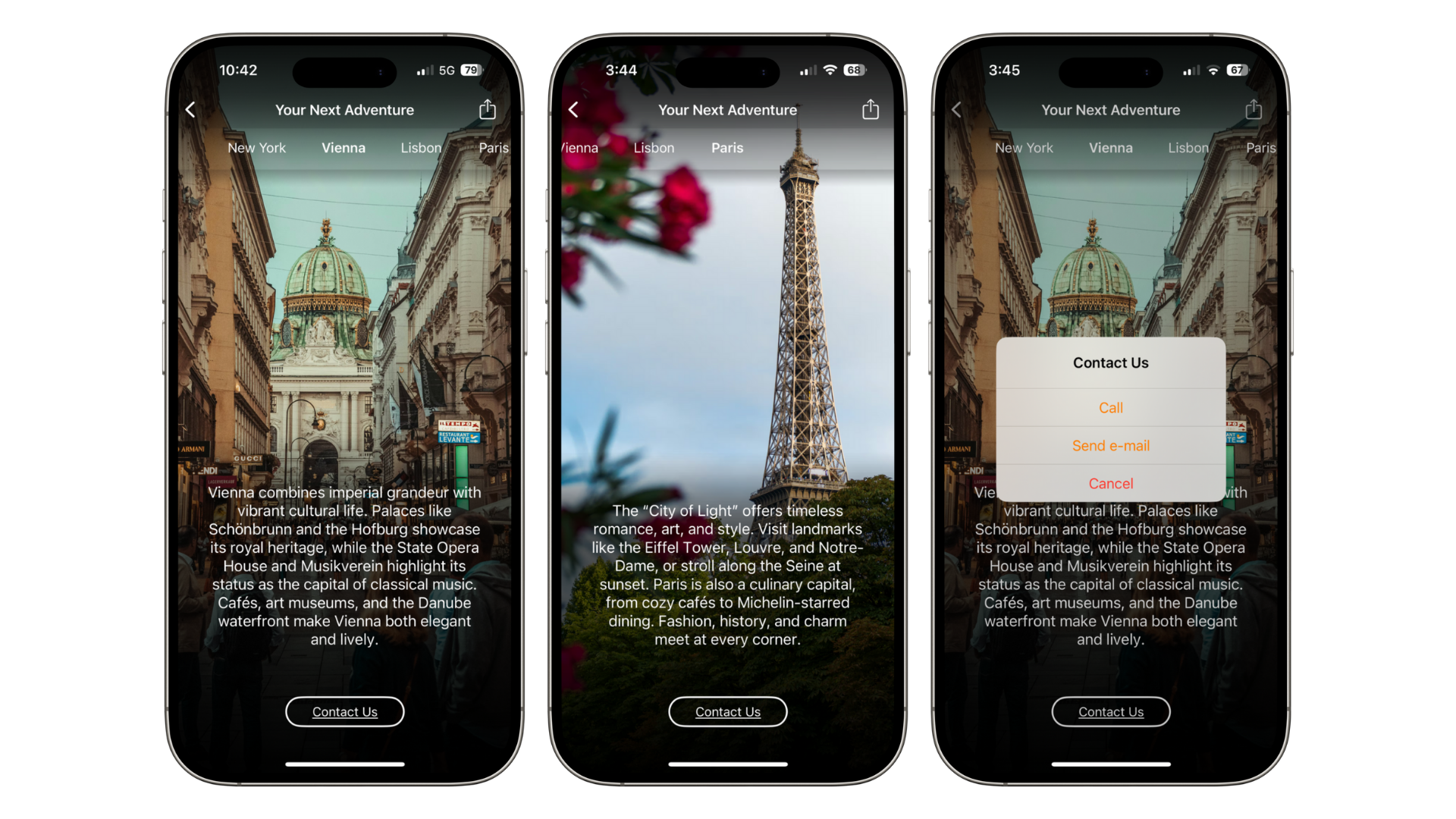
Creating an Inspiration template
Create brochure templates in the SHARED section from the top menu bar.
Select Inspirations and click the orange Create Inspiration button.

Fill in the general information fields:
Label: internal name for your reference (e.g. “Europe Tours”)
User ID & Passcode: create a unique passcode if you’d like to use Inspiration as a quoting tool and share only with prospects who haven’t booked yet.
Contact email & number: where the “Contact Us” button will connect clients.
Notification text: optional — appears as a message to clients if you make updates
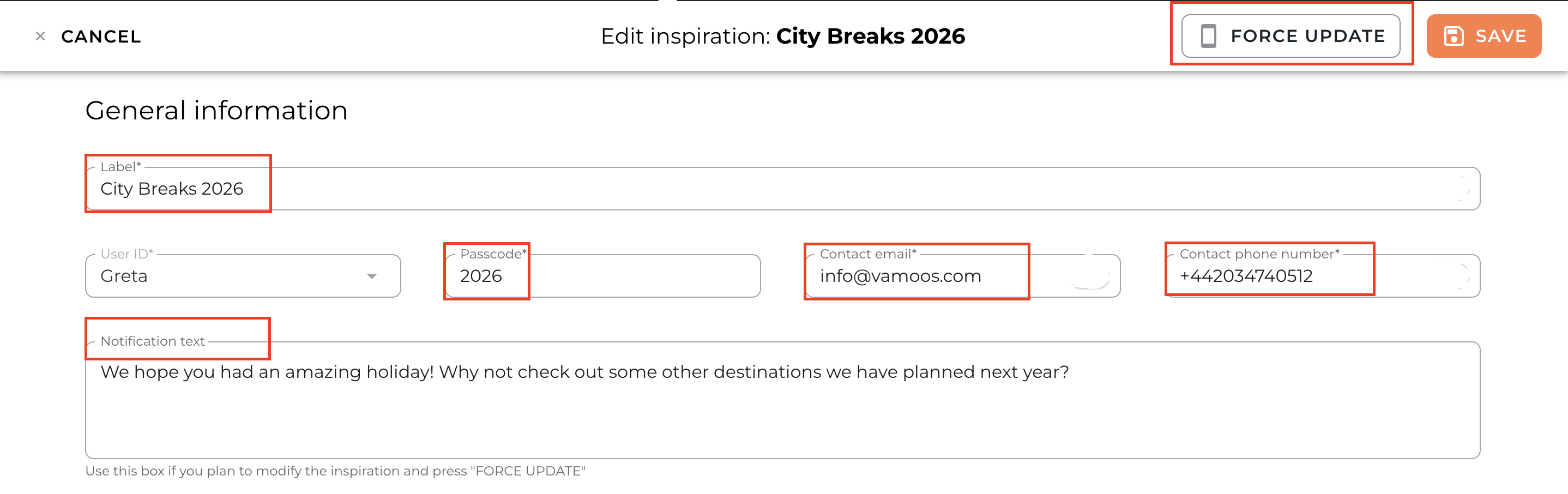
TOP TIP: After editing, press Force Update on an Inspiration (see above). This pushes the latest version to all users who have it downloaded - a quick way to send a mass update.
Adding Inspiration content
Add text and images to build out your digital brochure.
Scroll to Inspiration sections and press ADD to create different sections. Give each one a Section title.
Expand a section by pressing the arrow and click ADD to upload as many images and descriptions as you'd like for each section.
You can add as much or as little text as you'd like in the image description box, but we'd recommend just a few short paragraphs to capture attention but not overwhelm your clients.
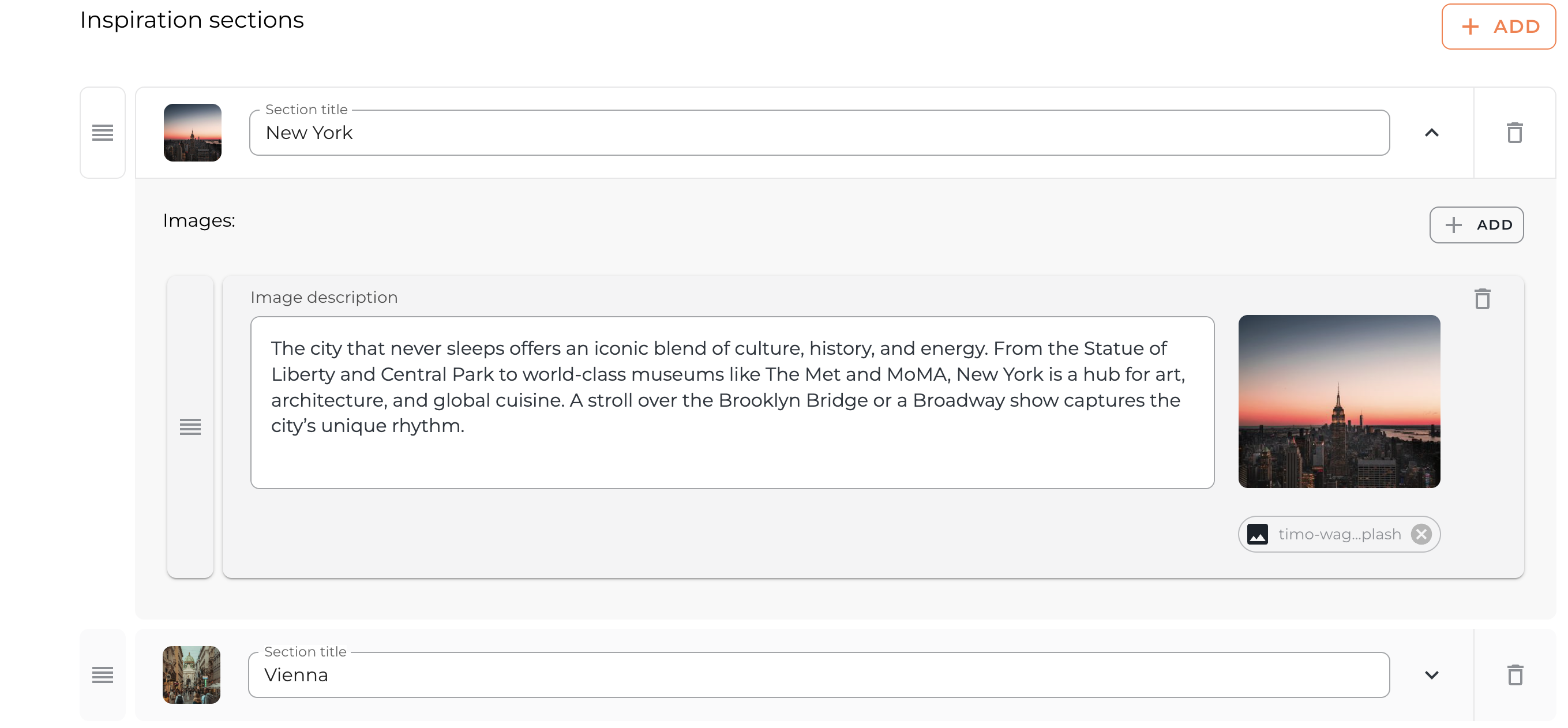
Reorder sections and images using the drag-and-drop lines on the left.
TOP TIP: To add a hyperlink in text, use Command + K on Mac or Ctrl + K on Windows.
Linking an Inspiration to a Vamoos Trip
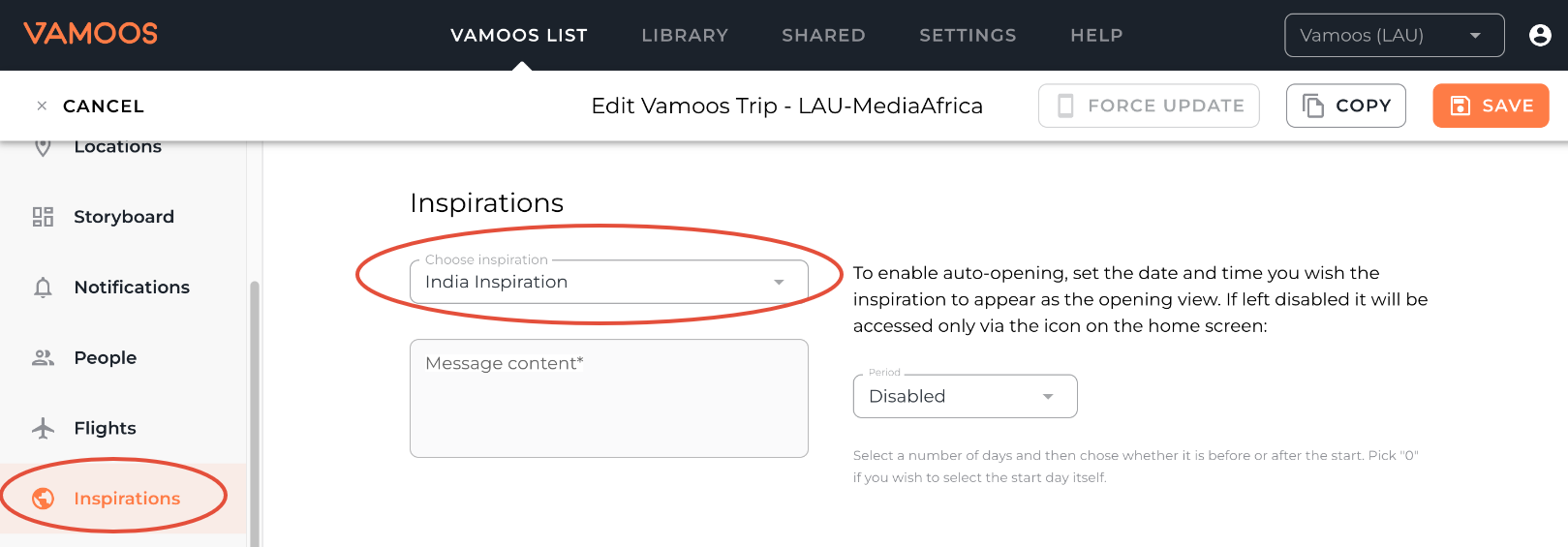
Go to your Vamoos List and open (or create) a trip.
From the left-hand menu, select Inspirations.
Choose an Inspiration template from the drop-down and press Save.
Inspiration notifications and auto-opening
If you leave the period as Disabled, Inspirations will appear in the app but clients won’t be notified or auto-directed to it.
We recommend scheduling a notification 3–5 days after a client’s trip ends. This can:
Send a push notification with your custom message
Automatically open the Inspirations brochure so it’s the first thing they see in the app
To set this up: select a date/time, add your message in the Message Content box, and save.
FAQs
Q: Can I delete or duplicate an Inspiration?
A: Not at the moment, but we’re planning this for a future update.Q: How should I categorise my templates?
A: We recommend grouping them by destination or traveller type, so you can target clients with the most relevant options.Q: Can I add URL links in an Inspiration?
A: Yes, links in the description text will automatically appear as clickable in the app.
If you have any further questions or need help with this, contact us at support@vamoos.com.