
GPX Tracks: map out your clients journey
✅ For Travel Companies
Map out GPX tracks in the app and help your clients visualise their adventures before they’ve even got to the airport.
In this article:
Introduction to GPX Tracks
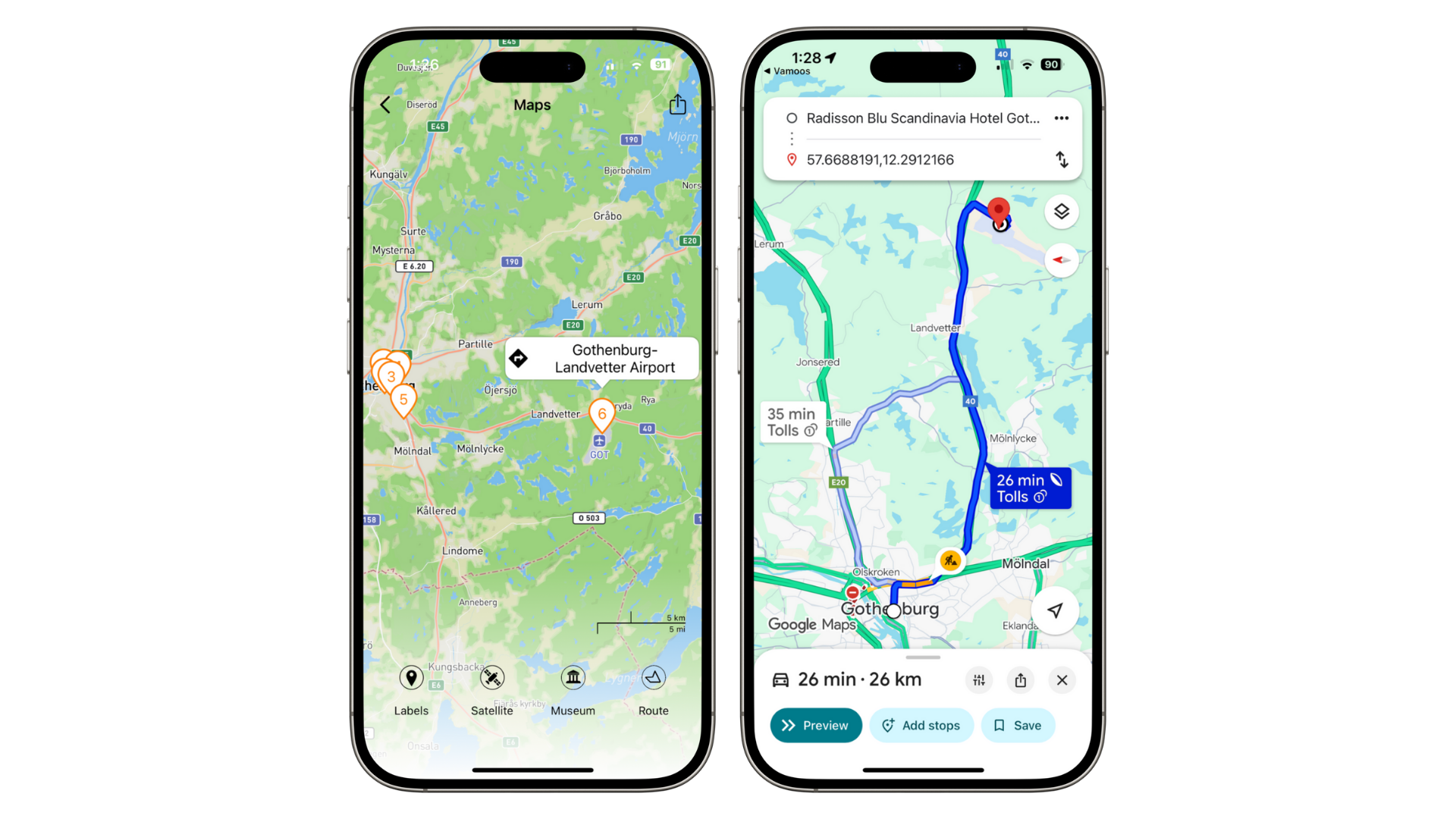
GPX Tracks allow you to draw a line of travel on the Vamoos map for clients to follow — for a hike, drive or cycle.
Add points of interest along the way to highlight your expert knowledge.
How to create a GPX file
To add hiking, driving or cycling tracks to Vamoos, you’ll first need to create a GPX file. There are a few ways to do this:
Option 1 – Use Google Maps & MapstoGPX
Best for short walking, driving, or hiking tracks.
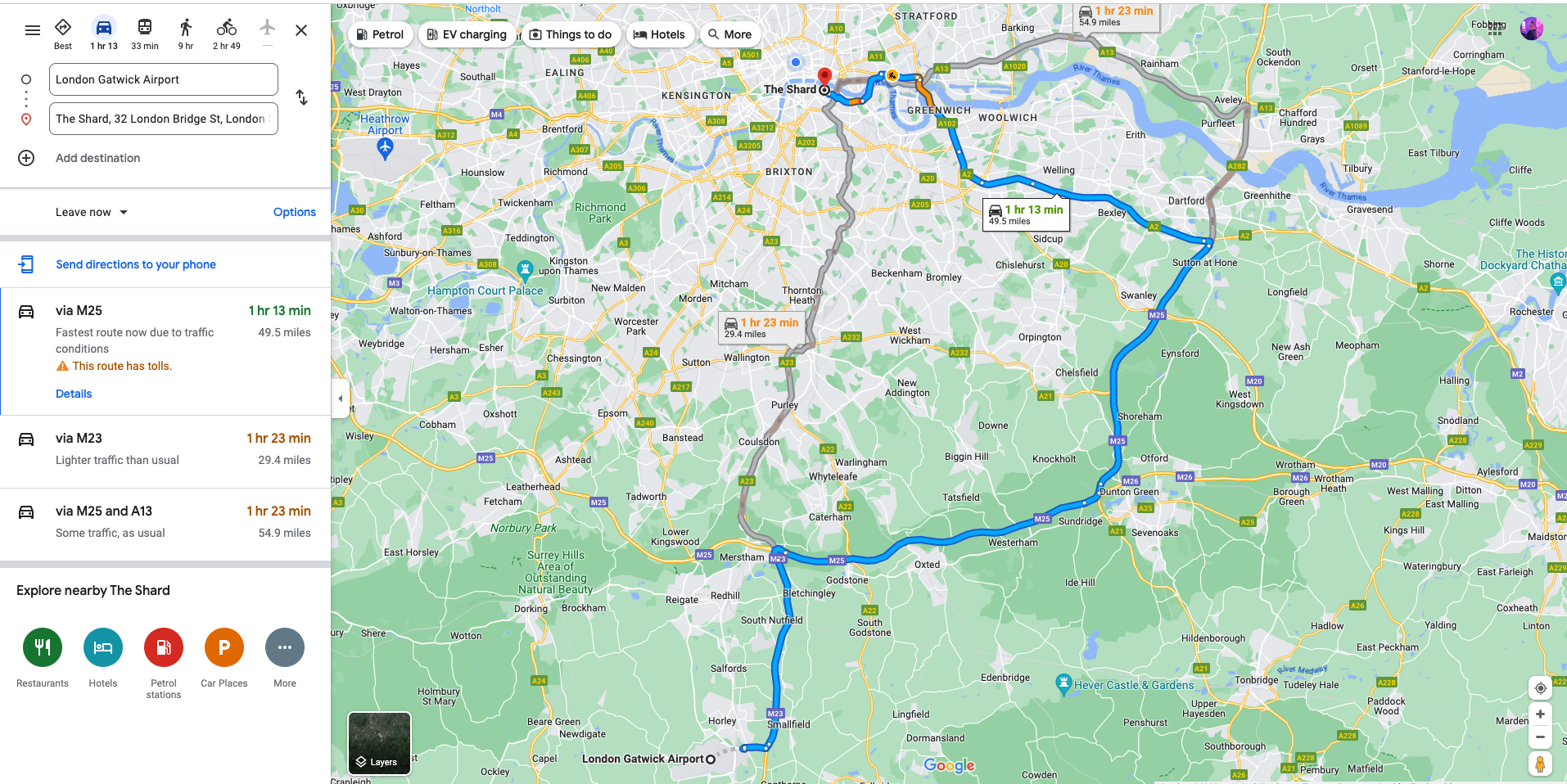
Create a route in Google Maps with start/end points and stops.
Select transport type (driving/cycling/walking).
Generate a share link → paste it into mapstogpx.com.
Click LET’S GO and download your GPX file.
Option 2 – Draw a GPX on a map
Best for longer or more complex routes.
Use GPS Visualizer or PlotaRoute to manually draw your route.
Export the route as a GPX file.
Option 3 – Create your own track using a GPS device
Best for accurate routes you’ve personally completed.
Use a tracking app like Strava to record your route.
Export and save as a GPX file.
Reducing your GPX file for the 10,000 point limit
GPX files are built from waypoints — individual points along your route.
Vamoos supports up to 10,000 waypoints per track.
If your file is too large:
Split a long track into smaller legs.
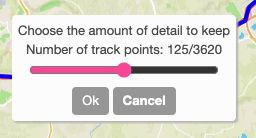
Or use an editor like GPX Studio to reduce waypoints.
How to add a GPX file to Vamoos
Go to the Shared section in the top menu and select POI.
Click + CREATE POI and change the type from POI to Track.
Upload your GPX file via the Attach/Link button.
Add a label, description, and optional media (images, PDFs, URLs).
Set a Range so it appears in relevant trips.
Enable GPX Tracks for specific trips
Open a Vamoos Trip and go to Locations → POIs.
Toggle GPX Tracks on/off for individual bookings.
Renaming the Tracks icon
You can rename the Track icon to something more client-friendly (e.g. Hiking Trails, Cycling Routes).
Go to Shared → POI → Manage Icons to rename it.
FAQs
Q: Are GPX Tracks available offline?
A: Yes. Tracks are available offline in the app. But if clients want to use an external navigation app (Google Maps, Apple Maps), they’ll need mobile data or Wi-Fi.
If you have any further questions or need help with this, contact us at support@vamoos.com.