
Multilingual: provide trips in multiple languages
✅ For Travel Companies
Create a seamless single-language experience, from the itinerary you enter to the app details themselves.
In this article:
What is the Vamoos Multilingual feature?
With Vamoos Multilingual, you can give your clients trip information in the language they may need.
Once you select the trip language, the login screens, posts and dates will be automatically translated.
If you are using one of our 11 supported languages, the automated Flight Notifications will also be translated.
Currently supported: English, Spanish, French, German, Dutch, Danish, Swedish, Finnish, Norwegian, Czech and Russian.
We are adding new languages all the time – email us to request one.
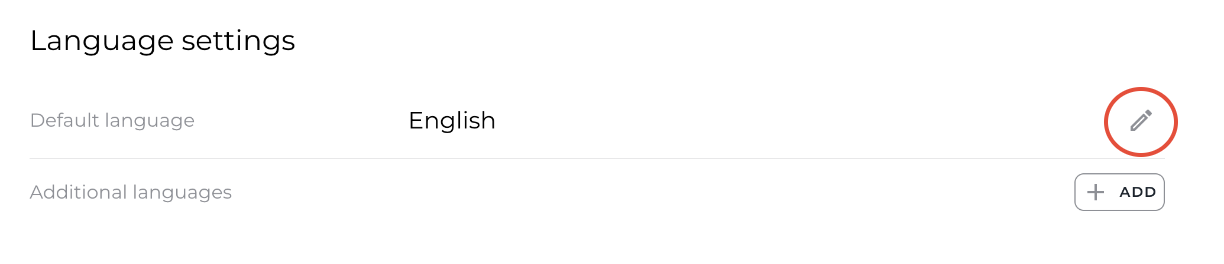
How to change your default language
Log in to the Operator Portal and go to Settings > General > Language Settings.
Click the pencil icon, select your default language, and press Save.
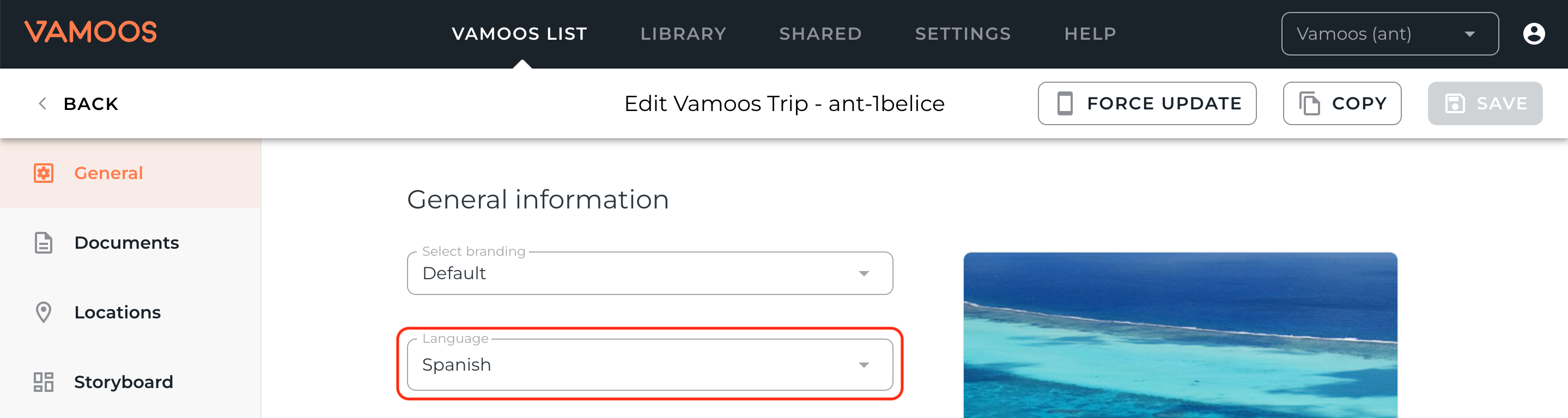
How to set up additional languages
Go to Settings > General > Language Settings. Press ADD, choose a language, and press Save.
In Vamoos List > Vamoos Trips, create or duplicate a trip. Under General, select the trip’s language from the drop-down.
Translate content in all sections (General, Documents, Storyboard, etc).
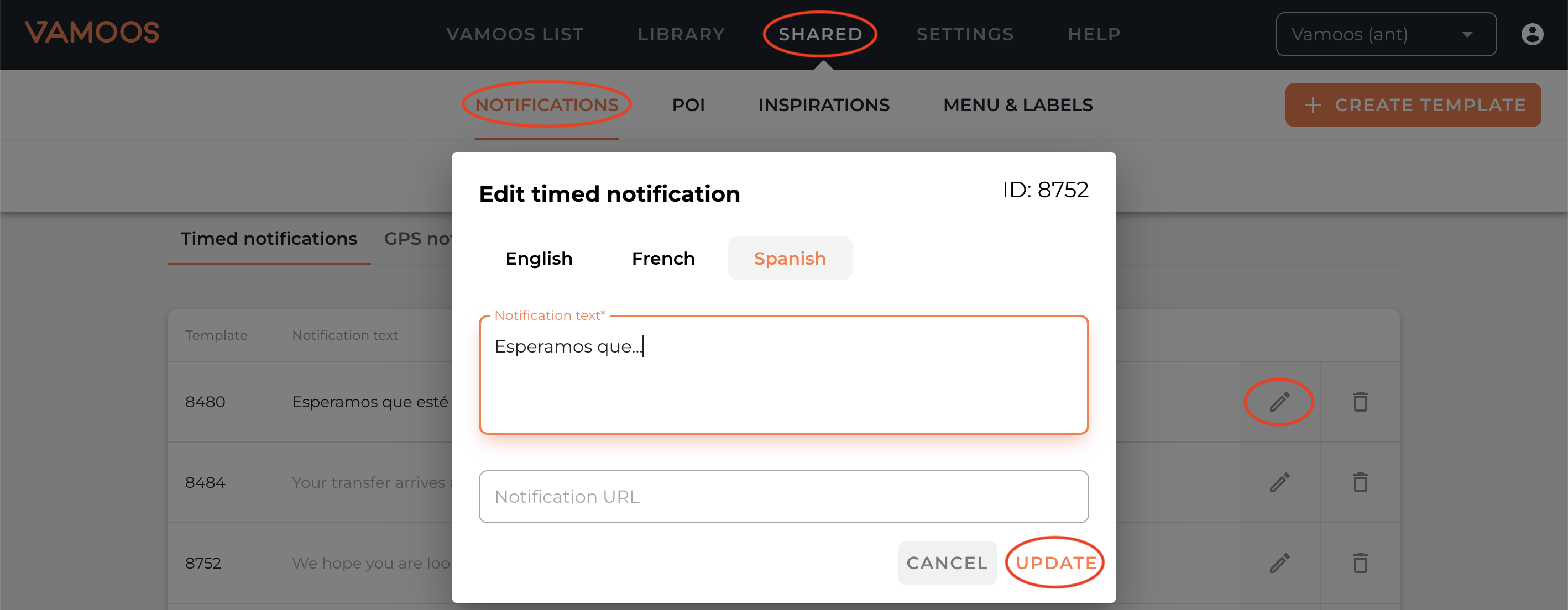
Go to the Shared section and provide translations for Notifications, POIs, Inspirations, and Menu & Labels.
For each, click the pencil icon, select your language, and enter the translation.
PLEASE NOTE: For Inspirations, you’ll need to create a new version in the alternative language, then link it to the trip.
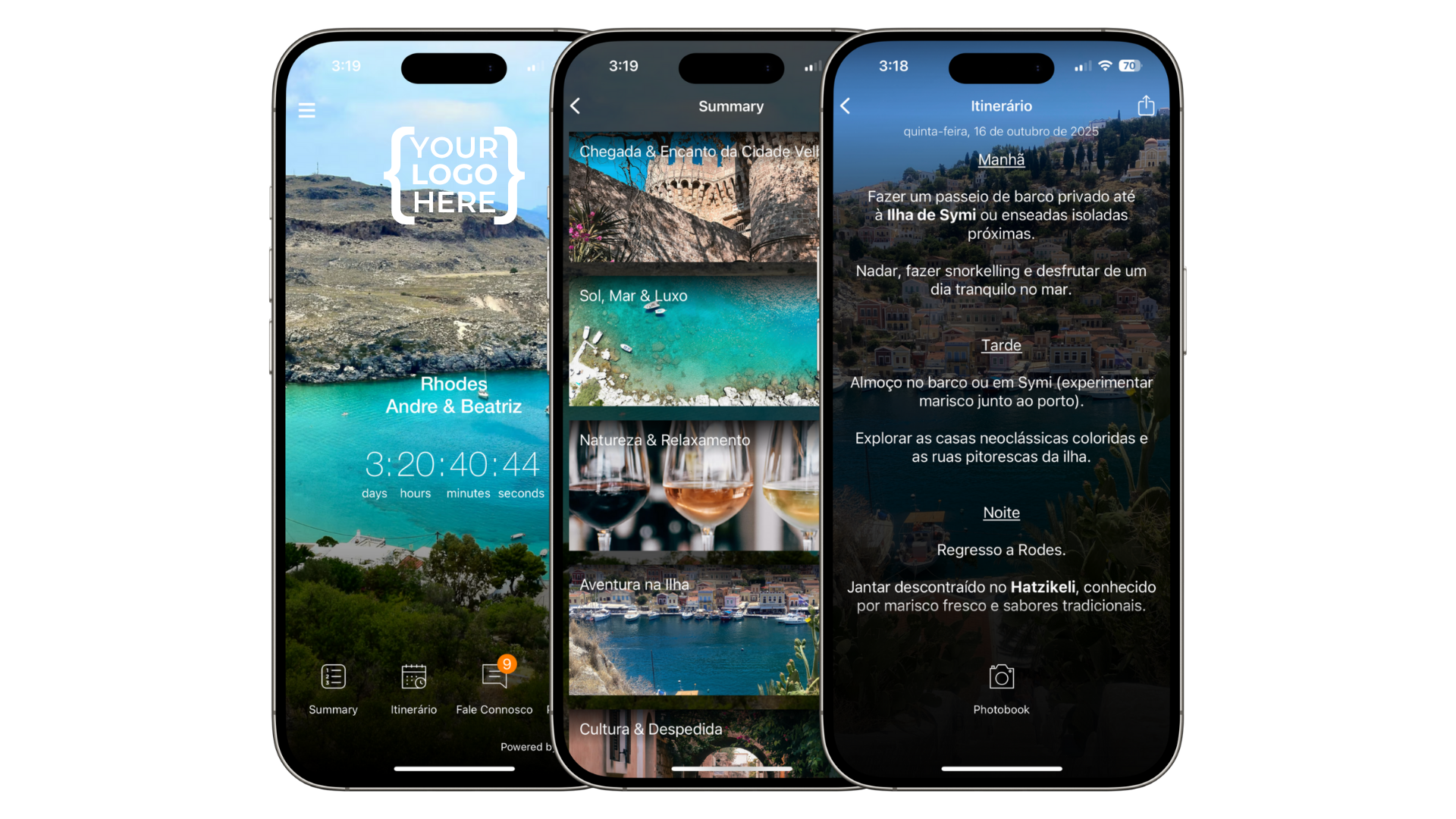
Once translations are added, your clients will see everything in their chosen language.
TOP TIP: Don’t forget to translate the Travel Documents and Destination Documents titles by clicking the pencil icon next to them.
FAQs
Which parts of the app are auto-translated?
Login screens, Dates and day numbers, Posts. Flight Notifications are only translated if a supported language is chosen.Which parts do I need to translate?
Trip content: General, Storyboard, Documents, Notifications, POIs, Inspirations, Menu & Labels.Can I add other languages?
Yes – add any language you like in the Operator Portal.
If you have any further questions or need help with this, contact us at support@vamoos.com.