
Filter: create filters to search for trips
✅ For travel companies
Filter your Vamoos List to show trips that match specific criteria.
In this article:
Introduction to Filters
Filters let you display trips within chosen criteria. For example:
See all trips starting in September
Find groups going to France
How to use Filters
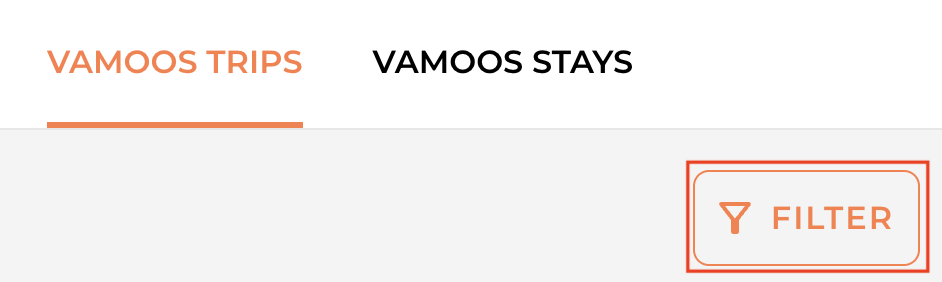
On your Vamoos List, press the FILTER button.
Press the Column box to choose which field you want to filter by.
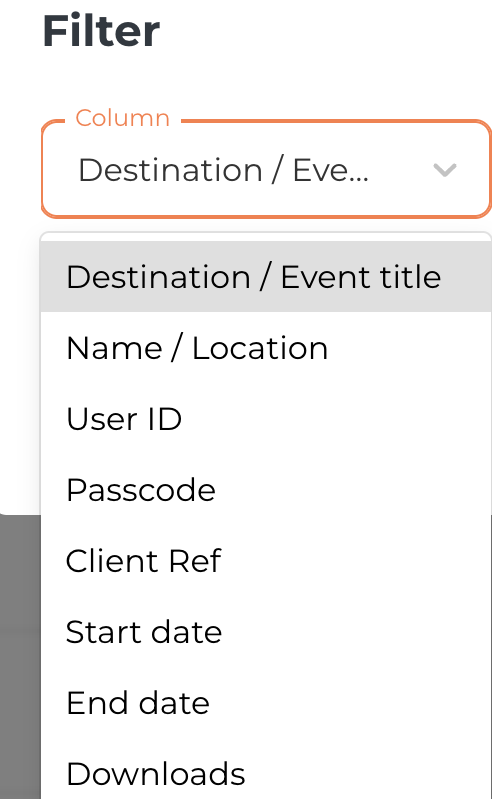
Destination / Event Title
Select Destination / Event Title from the Column box.
Choose whether you want your criteria to be 'is' or 'contains'.
Type your value and press APPLY.
Use the trash icon to remove the filter.
NOTE: This filter works off the Destination / Event Title field, not the Location field.
Name / Location
Select Name / Location from the Column box.
Choose whether you want your criteria to be 'is' or 'contains'.
Enter your value and press APPLY.
Use the trash icon to remove the filter.
NOTE: This filter works off the Name / Location field, not the Locations section.
User ID
Select User ID from the Column box.
Choose whether you want your criteria to be 'is' or 'contains'.
Type in your value, press APPLY.
Use the trash icon to remove the filter.
Passcode
Select Passcode from the Column box.
Choose whether you want your criteria to be 'is' or 'contains'.
Press APPLY.
Use the trash icon to remove the filter.
Client ref
Select Client ref from the Column box.
Choose whether you want your criteria to be 'is' or 'contains'.
Enter your value, then press APPLY.
Use the trash icon to remove the filter.
Start Date
Select Start Date from the Column box.
Choose criteria: between, is, is after, or is before.
Pick a date and press APPLY.
Use the trash icon to remove the filter.
End Date
Select End Date from the Column box.
Choose criteria: between, is, is after, or is before.
Set a date and press APPLY.
Use the trash icon to remove the filter.
Downloads
Select Downloads from the Column box.
Choose criteria: is, greater than, or less than.
Enter the value and press APPLY.
Use the trash icon to remove the filter.
Adding Multiple Filters
You can add multiple filters to refine your search even more.
Press + ADD to add more filters.
A number will show how many filters are active.
Remove any filter by pressing the trash icon.
If you have any further questions or need help with this, contact us at support@vamoos.com.