
Library: store images, documents and storyboard frames
✅ For travel companies
Use the Vamoos Library to upload and store images, documents, links, and Storyboard frames, which can then be easily reused in any Trip you create.
In this article:
Library Introduction
The Vamoos Library allows you to store images, documents, links, and Storyboard frames in one place. For anything you’ll use on multiple trips, upload it once to your Library and reuse it easily.
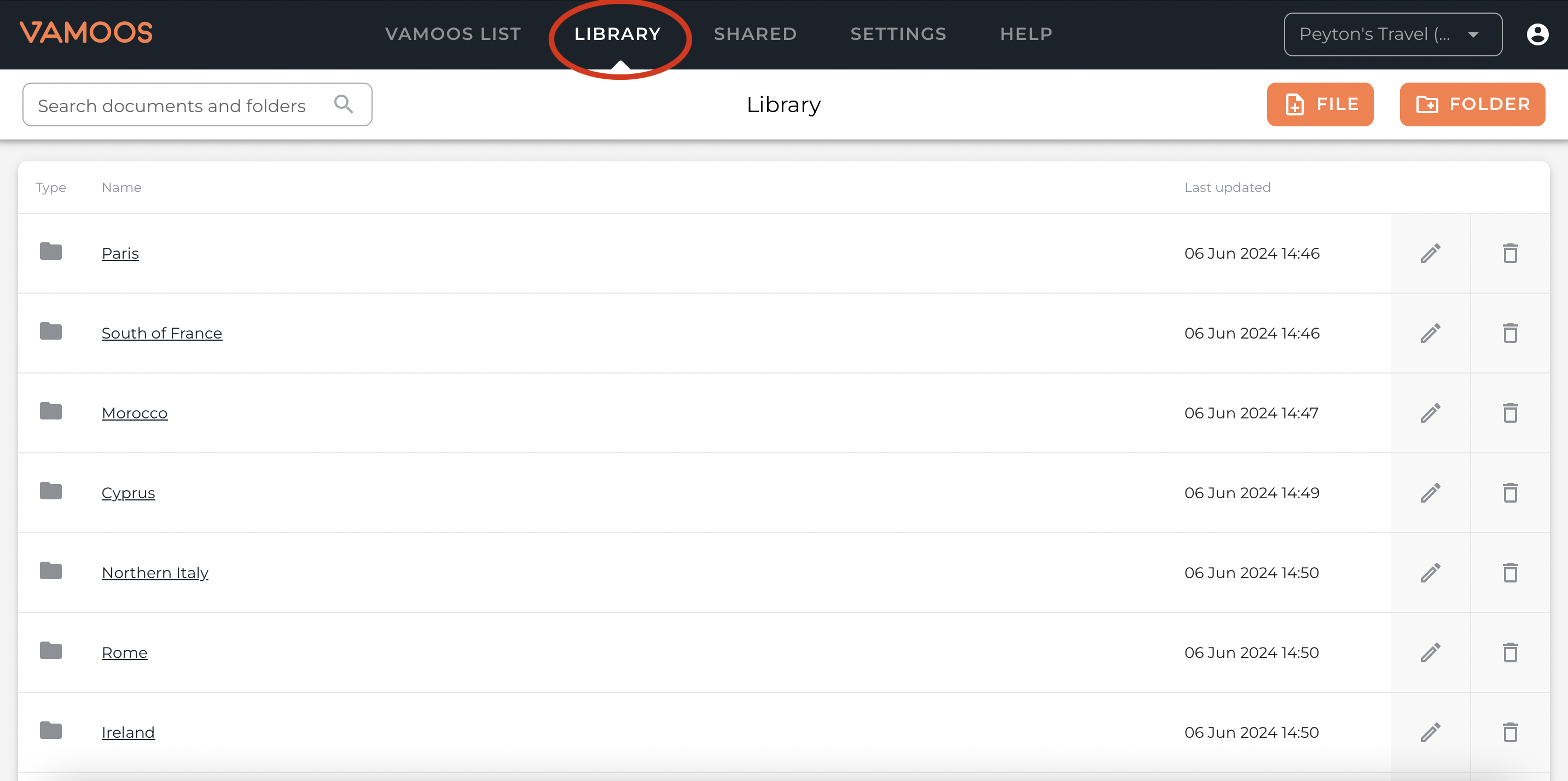
To start, log in to your Vamoos portal and go to Library in the top menu.
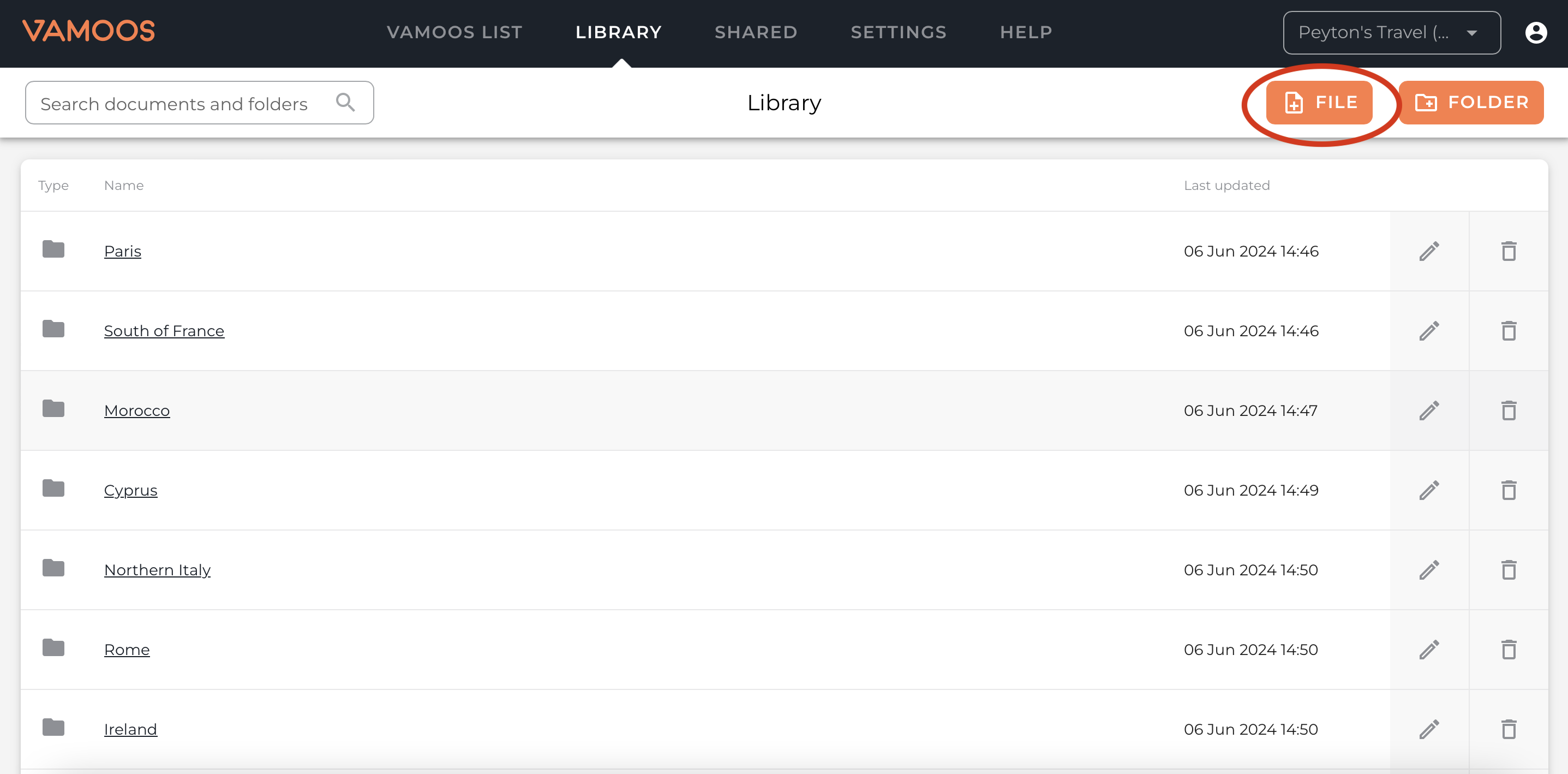
To upload individual files or links, click the orange File button, then upload or drag the file in.
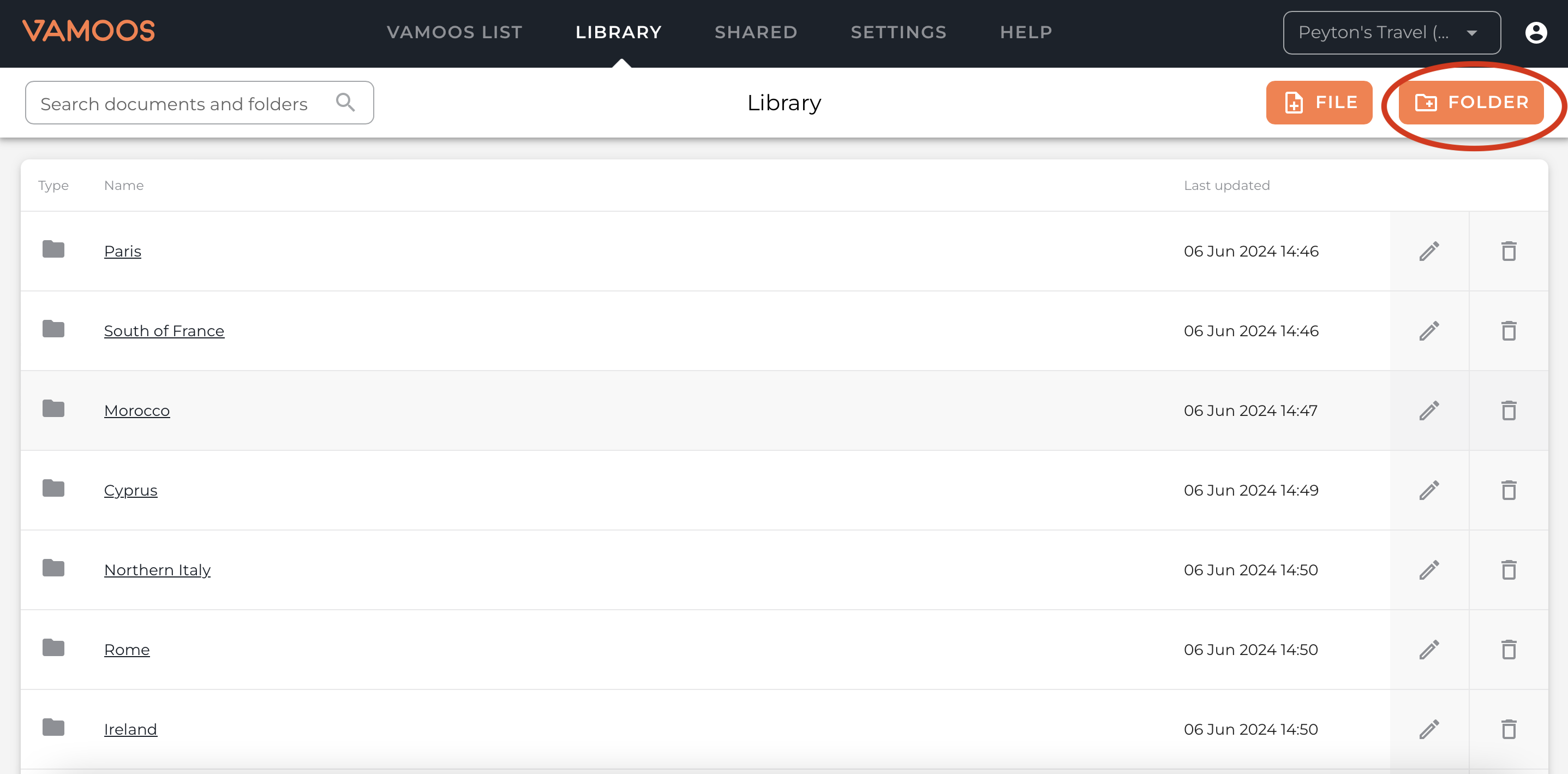
To create folders, click the orange Folder button.
TOP TIP: We recommend creating folders and storing information in categories to make navigation easier. These categories can be based on location or type of information etc.
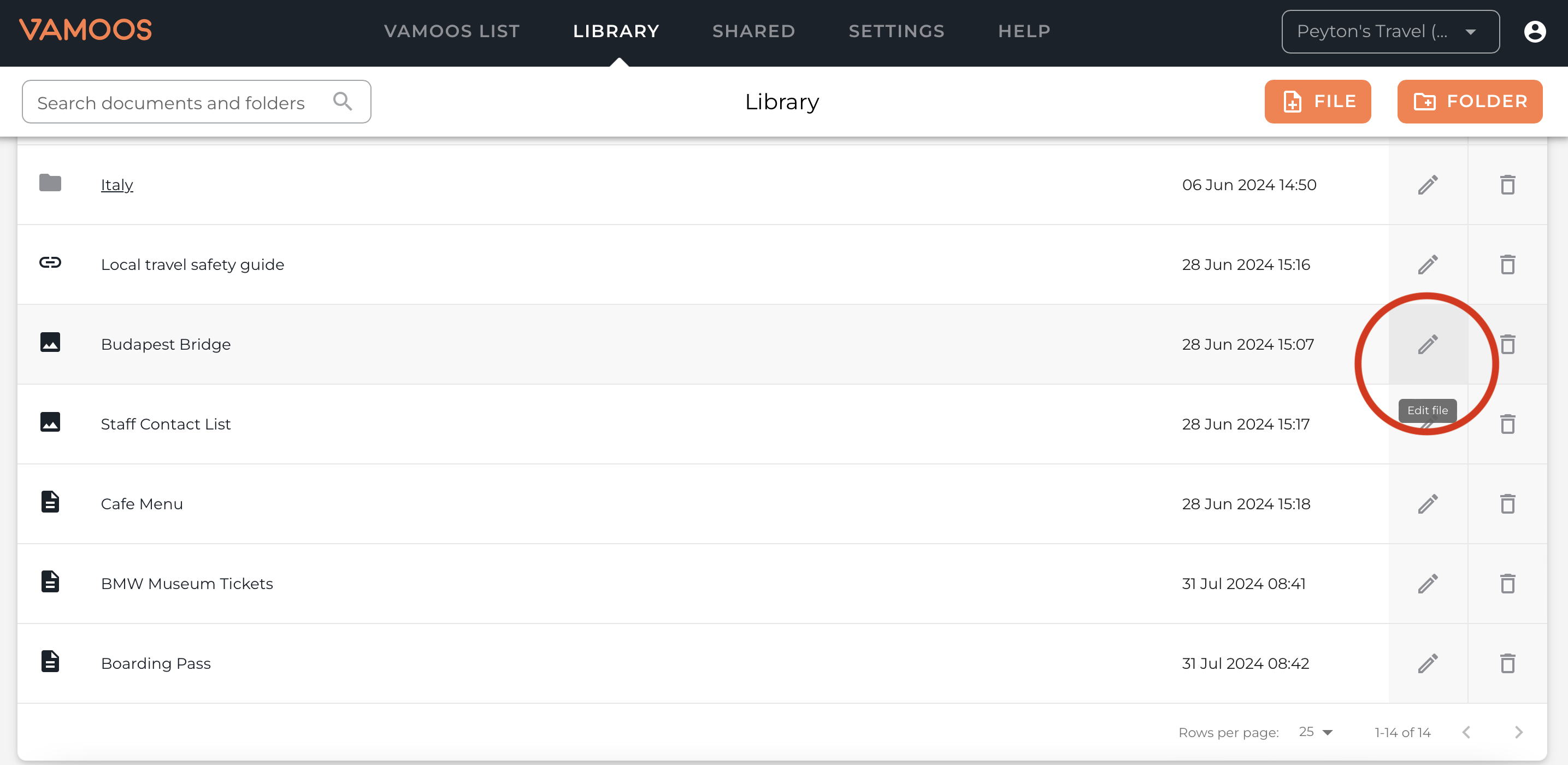
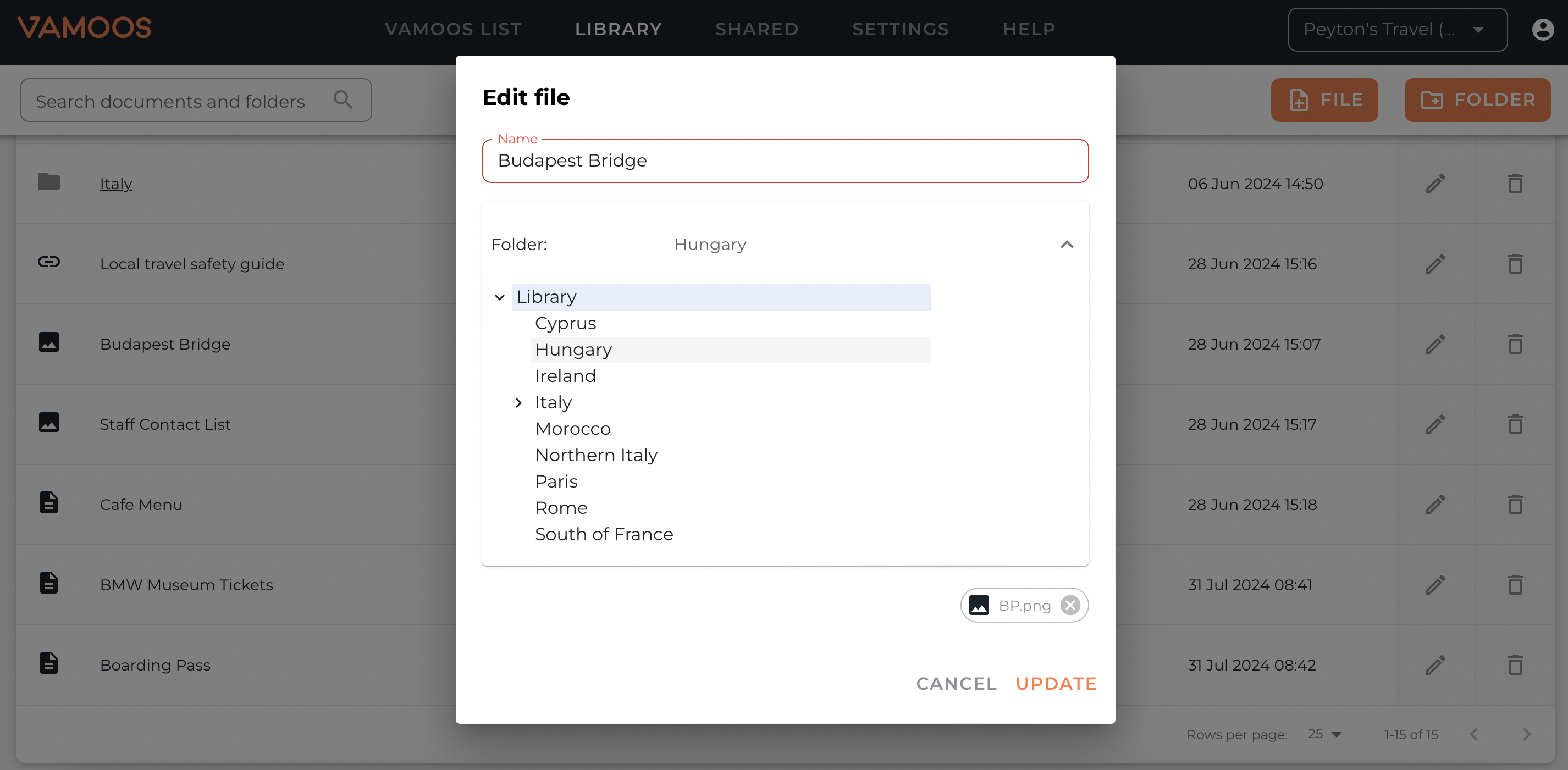
Sort a file into a folder by selecting the Folder dropdown menu and choosing the correct folder.
Images
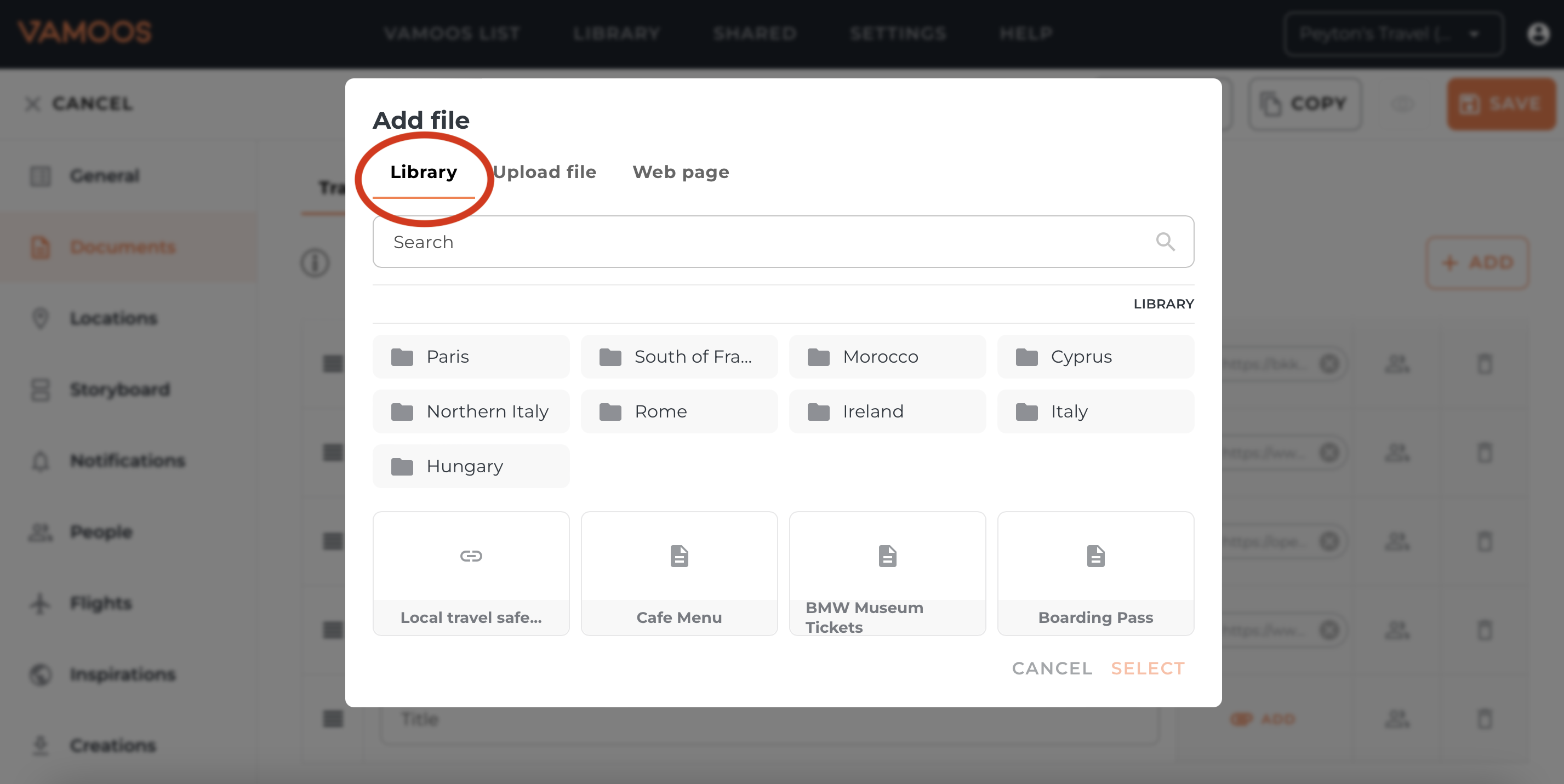
If you have specific or personal images you’ll reuse across trips, upload these to your Library.
Images can be in any format, but General Trip images and Inspirations images must be .jpg, .jpeg, or .png.
You can use Library images for General photos, Overlay logos, POI photos, Storyboard images, and Inspirations pictures.
Documents
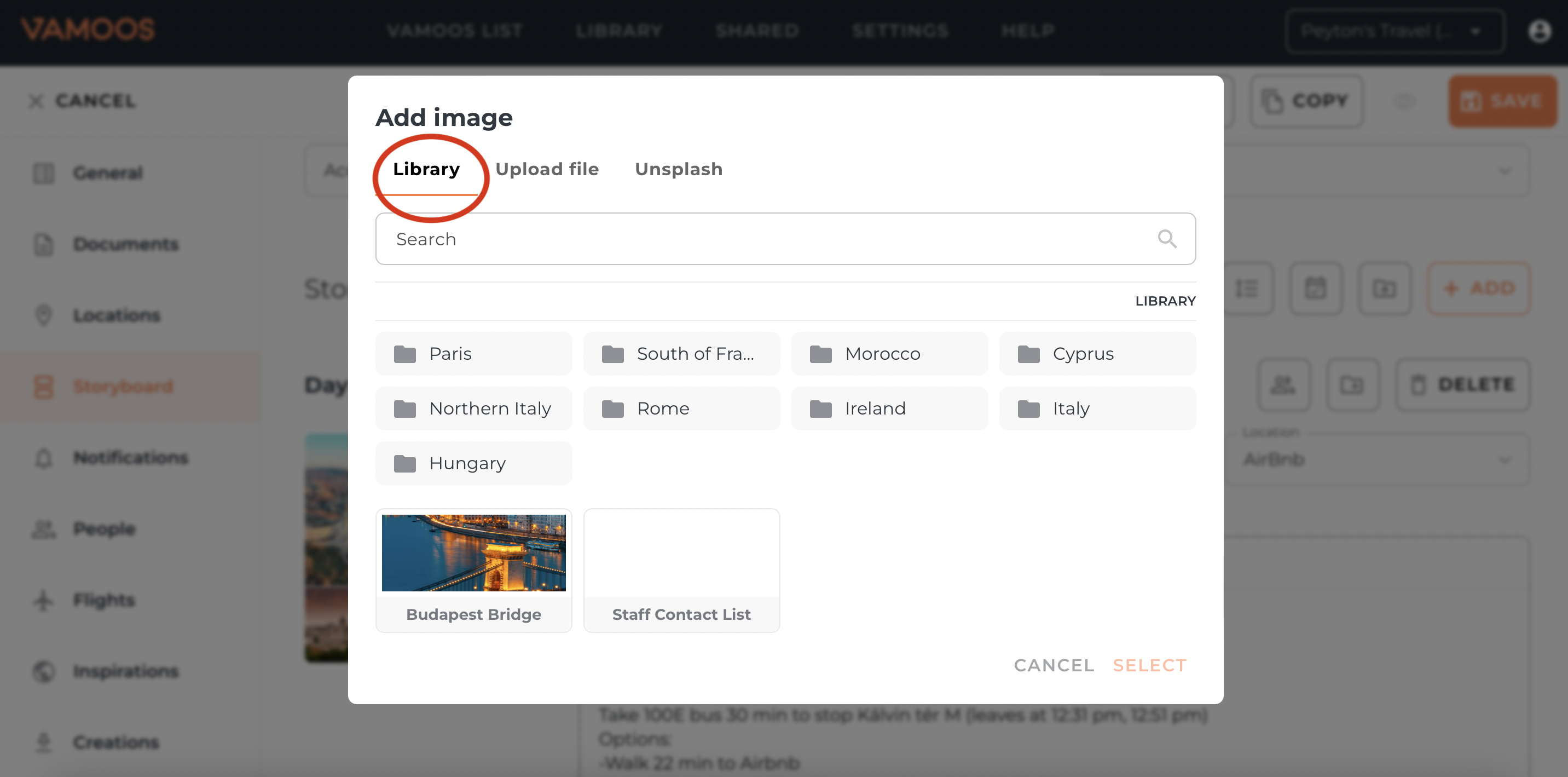
Add documents you’ll need often to your Library.
Files can be any format, but documents in the Documents feature or Storyboard must be PDFs.
You can add Library documents or links to Locations, POIs, Documents, and Storyboard sections.
Storyboard Frames
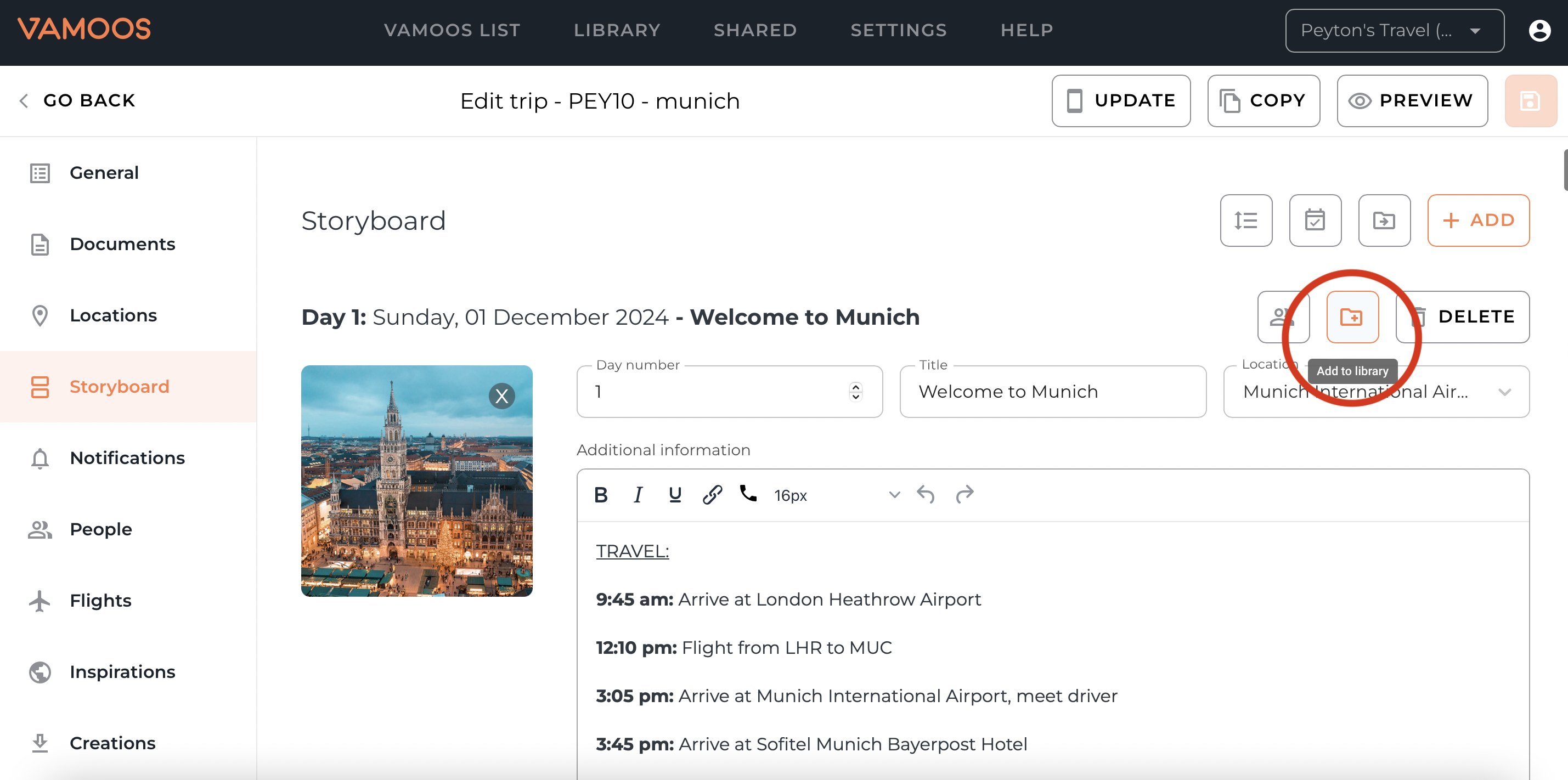
If you’ll reuse a Storyboard frame, save it to the Library by clicking Add to library on that frame.
To add a Library frame into a trip, click Add to Storyboard in the top menu, then select the frame.
Once added, you can edit or reorder it as needed.
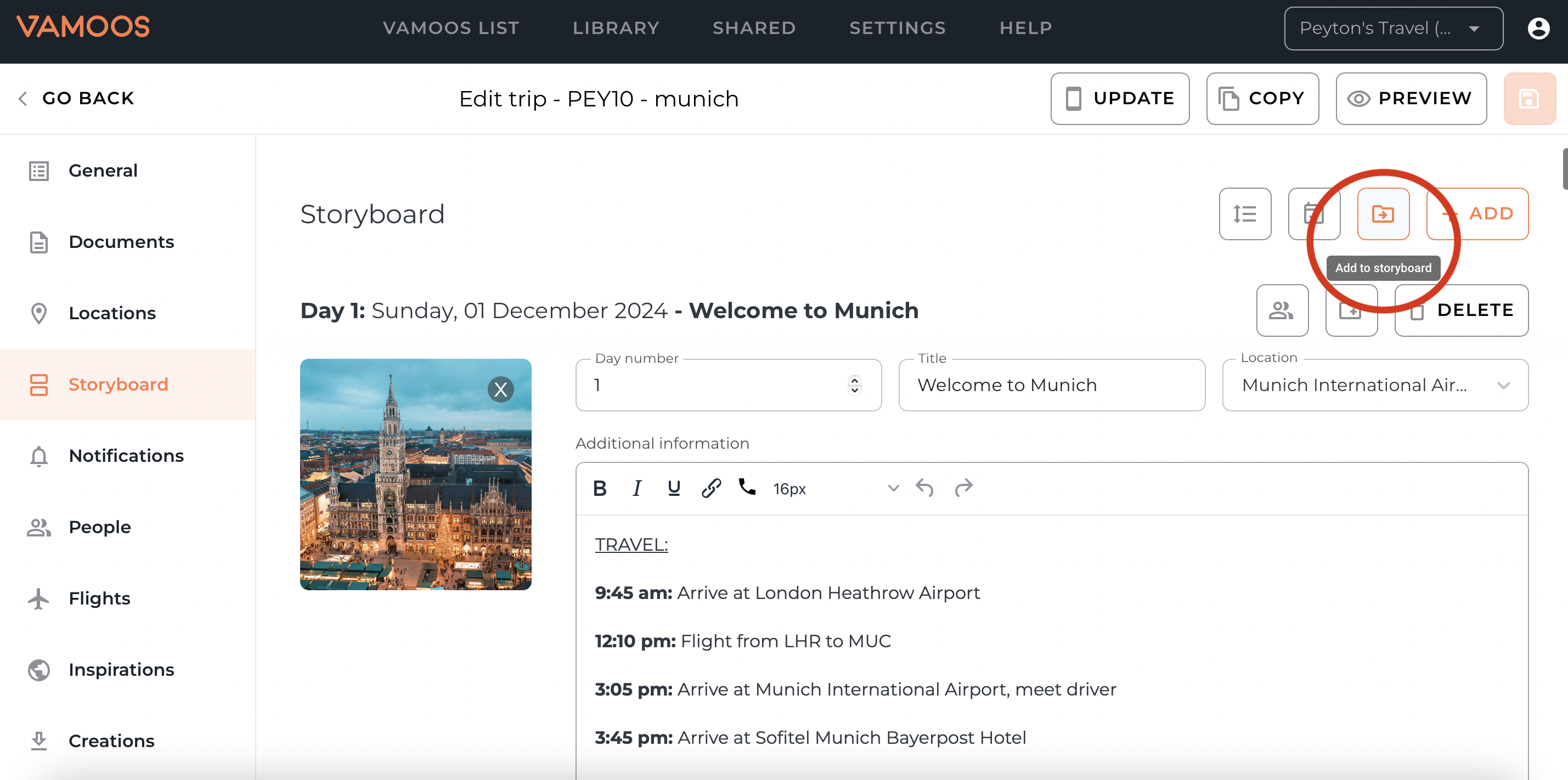
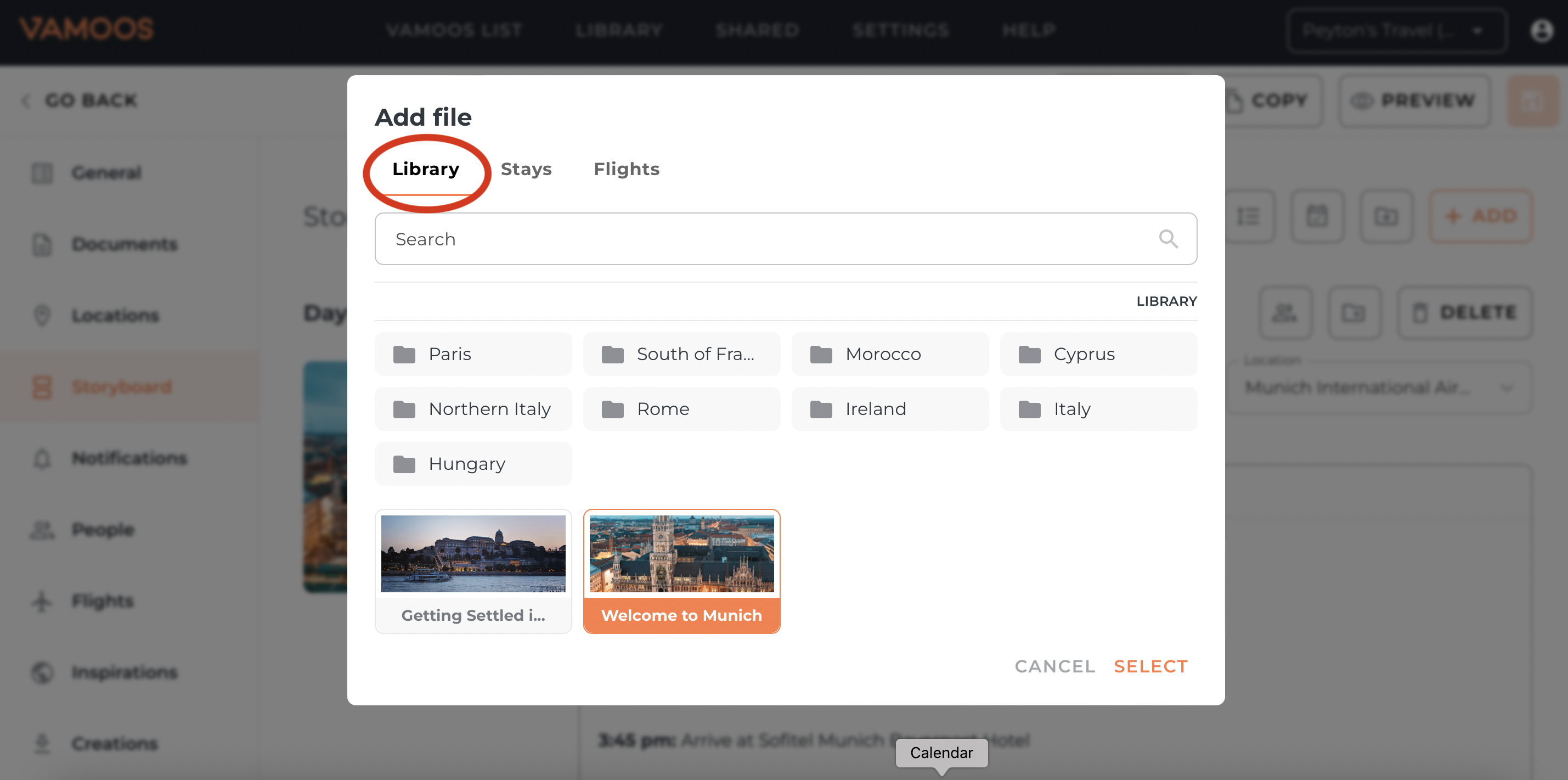
TOP TIP: You can sort Storyboard frames into folders in the Library.
Updating a Library Item
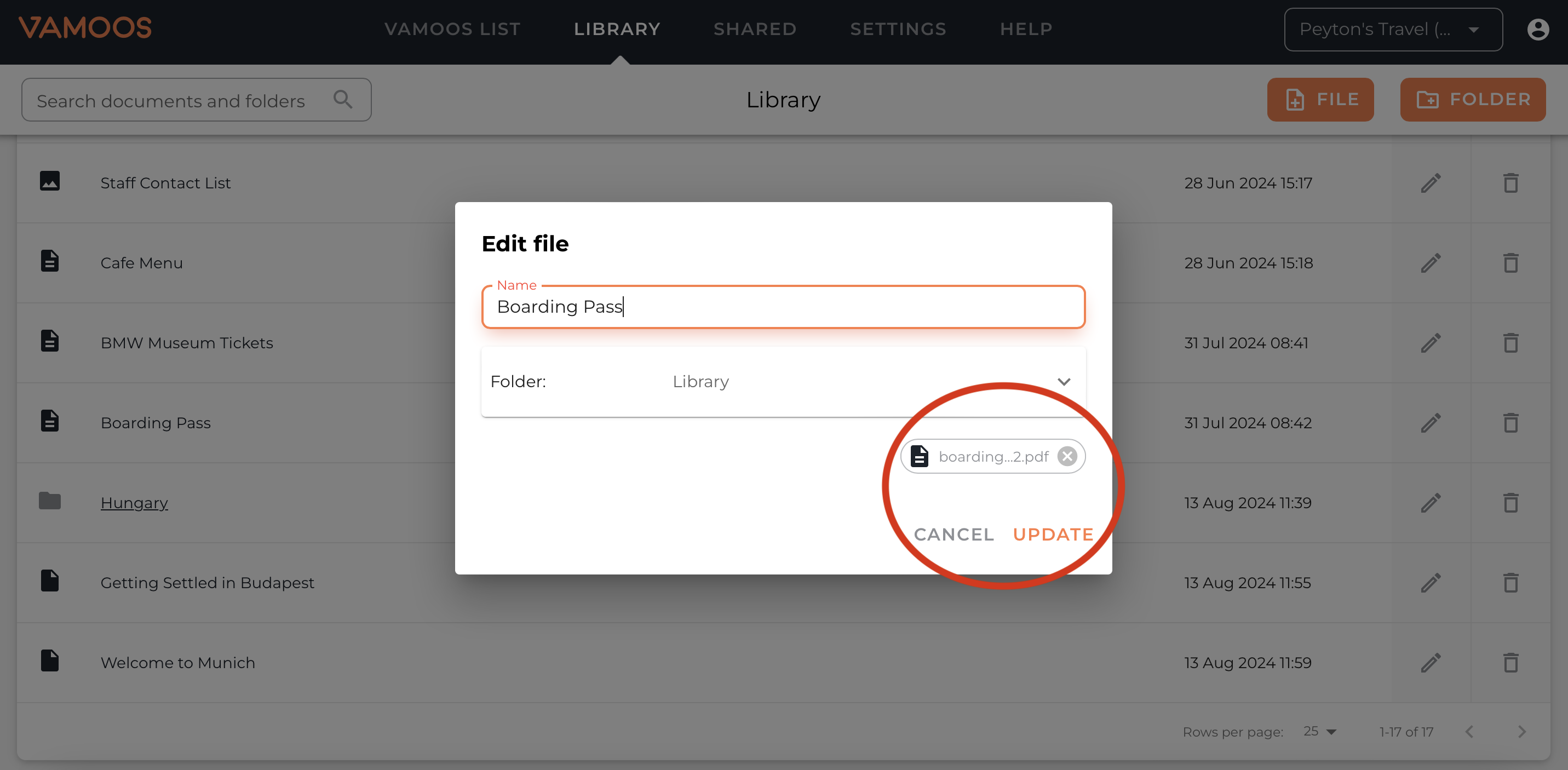
Please note, when you update a PDF in the Library, it will update across all trips where it was added from the Library.
If you uploaded the file directly from your desktop into a trip, it will not automatically update across all your trips.
FAQs
Q: Can I add multiple files to a folder at once?
A: You can only move one existing file at a time, but when uploading new files you can add multiple at once by opening the folder and uploading directly inside it.
If you have any further questions or need help with this, contact us at support@vamoos.com.