
Home Screen Menu Icons: customise your layout
✅ For travel companies
Personalise your client's experience in the app by rearranging the Menu Icons in the app.
In this Article:
Rearrange Home Screen Menu Icons For A Specific Trip
Rearrange Home Screen Menu Icons in the Settings
Delete Home Screen Icons
Re-adding Deleted Home Screen Icons
Deleting and Re-adding Documents Icons from the App
Rearrange Home Screen Menu Icons For a Specific Trip
You can rearrange the HomeScreen icons on an individual trip level. To do this:
Step 1: Open the Trip
Choose the Trip from the Vamoos List or create a new one.
Step 2: Homescreen Menu
Scroll down to the Homescreen Menu section in the General Section.
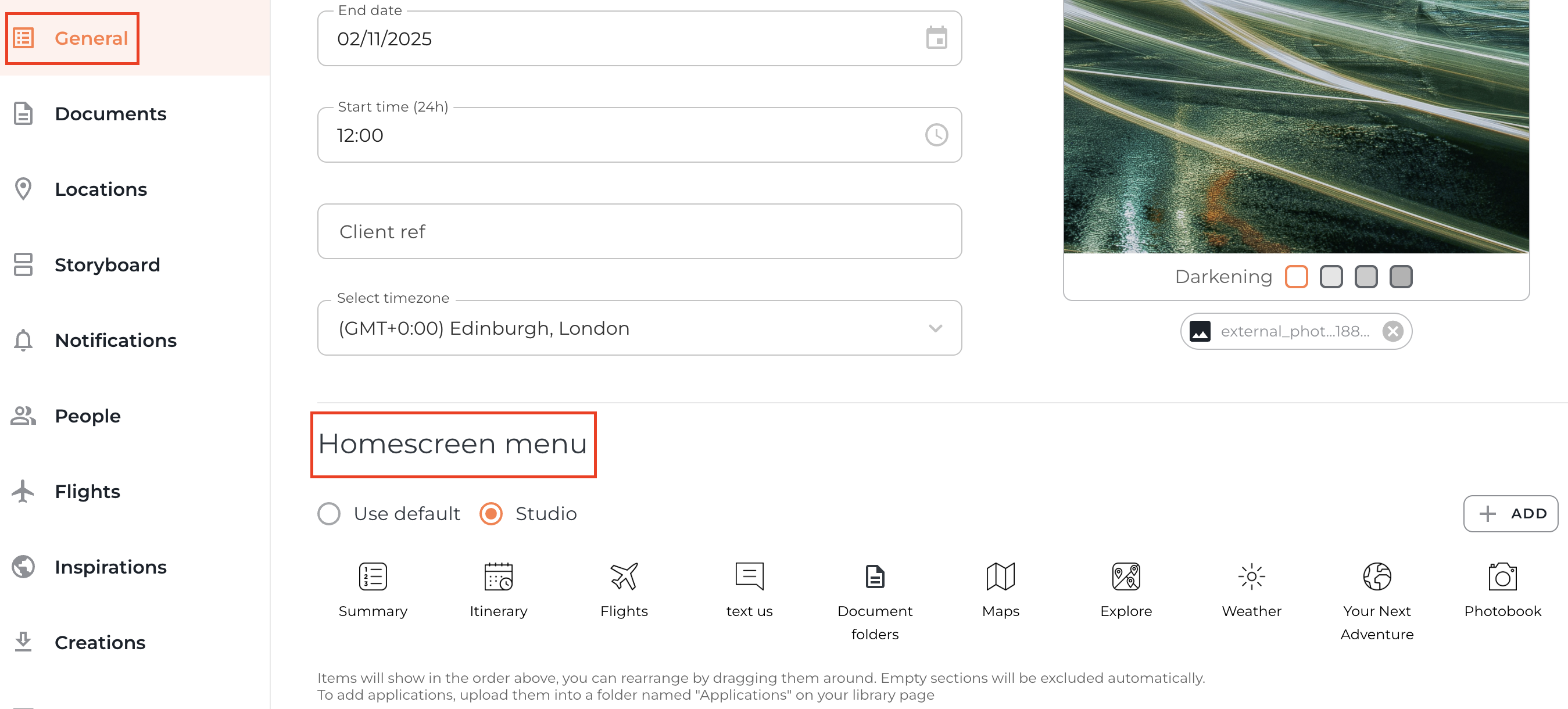
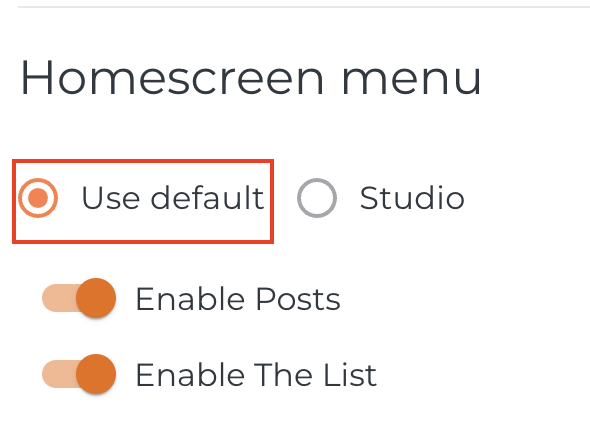
Step 3: Default or Studio Menu
Use the Default option if you would like to maintain the standard Home Screen Icon Menu order, or select Studio if you wish to rearrange the icon order in the app.
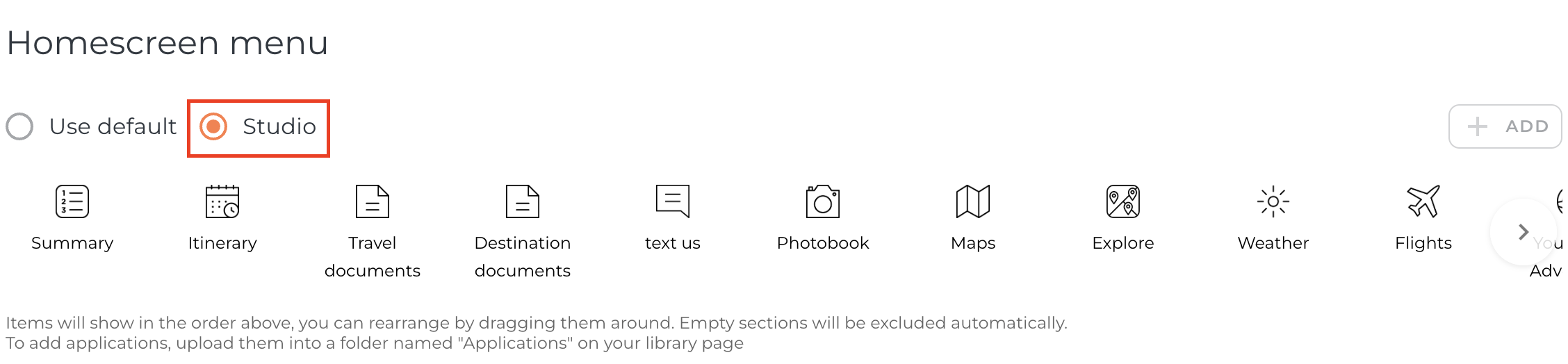
Step 4: Rearrange the Menu Icons
Make sure the Studio option is selected and drag and drop your icons to the desired position.
Note: for Studio layouts, having the 'Posts' or 'List' icon present will automatically enable these features. If you don't wish to use them, simply remove the icons.
Any specific changes you make to the order of your icons within your trip will be specific to that trip only. If you make no changes, it will use the Settings and layout you have chosen in your main Settings (in the black bar at the top of your screen).
Rearrange Home Screen Menu Icons in the Settings
You can rearrange the HomeScreen icons across all the trips in your settings. To do this:
Step 1: Open the Settings
Head to Settings at the top of the screen and click on General.

Step 2: Trip Menu
Scroll down to Trip Menu section.
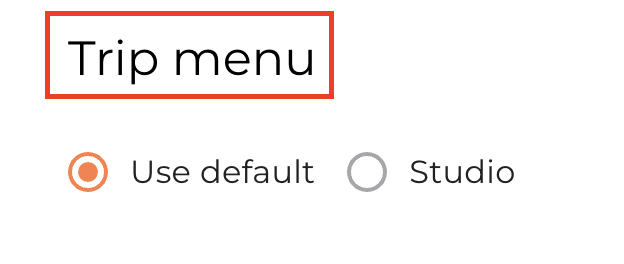
Step 3: Default or Customised Menu
Keep the Default option if you would like to maintain the standard Home Screen Icon Menu order, or select Studio if you wish to rearrange the order of the icons in the app across your trips.
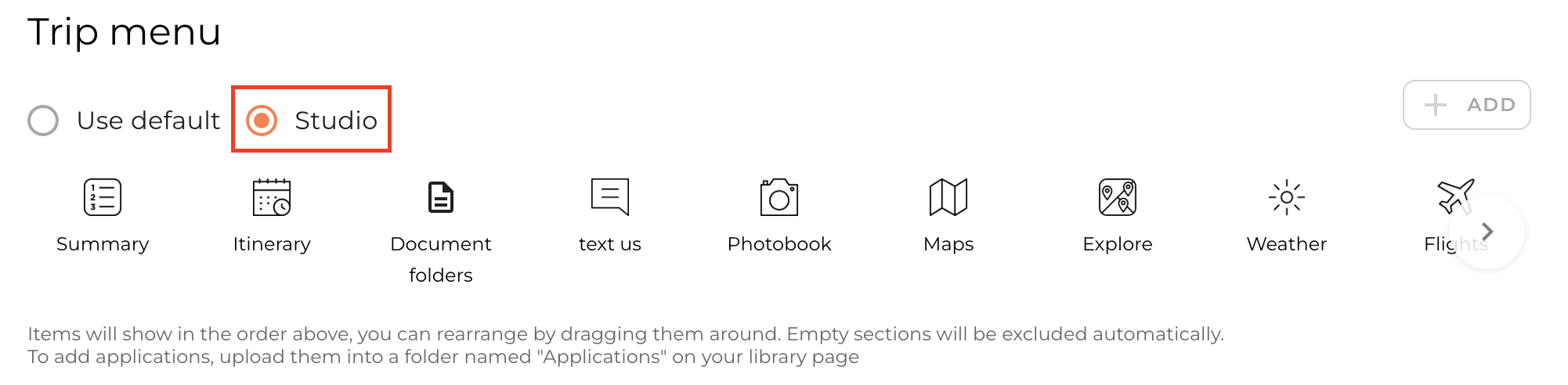
Step 4: Rearrange the Menu Icons
Select the Menu Icon you would like to rearrange and drag and drop it to the desired position.
Please note: Having the Studio option selected in your Settings will apply across all trips. Trip-specific layouts can also be customised further for individual trips.
Delete Home Screen Icons
Step 1: Select the Home Screen Icon
Select the Icon you would like to delete by clicking on it.
Step 2: Delete the Home Screen Icon
Click on the Trash symbol next to the icon to delete it.
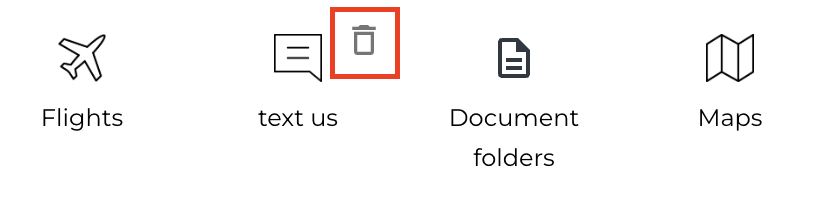
Note: icons are not deleted permanently and can be restored.
Re-adding Deleted Home Screen Icons
Step 1: Add the Icon
Click on the +ADD button in order to bring back deleted menu Icons.
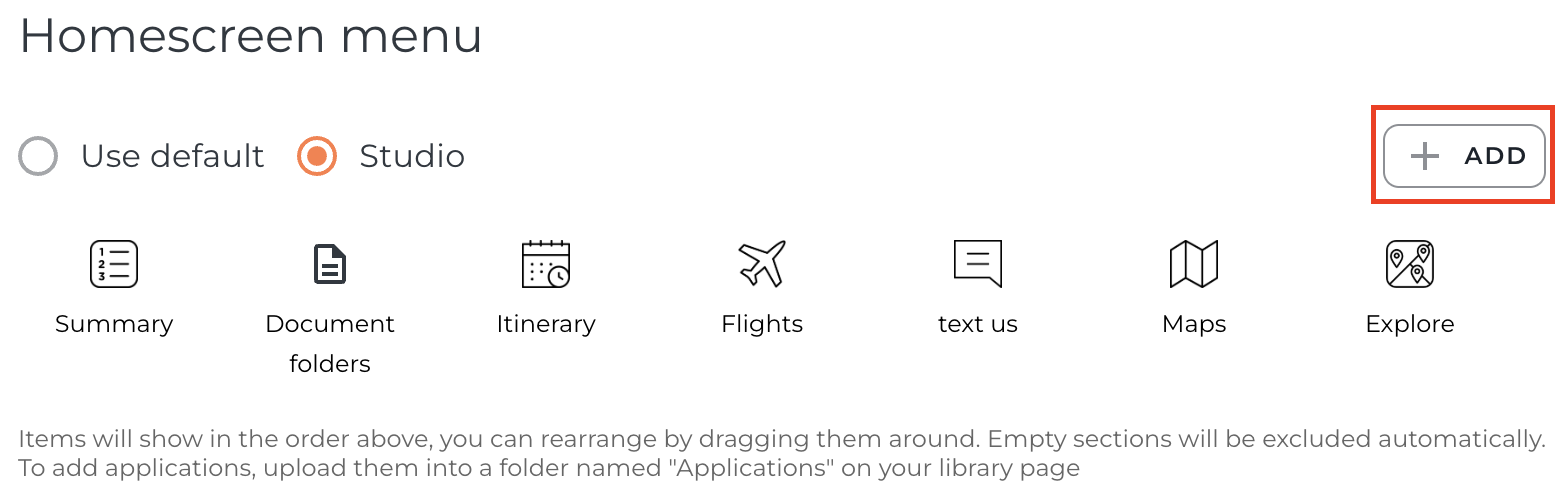
Step 2: Choose the Icon
Select the Home Screen Icon you wish to add from the list.
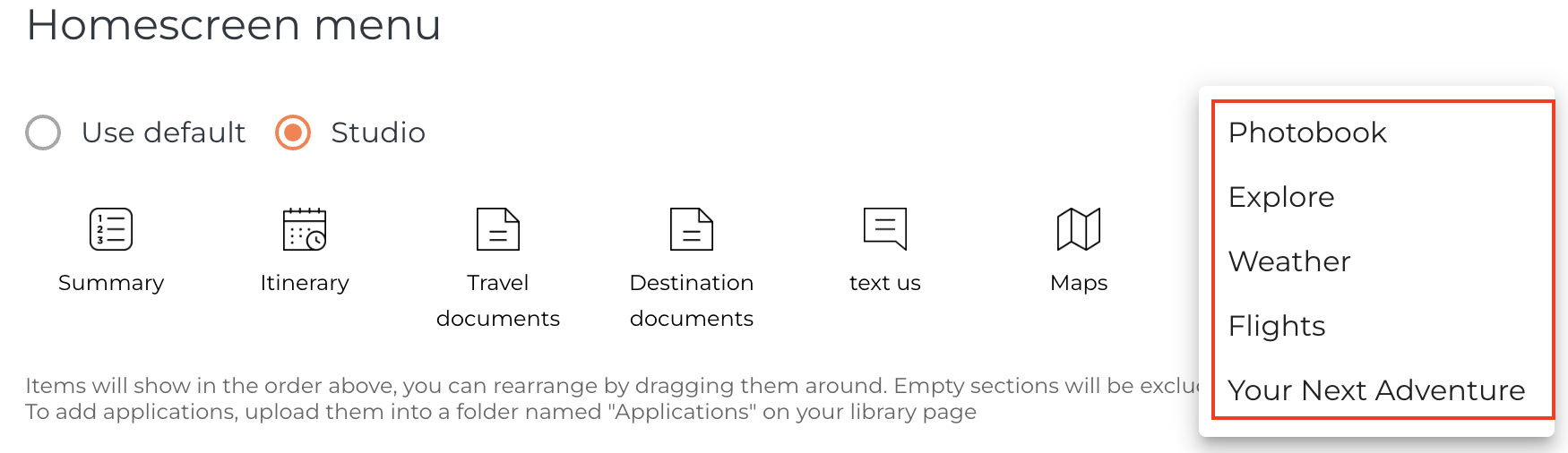
TOP TIP: you can rename these by going to Settings > Menu & Labels.
Deleting and Re-adding Document Icons from the App
You can remove a document icon from the App without deleting the section and content from the portal.
Removing the section
Go to the General section of your trip and scroll down to Homesceen menu
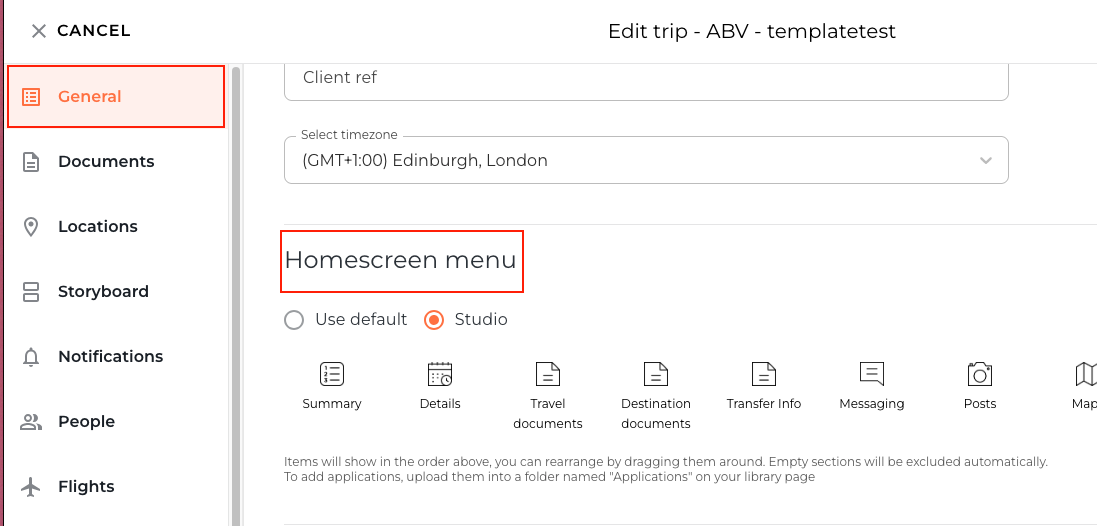
To remove the icon, select the Trash button that appears when you select the icon.
Note: This will only delete the icon from showing on the app, not the content you have added within the portal.
Re-adding the section
If you would like to re-add a document section to appear as an icon on the app, go to the General section of your trip and scroll down to the Homescreen menu
Here, press the +ADD button
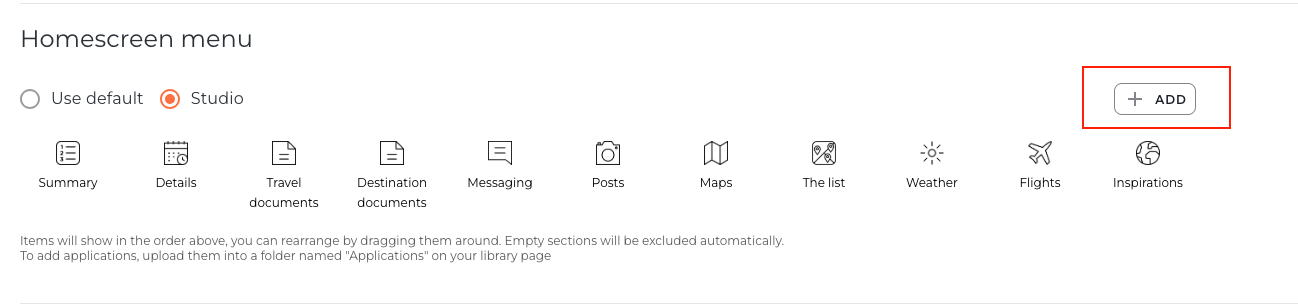
You can select the Document section you would like to re-add from the drop-down list. The list will display any Document sections you have previously added to that trip only.
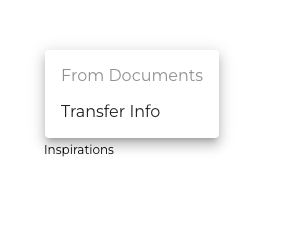
Note: if your Homescreen settings are set to Studio for the trip and you create a new document section, you will have to add this icon under General > Homescreen Menu for it to show on the app
If you have any further questions or need help with this, you can contact us at support@vamoos.com.