
TripImport beta: convert PDFs into Vamoos Trips
✅ For Travel Companies
Meet TripImport, our new AI-powered tool that converts your PDFs into a structured, visual storyboard within Vamoos. Simply create a trip as you normally would, select TripImport, upload your PDF, and let the AI do the heavy lifting.
In this article:
How to use TripImport
FAQs
How to use TripImport
Step 1: Create a new trip
To get started, head to your Vamoos List, choose Vamoos Trips and click + CREATE TRIP.
Step 2: Upload your PDF Itinerary
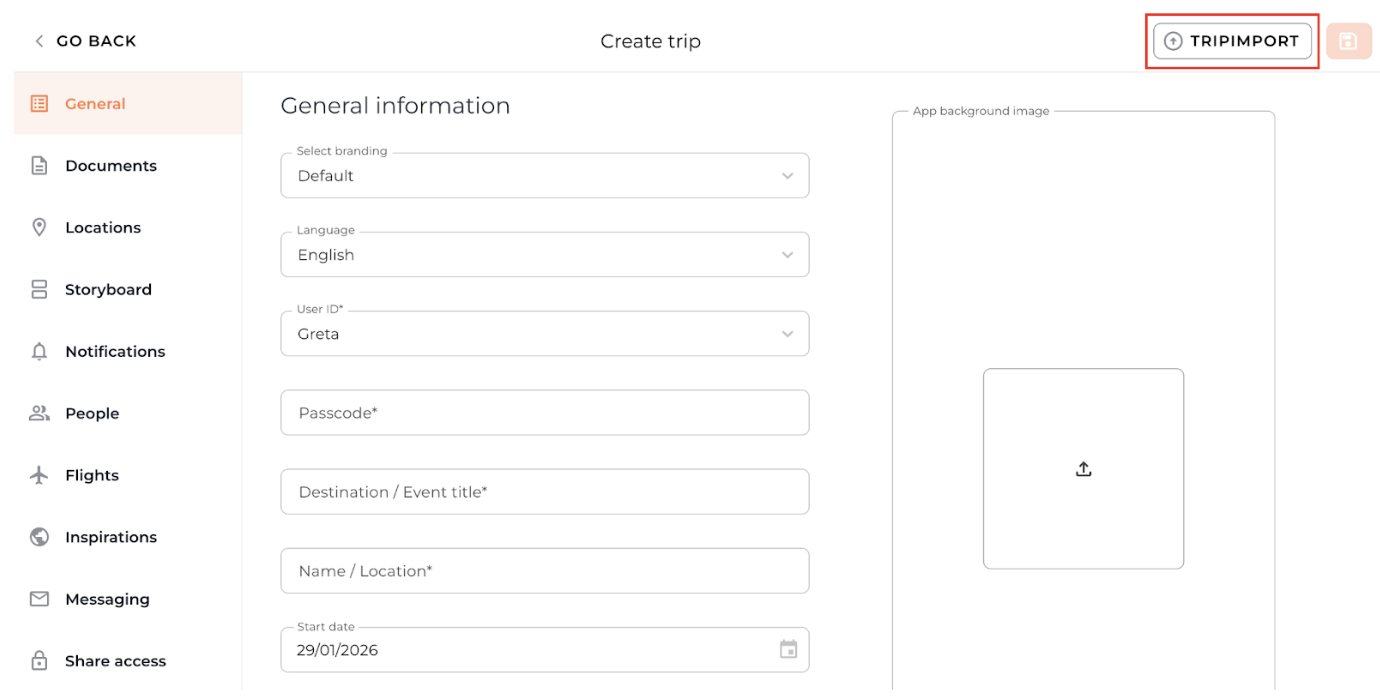
In order to upload and convert the PDF document into a Vamoos trip, you will need to click on the TRIPIMPORT button at the top right hand side and choose to upload the PDF from the Library or upload from your device and click SELECT.
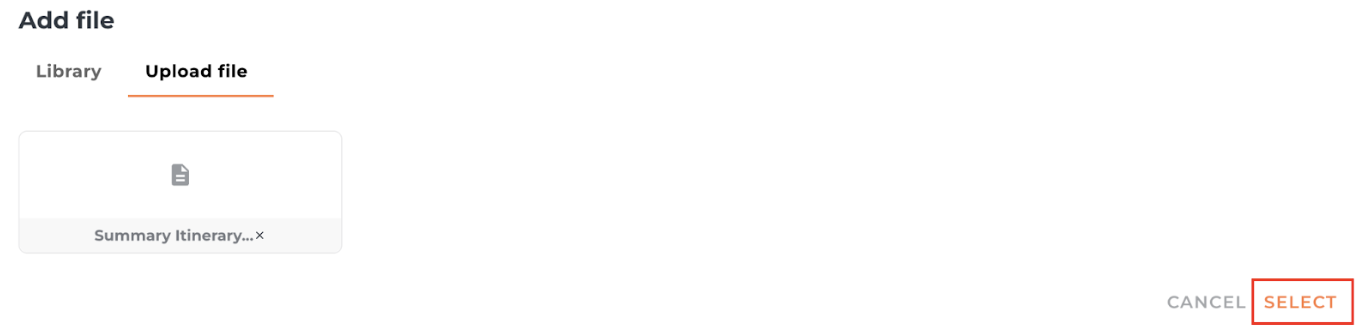
It can take up to 3 minutes to analyse the PDF file.
Note: TripImport only supports documents in a PDF format.
Step 3: Review
Any sections created by TripImport will be highlighted in red and contain a red asterisk in the left-hand side menu, so it’s easy to see what needs reviewing.
TripImport is a data importer; all the information needs to be reviewed for accuracy before it is shared with your travellers, as you would with a normal itinerary.
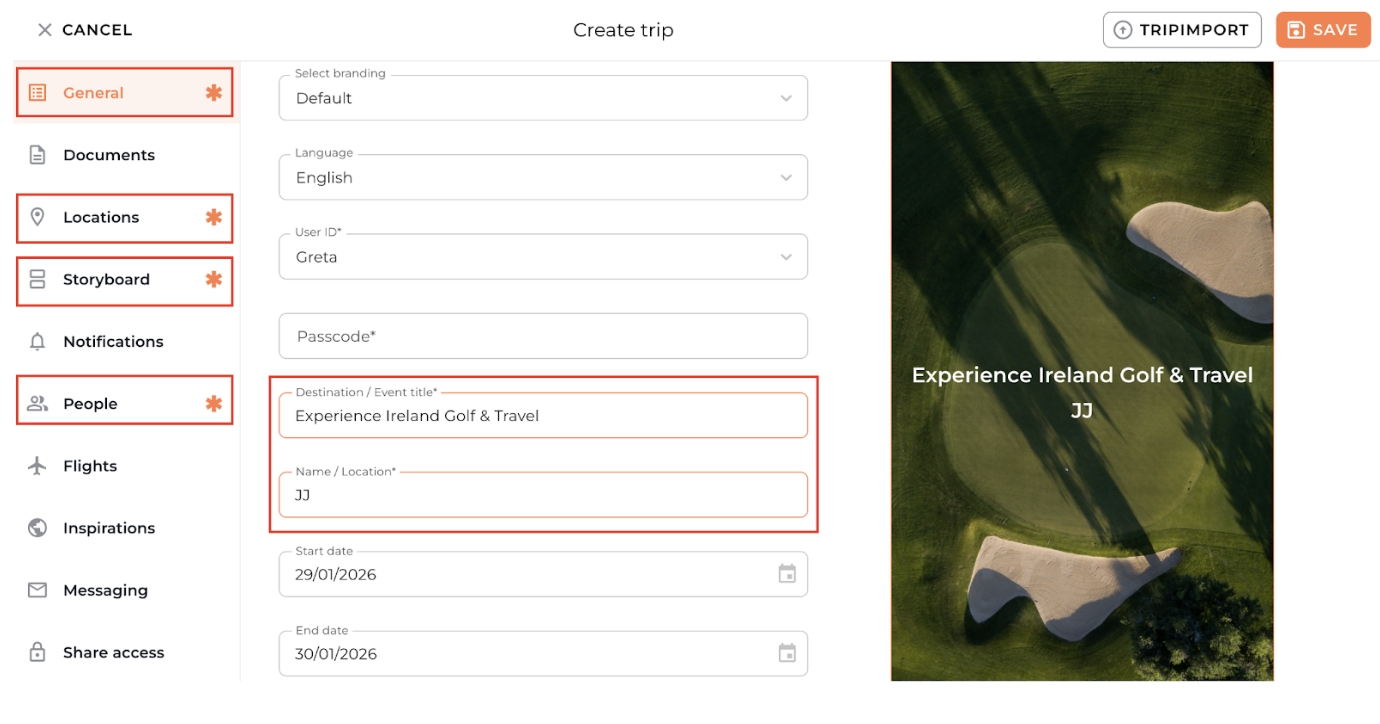
Please note: TripImport cannot see or understand intentions, so this may lead to some limitations in understanding what images are related to what days. For the best results, pair TripImport with Imsert to select and manage your images!
You will then need to complete the usual things that are required of a Vamoos trip: create a trip Passcode and upload any remaining trip information.
Step 4: Upload additional information
If you want to, you can upload an additional PDF document via TripImport to your trip. For example, if you have a document dedicated to transfer information/activities, etc.
To do so, follow the same steps as above on the same trip!
FAQs
Q: What happens if the PDF itinerary doesn’t include start and end dates?
A: If the PDF itinerary doesn’t specify dates, or if the listed dates have already passed, TripImport will automatically assume the trip starts today and ends tomorrow. You can modify these dates at any time as usual.
Q: What if the images in my itinerary look blurry or low quality?
A. Images are subject to the quality and resolution of the original PDF. For best results, we recommend pairing this tool with Imsert to manage and choose your images.
Q: What if I want to combine 2 separate PDFs?
A. To combine 2 PDFs, you can use TripImport to create 2 separate trips and then save the Storyboard days to your library so you can use those when building the Storyboard. See our guide on this for more info!
Q: What languages are supported?
A. TripImport supports all languages. Just make sure the languages you need are added in Settings, and your trip is set to your chosen language before you upload your PDF.
If you have any further questions or need help with this, contact us at support@vamoos.com.