
Studio Documents: create your own dynamic documents
✅ For hotels
Create stunning, flexible, fully branded documents directly in Vamoos – no longer limited to PDFs. Vamoos Studio Documents feel native in the app, are easy to update, and beautifully present everything.
In this article:
Uploading Studio Document
Creating Studio Document
Creating Studio Document in the Library
FAQs
Uploading Studio Document
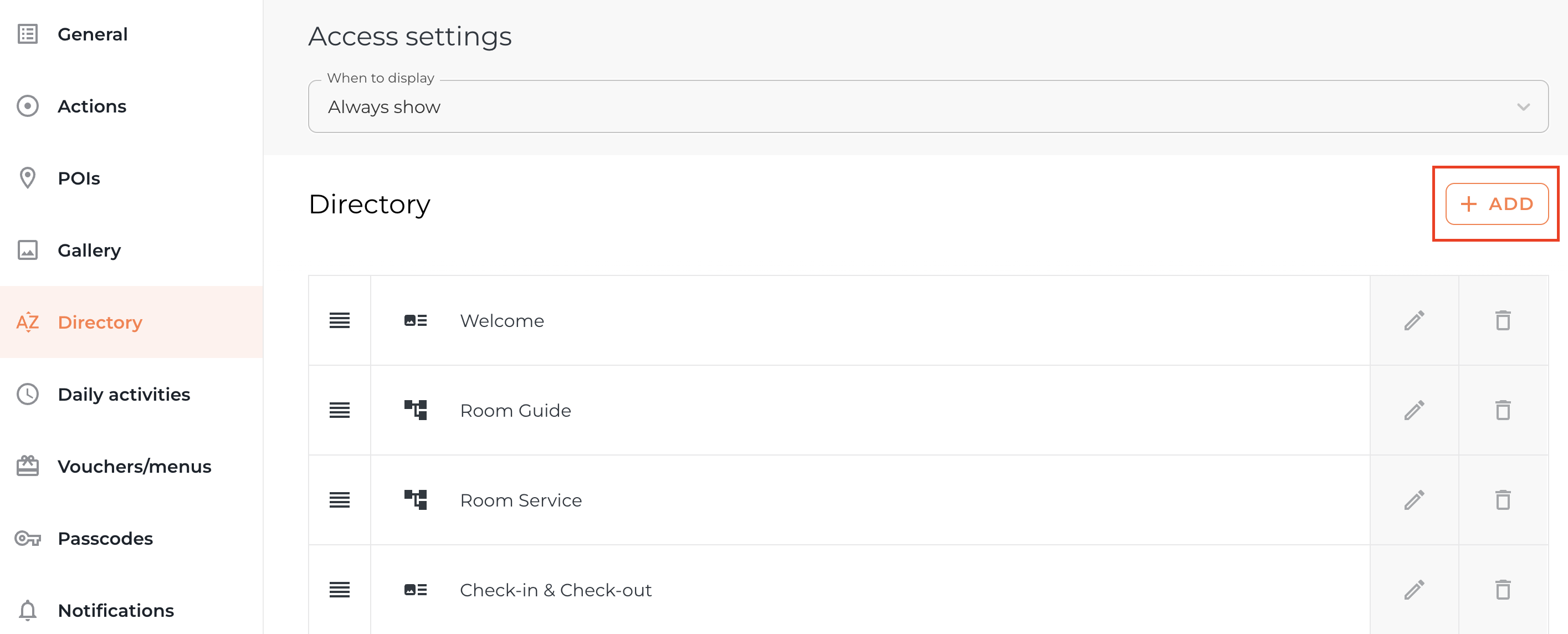
Step 1: Go to Directory, Daily Activities or Vouchers & Menus
To attach a Studio Document, go to the chosen section and click +ADD.
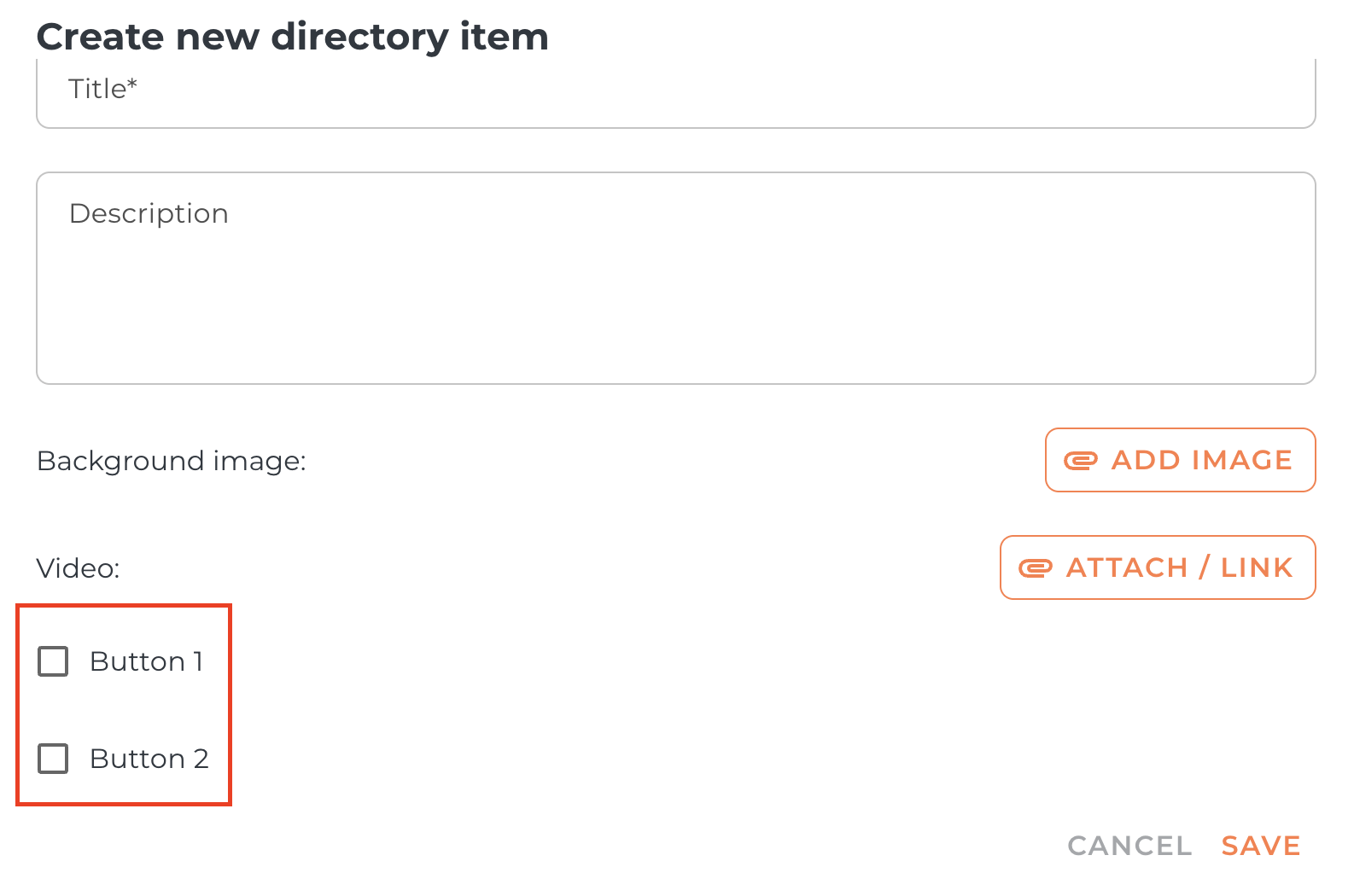
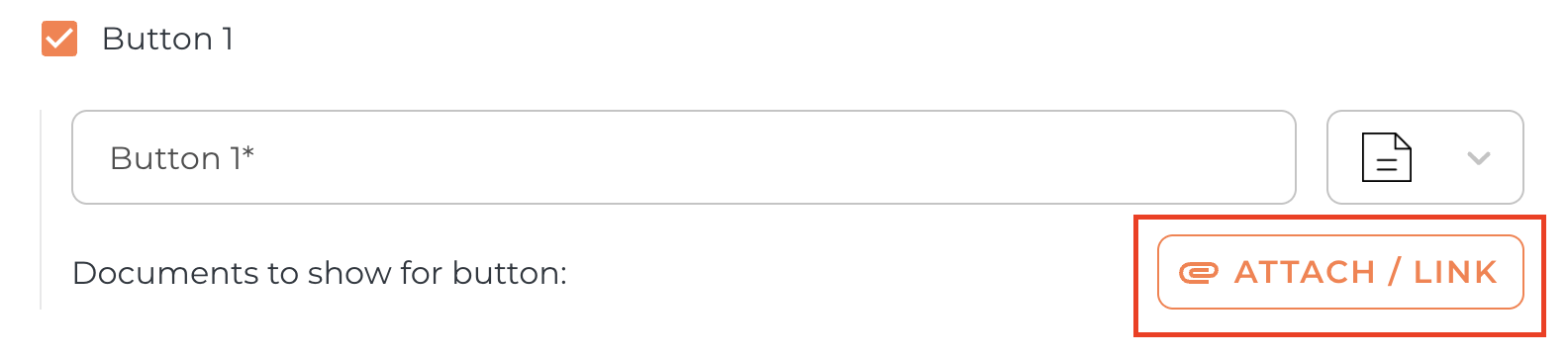
Choose if you would like to upload the Studio Document to Button 1 or 2, then click to Attach/Link and choose STUDIO.
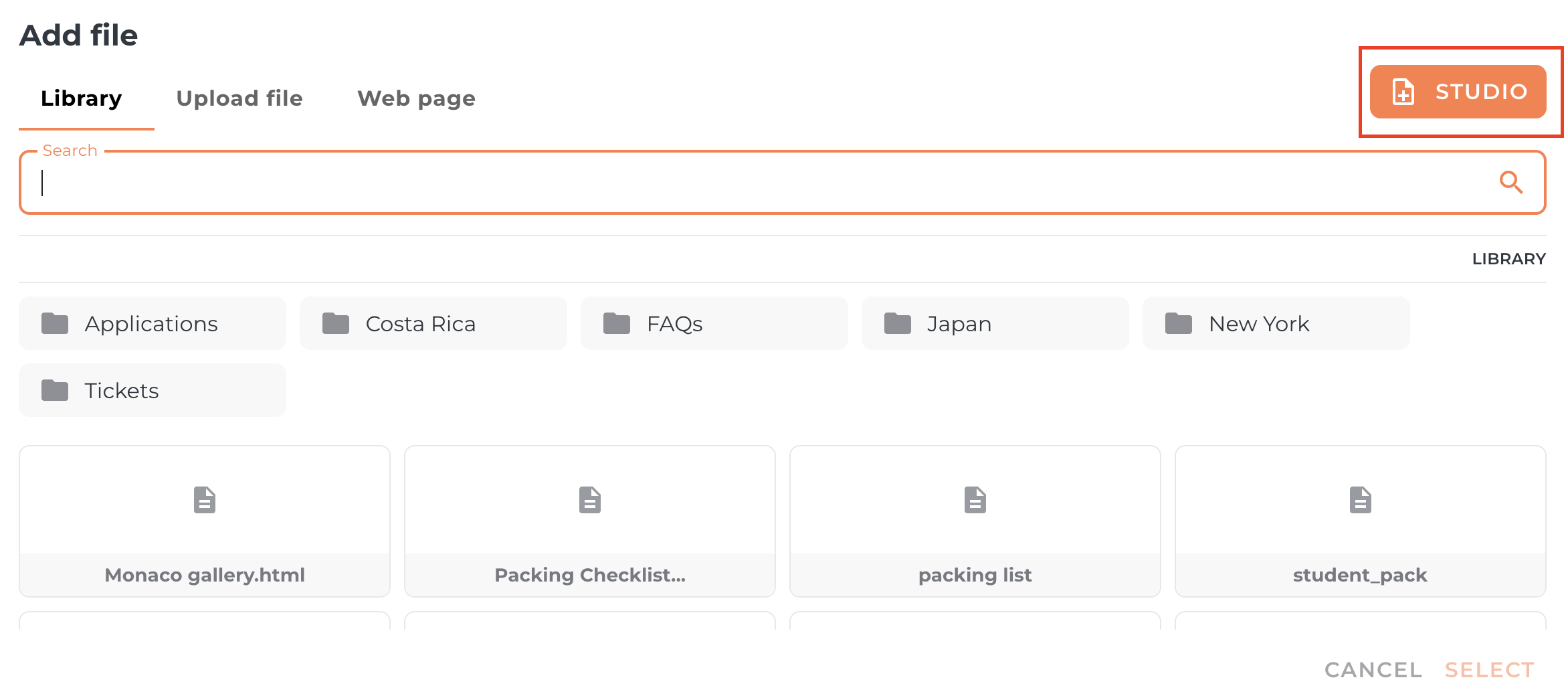
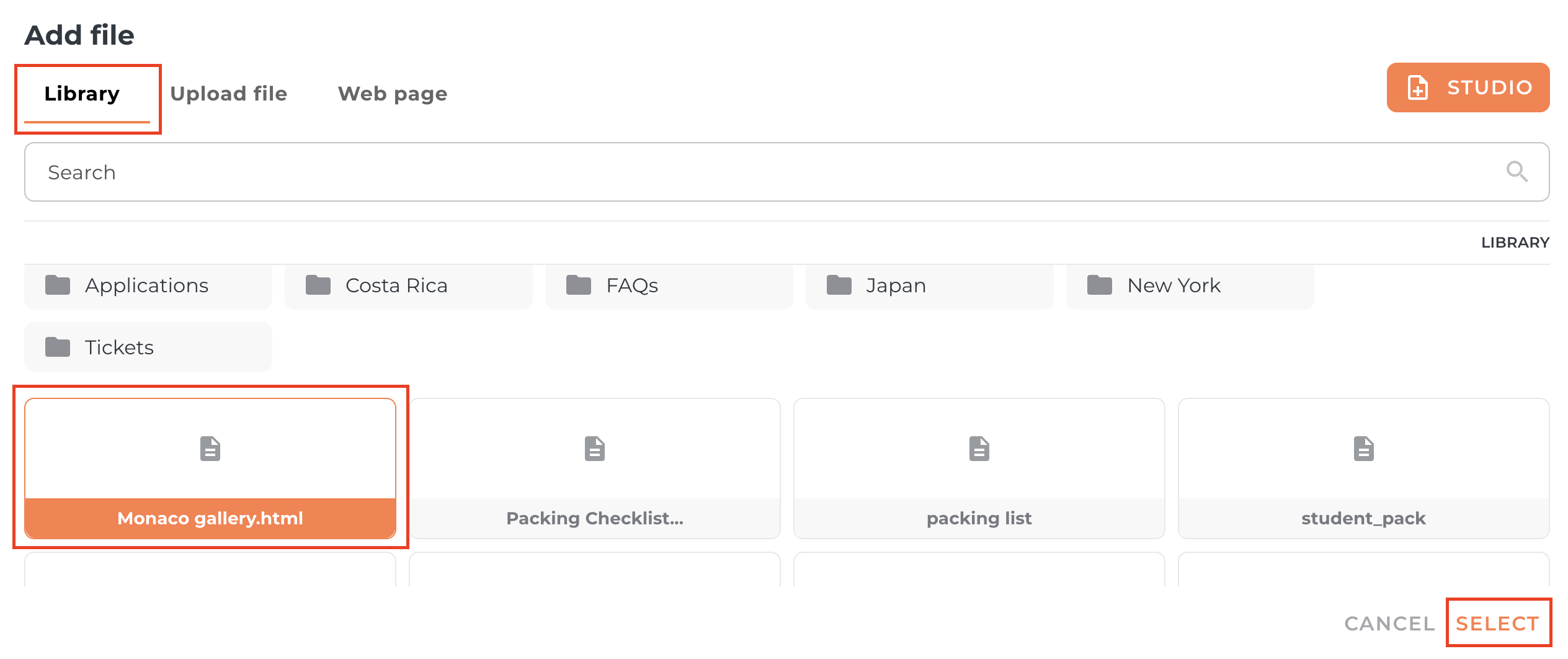
If you would like to upload Studio Document created in the Library, simply click on Library, choose the document and SELECT.
Creating Studio Document
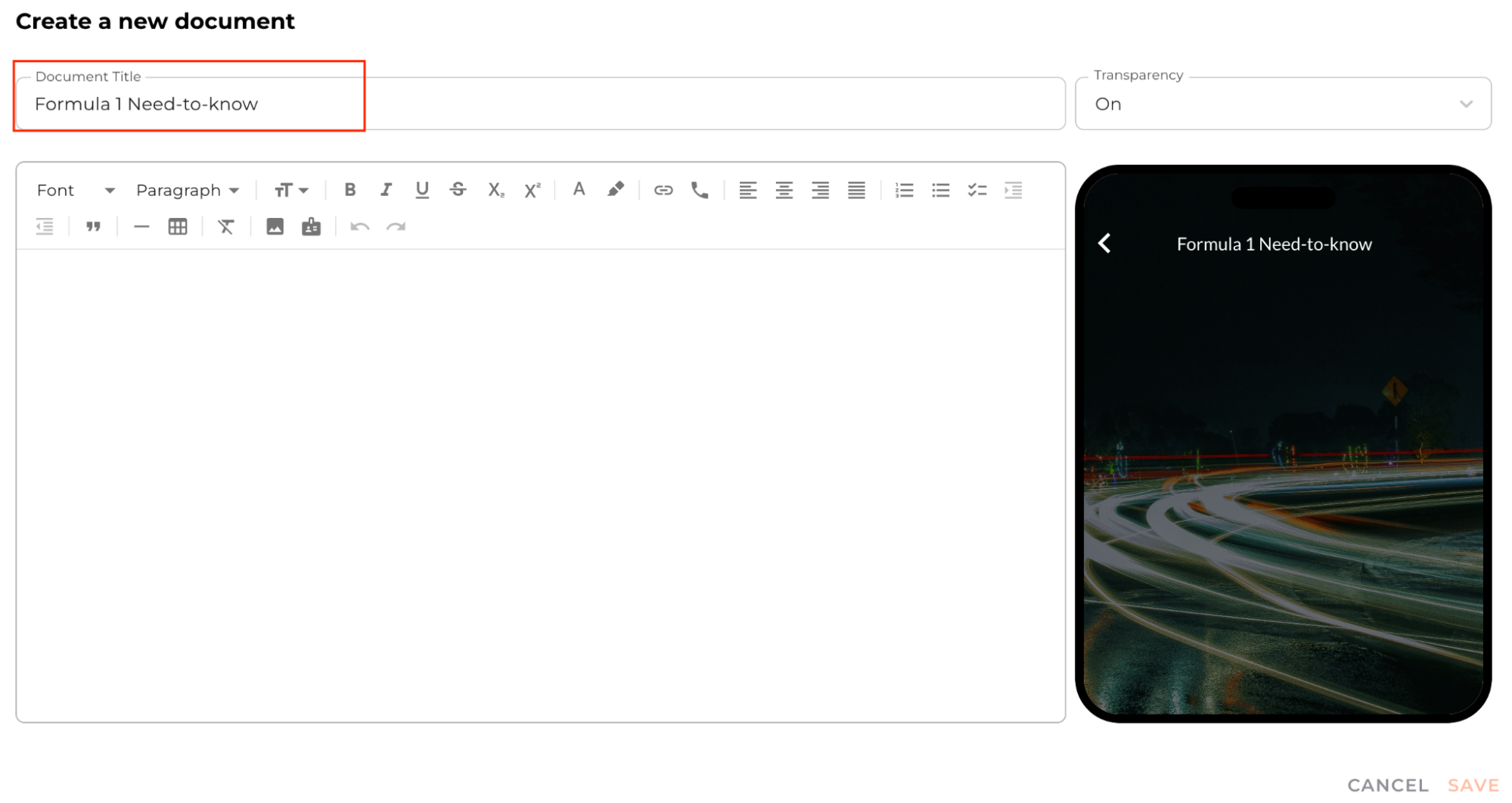
Step 1: Title the document
In the ‘Document Title’ field, put the desired title for your clients to see.
Step 2: Build the document
You can now create your document from scratch using the various features within the document builder.
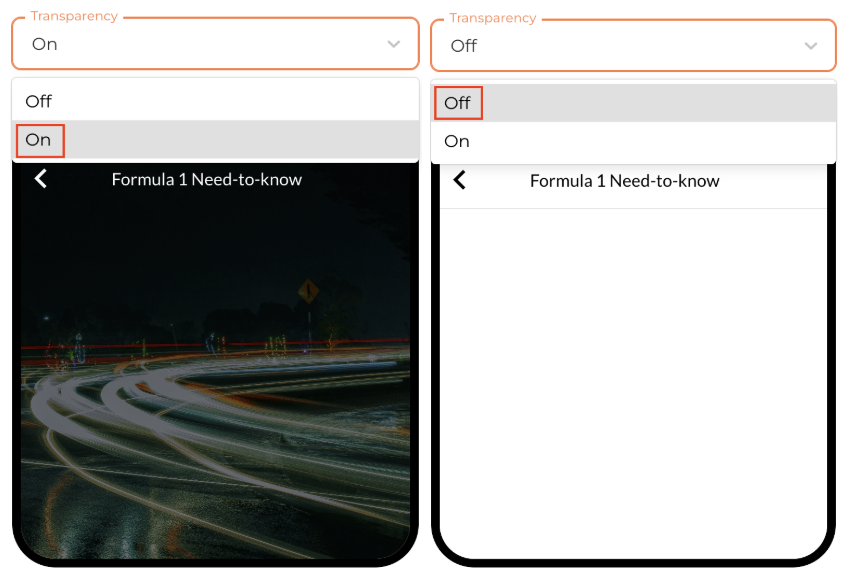
To change the background, select from the Transparency menu. When transparency is on, the home screen image will be the background. When transparency is off, the background will be white.
Text:
To add text, simply begin typing in the blank field.
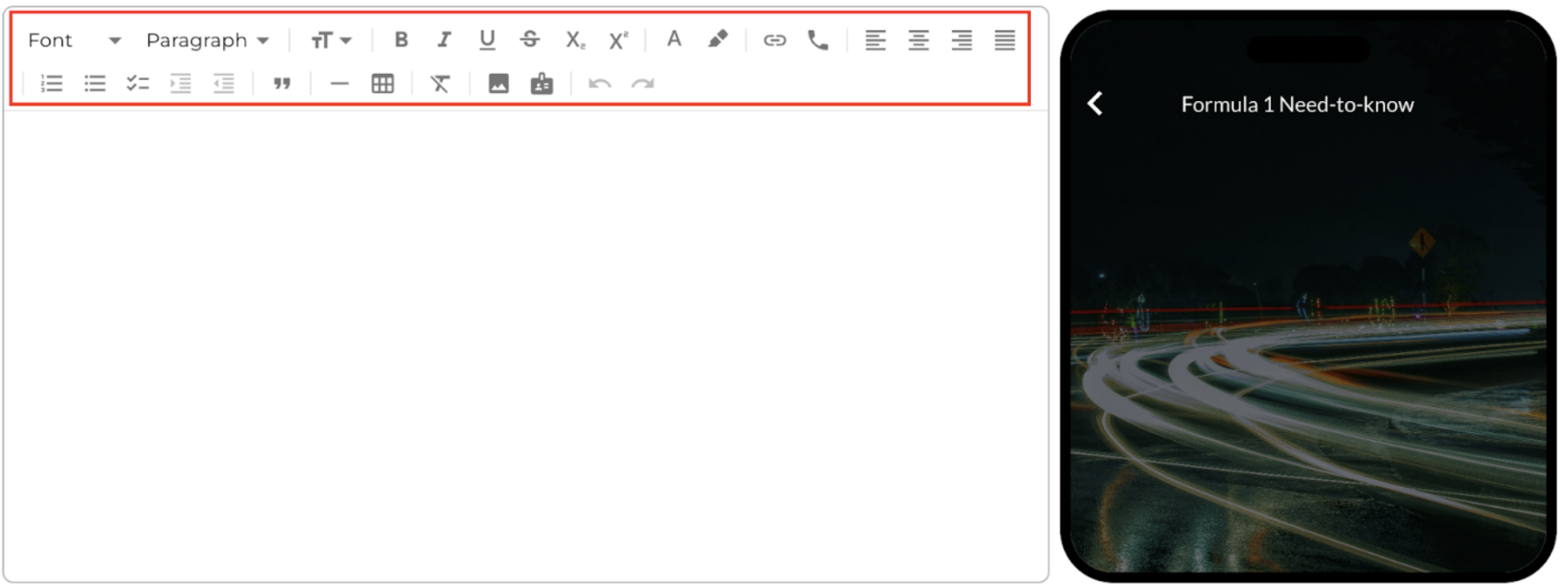
There are many formatting options for the text within the document:
4 font styles
Text styles: 6 different headers
Text size
Rich text formatting: bold, italics, underline, strikethrough, subscript, and superscript
Text colour
Highlight colour
Hyperlinks
Linked phone number for direct calls
Text alignment
Lists: numbers, bullets, checkboxes
Images:
To add an image, select the picture icon in the menu.
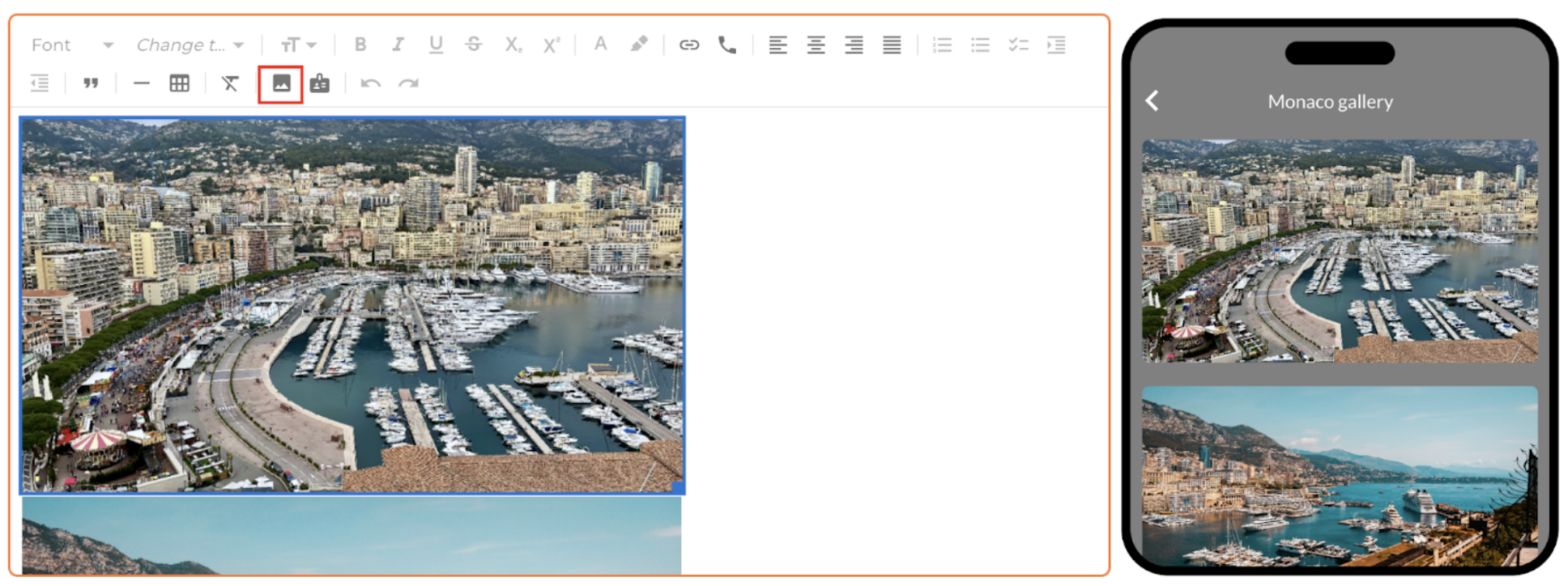
Upload an image via:
Your Vamoos Library
Your device
Imsert
Unsplash
PLEASE NOTE: The images must be in JPG, JPEG, PNG, or GIF format.
There are some formatting options for images:
Resize the images by hovering over the photo, grabbing the bottom right-hand corner, and dragging the image to be larger or smaller.
Change the alignment of the image. You can add multiple images to each document.
Other tools:
Add your Logo to the document by selecting the Add Logo button. If you have multiple brand profiles, you will be able to select from those.
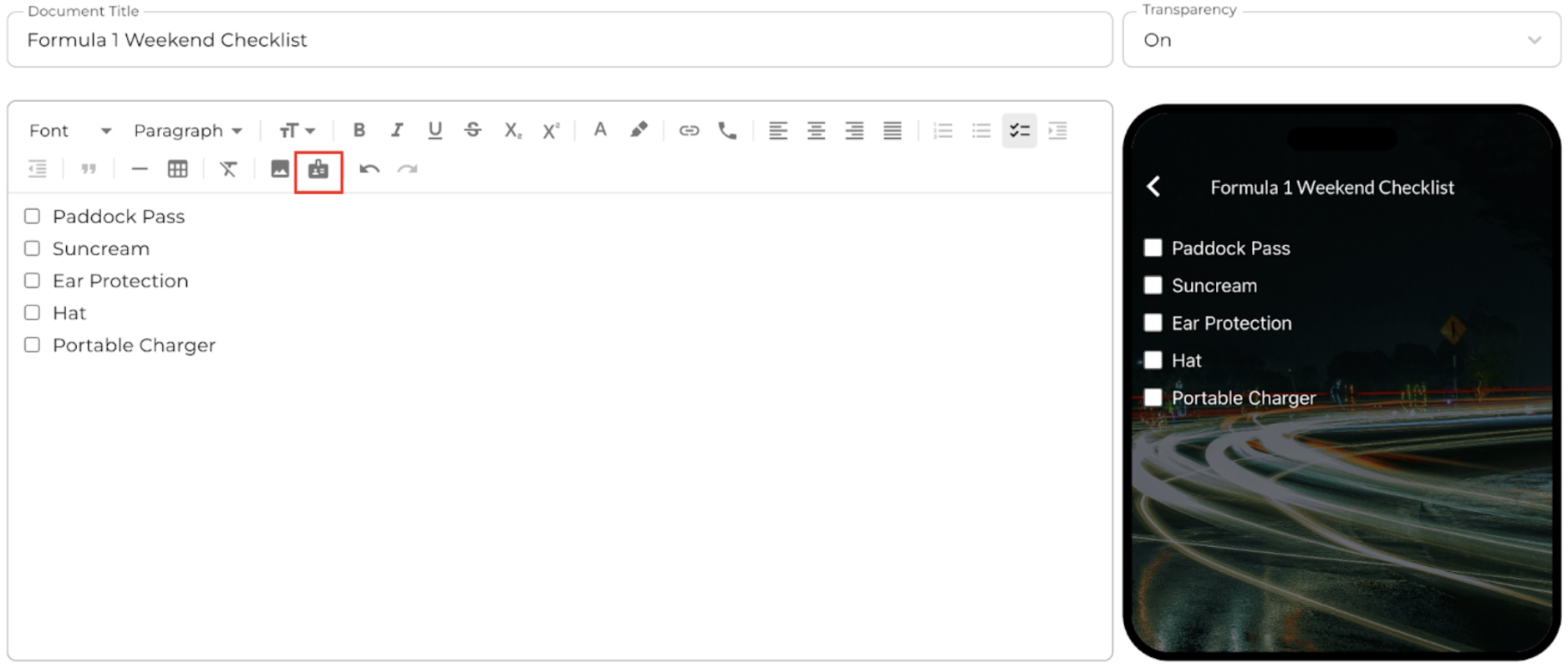
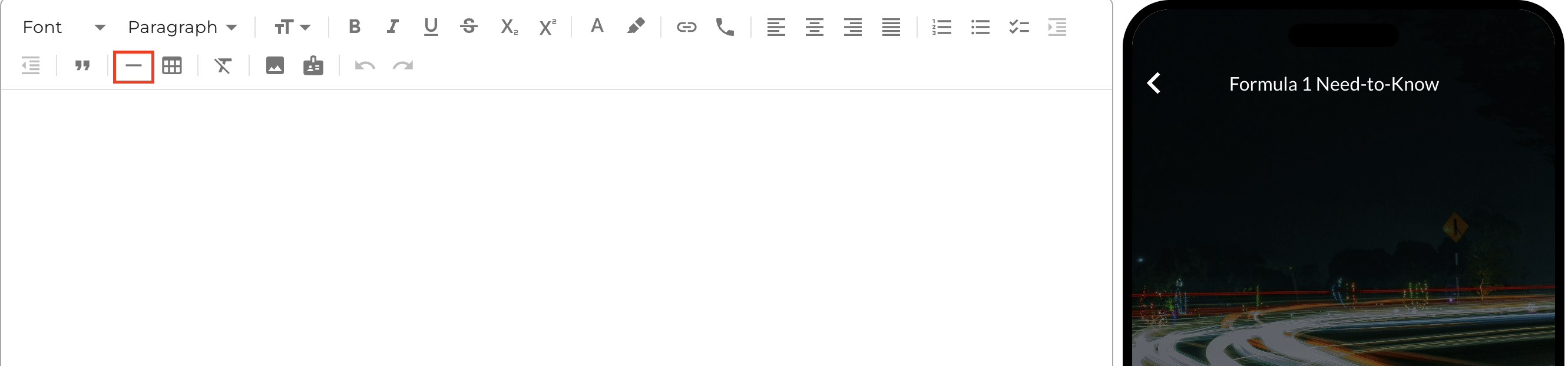
Insert a horizontal line break with the following button.
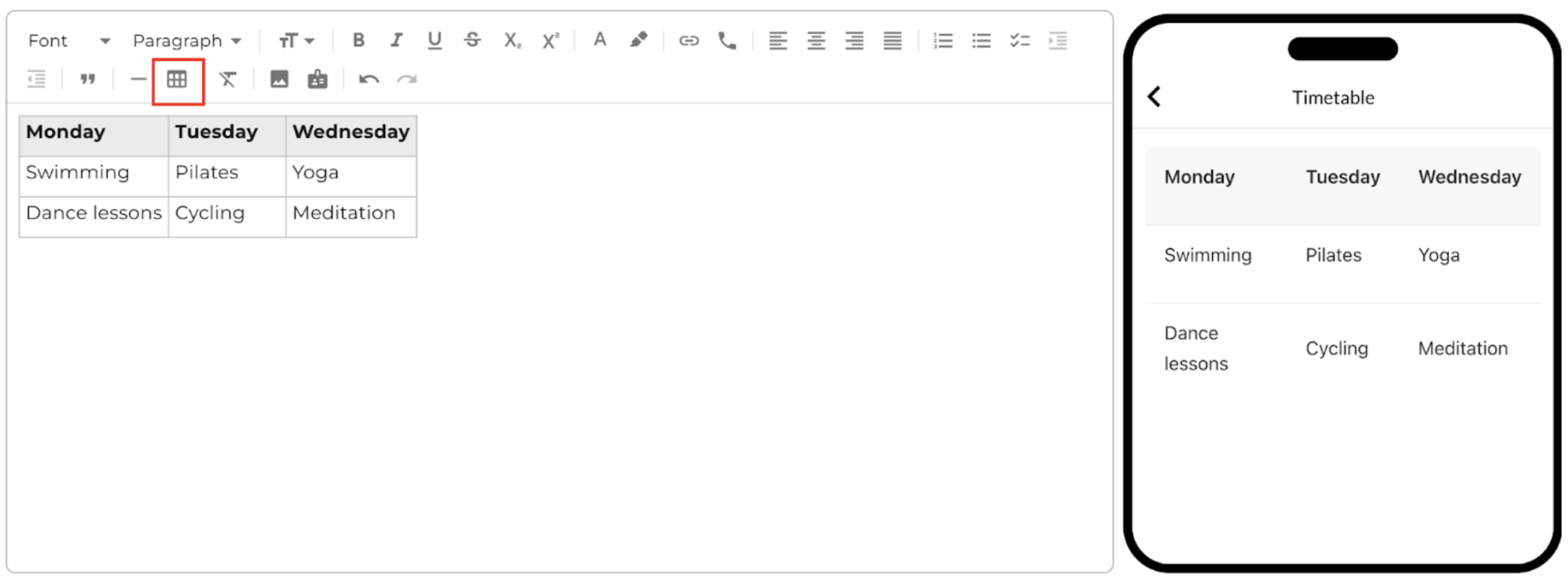
Insert a table with the following button. There are several formatting options within tables:
Add or remove rows and columns
Add or remove header rows, columns, and cells
Merge cells
Split cells
NOTE: Text within a table can be formatted with the same tools as regular text.
Undo and redo your work.
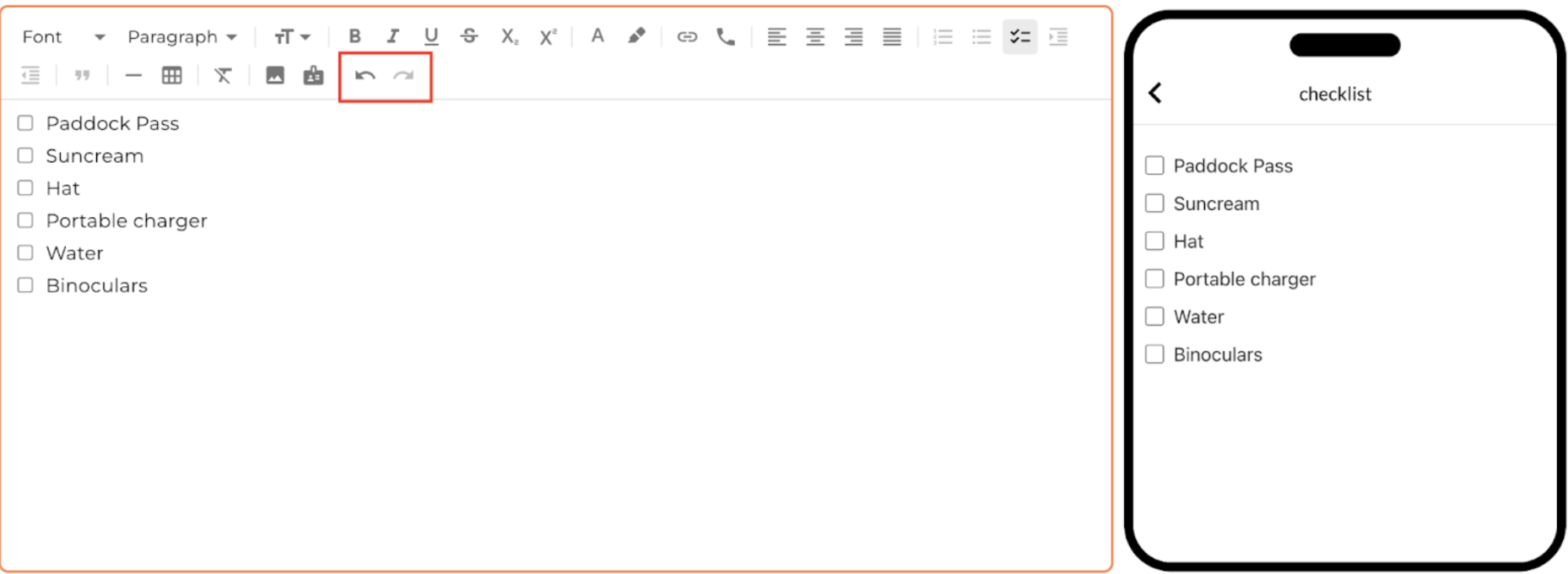
TOP TIP: create your studio documents in the library to access and add the document to any stay.
Creating Studio Documents in the Library
Step 1: Library
Head to the Library the the top of the page.

Step 2: Create a new File or Folder
Select FILE or FOLDER at the top of the page and click the STUDIO option.
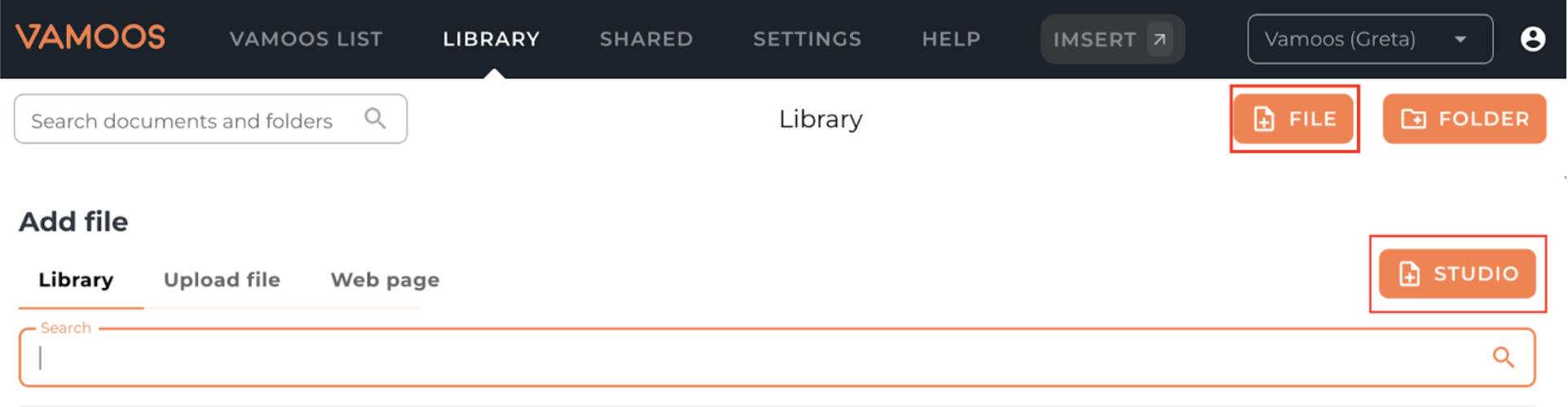
Step 2: Title the document
In the ‘Document Title’ field, put the desired title for the document for your clients to see.
Step 3: Build the document
You can now create your document from scratch using the various features within the document builder.
Please note: edits made to the document in the Library will automatically update this document for all stays.
FAQs
Q: What file types can I upload to the Library?
A: You can upload PDF, JPG, JPEG, PNG, GIF, video/mp4, HTML, ZIP, application/zip files.
If you have any further questions or need help with this, you can contact us at support@vamoos.com