
Rename icons in the app
✅ For travel companies ✅ For hotels
All of the icons along the bottom of the screen in the Vamoos app are fully customisable. You can rename and use them in any way you like!
In this article:
How to rename app icons
Go to Shared in the top menu bar and select Menu & Labels.
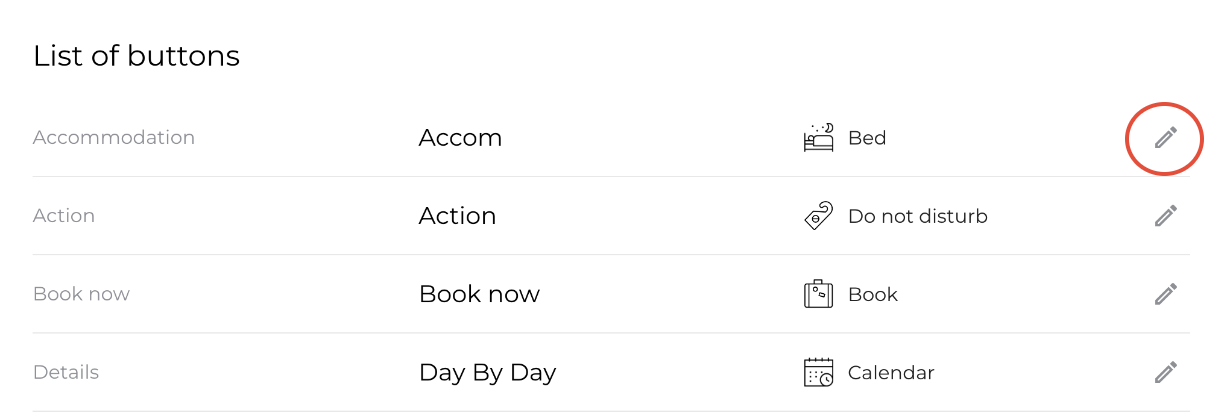
You’ll see the full list of buttons.
To rename an icon, click the Pencil icon next to the relevant menu item.
Enter the new name. This will apply across all of your trips.
You can also click the Icon box to change the icon image.
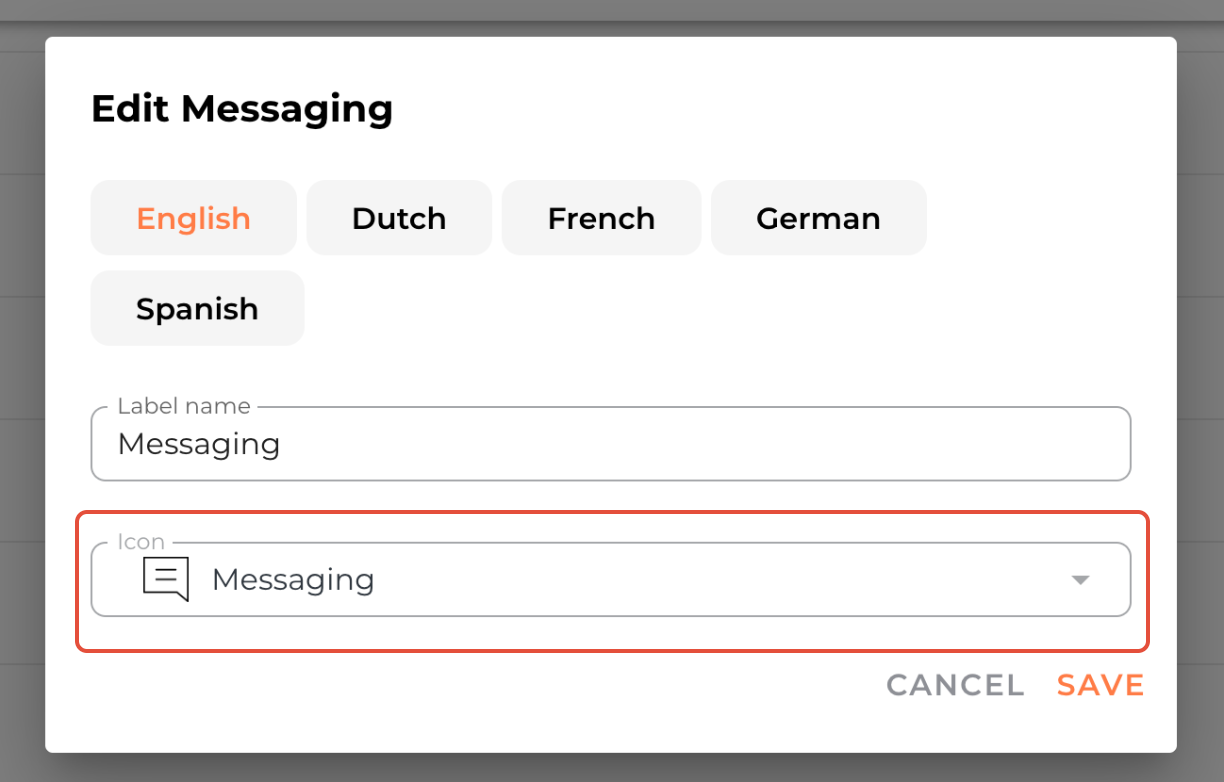
TOP TIP: If you’re using the Multilingual feature, make sure you select the relevant language and add translations for all icons so they display correctly for travellers.
Rename your documents icons for individual trips
By default, you can change the names of the two Documents sections in Menu & Labels. But you can also customise them for a single trip.
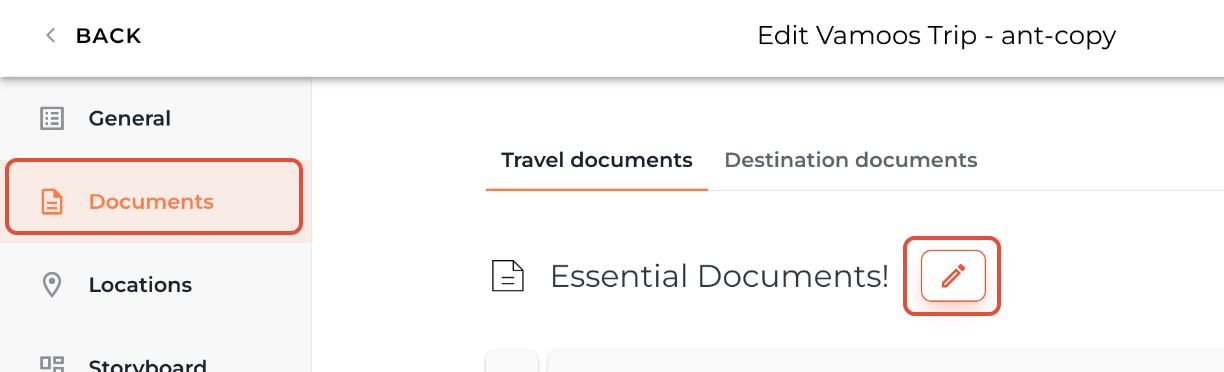
To do this, open your trip from the Vamoos List and select Documents from the left-hand menu.
Click the Pencil icon next to the Document title to edit its name for that trip only.
If you have any further questions or need help with this, you can contact us at support@vamoos.com.