
Add new users to your Vamoos account
✅ For travel companies ✅ For hotels
Add your colleagues or invite users to collaborate with you using the Users section. You can give people access to all trips on your account, or just selected content.
In this article:
How to add a new user to your account
Go to Settings in the top menu bar and select Users.
Press the + ASSIGN USER button in the top right-hand corner.
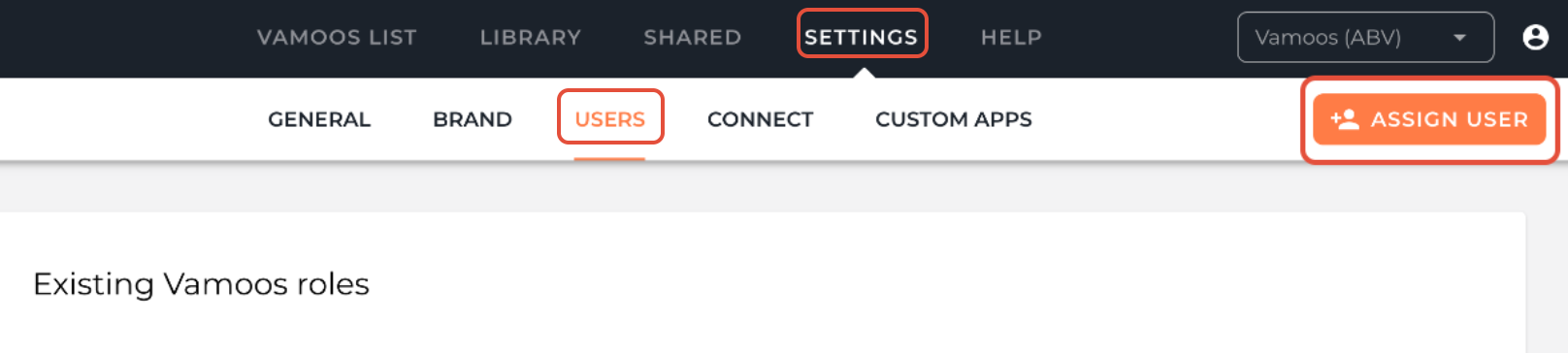
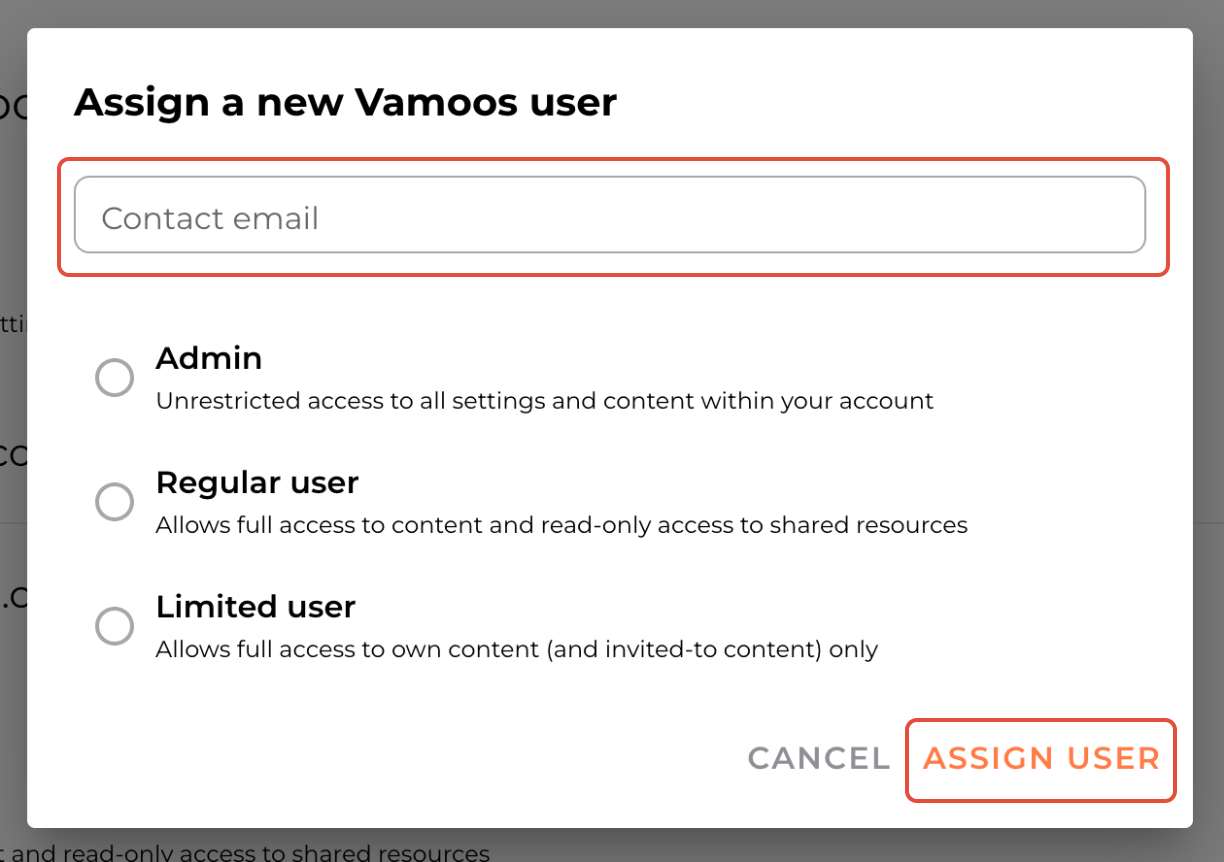
Insert the email of the person you’d like to add as a user.
Choose one of three user access levels (explained below).
PLEASE NOTE: If the person you’re inviting has not already set up a free Vamoos user account, they’ll receive an email asking them to sign up. See more about signing up here.
Different types of users
When adding a user to your account, you can choose from three roles:
Admin: Full access to all settings and content. Typically used for colleagues.
Regular User: Full access to all trips, but cannot edit shared resources (POIs, Notifications, Inspirations).
Limited User: Access only to their own trips or those they’re invited to. Best for external partners like DMCs.
Inviting limited users to specific trips (Share Access)
Limited users don’t see any trips until you invite them.
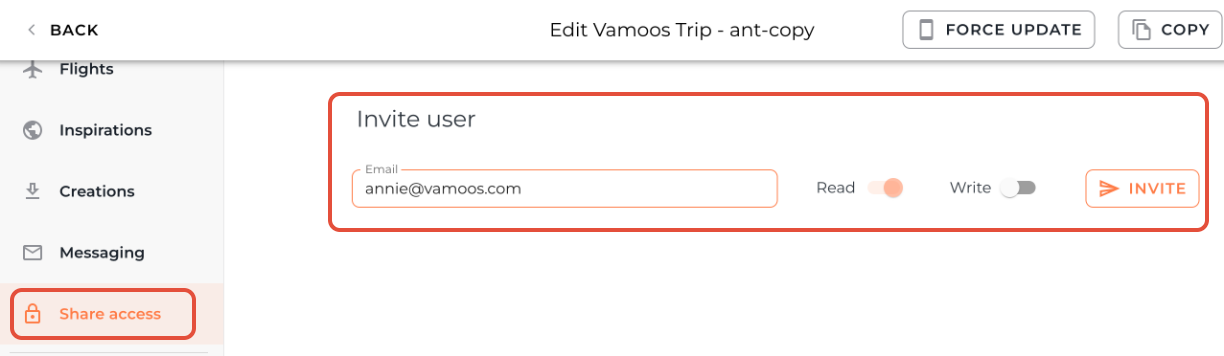
To share a trip, go to your Vamoos List and open the trip.
From the left-hand menu, select Share Access.
Enter the user’s Email Address.
Select whether they have read-only or write access, then press Invite.
Deleting users
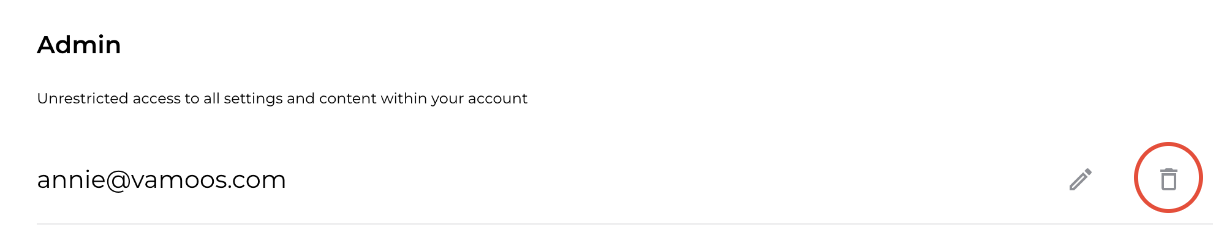
Go to Settings > Users.
Press the Trash icon next to the user you’d like to delete.
If you have any further questions or need help with this, you can contact us at support@vamoos.com.