
Sign up for a Vamoos account
✅ For travel companies ✅ For hotels
First things first: you need to sign up for a business account with us! One person in your company will create the business account, then you can add your colleagues as users so they can access it too.
In this article:
How to create a business account
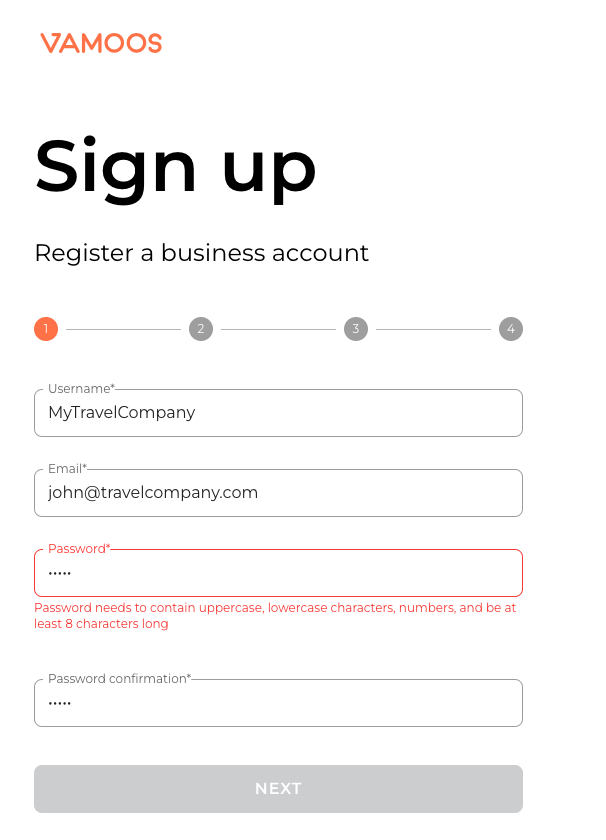
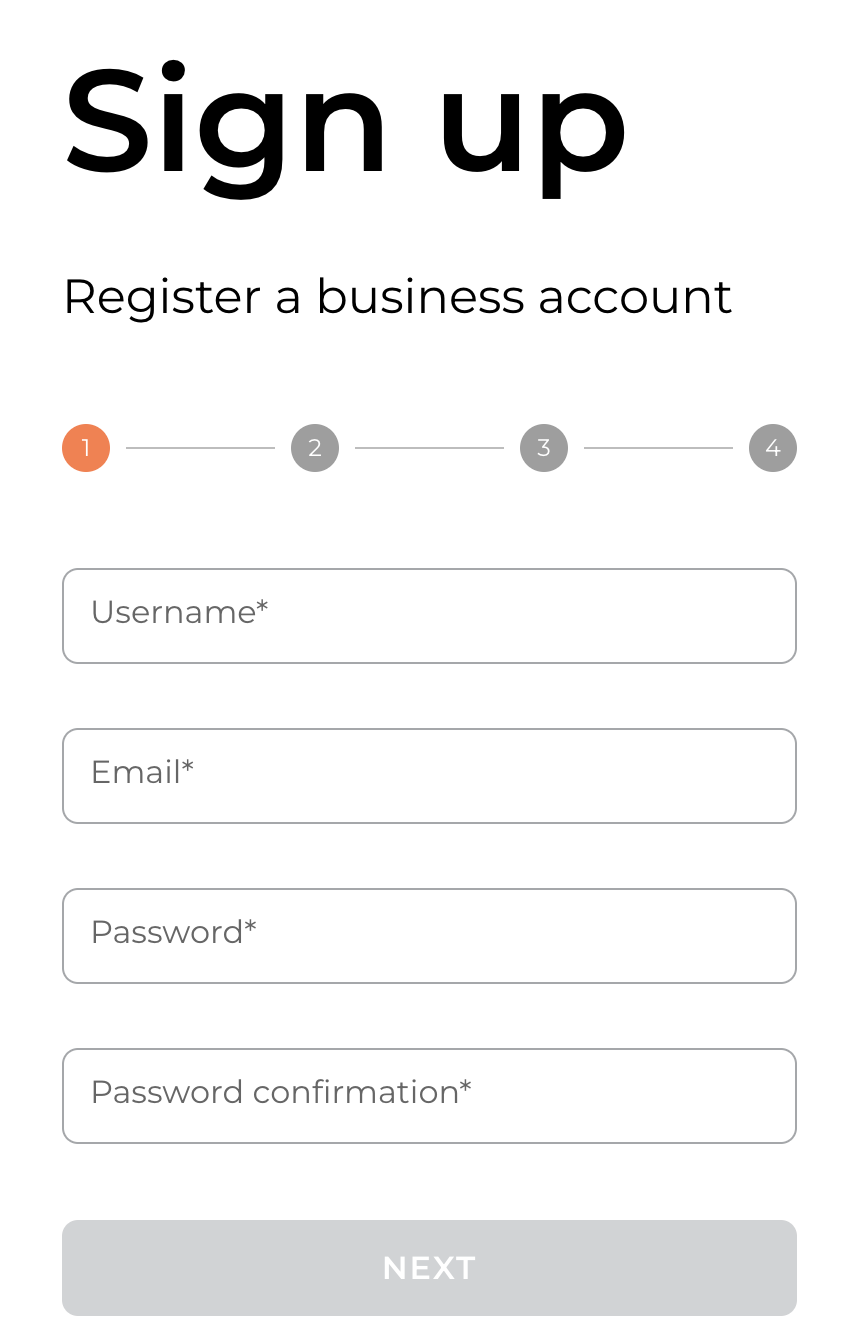
Go to portal.vamoos.com/sign-up.
Create a username, enter your email, and create a password (see screenshot below for password requirements).
Click NEXT.
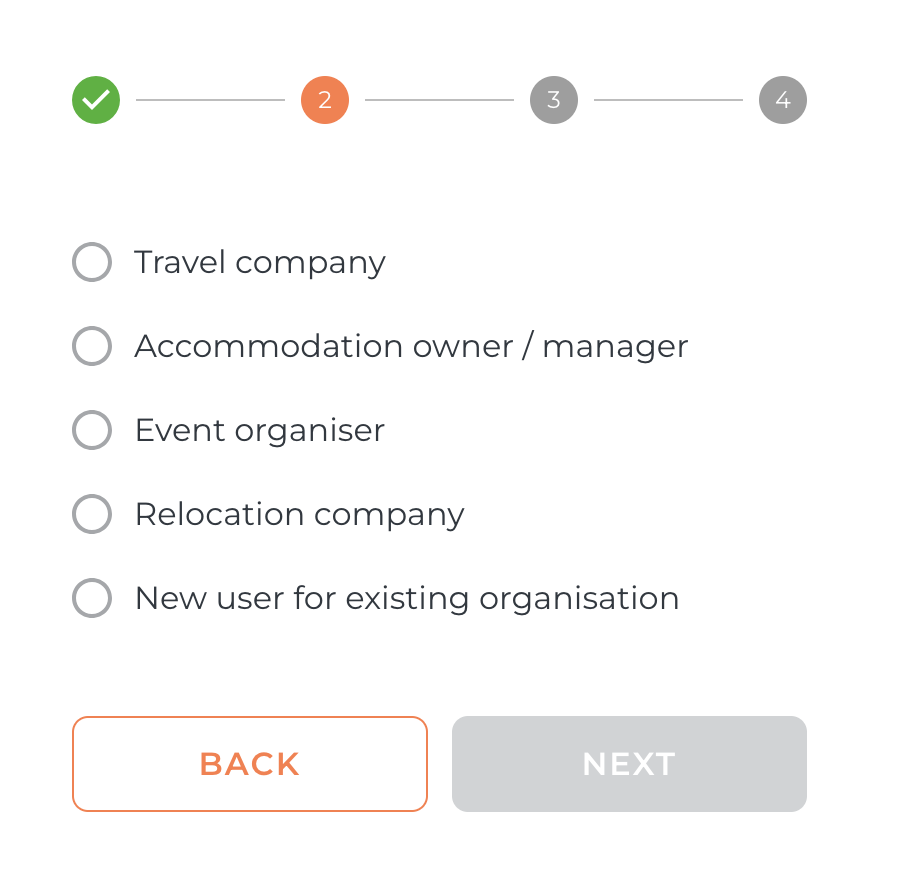
At Step 2, select your business type and click NEXT.
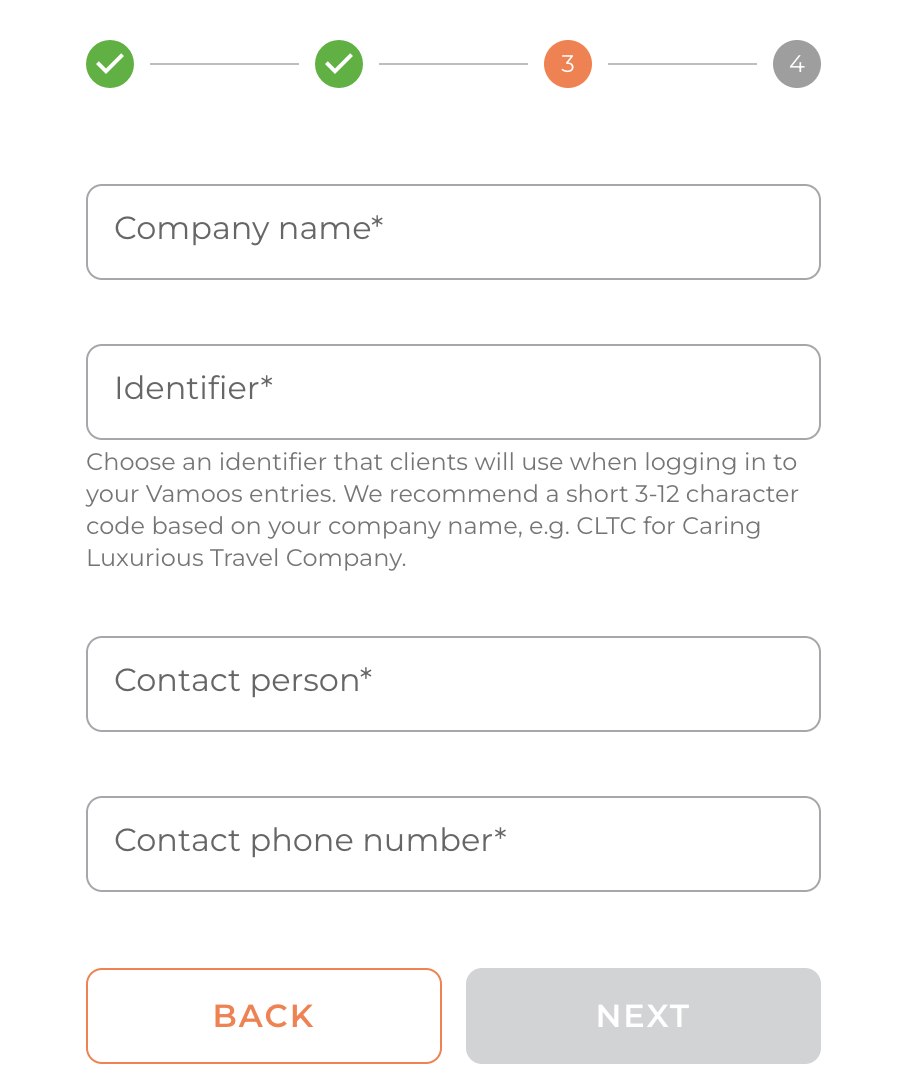
At Step 3, insert your:
Company Name
Identifier – this is what your clients use when logging into Vamoos. Choose a 3–12 character code (e.g. your company name or acronym). This cannot be changed later.
Contact Person & Phone Number – in case we need to reach you
Click NEXT.
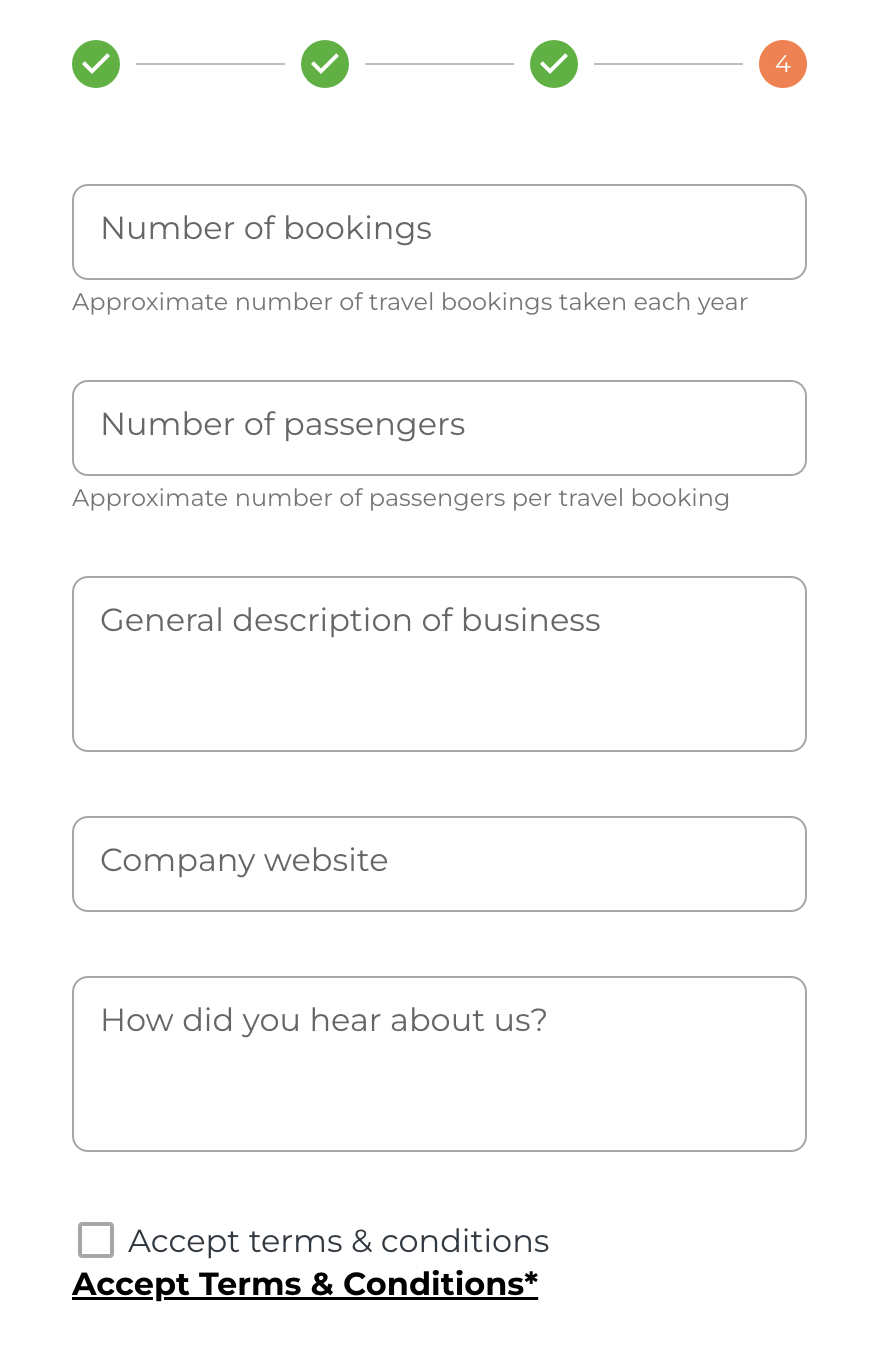
At Step 4, you can add more information about your business (optional, but helpful).
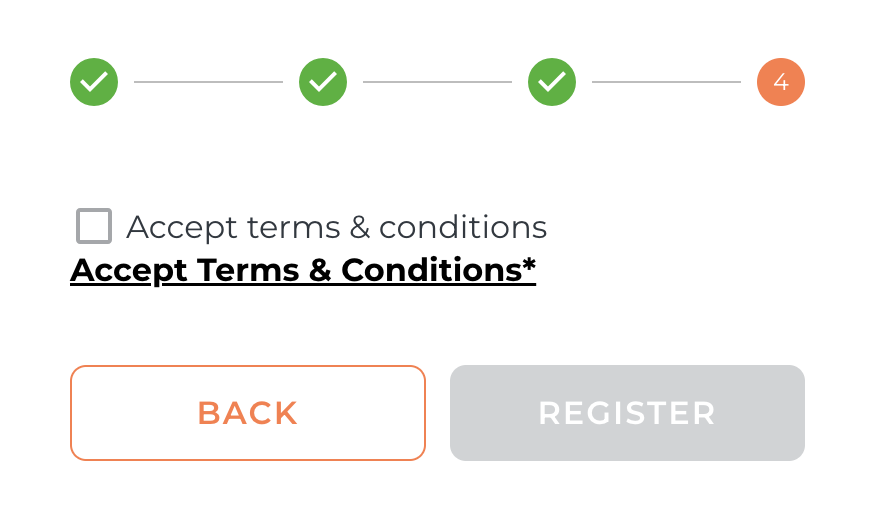
Tick the box to accept the terms & conditions.
Click REGISTER.
How to create an individual user account
Once your business account is created, you can add colleagues.
Go to Settings in the top menu bar, then the Users section. Press Assign User and enter their email. Read more about adding users here.
Once added, colleagues need to sign up with their own username and password.
To do this, go to portal.vamoos.com/sign-up.
Enter username, email, and password, then click NEXT.
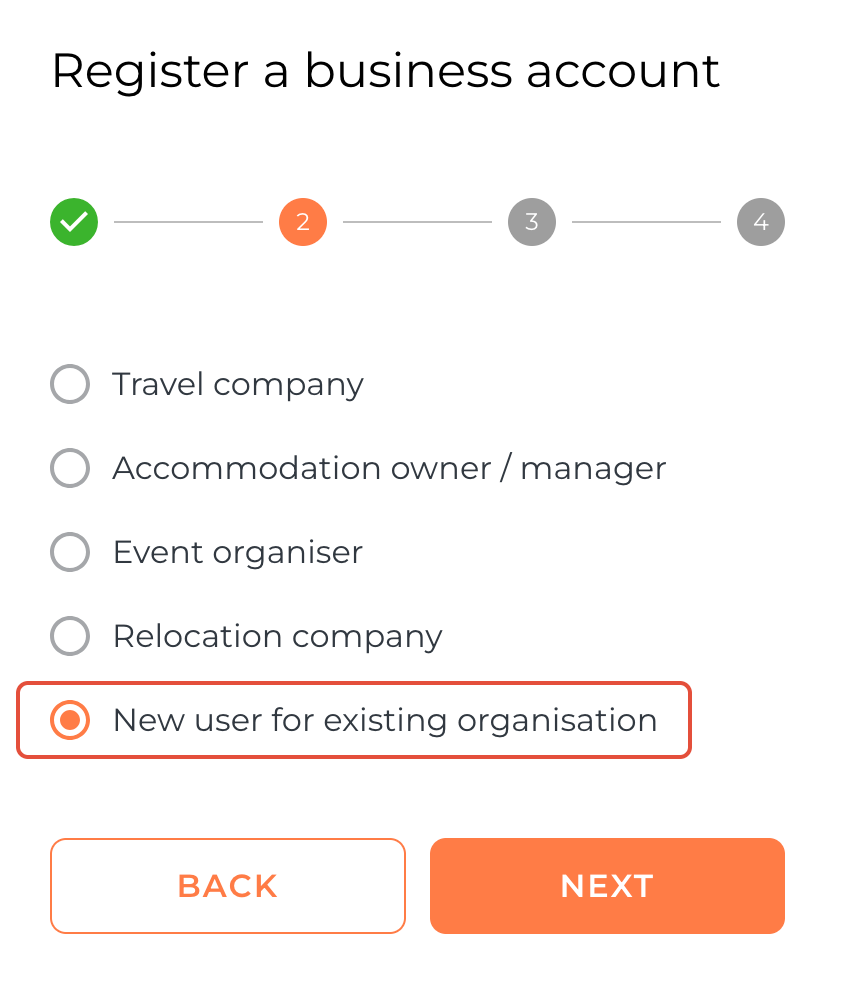
At Step 2, select New User for existing organisation to ensure they join your company account (not create a new one).
Click NEXT.
At Step 3, tick to accept the terms & conditions, then click REGISTER.
You have now created an individual user account.
TOP TIP: To ensure the editing locks feature works properly, make sure each team member has their own login account.
If you have any further questions or need help with this, you can contact us at support@vamoos.com