
Directory: hotel information at your guests fingertips
✅ For hotels
The Directory is the one-stop shop where guests find everything they need to know about your property.
In this article
Introduction to the Directory
The Directory is a core element of your Vamoos app to showcase your property and what it entails.
Include imagery, sub-directories, and videos to keep guests informed.
Reduce trivial questions by putting answers in the app.
Access settings
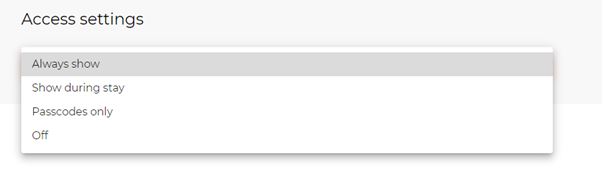
Control who can access Directory information via Access Settings.
Choose to show always, only during guests’ stay dates, to passcode holders only, or hide entirely.
Create a Directory – list & details options
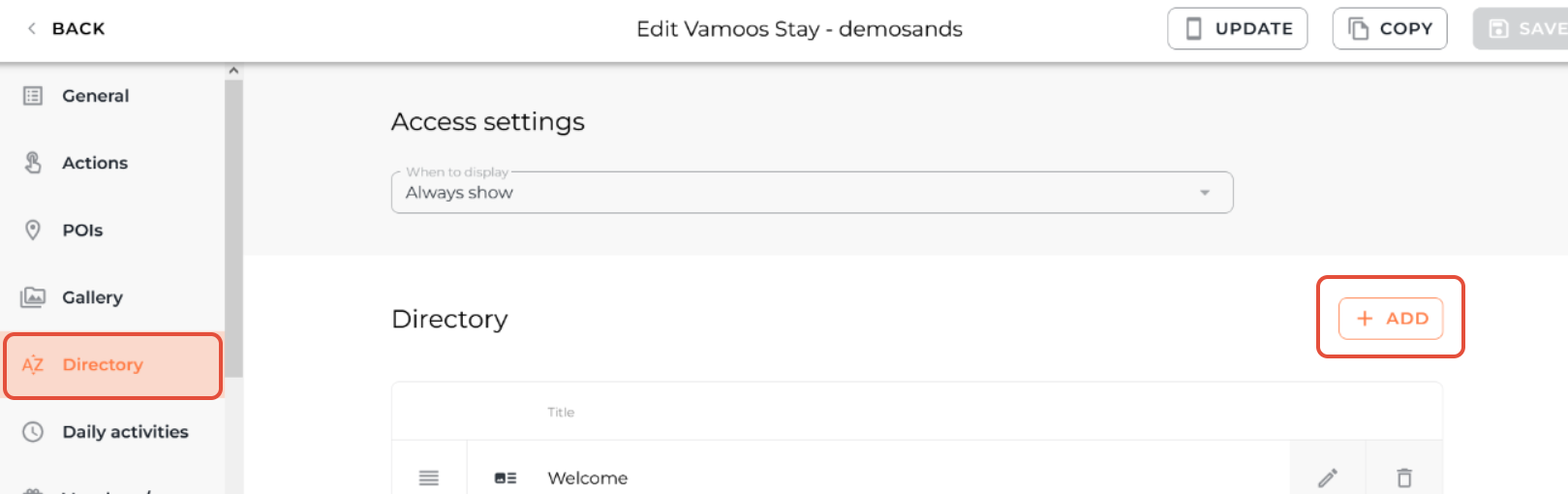
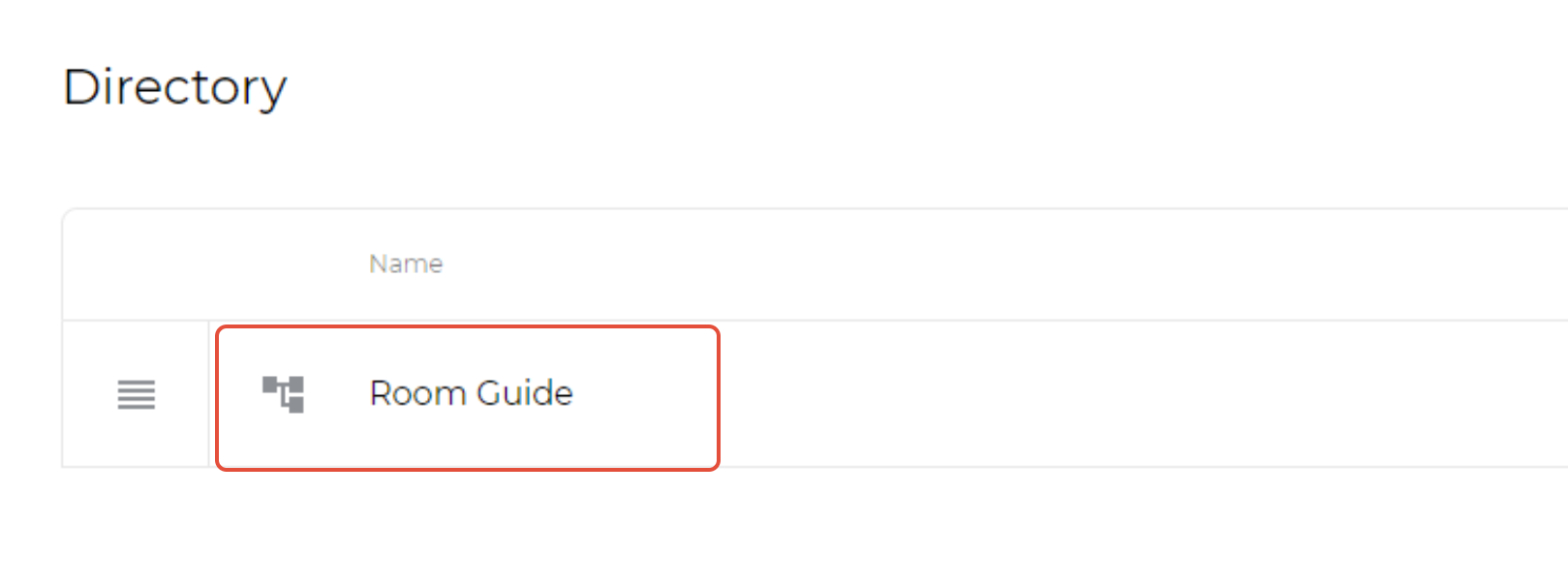
Open your property and go to Directory in the left menu.
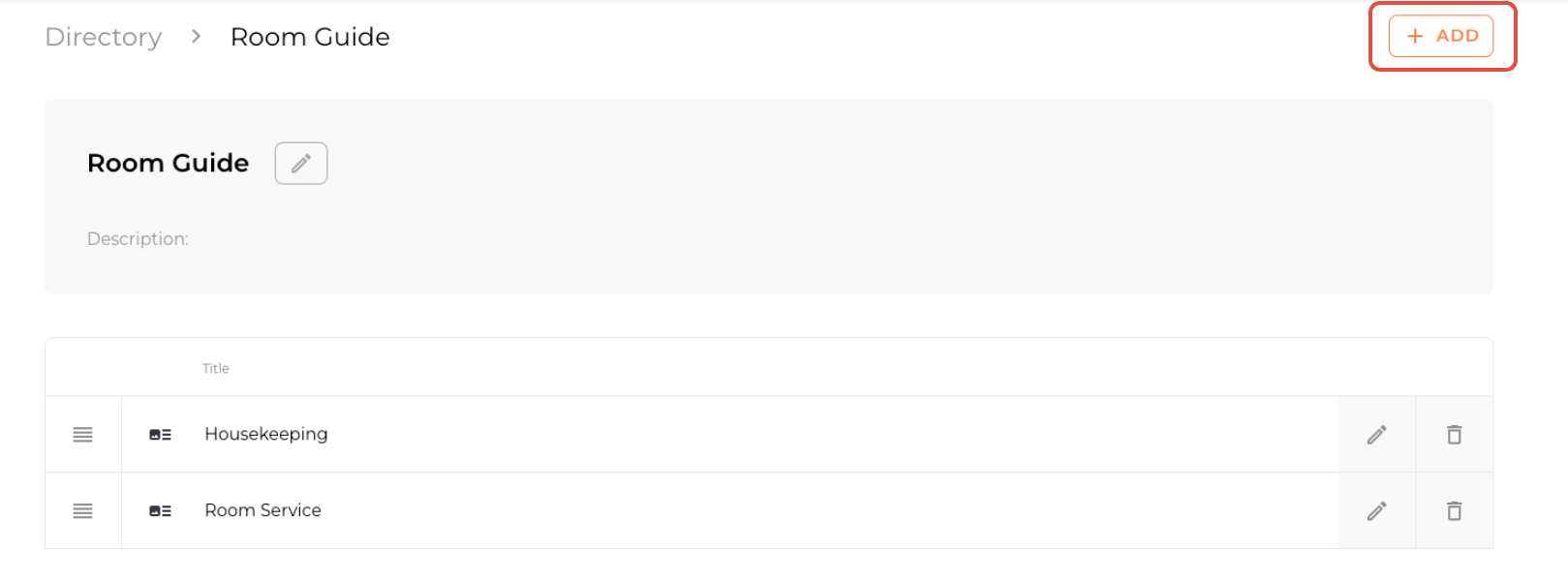
Click Add to create a directory item.
Choose either Sub-directory or Details:

Sub-directory: creates structure (categories) to break down areas of your property.
Details: the actual content page; can stand alone or sit inside a sub-directory.
Creating a Details option
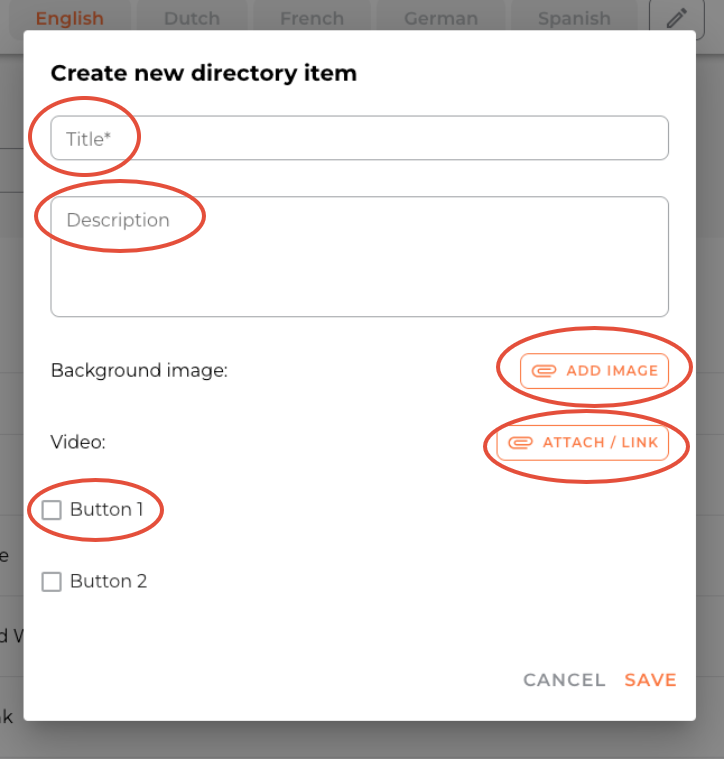
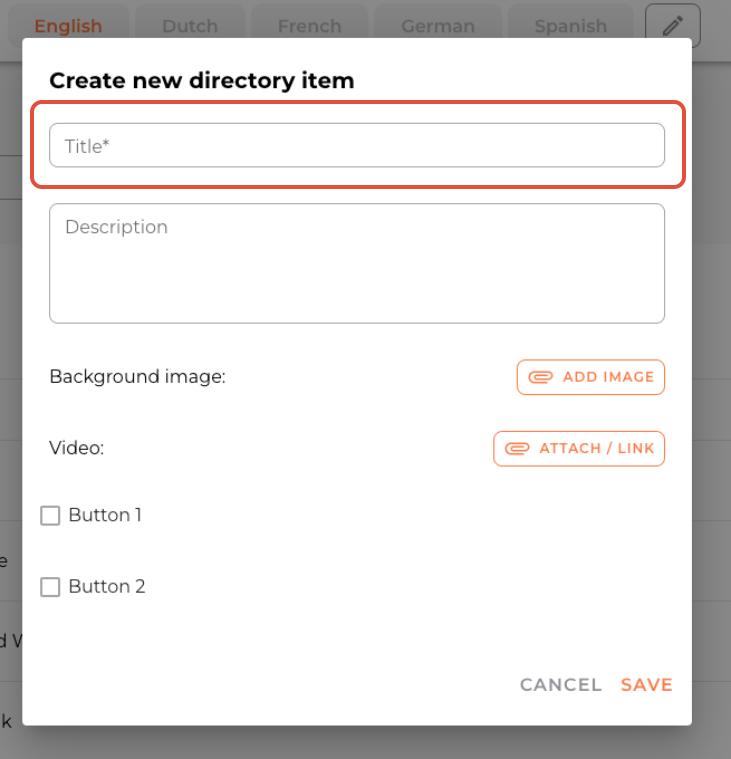
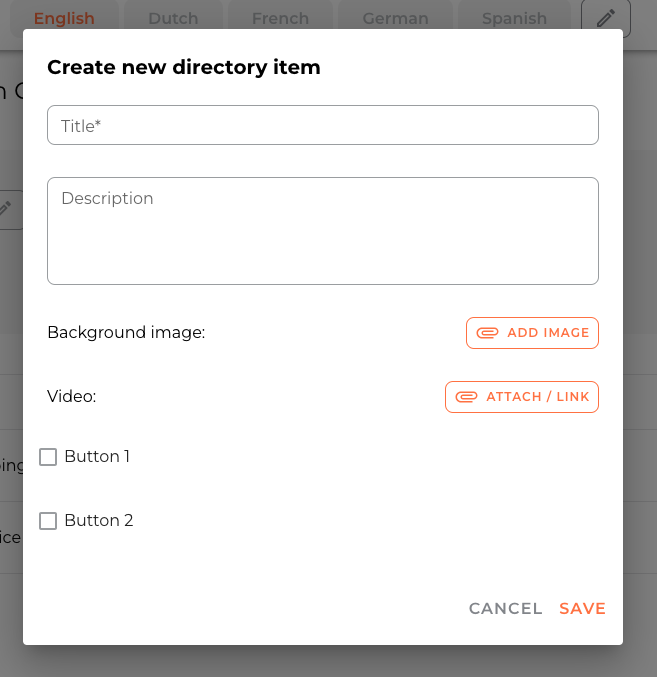
Click Add → Details, then fill out:
Title (e.g., “Welcome”, “Internet & Wi-Fi”).
Description (the main content—e.g., Wi-Fi login details).
Background image (optional) and Video (optional).
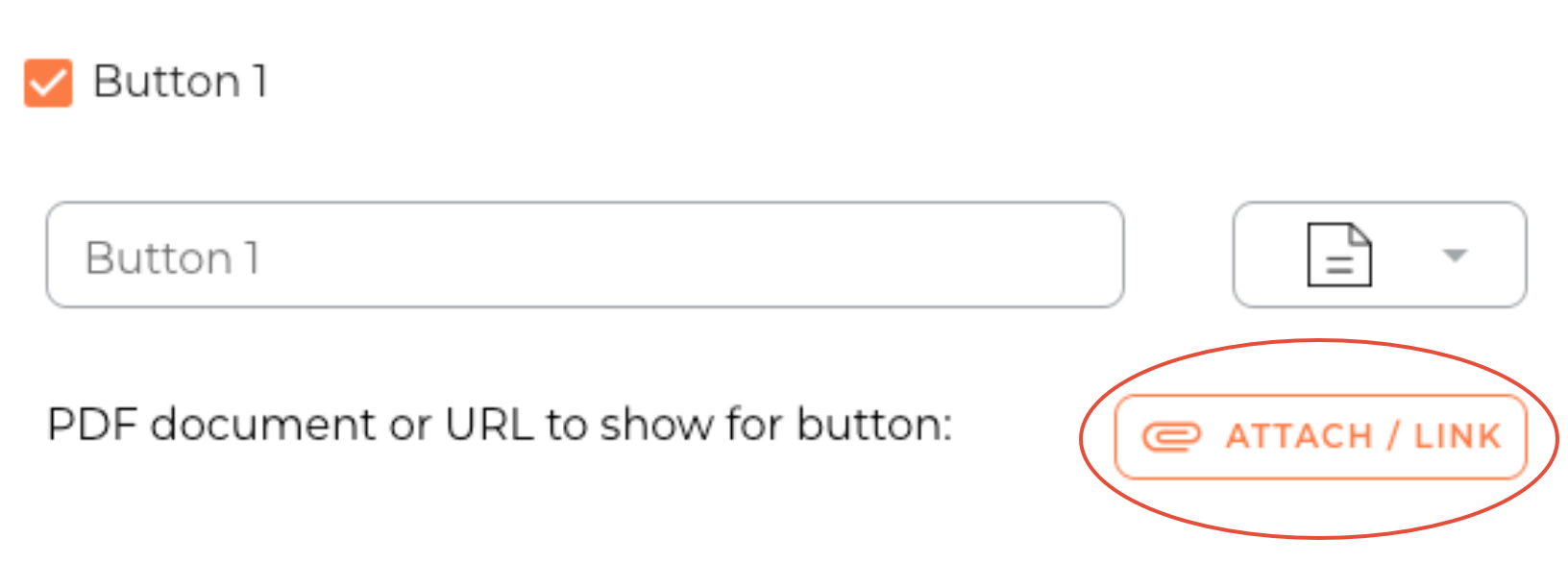
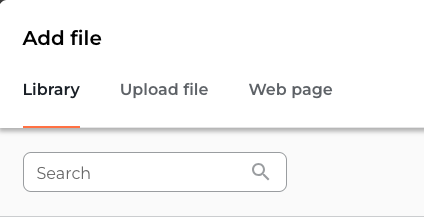
Buttons (up to 2 CTAs). Name them, choose an icon, then click Attach to add a PDF/URL (from library, desktop upload, or link).
Click Save when finished.
Creating a Sub-directory option
Sub-directory creates the structure; Details provides the content.
Use Sub-directories for layered sections like Room Guides, Food & Drink, Activities, or Services.
Click Add → Sub-directory, enter a Title, then Save.
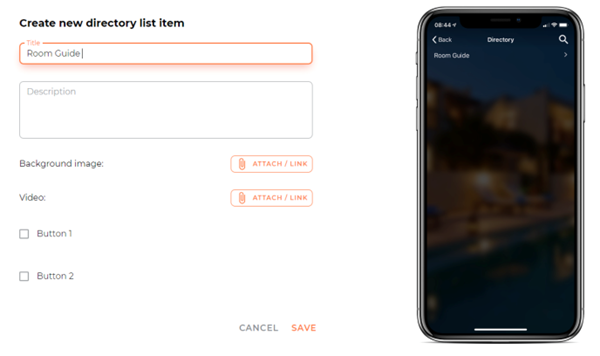
Create pages for this section
Open the Sub-directory you created by clicking its name.
Add single content pages inside it by clicking Add → Details.
Fill the Details page fields and Save.
After adding Details pages, the Sub-directory will look similar to this:
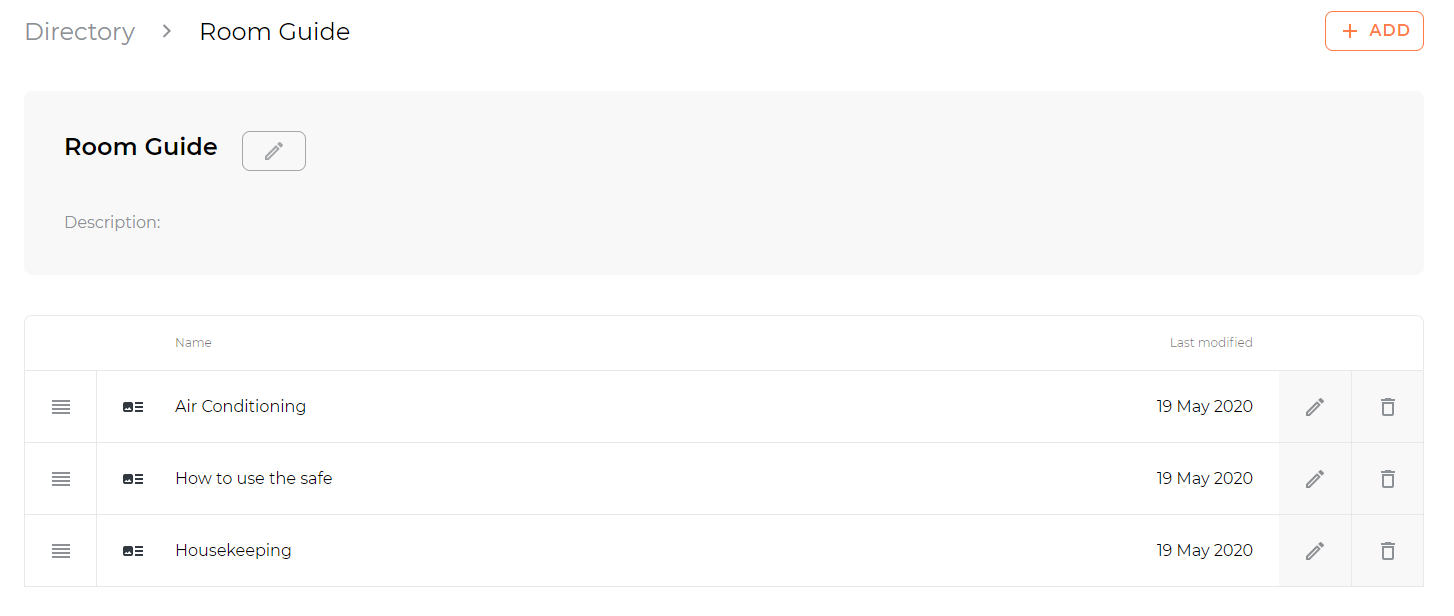
How to add a list option within a list
Inside a Sub-directory, you can nest another Sub-directory if one Details page isn’t enough.
Open the existing Sub-directory, click Add → Sub-directory.
Then add child Details pages inside that nested Sub-directory.
Re-arrange the order of the Directory
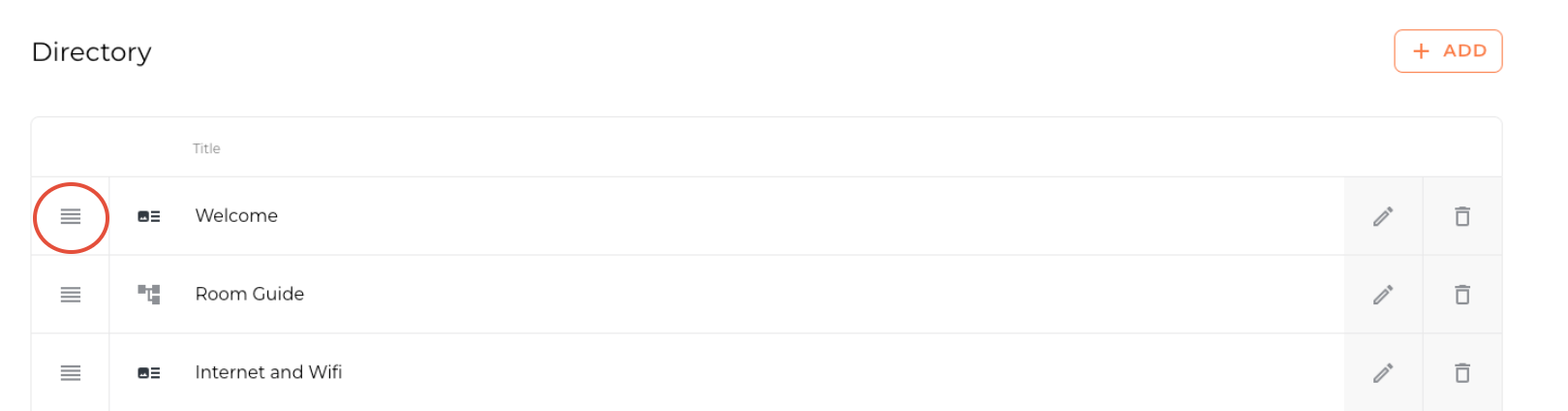
Use drag & drop to reorder items as they appear on guest devices.
You can also rename the Directory icon via Shared → Menus & Labels.
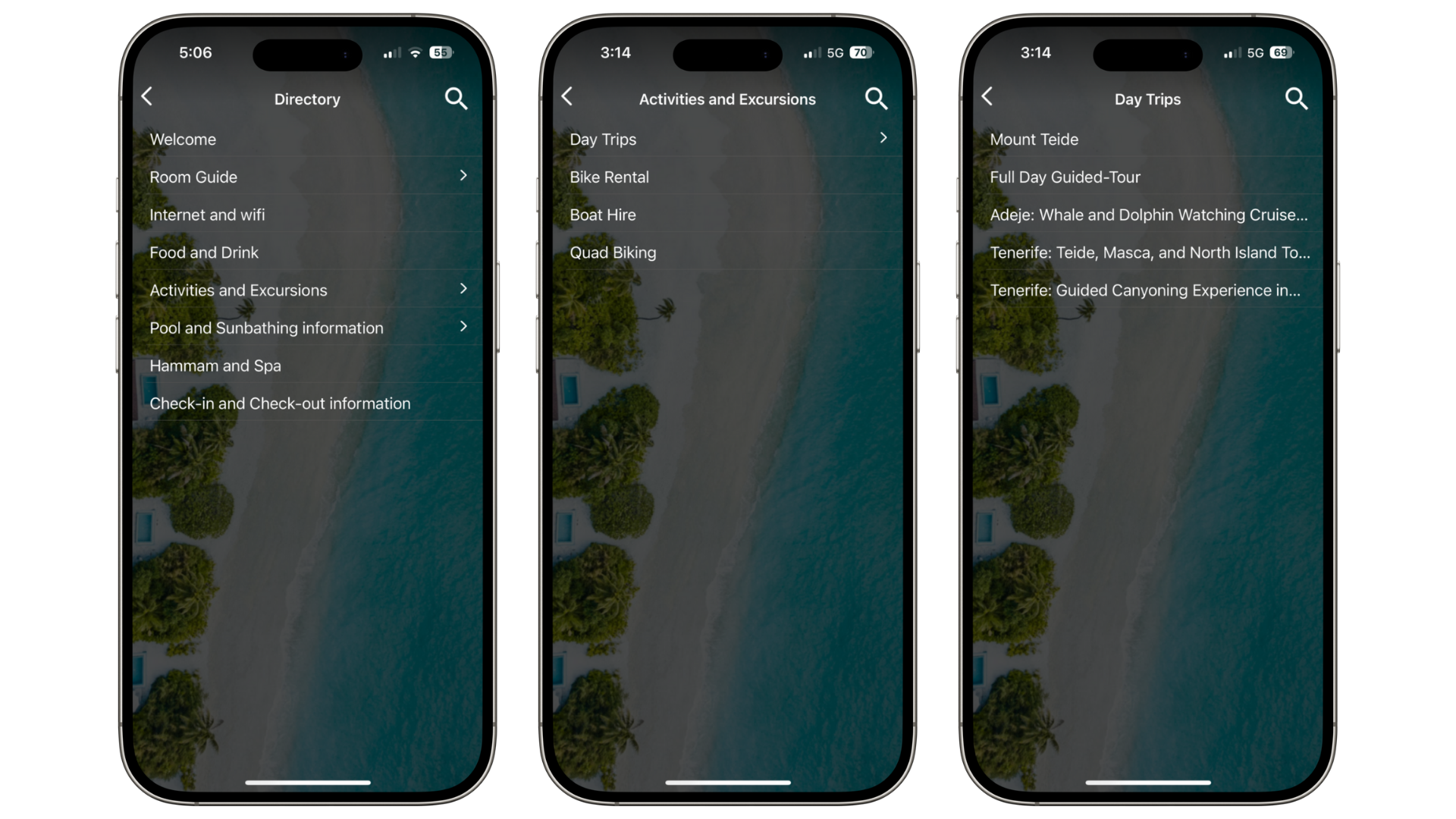
How it appears on the app and portal
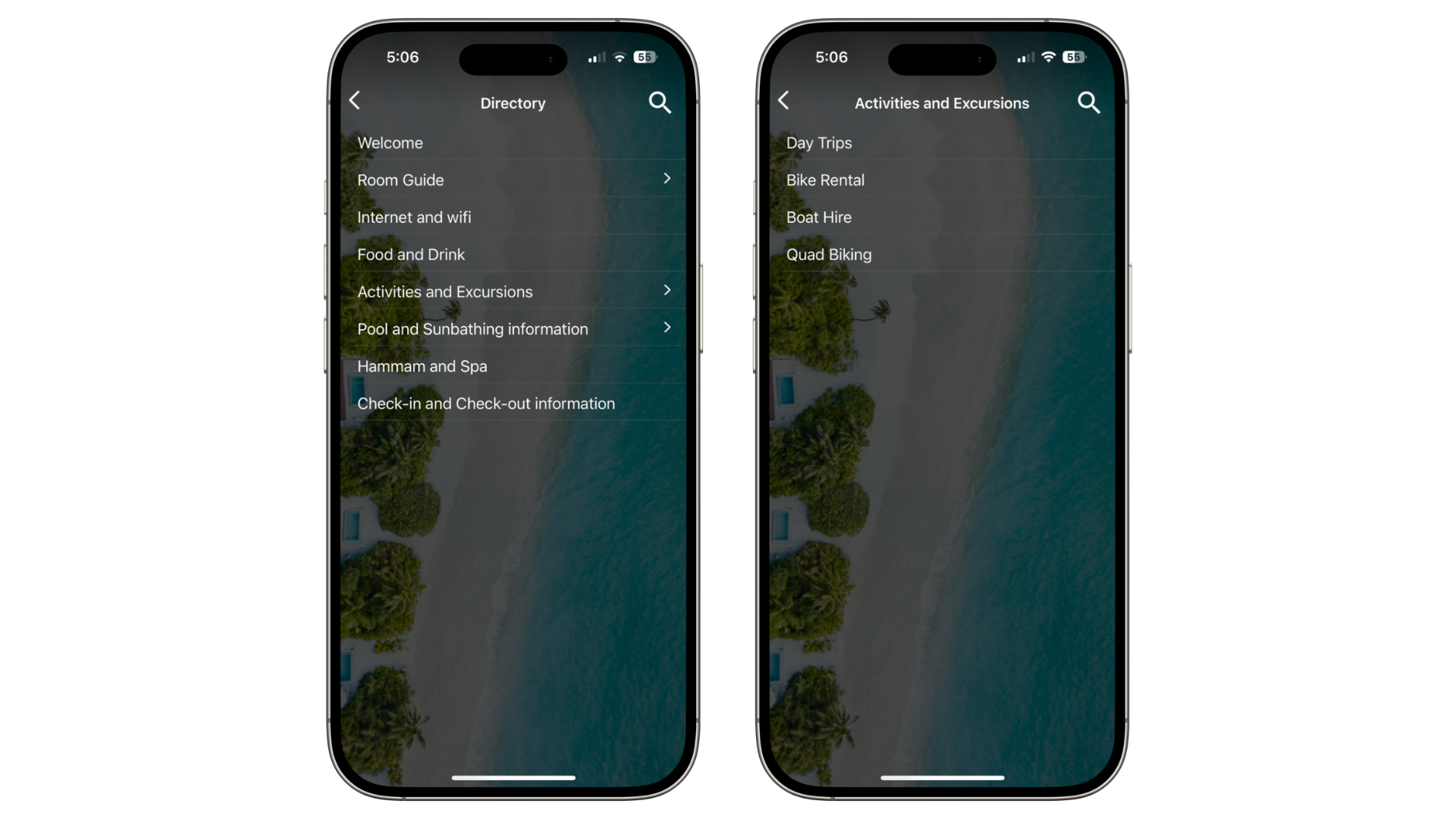
On the app, guests see the full Directory flow.
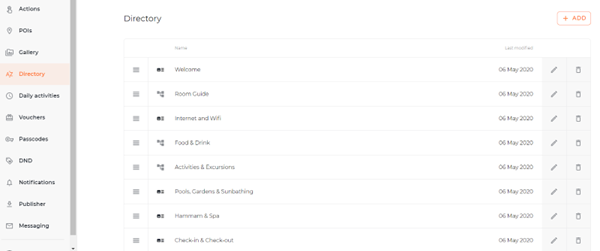
On the portal, a complete Directory looks similar to the example below.
If you have any further questions or need help with this, contact us at support@vamoos.com.