
POIs for stays: add points of interest to the map
✅ For Hotels & Accommodation
Highlight your expert local knowledge and provide guests with points of interest around your property.
In this article:
Introduction to POIs
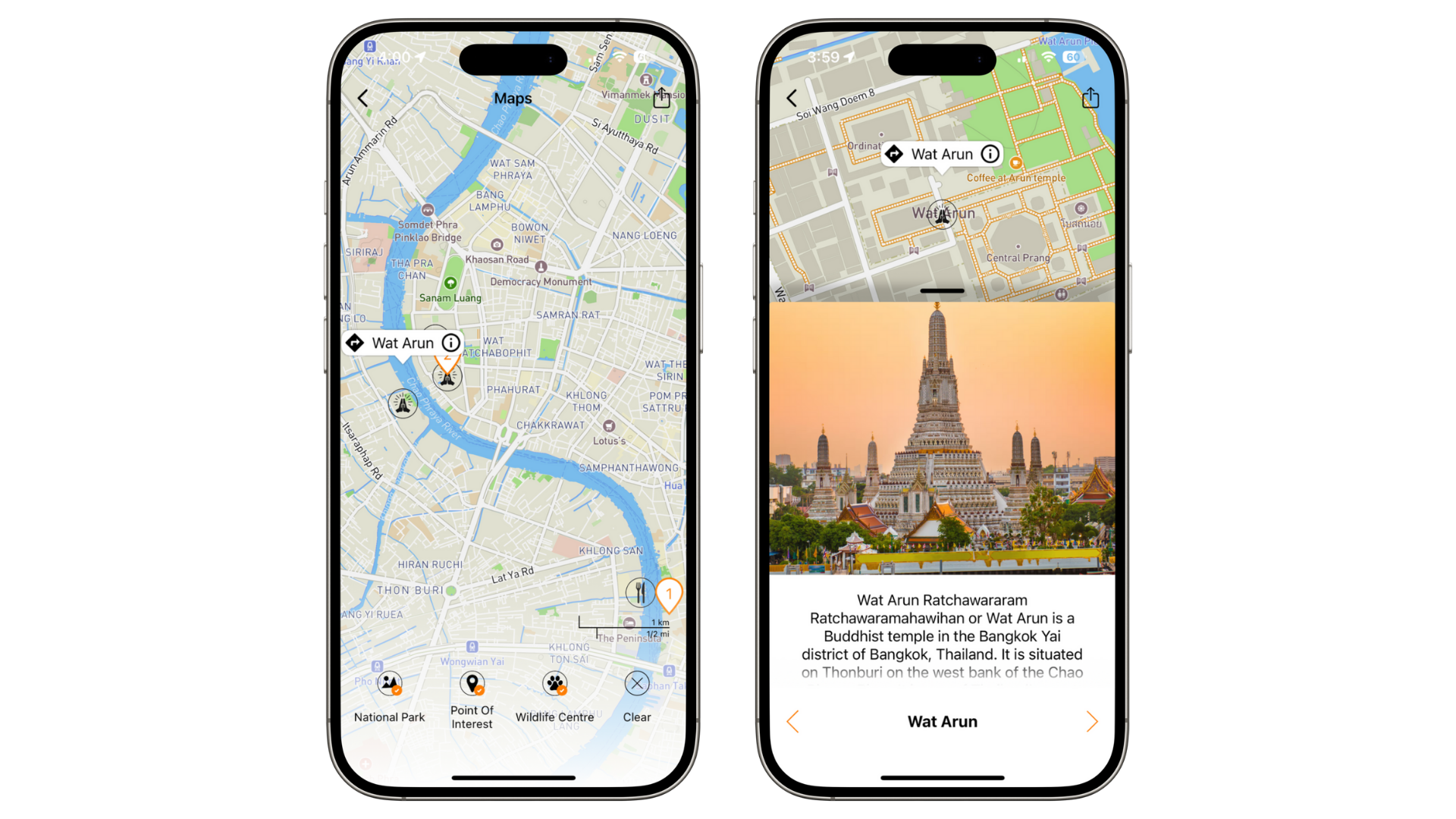
Points of Interest (POIs) let you recommend the best places for guests to visit during their stay.
From local restaurants and hidden treasures to Instagram spots and the nearest ATM, POIs enhance your guests’ experience.
Adding a POI
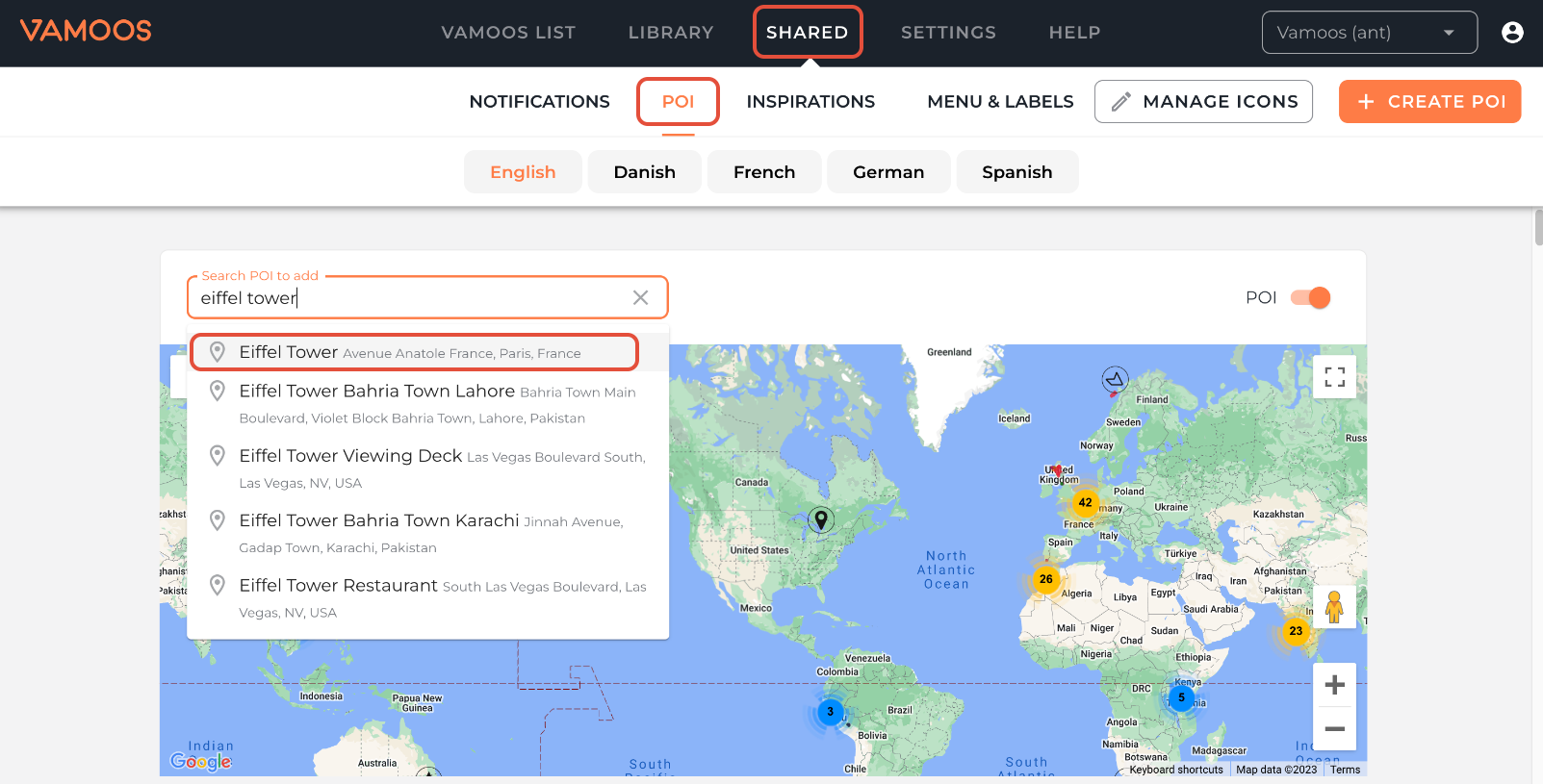
Go to SHARED in the top menu bar and click POI.
Use the Google Maps search box, type the exact POI name, and select it from the suggestions.
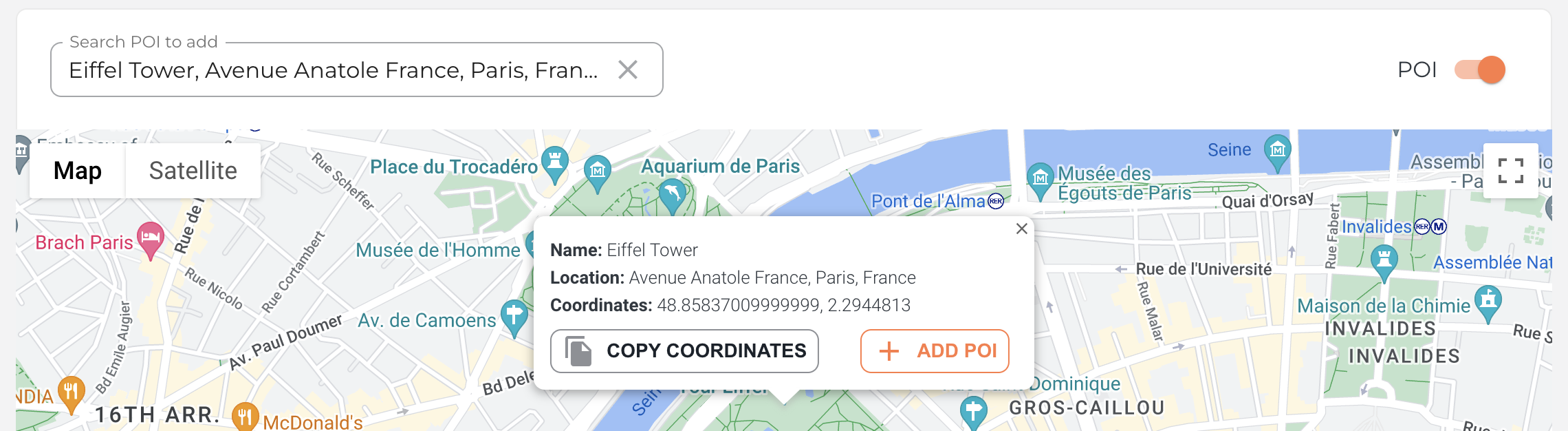
The map will centre on the POI for confirmation. Click Add POI.
POI details
Range (km): radius from your property within which this POI will show.
Icon: choose a category icon (helps guests filter by type). If none fit, you can rename categories later.
Label: amend the POI name as needed.
Description: explain why you recommend it; be specific (e.g., “try the seafood risotto”).
Image, PDF, or URL: click Attach/Link to add media or a website for more info.
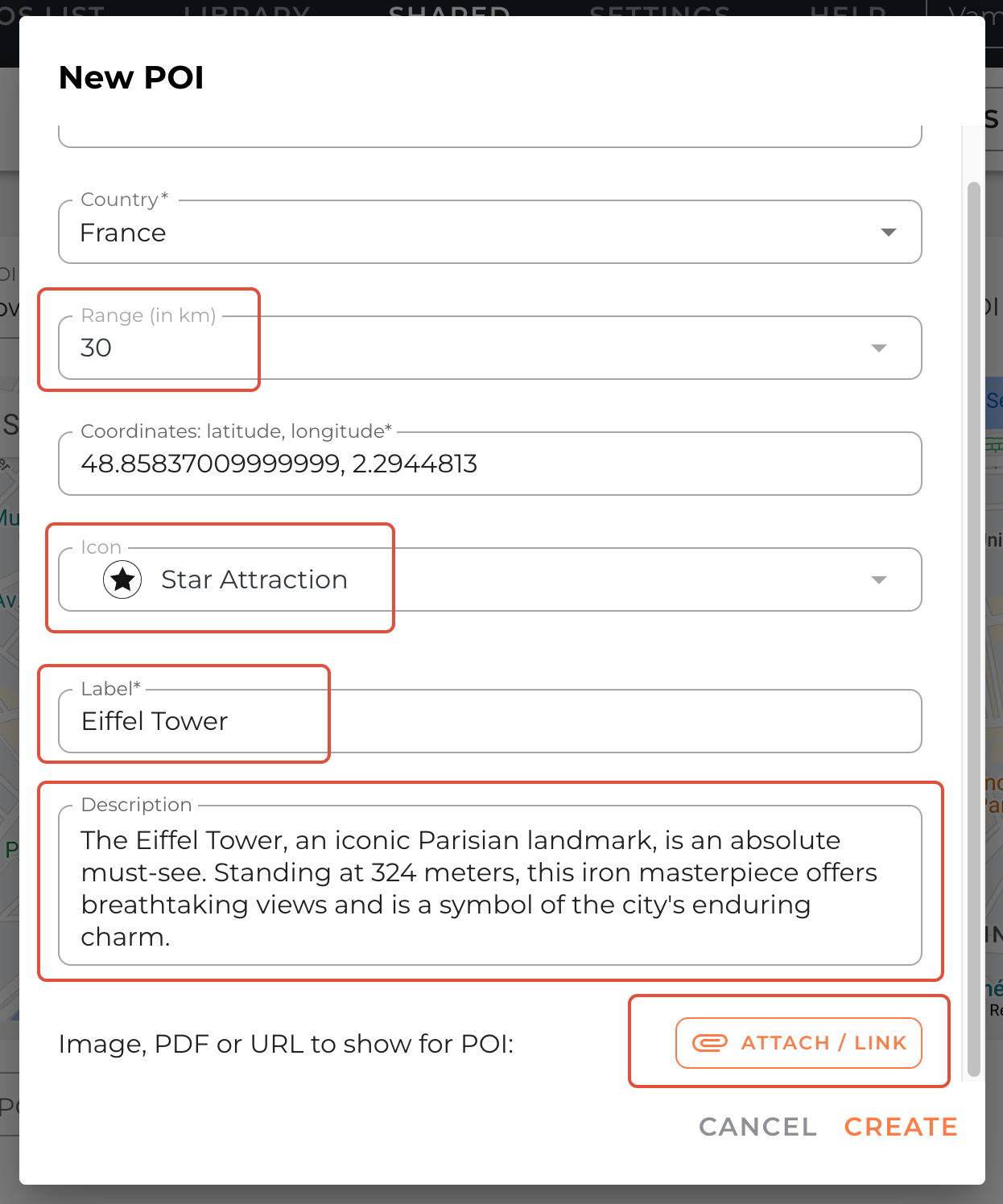
Click Create to save your POI.
Adding a POI by coordinates or dropping a pin
For locations not on Google Maps, go to Shared > POI and either:
Drop a pin: right-click on the map to place a pin, then follow the steps above.
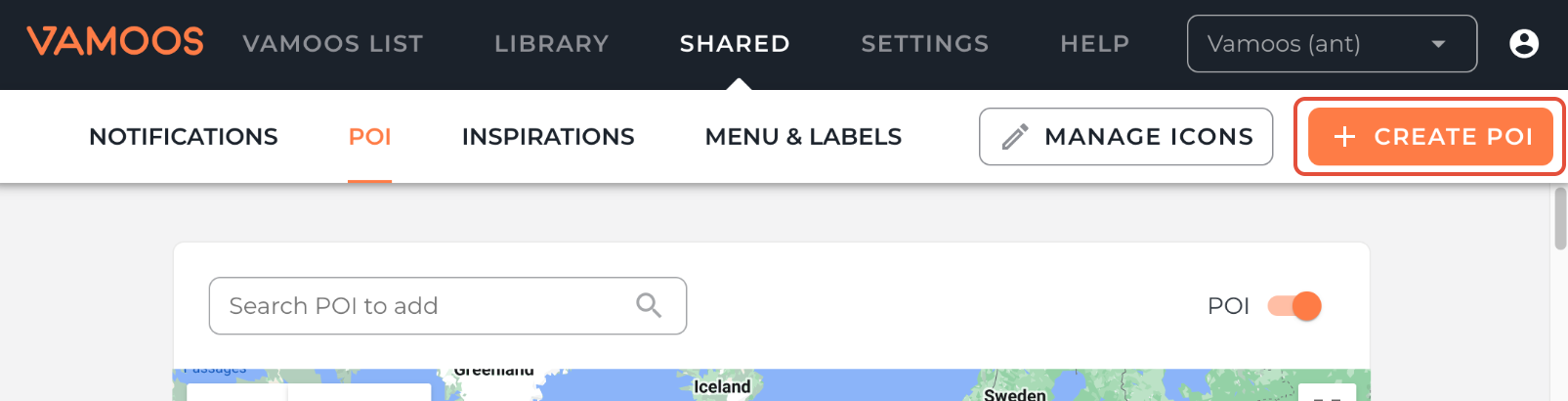
Use coordinates: click the orange Create POI button, then paste the exact coordinates in the popup.
Rename your POI categories
If no icon category fits, rename it—icon names are fully customisable.
Go to Shared > POI and click Manage Icons.
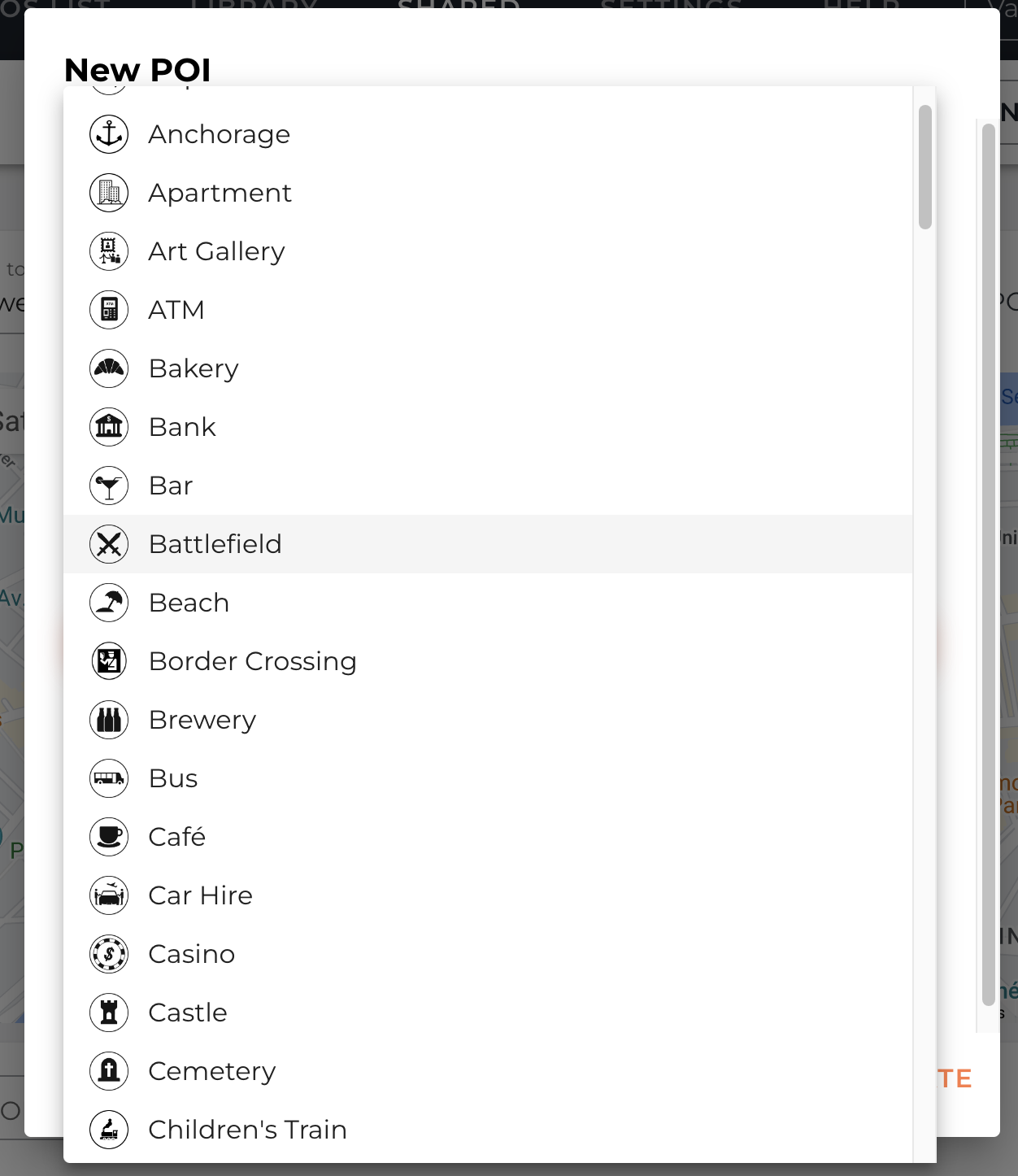

Customise the names of each icon to match the exact POI types you share.
Filtering POI
Filter your POIs to quickly find, manage, and update the ones you need.
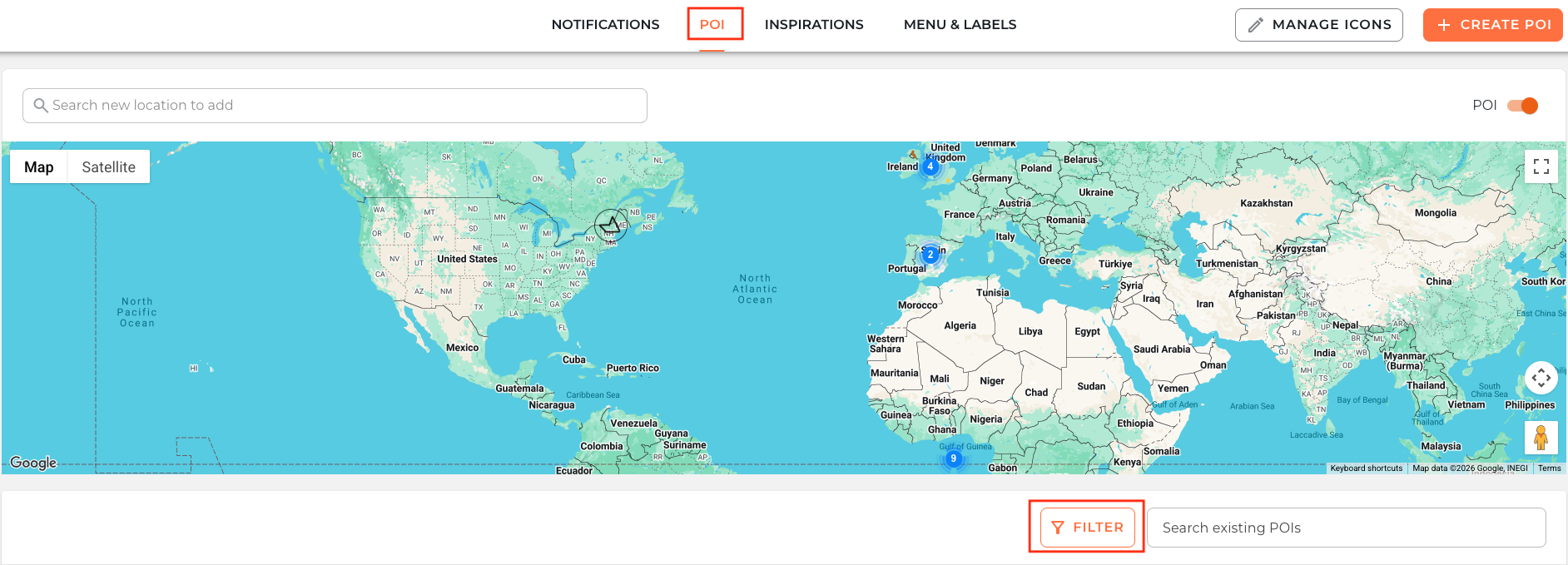
Go to Shared and Select POI
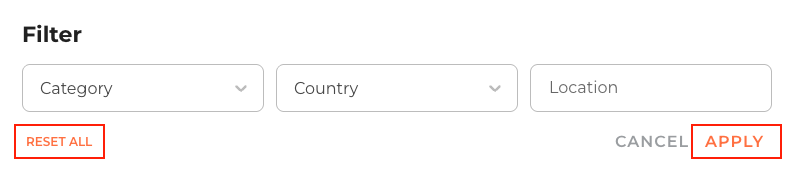
Click FILTER, choose your criteria, then click APPLY.
Category – e.g. Restaurants, Museums
Country
Location – City
To clear a filter, click RESET ALL.
Editing, de-activating or deleting a POI
Go to Shared > POI.
Below the map you’ll see your POI list. Use Search POIs or Show POIs by country to filter.
On the right of each POI are controls: a switch, a pencil, and a bin.
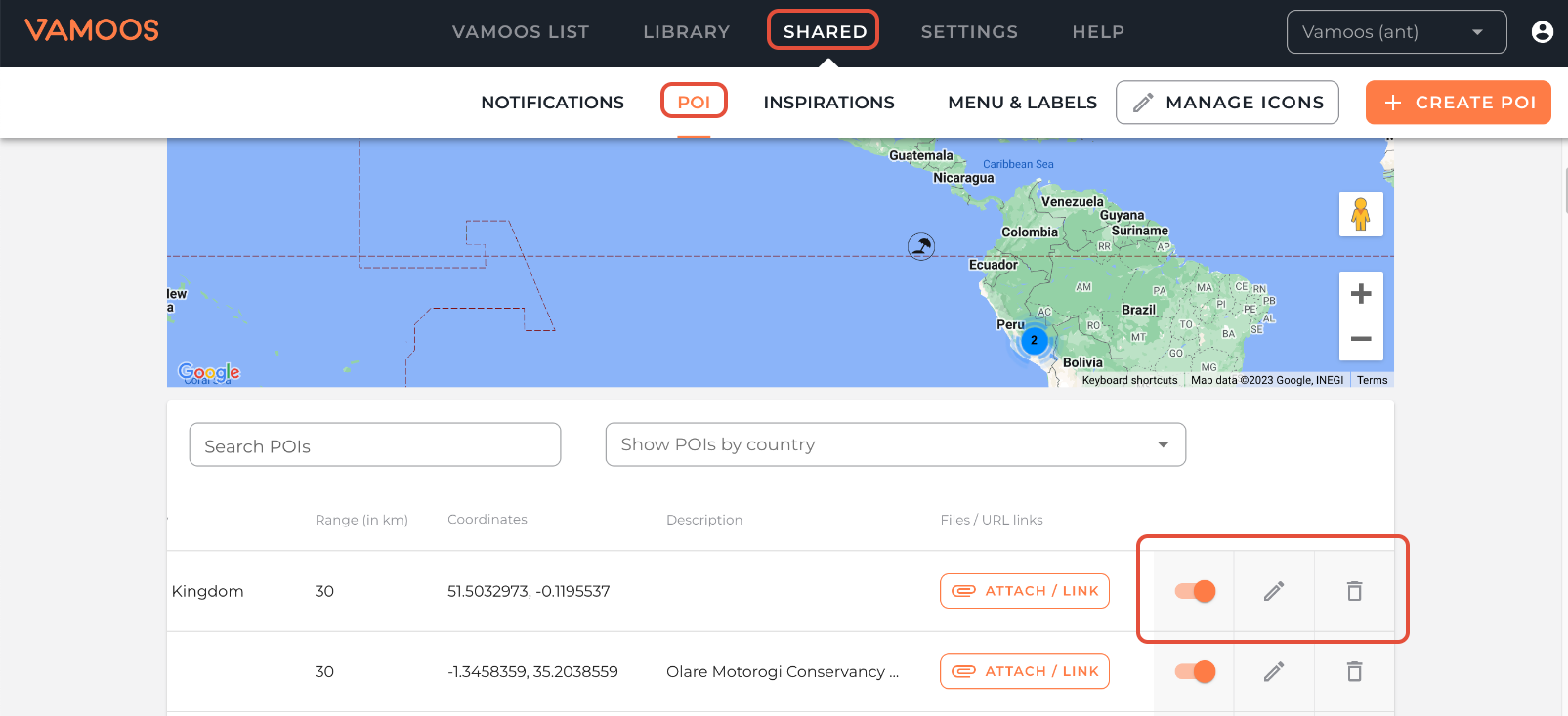
Deactivate/Hide: toggle the switch off.
Edit: click the pencil icon.
Delete: click the bin icon.
Show or hide POIs for a specific property
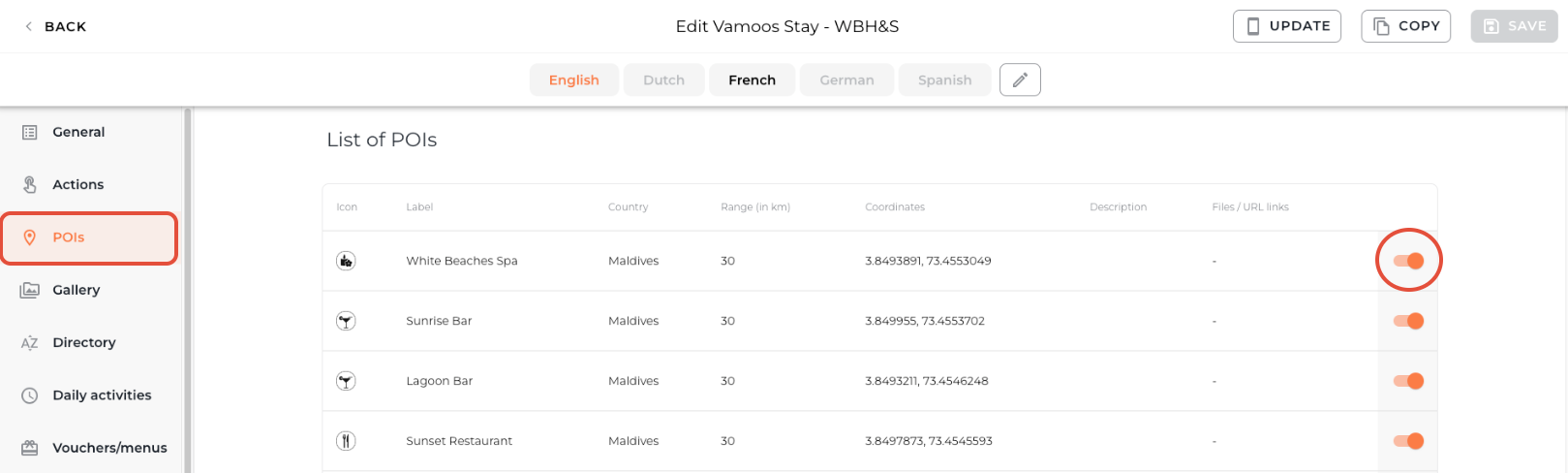
Shared POI toggles affect all properties, but you can override visibility per property.
Go to Vamoos List > Vamoos Stays, open your property profile, then choose POI in the left menu.
Find a POI and toggle the switch on or off to change visibility for this property only.
The List & viewing POIs on the app
Guests can view POIs in two places: the map and the list.
The map: select categories along the bottom to display icons. Tap the i for details, or the arrow next to a POI name for directions in a navigation app.
The list (optional): an easier way to browse many POIs and sort by distance to selected locations.
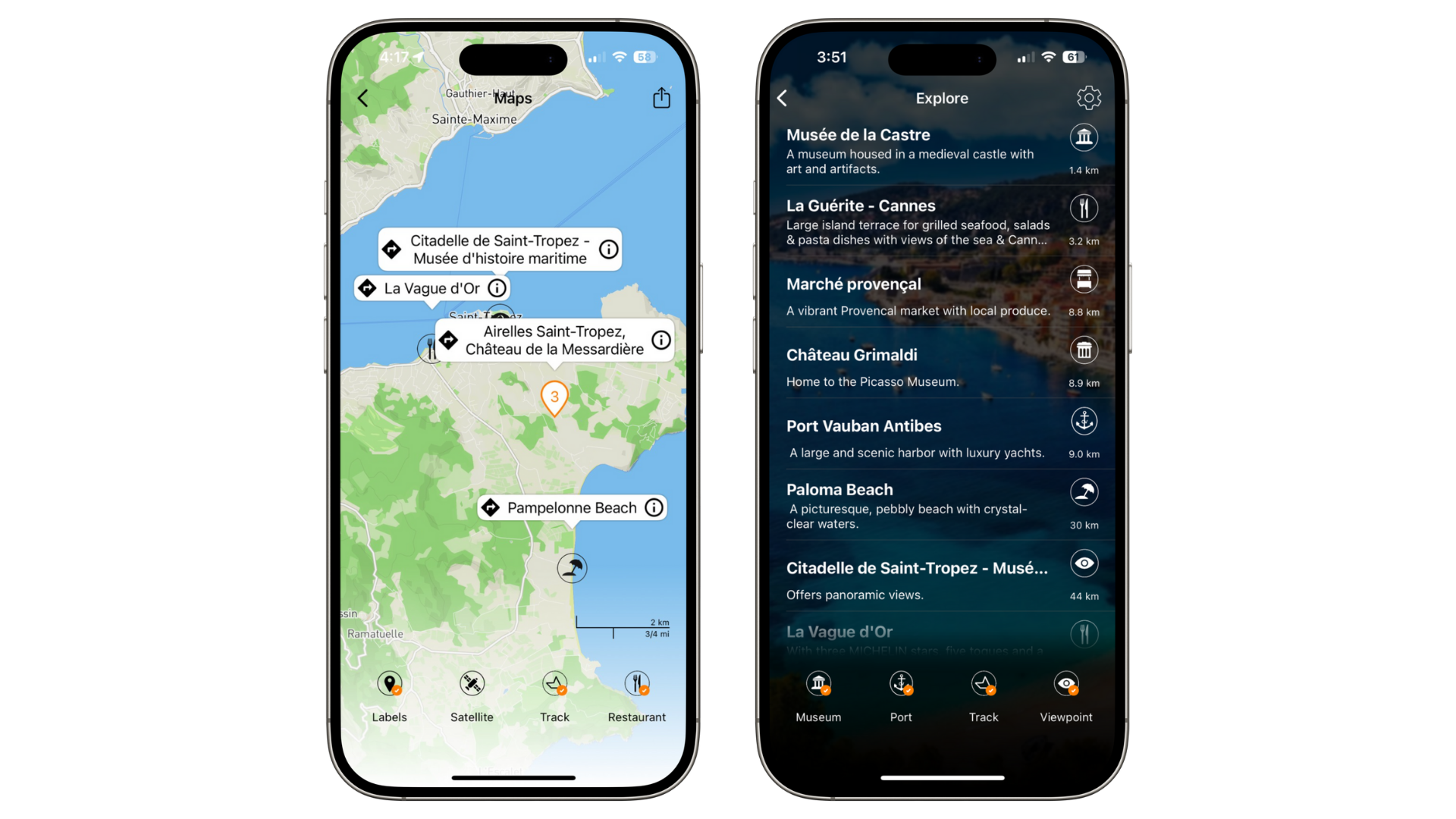
TOP TIP: Rename “The List” to something more engaging like “Explore” in the Menu & Labels section.
If you have any further questions or need help with this, contact us at support@vamoos.com.