
Notifications: send and schedule in-app updates for your guests
✅ For Hotels & Accommodation
Vamoos Notifications let you communicate with guests before, during, and after their stay. They ensure your guests receive key information when they need it, while feeling supported at every stage.
In this article:
Introduction to Notifications
Send important messages before, during, and after a guest’s stay.
Create pre-set notifications triggered by time or location (e.g., 3 days before arrival, a reminder of what’s on offer).
Send instant updates to share last-minute changes or key information.
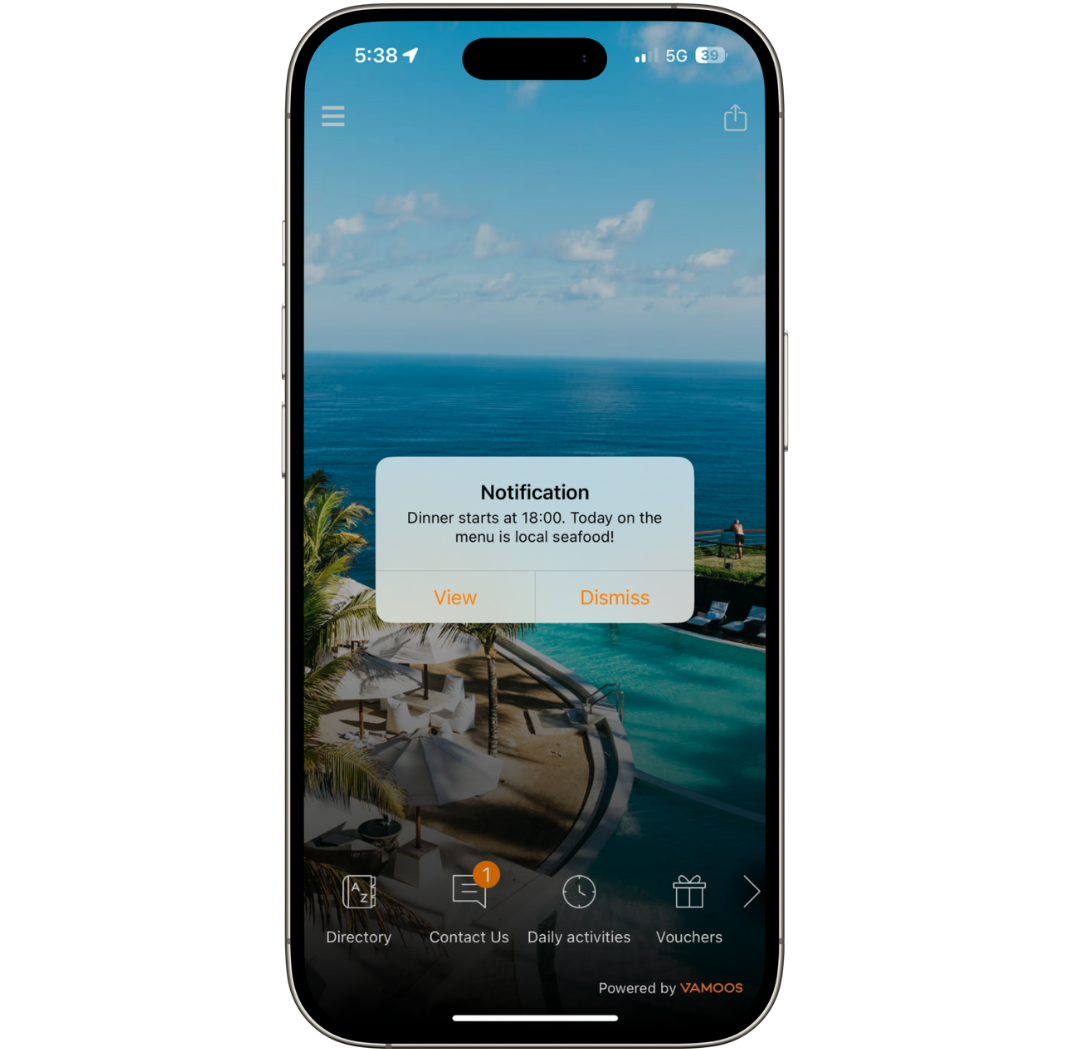
Types of Notifications
There are three notification types in Vamoos:
Timed Notifications – schedule push notifications relative to guest check-in/out dates (before, during, or after). Works offline.
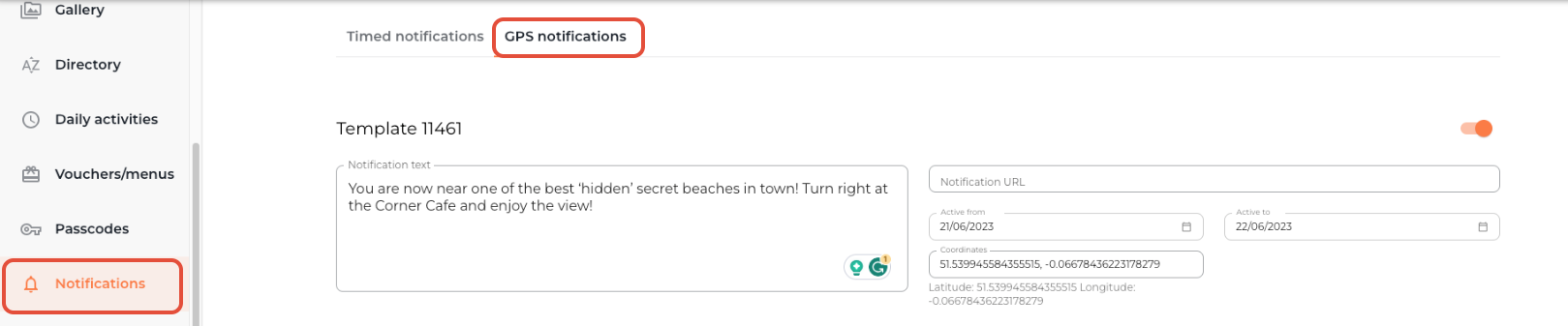
GPS Notifications – trigger a message when a guest comes within 1km of a set location.
Force Update Notifications – send an instant update that also refreshes app content so guests see your latest changes.
TOP TIP: Remind guests to enable notifications when logging in so they don’t miss your messages.
How to set up Notification Templates
Go to Shared > Notifications in the top menu bar.
Click + Create Template and choose the type of notification.
Write your message in the Notification text box.
Optionally, insert a URL (e.g., feedback form or restaurant link).
Templates apply across all properties in your account.

How to use Timed Notifications
Open a property from your Vamoos List.
Go to Notifications > Timed Notifications.
Select a template and personalise text if needed.
Toggle the switch on, then set the date & time.
Period + Number of Days works relative to guest check-in/out dates.
Device local time ensures delivery at the right time in the guest’s timezone.
TOP TIP: Timed Notifications work offline, so they’ll be delivered even if a guest has no internet connection.
How to use GPS Notifications
Open a property, go to Notifications > GPS Notifications.
Select a template and edit if needed.
Enable with the orange switch.
Set Active from dates to control when it triggers.
Choose a GPS location – guests will receive the notification within a 1km radius.
How to send an Update Notification
Update Notifications let you send instant updates and force-refresh the app.
Open a Vamoos trip and click Force Update.
Choose an existing template or write a bespoke message.
Use toggles to:
Send only to active guests
Send in the current language (Multilingual feature)
Click SEND. The app refreshes immediately, or next time the guest is online.
TOP TIP: The app auto-refreshes every 24 hours if online, so for small edits (like typos) you don’t need to send a force update.
If you have any further questions or need help with this, contact us at support@vamoos.com.