
Documents: upload travel and destination information
✅ For Travel Companies
Add all your clients’ essential documents in one place to streamline and simplify their travel experience.
In this article:
Introduction to Documents
The Documents section in Vamoos provides clients with seamless access to vital information, even when offline.
There are 2 default sections: Travel Documents & Destination Documents (you can rename these).
You can upload either a PDF (works offline) or a URL (requires internet access).
Documents appear in a list under these menu icons; clients tap each document to view it in detail.
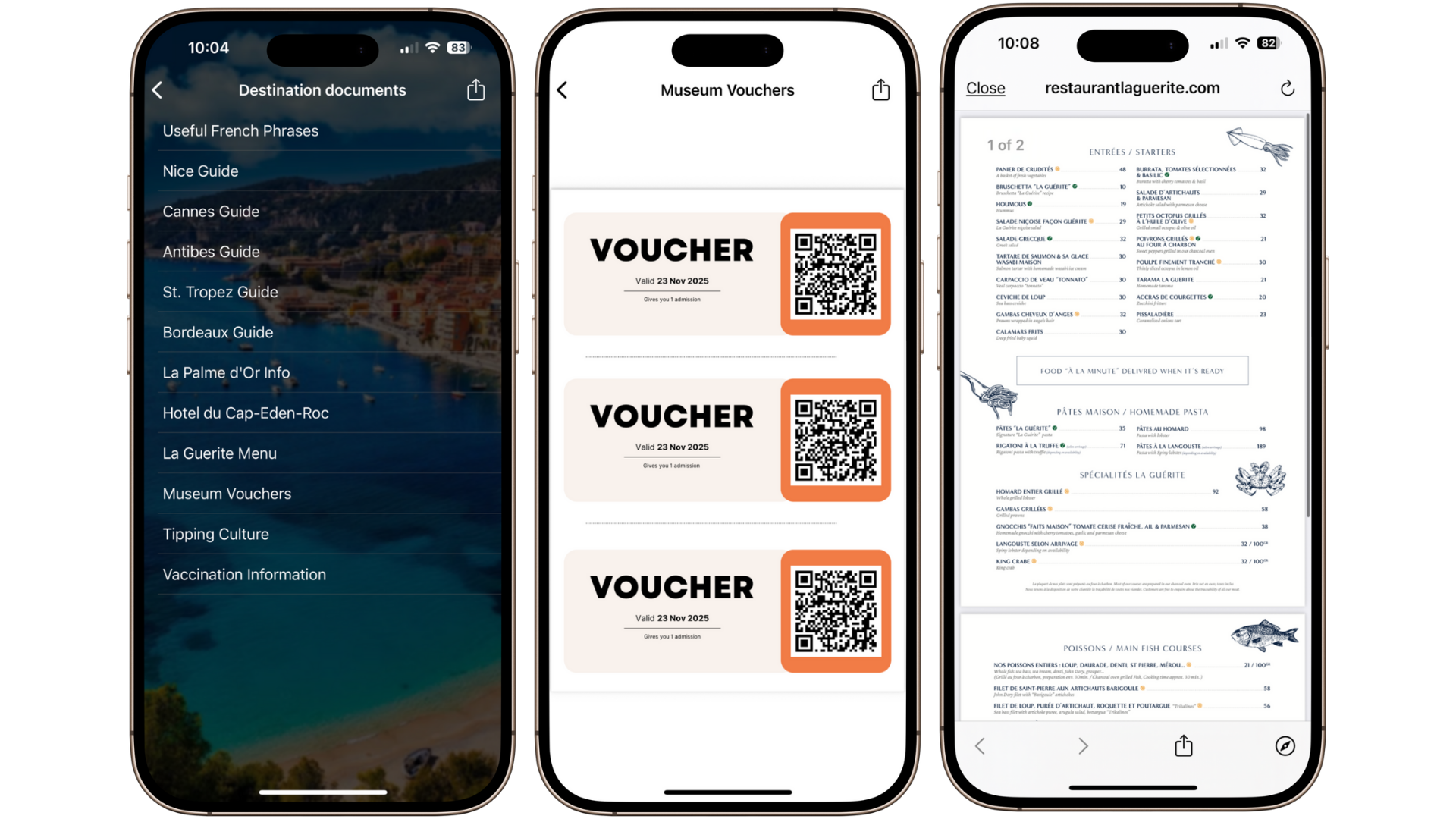
How to Upload Documents to Vamoos
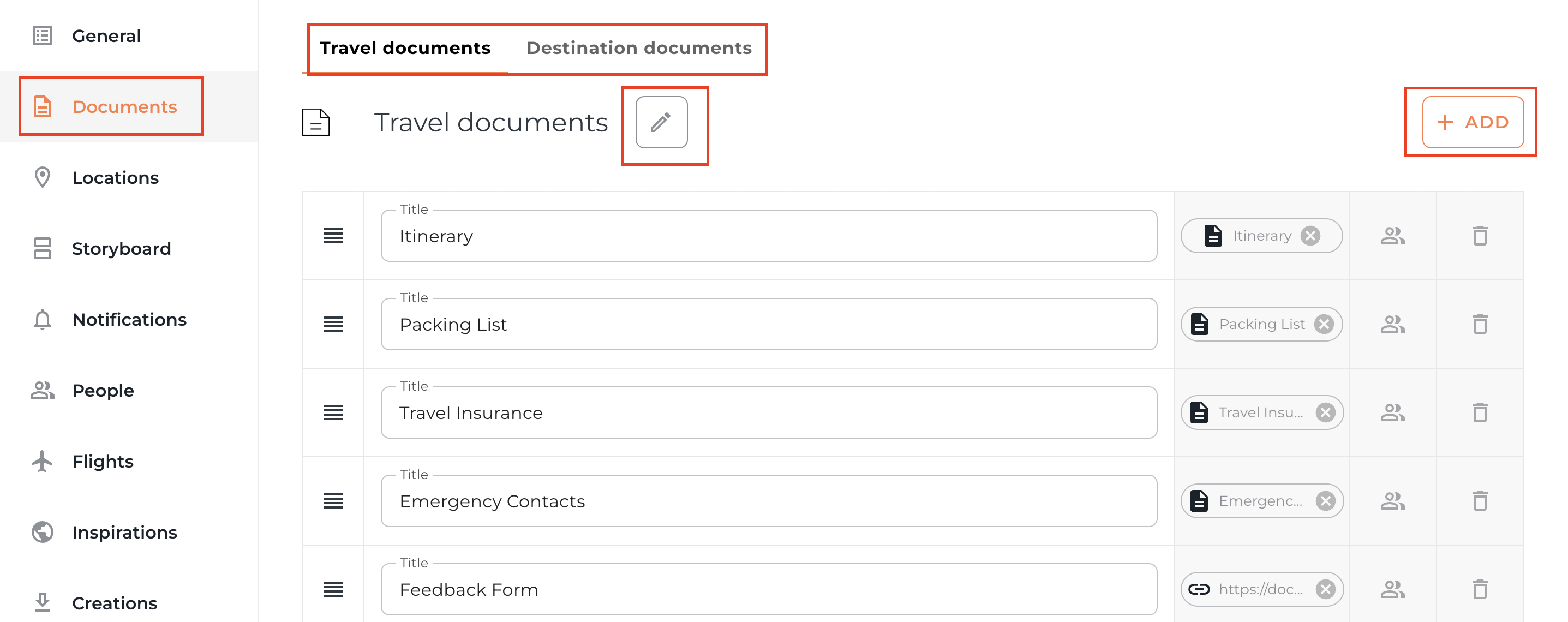
Open your Vamoos Trip and select Documents in the left-hand menu.
You’ll see the 2 sections: Travel Documents & Destination Documents.
Click ADD to create a new document.
Click ATTACH / LINK and choose from:
Library – pick a document (PDF) already in your Library
Upload file – upload a PDF from your computer
Web page – enter a URL
Click SELECT, give the document a clear title, and press SAVE.
TOP TIP: If you only add one document in a section, it becomes a single action button on the homescreen.
Changing Document Section Titles
Default titles are Travel Documents & Destination Documents.
Many companies use the first for booking-specific info (boarding pass, travel insurance, packing list) and the second for generic or destination-based info (guides, tickets, podcasts).
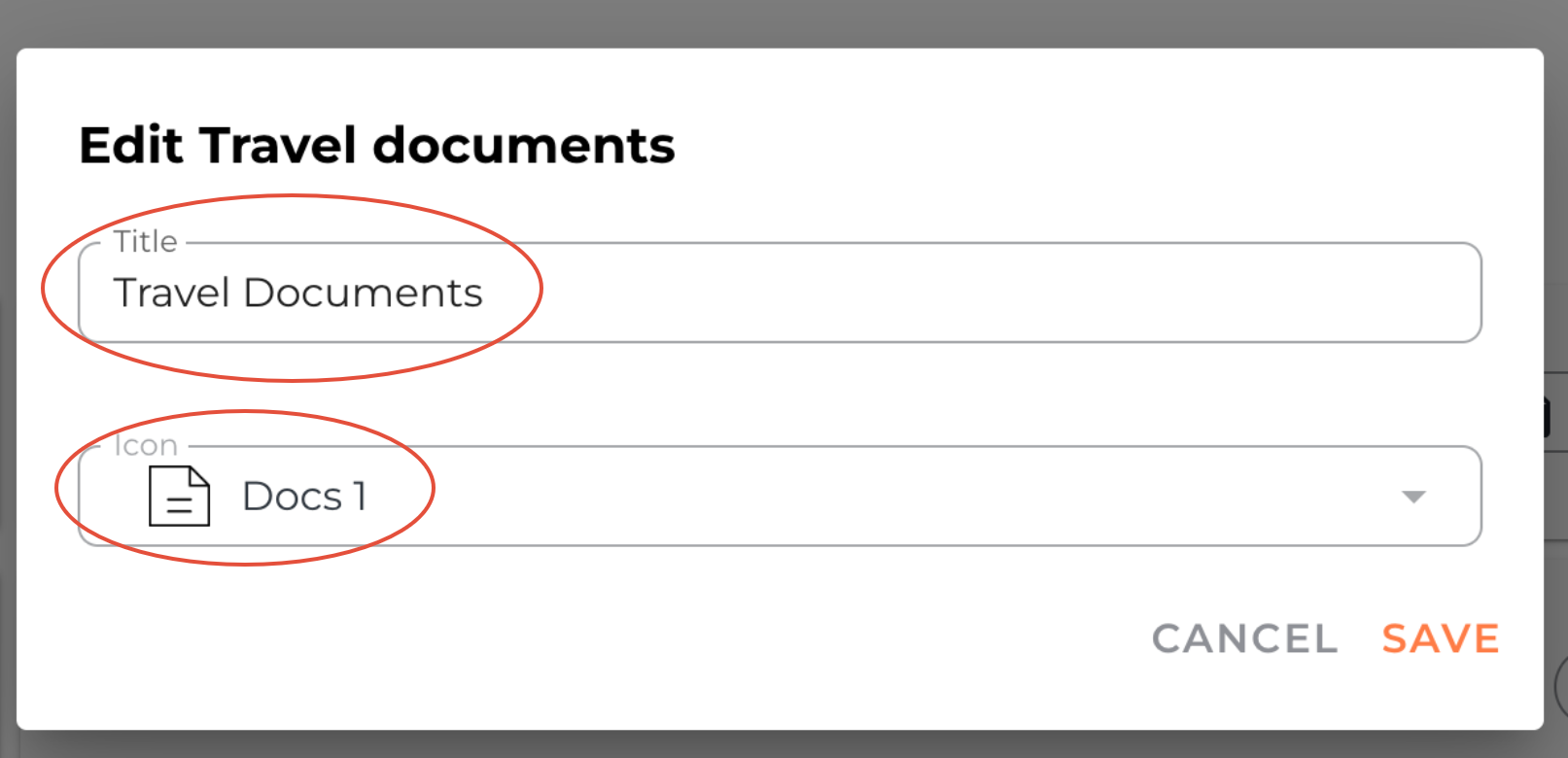
You can rename them for each trip by clicking the pencil icon next to the section title.
A pop-up will let you change both the section name and its homescreen icon — then press SAVE.
You can also change default names for all trips via Menu & Labels.
Reordering Documents
You can reorder documents anytime — e.g. place them in date order or importance.
To reorder, click and drag the 3-line handle on the left-hand side of each document.

FAQs
Q: Do documents work offline?
A: Yes, PDFs work offline. URLs require internet access.Q: Can I upload a Word document?
A: No, only PDFs can be uploaded.Q: Can clients download, share & print documents?
A: Yes. On iOS & Android apps, clients can press the share icon to download, email, print or share any document.
If you have any further questions or need help with this, contact us at support@vamoos.com.