
Messaging: communicate with your clients
✅ For Travel Companies
The Messaging tool allows your clients to communicate with you and your team whenever they need support. It’s simple, direct, and helps your travellers feel looked after throughout their journey.
In this article:
What is Messaging?
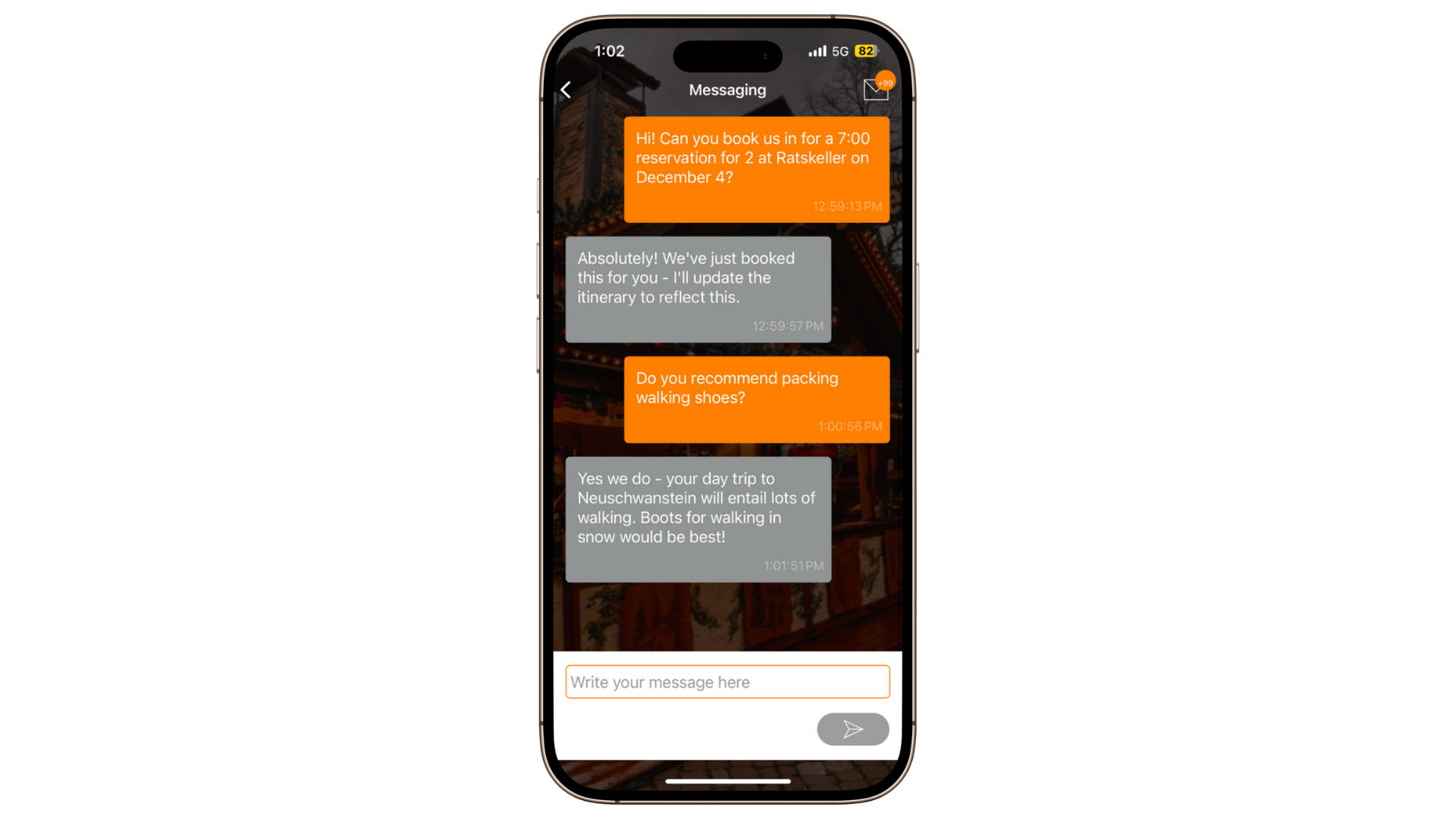
Your clients can send you questions directly through the app. The chat-style layout makes it simple for them to use.
Messaging is one-to-one between you and the traveller (not a group chat). You can reply either by email or through the Vamoos Portal.
It’s a great way to reassure and make your clients feel supported at any stage of their trip. You can also encourage them to book additional excursions or services by messaging through the app too.
How to set up Messaging
From your Vamoos List, create a new trip or select an existing one.
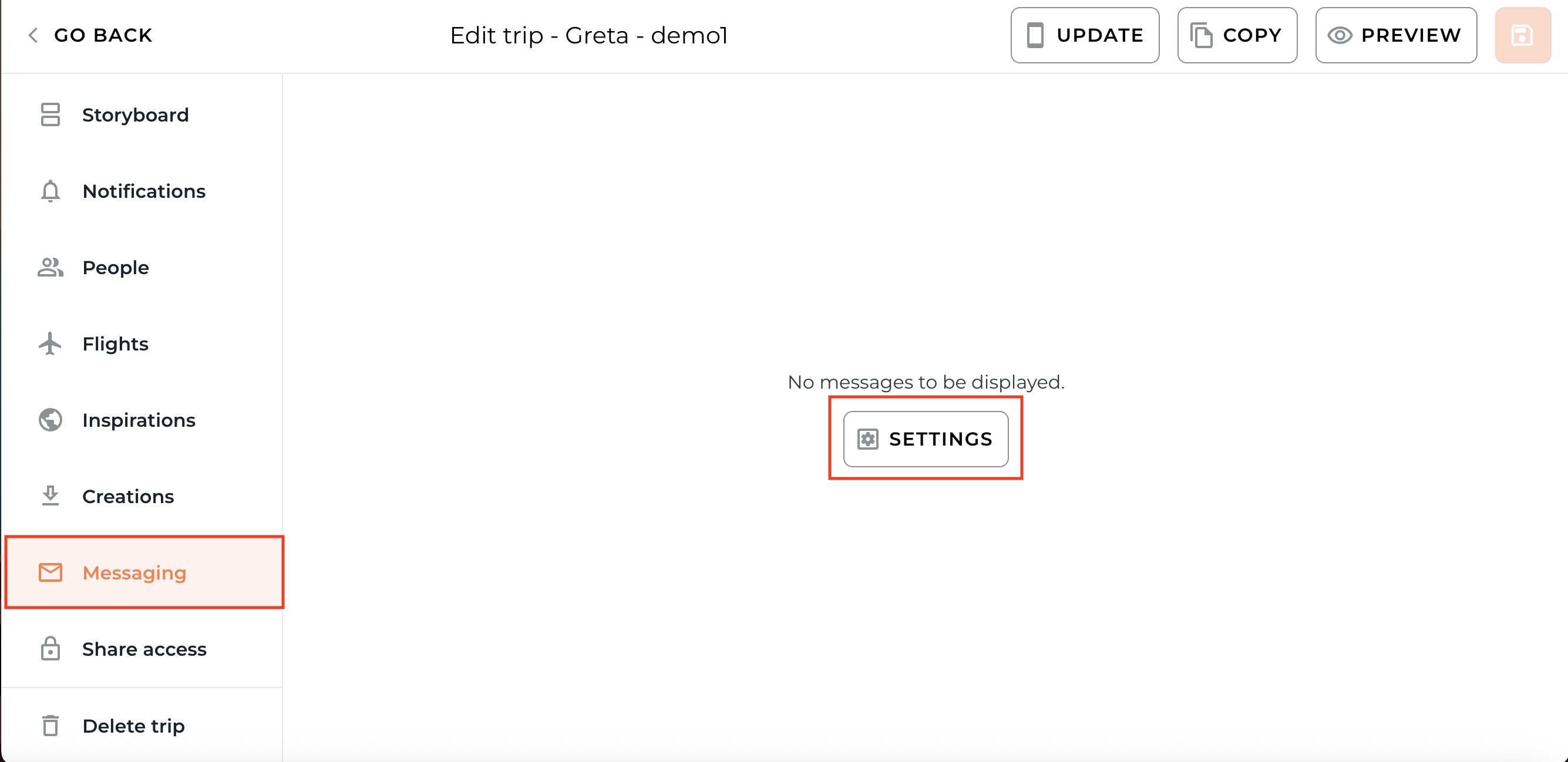
Open the Messaging section from the left-hand menu.
Messaging is off by default. Click Settings to turn it on.
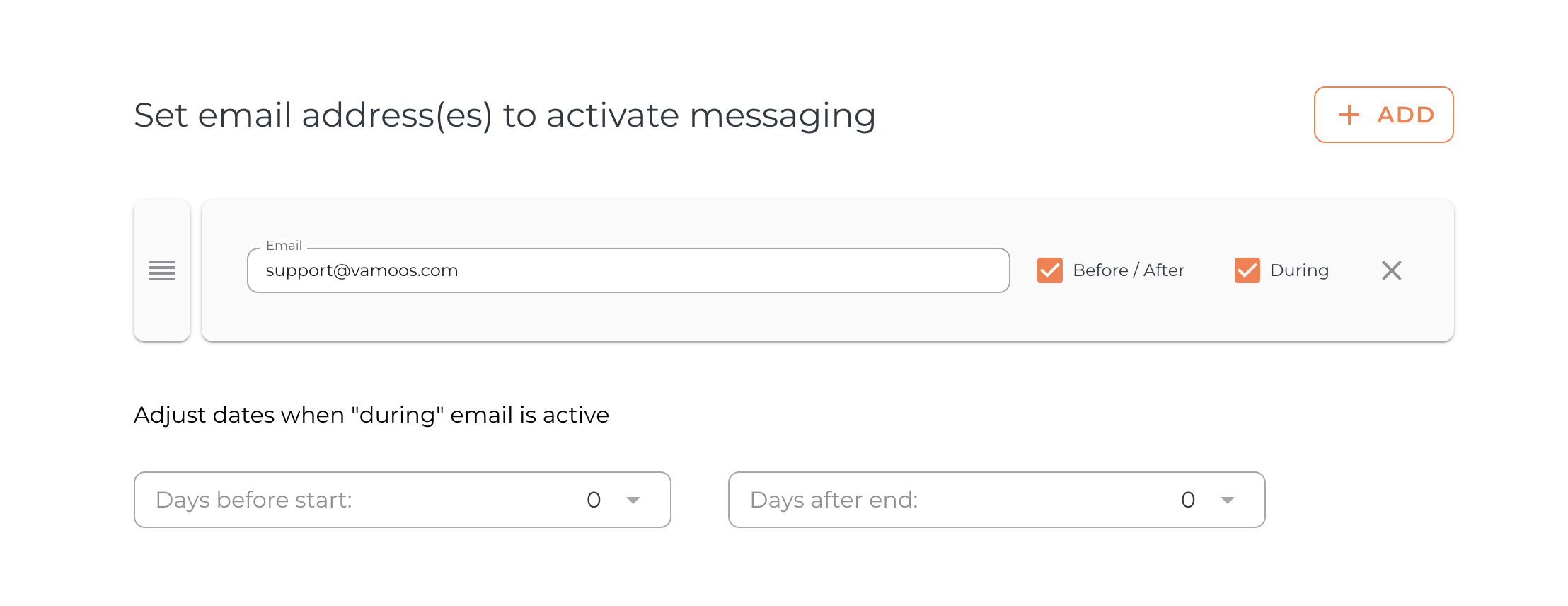
You’ll be asked to add email addresses to activate Messaging. These are where client messages will be sent to.
Add one or multiple email addresses — e.g. your office team and/or destination contacts.
You can set different addresses for before/after and during trips, so the right team handles each stage and streamline communications.
You can also adjust the dates when the “during” period applies.
Receiving and replying to messages
When a client sends a message, you can receive and reply by Email or Vamoos Portal.
Replying via email
Messages are sent to the email address(es) you set up in Messaging Settings.
Simply hit Reply in your inbox to respond.
Your reply goes straight back into the app chat for the client to see.
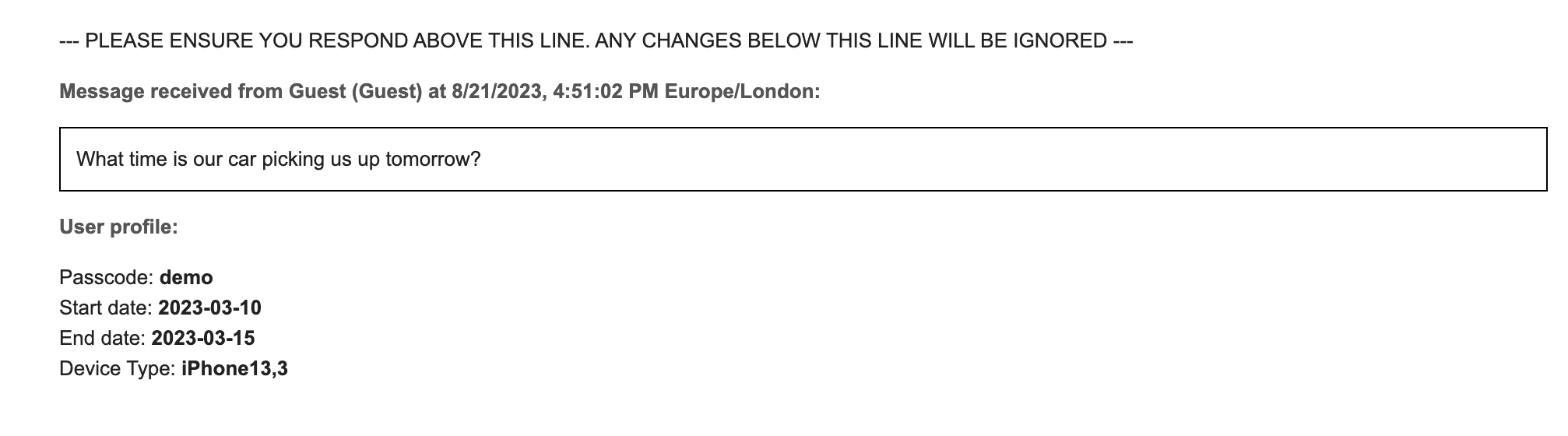
TOP TIP: Remove your email signature before replying, so it doesn’t appear in the client’s app chat.
Replying via the Vamoos Portal
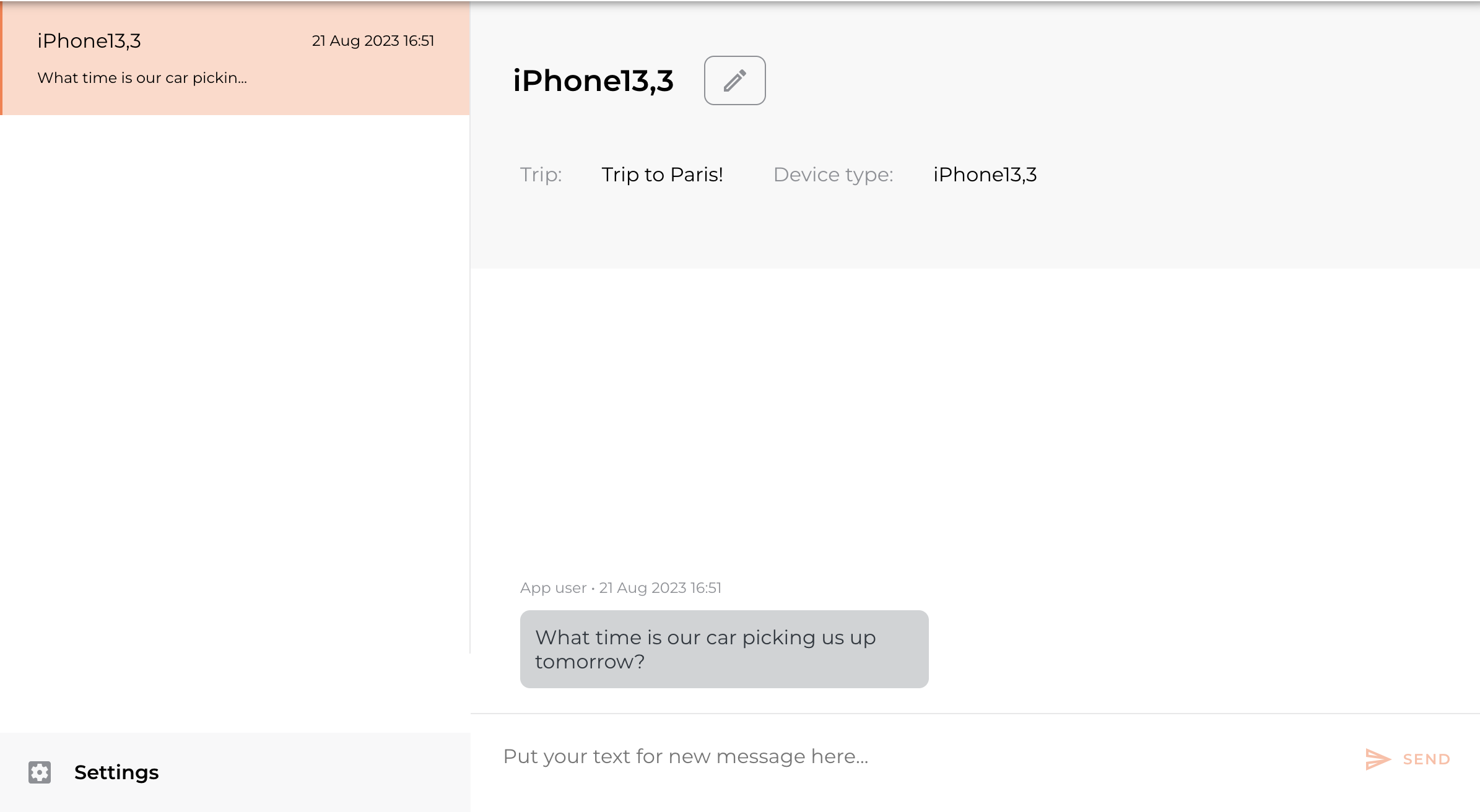
Client messages also appear in the Messaging section of the trip inside your Vamoos Portal.
You can reply directly in the chat box and view the full conversation history.
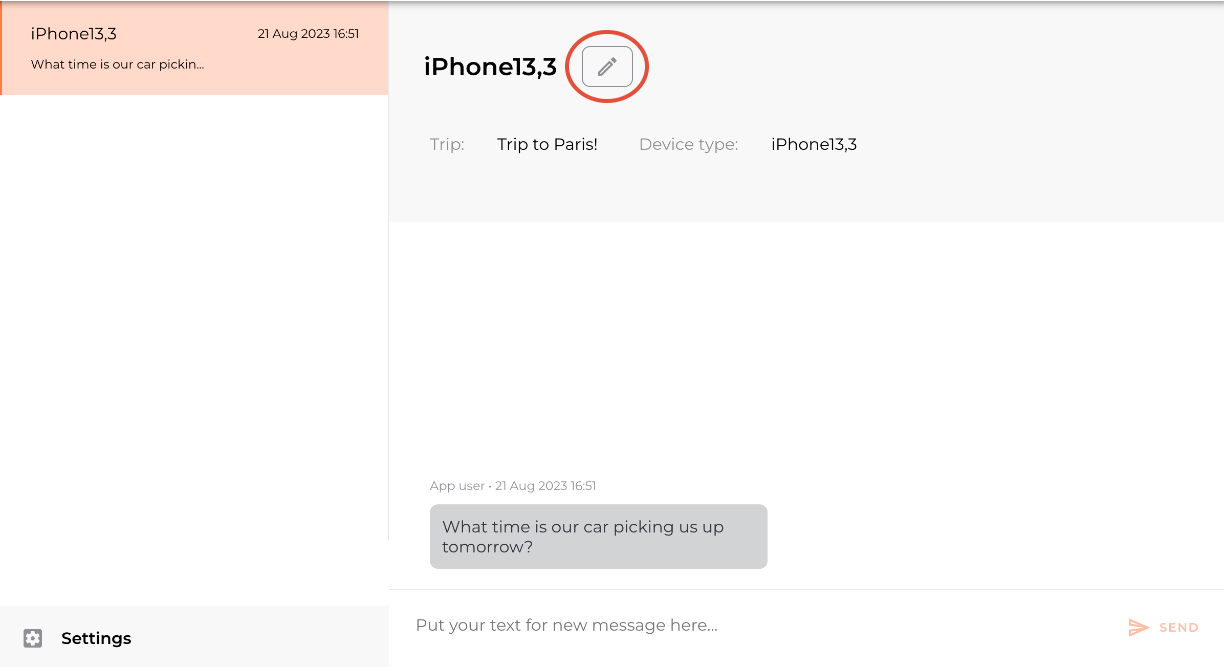
Changing the name of the conversation
Click the pencil icon to rename the conversation - for example, changing it to the traveller’s name.
If you have the People section set up, you will be able to identify clients automatically.
FAQs
Q: Why does the Messaging icon show even if I haven’t activated it?
A: The icon remains because it’s the hub for notifications. If you don’t wish to use Messaging, you can rename it in Menu & Labels (e.g. to “Alerts” or “Updates”).Q: How do I know if one of my colleagues has already replied?
A: If you’ve added multiple emails, all recipients are notified of the conversation so you’re kept in the loop.Q: Will clients receive replies if they’re offline?
A: No, replies require an internet connection to be delivered.Q: Can I start a conversation with an individual?
A: No, you can only reply once a client messages you. Use notifications to send updates to all travellers in a booking.Q: Can I set up an automatic out-of-office reply?
A: Yes. Just enable your email’s automatic reply, and your clients will receive the same message in the app.
If you have any further questions or need help with this, contact us at support@vamoos.com.