
My Documents: give travellers the freedom to share their own documents
✅ For Travel Companies
Give travellers the freedom to upload their own documents directly in the Vamoos app - from train tickets to car hire certificates. As an Operator, you control which sections allow uploads and stay in full control, with the ability to remove any traveller-uploaded document at any time.
In this article:
For Operators
Top Tip: Before enabling, consider creating a dedicated Document Section (e.g. "My Documents") to keep uploaded content separate and easy to manage.
Enable My Documents
1. Open the trip and navigate to Documents
2. Select the Document Section where you want travellers to be able to upload their own files
3. Tick the checkbox: 'Allow travellers to add their own documents to this section in the app'
4. Click SAVE
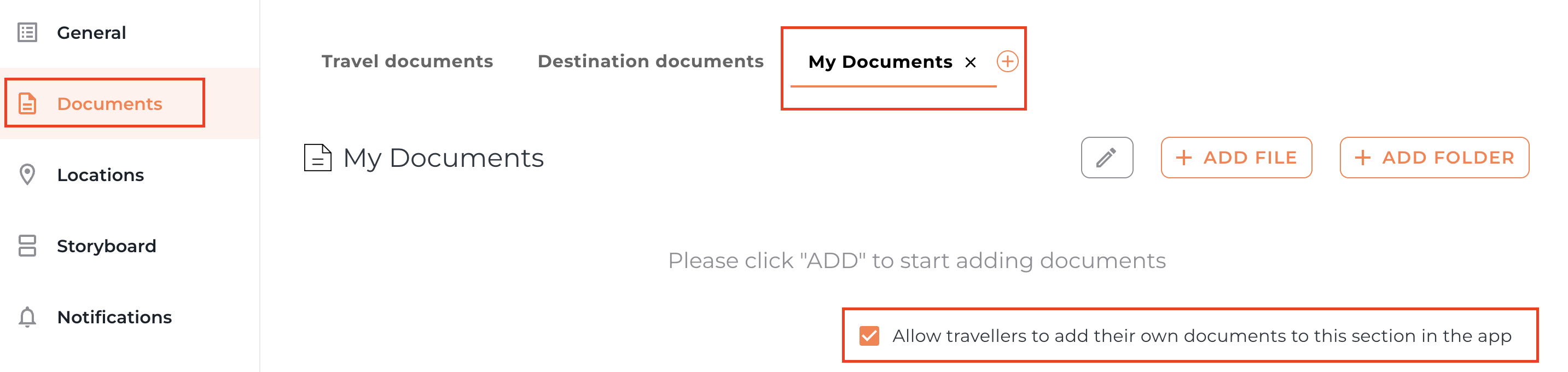
Please note: you will need to have People set up for your travellers to be able to share documents they have uploaded with specific people. If you don't, they will be shared with the whole group.
View Uploaded Documents
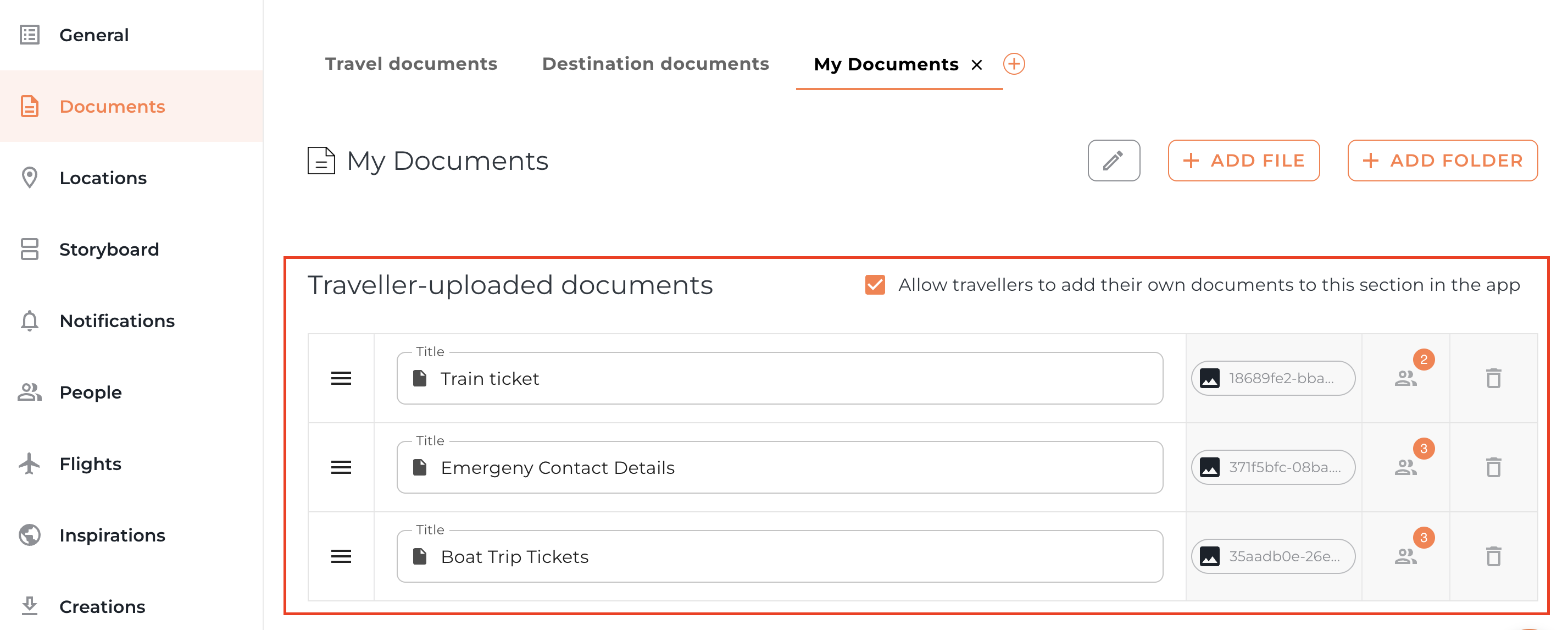
All documents uploaded by the traveller will appear under the 'Traveller-uploaded documents' header. As an Operator, you will be able to:
✅ View the uploaded document
✅ See which travellers have been granted access to it by pressing on the person icon
✅ Remove the document at any time
Please note, you will not be able to:
❌ See which traveller uploaded the document
❌ Change who has access to the document
Note: If a traveller queries who can see their document, remind them that all shared documents are always visible to the travel company.
For Travellers
Share the following instructions with your travellers so they know how to upload and view documents in the app.
How To Upload a Document
1. In your documents section, tap the '+' icon in the top right corner of the screen
2. Upload your document file
3. Name your document by entering a Document Title
4. By default, your document will be shared with everyone on the trip, but you can also choose to:
Toggle off on the names of specific travellers to stop sharing
Toggle all the names off so it is private to yourself
4.Tap Save
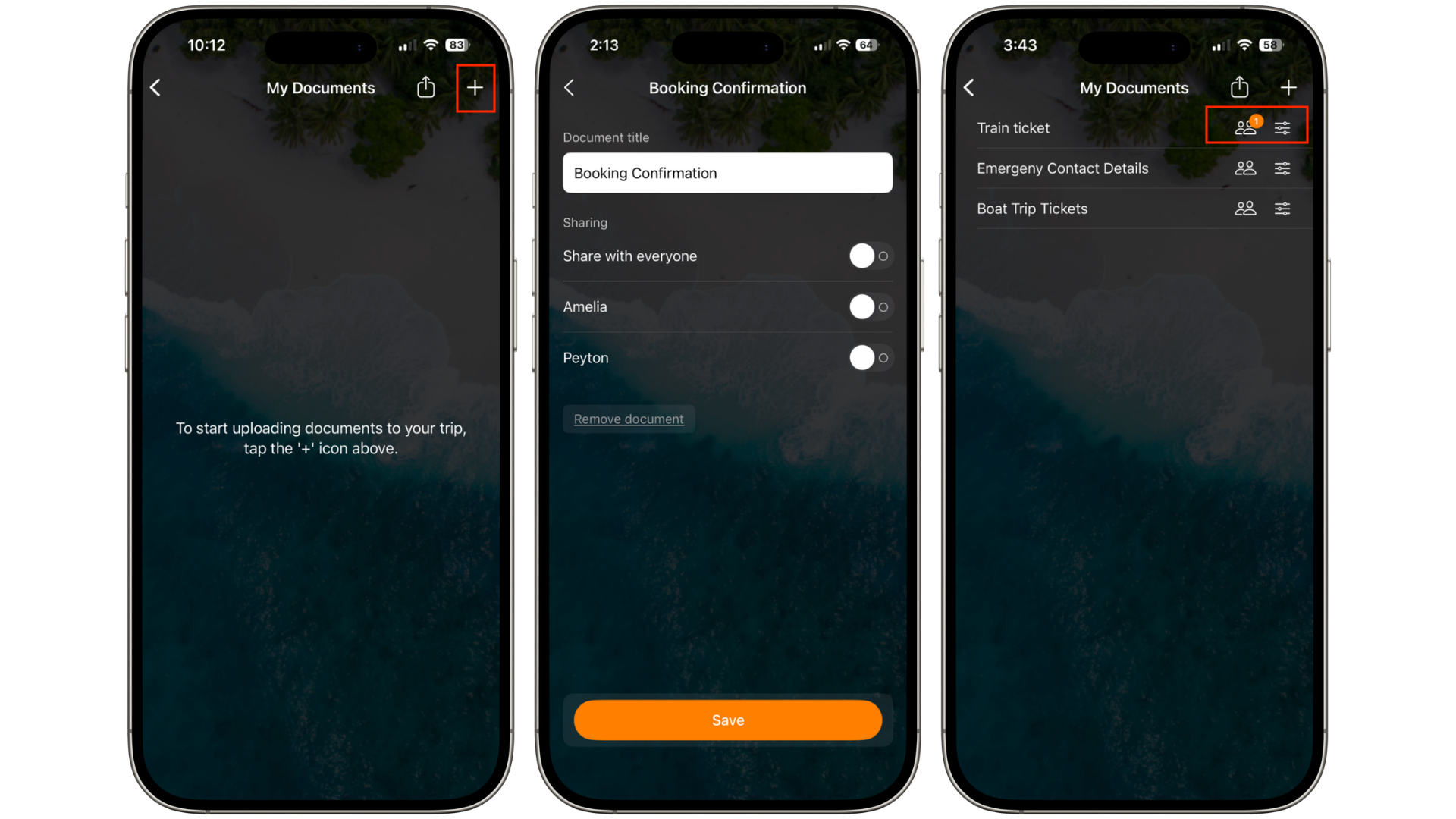
You can update your sharing settings at any time by tapping the Settings icon on the document.
You can remove your document at any time.
Note: All shared documents are visible to your travel company. Your travel company will need to have travellers listed in the Vamoos portal to allow you to share documents with specific people. If they don't, they will be shared with the whole group.
How to View Documents Shared by Other Travellers
Documents may not appear instantly. If a document isn't showing, tap the three lines in the top left corner of the screen and tap Refresh.
Note: You will only see documents that have been shared with you directly or shared with everyone on the trip.
FAQs
Q: What if I do not want my travellers to be able to upload their own documents?
A: This is an optional feature - if you choose not to activate it in the portal, travellers will not see the option to upload documents within the app.
Q: What documents can travellers upload?
A: Travellers can upload general trip-related documents such as tickets, packing lists, or activity information. Personal identification documents, such as passports or visas, should not be uploaded.
If you have any further questions or need help with this, you can contact us at support@vamoos.com.