
People: add your travellers names
✅ For Travel Companies
Personalise your clients’ experience on the app by adding their names into the People section.
In this article:
Introduction to People
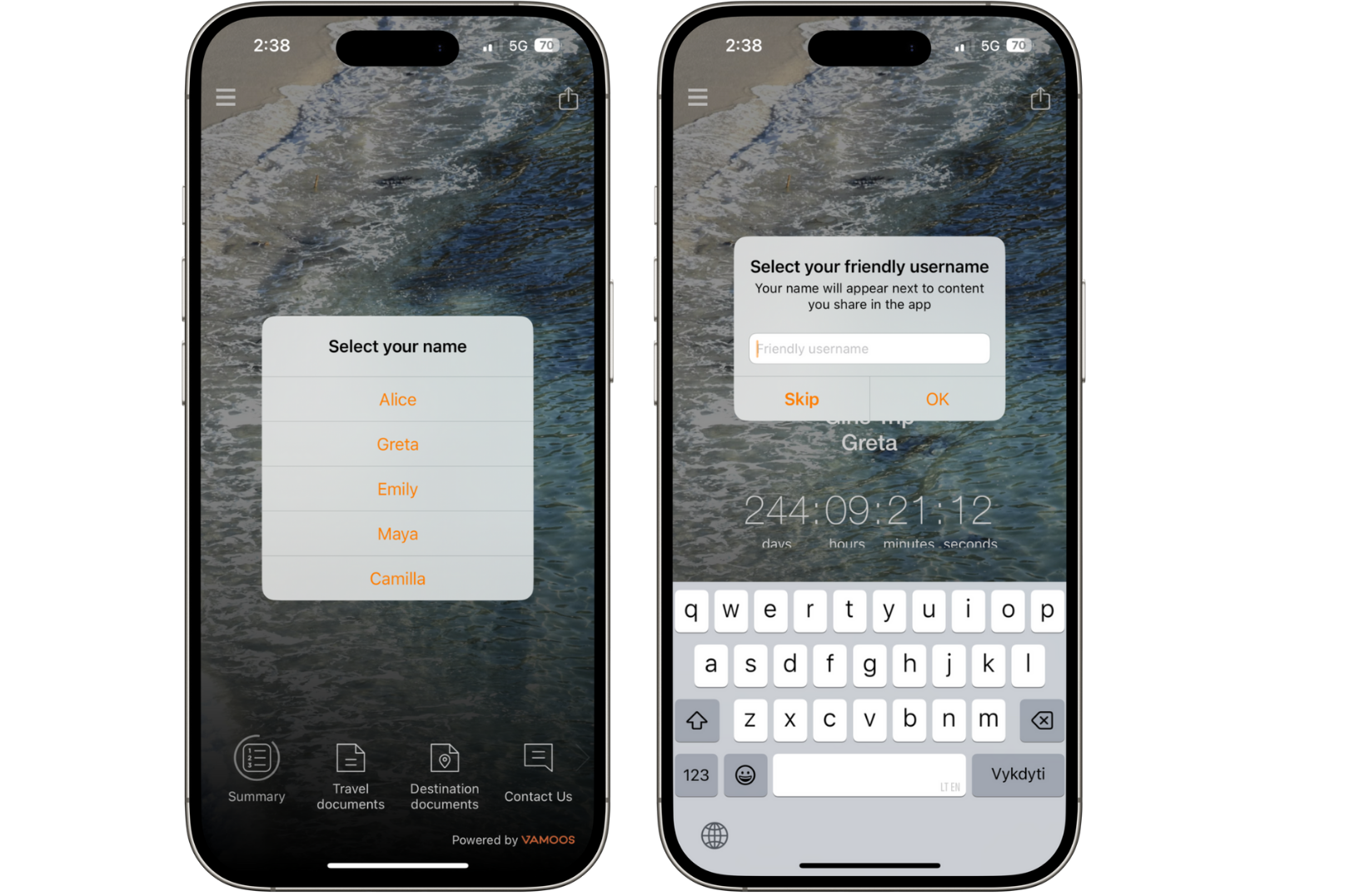
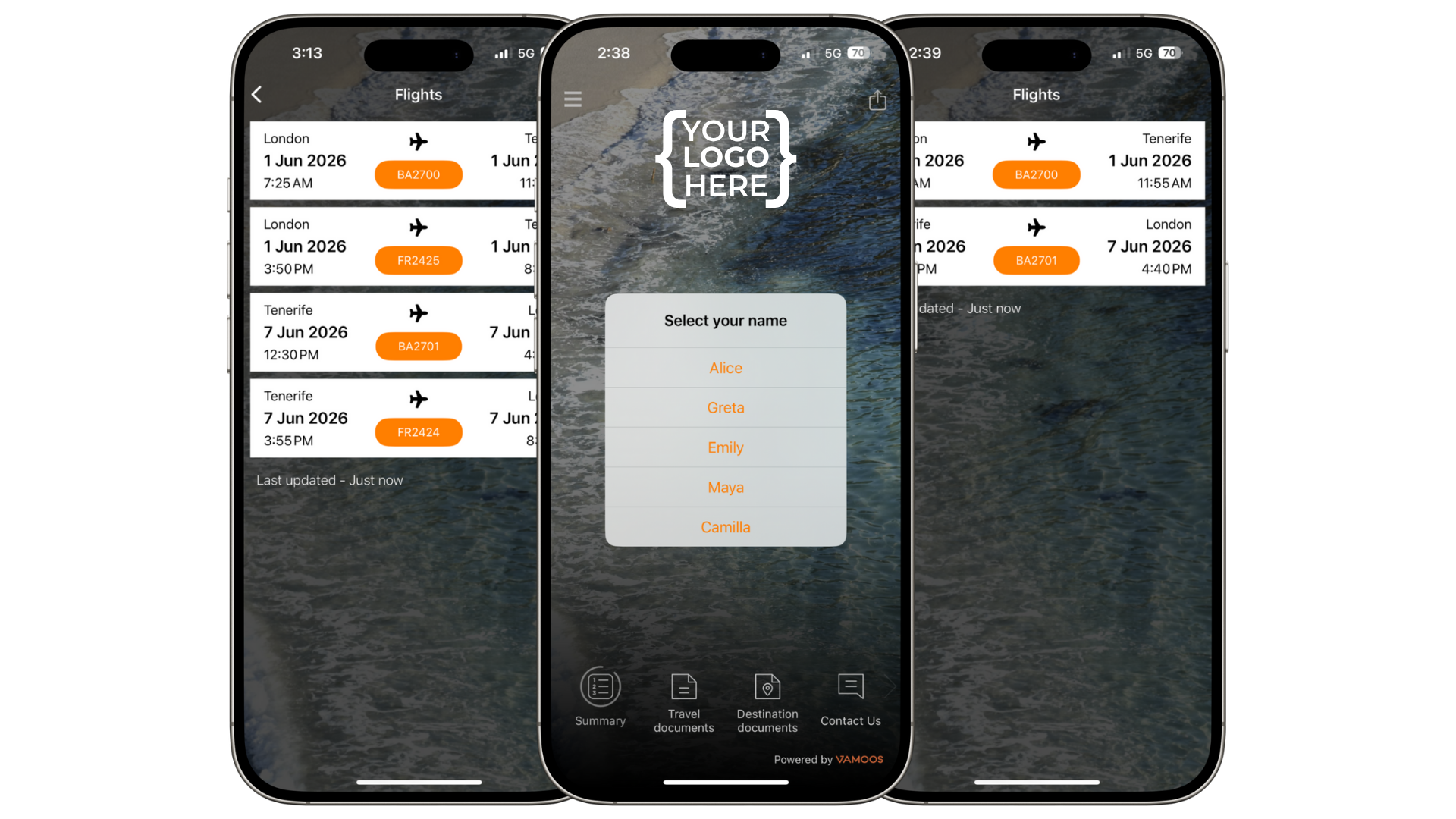
Add the names of all travellers in a group trip. When they log in, they select their name — creating a more personal experience and displaying their name on the home screen.
When a client posts an image in the Posts section or sends you a message, their name will appear — so you’ll know exactly who it came from.
How to add People
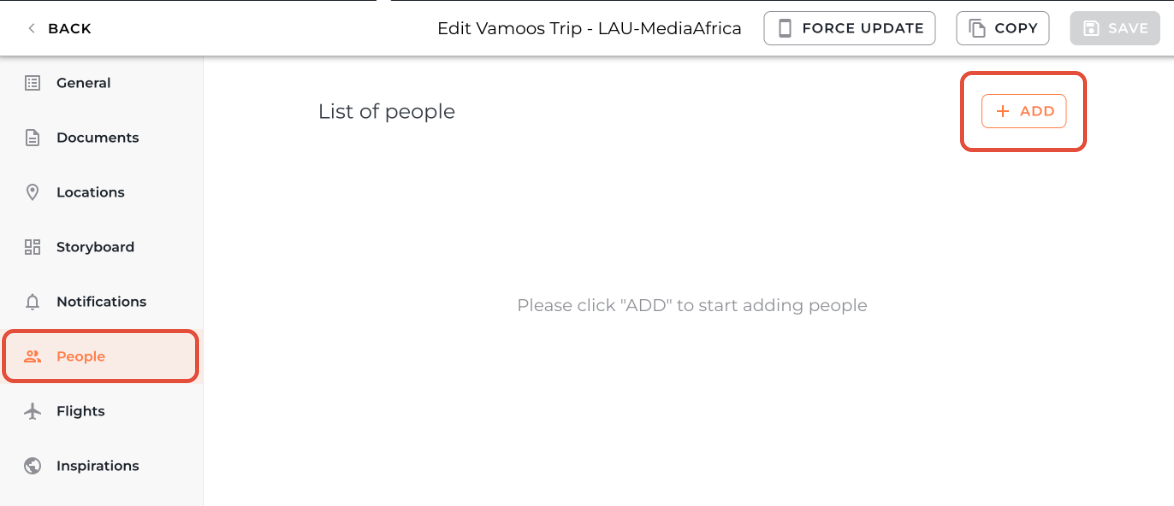
Go to your Vamoos List, select or create a trip, then choose People from the left-hand menu.
Click Add to enter names individually.
You can also copy & paste a list from a spreadsheet — the names will auto-populate saving you time.
Top Tip: We recommend adding no more than 10 names — otherwise guests will need to scroll through a long list to find their own but there is no actual limit.
Adding email addresses for your travellers
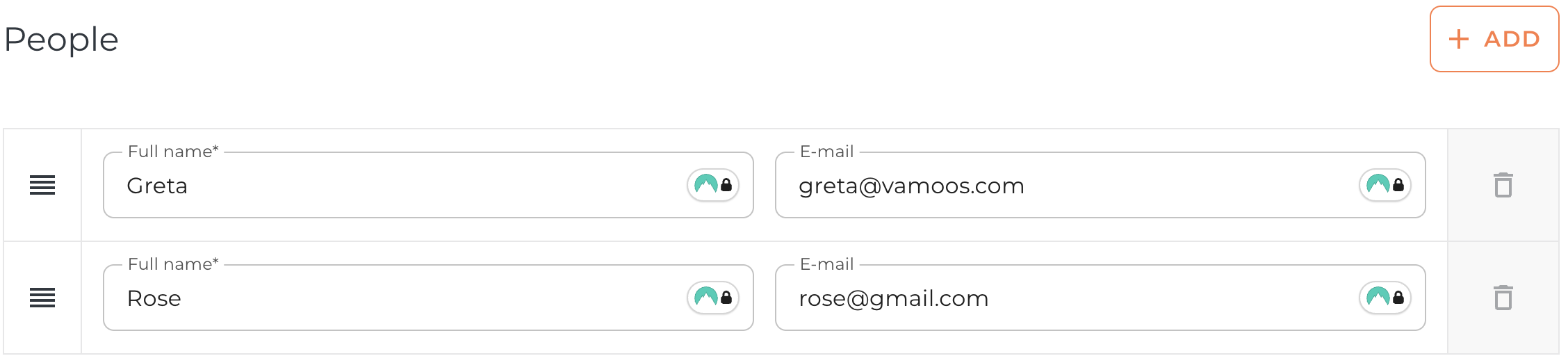
Add traveller emails in the Email box.
If the email you entered matches the email that your traveller uses to log in on the app, they will not have to enter the User ID and passcode to access their itinerary.
More information on this here.
Adding the email give you the option to send force update notifications directly to their email.
Reordering People
Reorder at any time — e.g. put in alphabetical order for easy searching.
Drag and drop names using the 3-line handle next to each entry.

Deleting People
Click the X next to a name to remove them from the list.

Using People for Messaging
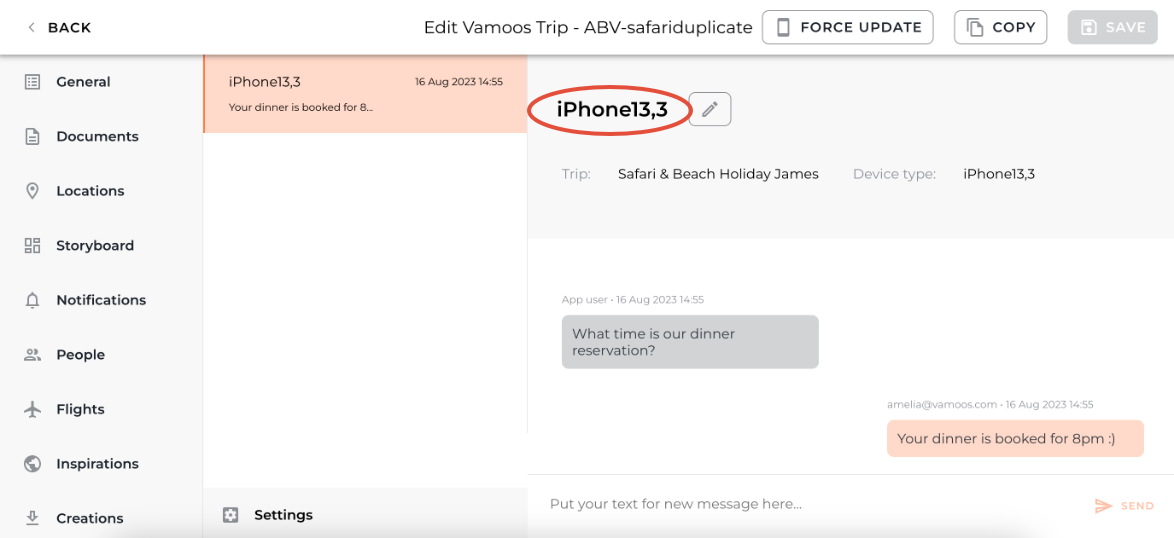
Due to privacy reasons Vamoos cannot track traveller names, therefore the in-app messaging feature only identifies device type — not traveller names.
By setting up the People section, messages will show you the sender’s name, making it easy to respond personally.
Using People to personalise content for individuals
Customise items for individuals on a group trip — including Flights, Documents, and Storyboard entries.
Restrict content so travellers only see what’s relevant to them.
They’ll log in, select their name (or authenticate via email), and only access their personalised content.
See our guide on Personalisation for more details.
If you have any further questions or need help with this, contact us at support@vamoos.com.