
Personalisation: customise flights, docs and activities for travellers
✅ For Travel Companies
With our new Personalisation feature, tailoring group trips for individuals is now effortless! Say goodbye to one-size-fits-all travel plans. Now, you can customise flights, documents, and storyboard activities for each person on a trip.
In this article:
Introduction to Personalisation
Customise certain items for individuals on a group trip.
You can personalise Flights, Documents, and Storyboard items to control what information and content individual travellers have access to.
Perfect for trips with different flights, activities, or private documents (e.g., invoices, boarding passes).
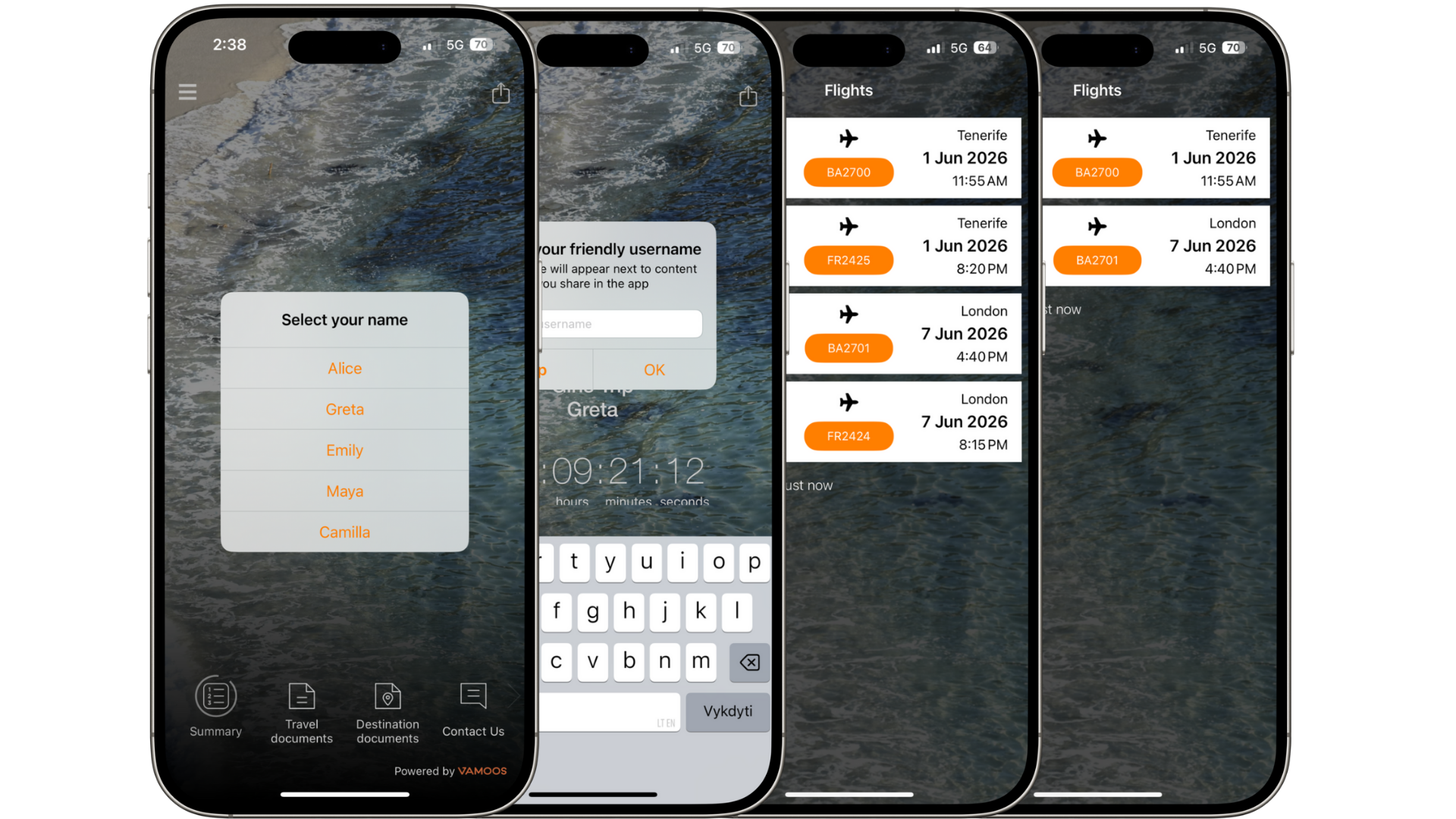
Your travellers will be able to log in to the app, select their name or authenticate themselves via email and only see the content you want them to be able to see.
How to add People
First, add People to your trip in the portal.
Select (or create) your trip in the Vamoos List and go to the People section.
Click ADD and type in traveller names.
You can paste multiple names or press Enter after each name to add quickly.
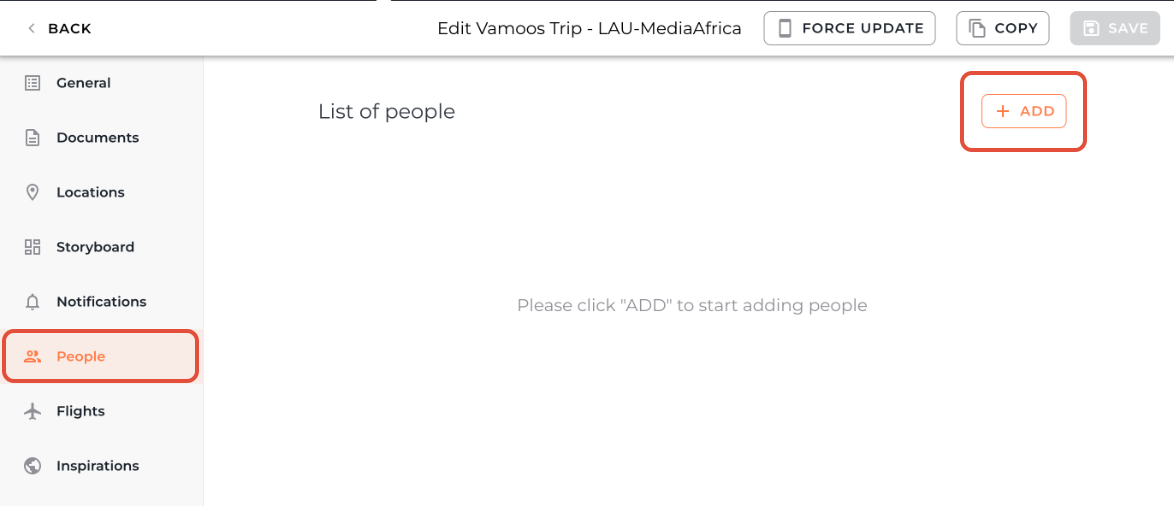
TOP TIP: Copy and paste a full list of traveller names into the People section to save time.
How to personalise Flights
Go to the Flights section in the left-hand menu.
Add flights if you haven’t already.
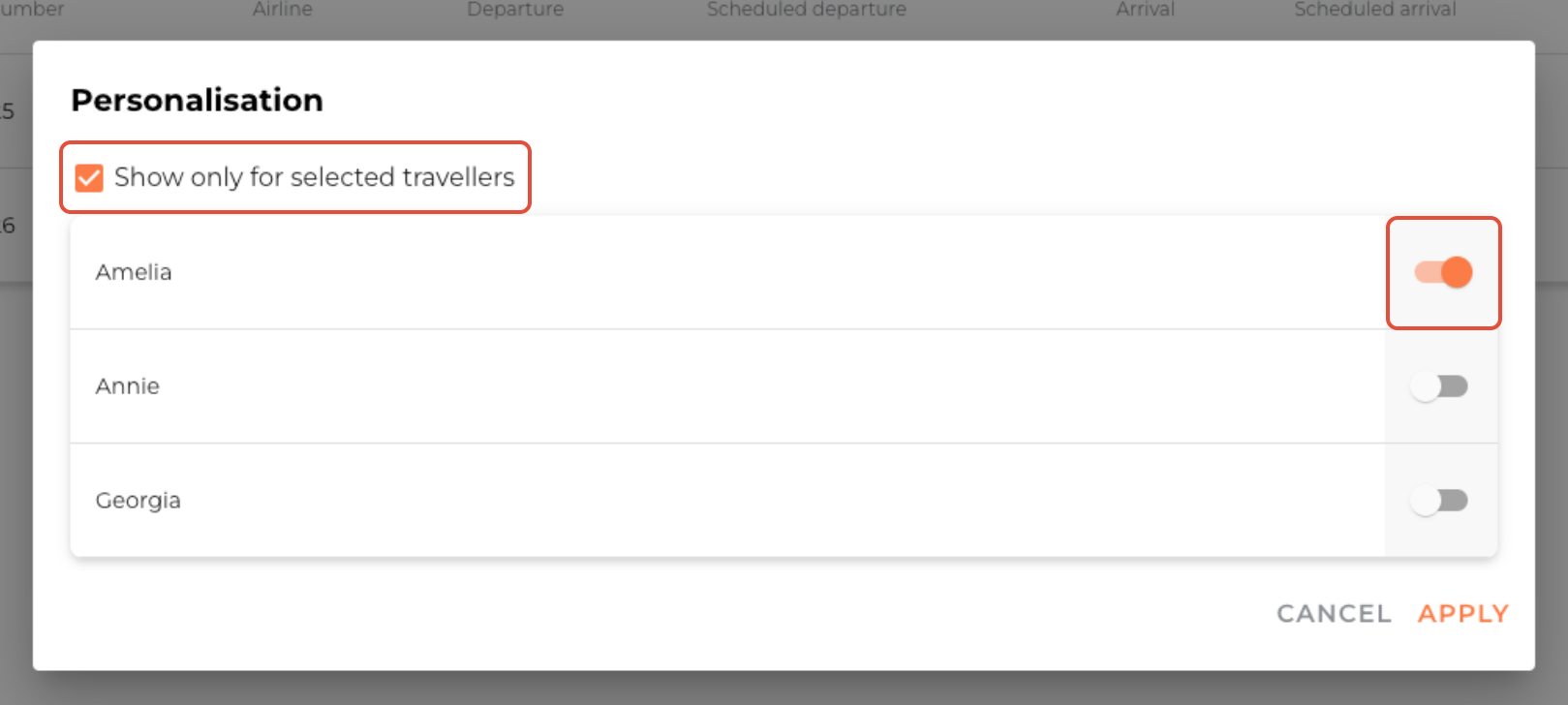
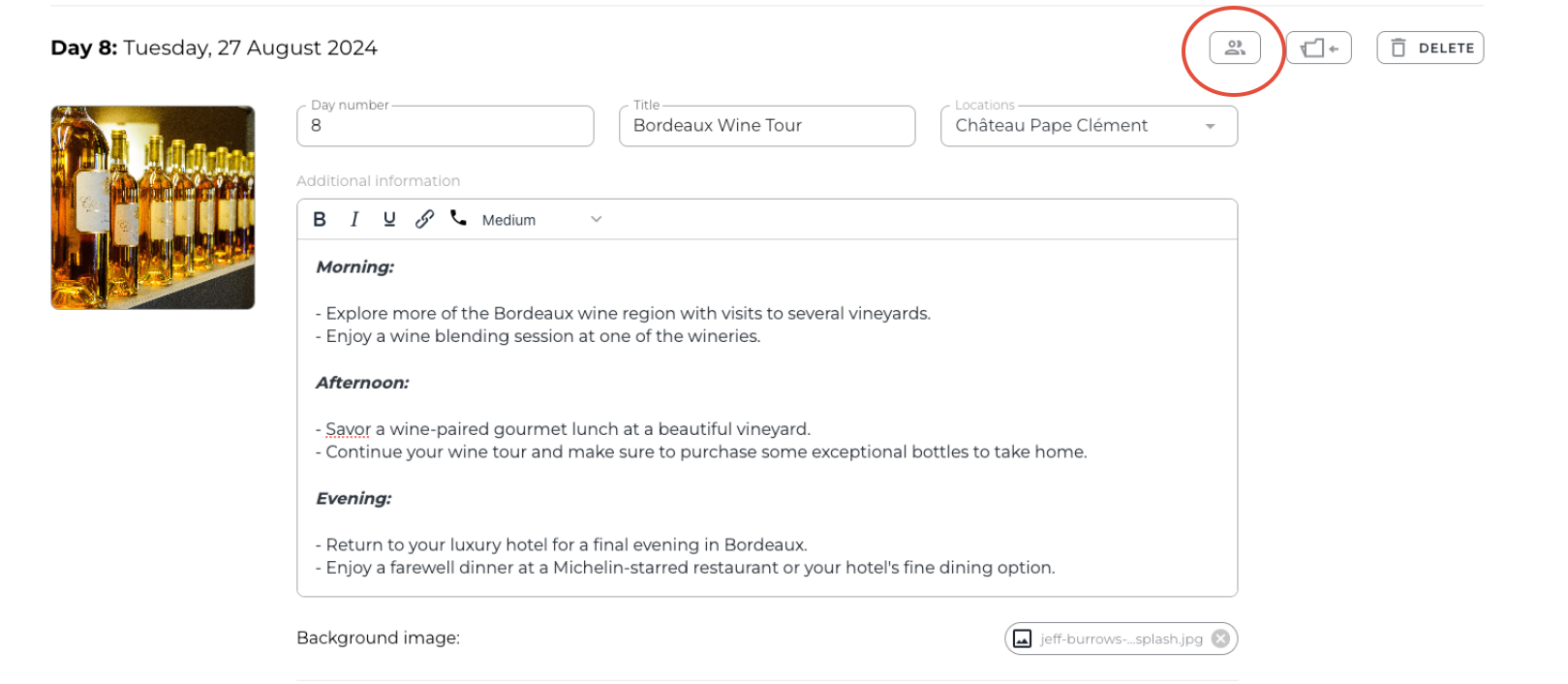
Click the Restrict Visibility icon next to the flight.
Tick Show only for selected travellers.
Toggle travellers on/off, then press Apply.
Once you have done this, you will see a number appear next to the restricted item to show how many people you are showing it to.

How to personalise Documents
Go to the Documents section.
Add documents if you haven’t already.
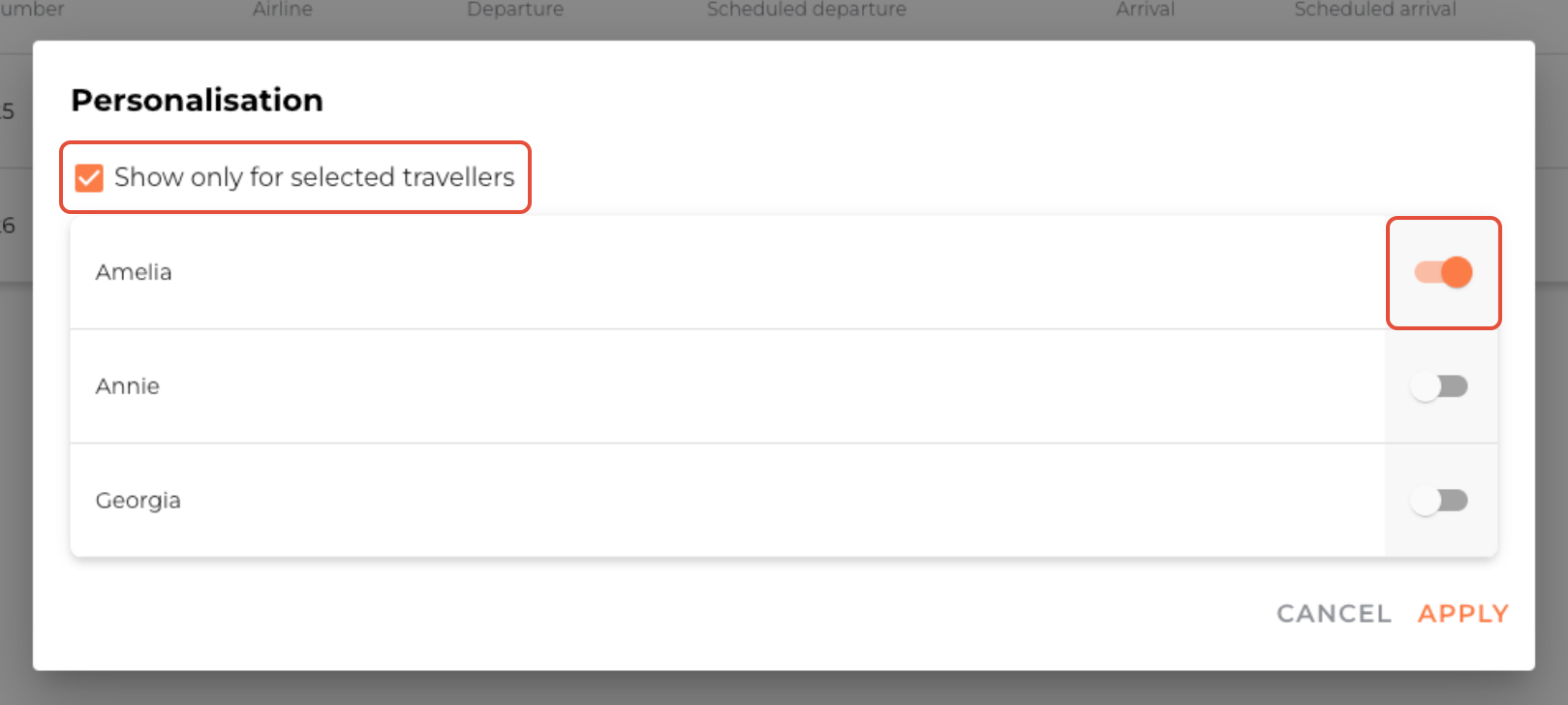
Click the Restrict Visibility icon next to the document.
Tick Show only for selected travellers.
Toggle travellers on/off,, then press Apply.
How to personalise Storyboard items
Go to the Storyboard section.
Add storyboard days if you haven’t already.
Click the Restrict Visibility icon next to an item.
Tick Show only for selected travellers.
Toggle travellers on/off, then press Apply.
Viewing personalised content on the app based on Log in method
Once personalisation is set, travellers log in to the app and see only their own trip information.
Option 1: choose their name from a list
Travellers log in with a User ID & Passcode, then select their name from a list.
This shows them only their personalised content and adds their name to the app home screen.
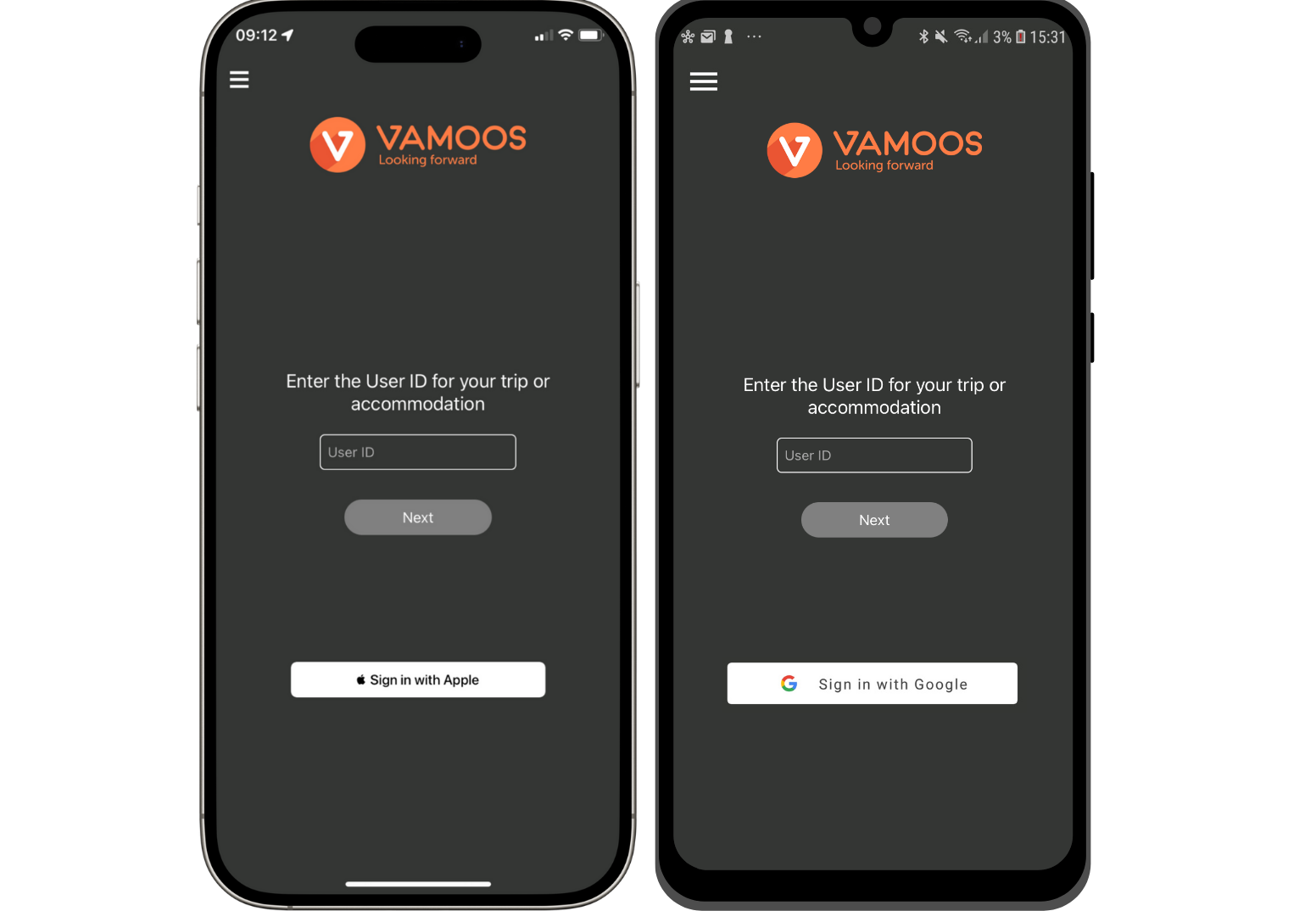
Option 2: log in with their emails
Enter traveller email addresses in the People section alongside their names.
To access their trip information, travellers will log in with Apple or Google accounts (must be the same email entered in the Vamoos Portal) and their trip with all the information will be downloaded.
This means they do not have to log in with a User ID and Passcode.
All the content presented to them will be automatically personalised.
If preferred, Vamoos can enforce authentication via Apple/Google for all your clients, preventing access to the list of travellers. Get in touch with Customer Success team to enable this.
Read more about signing in with Apple and Google here.
FAQs
Q: Can you personalise locations?
A: No, at the moment you can only personalise flights, Storyboard and documents.
If you have any further questions or need help with this, contact us at support@vamoos.com.