
General: create your property
✅ For Hotels & Accommodation
When you create your property, start by filling out the General section. Here you add key information and set up the app’s home screen.
In this article:
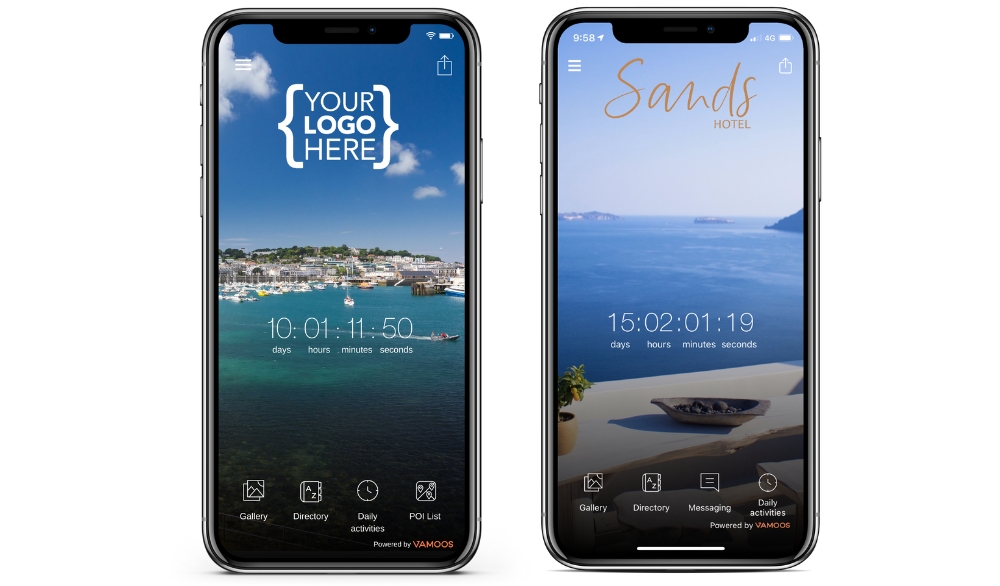
Home screen examples:
Creating your property
Go to Vamoos List in the top menu, select Vamoos Stays, then click the orange Create Stay button.

On the left-hand menu, select General (top).
User ID
Fill out the User ID first — guests use this to log in to their property in the app.
User ID stays the same for all guests. You choose it when you create an account (typically the property name).
General information
Enter your Property name.
Home Description is the text shown on the app home screen (preview appears on the right).
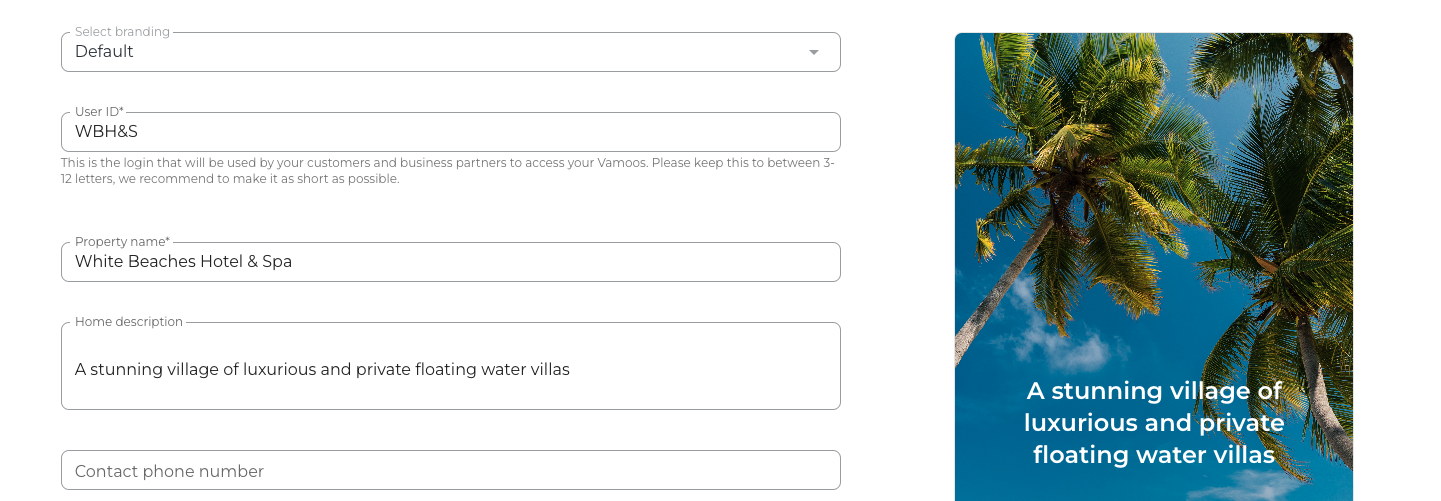
TOP TIP: Don’t add extra spaces; the text auto-centres for best appearance.
Contact & social
Add your contact phone and email.
Optionally add your website, Twitter, Facebook, and Instagram links.
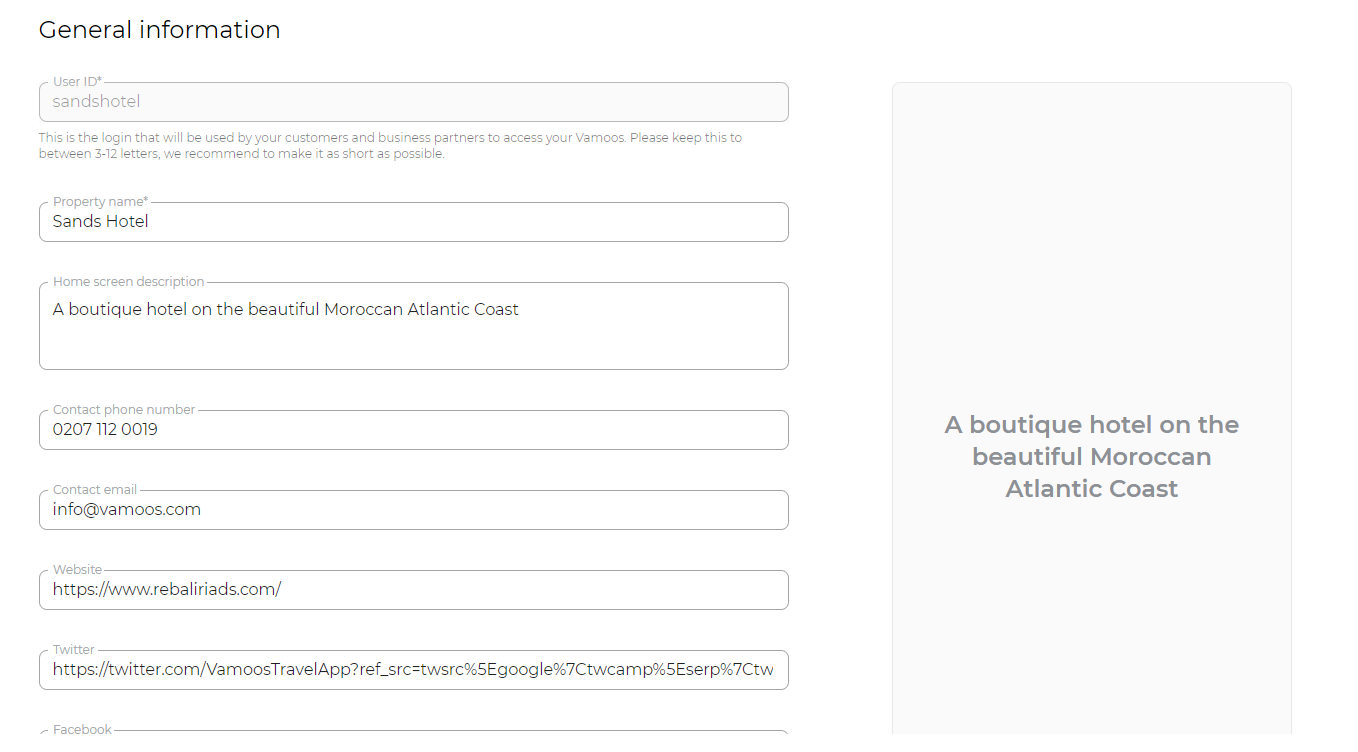
TOP TIP: Use the full https:// prefix in URLs.
Background image
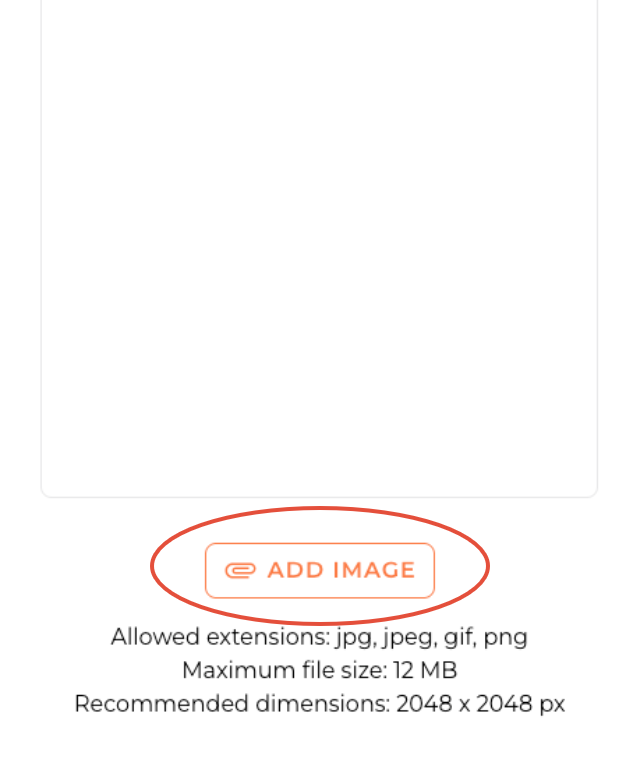
Click Add Image (right-hand side) to pick your app home background.
Upload from your computer or select from the Vamoos Library.
Supported: JPG/JPEG/PNG. Recommended size: 2048 × 2048 px. See image tips.
Email login settings
Toggle Mandate Email Login to require guests to enter name, email, and check-in/check-out dates when logging in.
If off, guests can skip entering details.
Check-in time: countdown timer
Select your property’s check-in time to enable the home-screen countdown.

Login Messages
Add an email under Login Messages to be notified when someone logs in to your property.
Enable Automatically include account administrators to notify all admins.

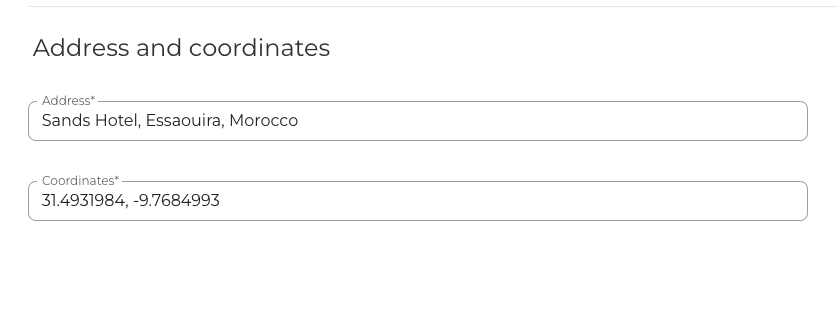
Add your property address with coordinates
Enter your property address manually using latitude/longitude.
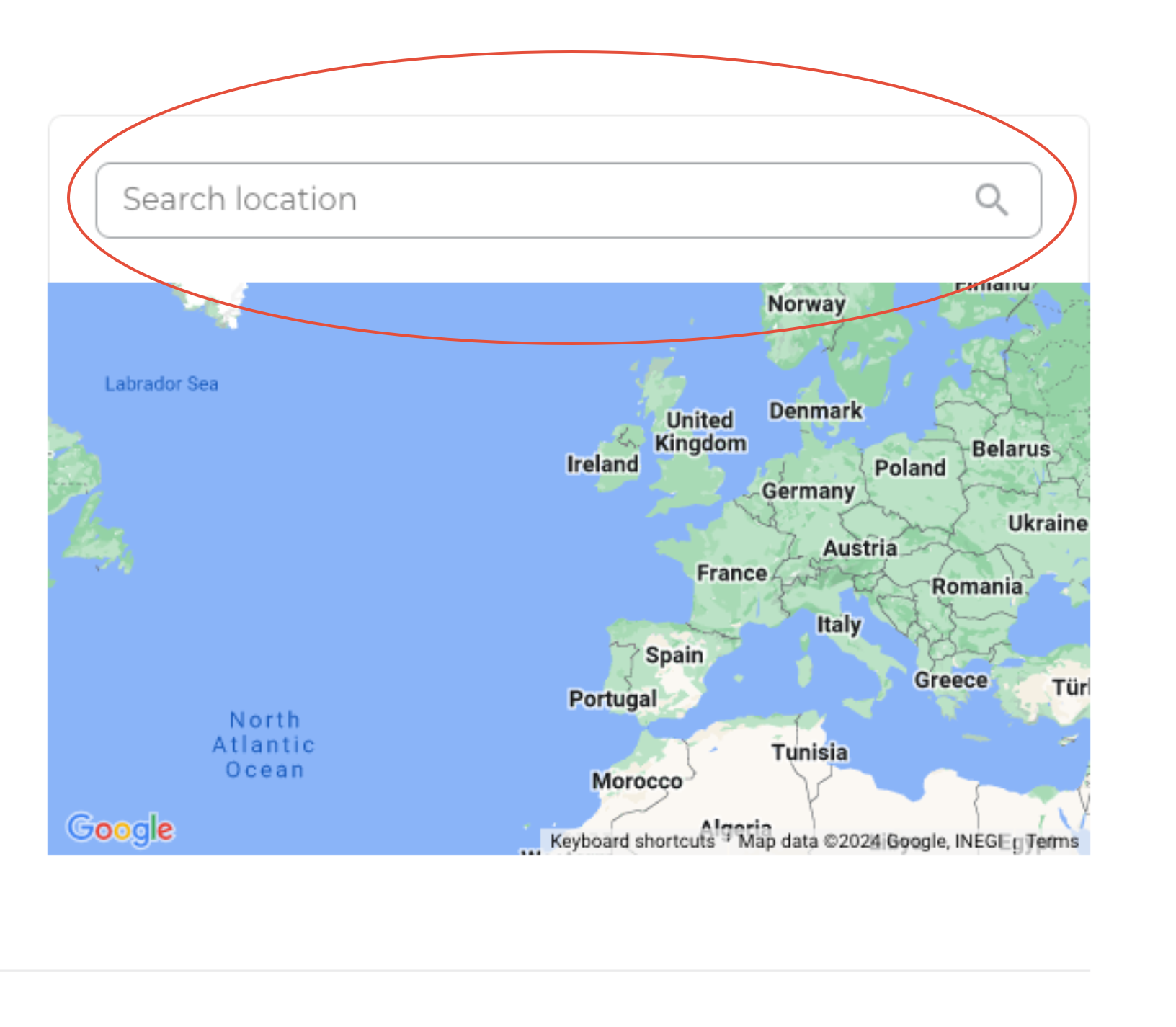
Add your property address from Google Maps
Use the integrated map and the Search location box above it.
Type your location and select it from the dropdown.
Click Copy to field to populate the address.
Click SAVE.
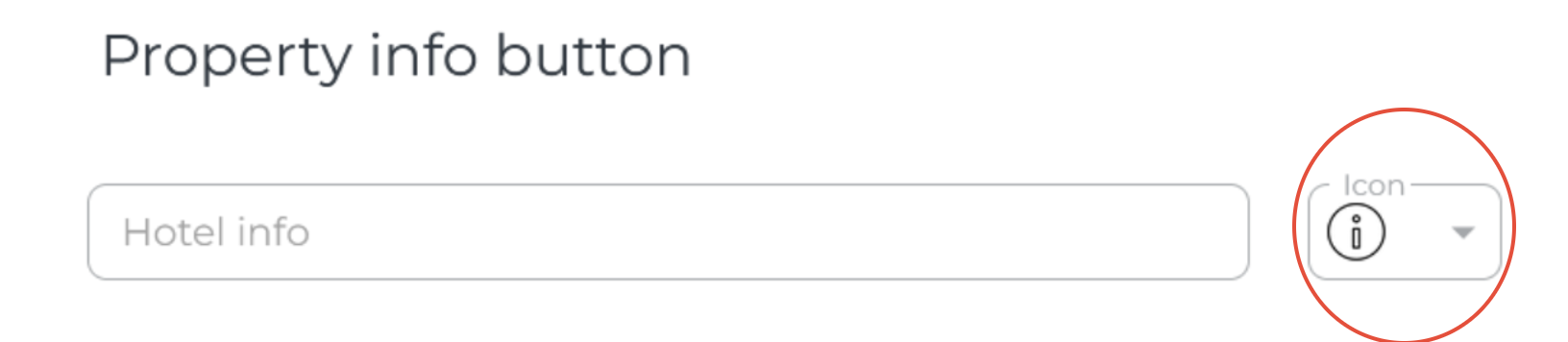
Property info button
The property info appears as the final icon on the app home screen.
Rename the icon (or keep “Info”) and choose a different icon if desired.
Overlay logo
Upload a property-specific logo (if different from the one in Settings).
Click Add Image and upload JPG/JPEG/PNG.
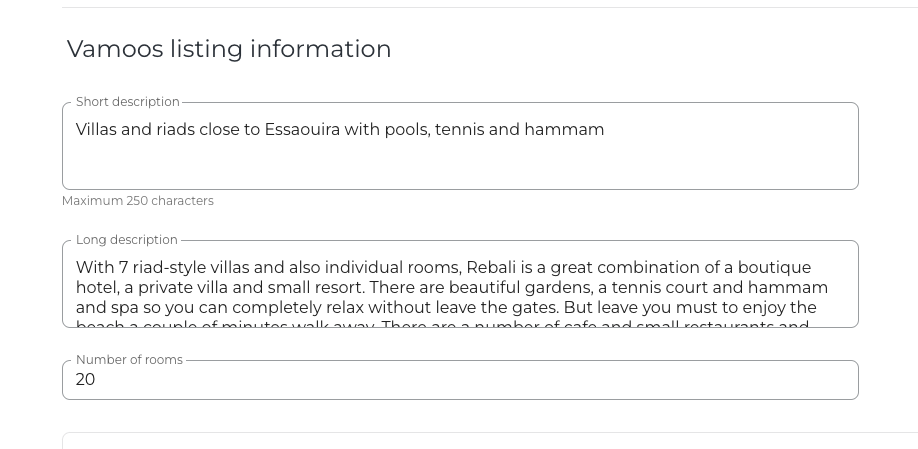
Vamoos listing information
Add extra details for the Property Info button (and optionally visible to Tour Operators using Vamoos).
Provide both a short and long description, and the number of rooms.
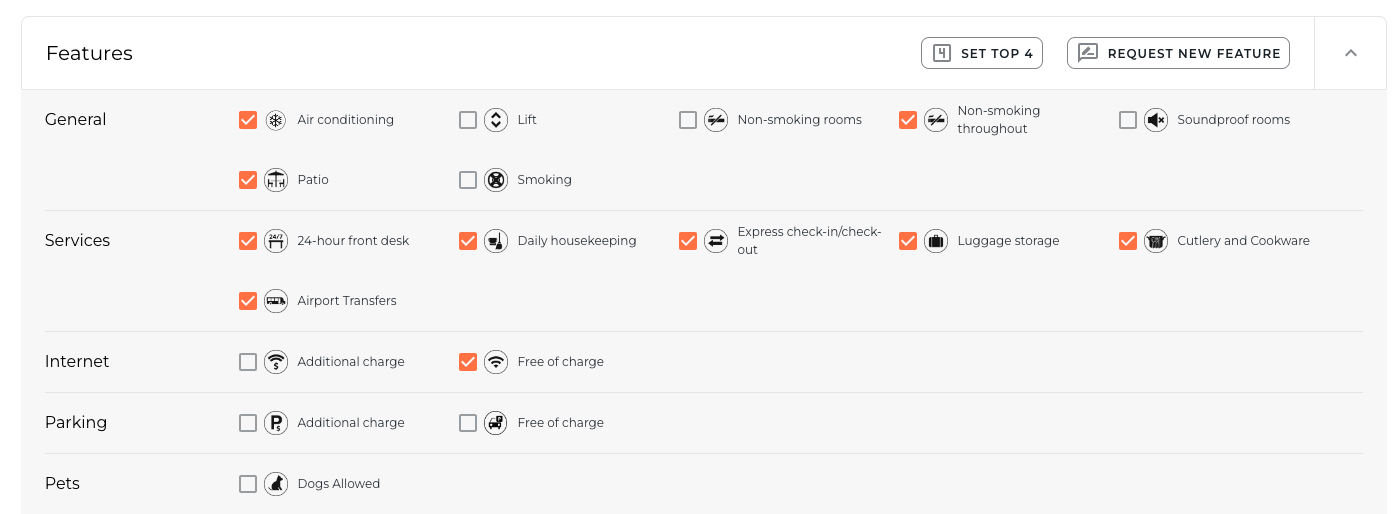
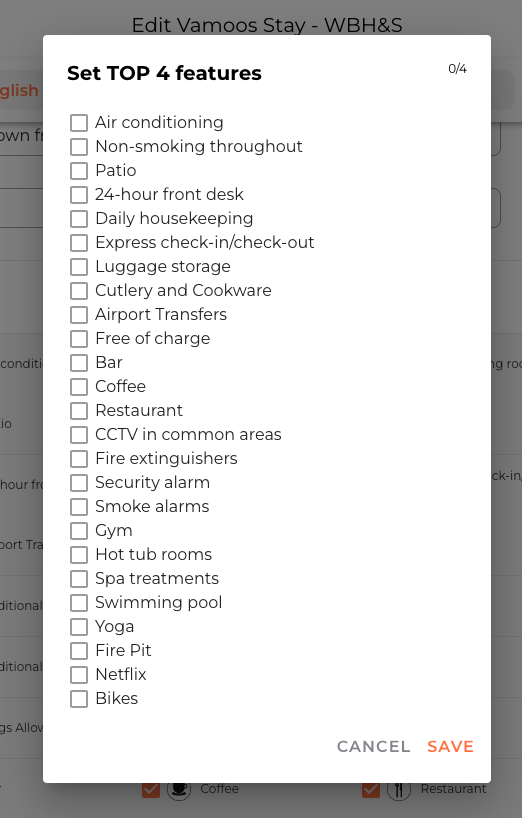
Select your property features (checkboxes turn orange when selected).
Use Set Top 4 to highlight your key features, then SAVE.
TOP TIP: Remember to press the orange SAVE button after each section.
If you have any further questions or need help with this, contact us at support@vamoos.com.