
Locations: add hotels or travel destinations on the map
✅ For Travel Companies
Add locations on the interactive map so your clients always know where they need to be, even when they’re offline.
In this article:
Introduction to Locations
Use Locations to pin the key places your clients will be visiting on the map for a clear visual overview of their trip.
Typically, Locations is used for hotels or main places clients are staying. (For restaurants, sights, or activities, use the Points of Interest feature instead.)
For each location you can:
Show it on the map
Add extra information (PDFs or URLs)
Display driving directions
Show the weather
Maps can be downloaded offline, so clients can still see their locations without internet access.
Adding a Location from Google Maps
Go to your Vamoos List, select a trip, and choose Locations from the menu on the left-hand side.
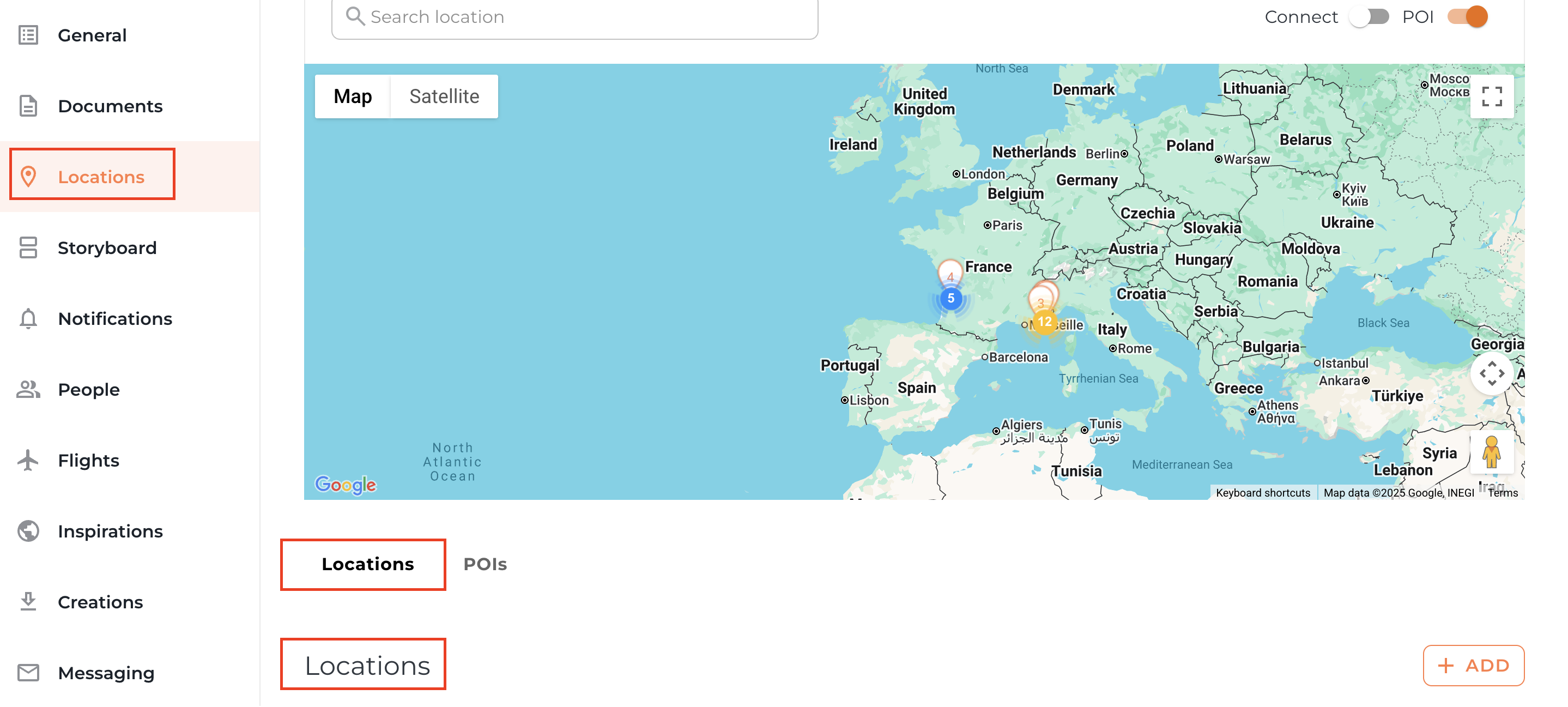
You’ll see a map (integrated with Google Maps) with a Search location box above it.
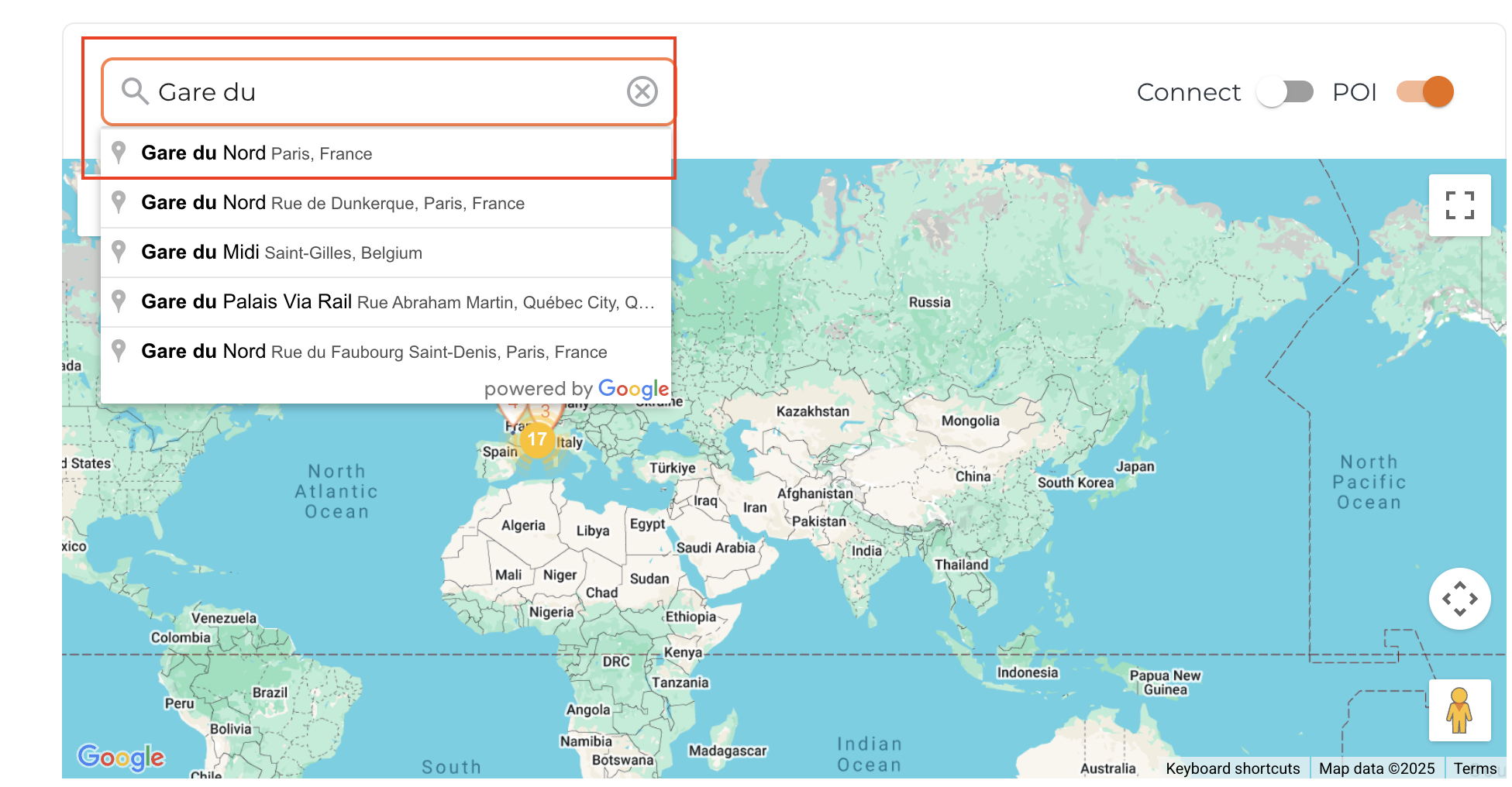
Type in the location and select the correct one from the dropdown list.
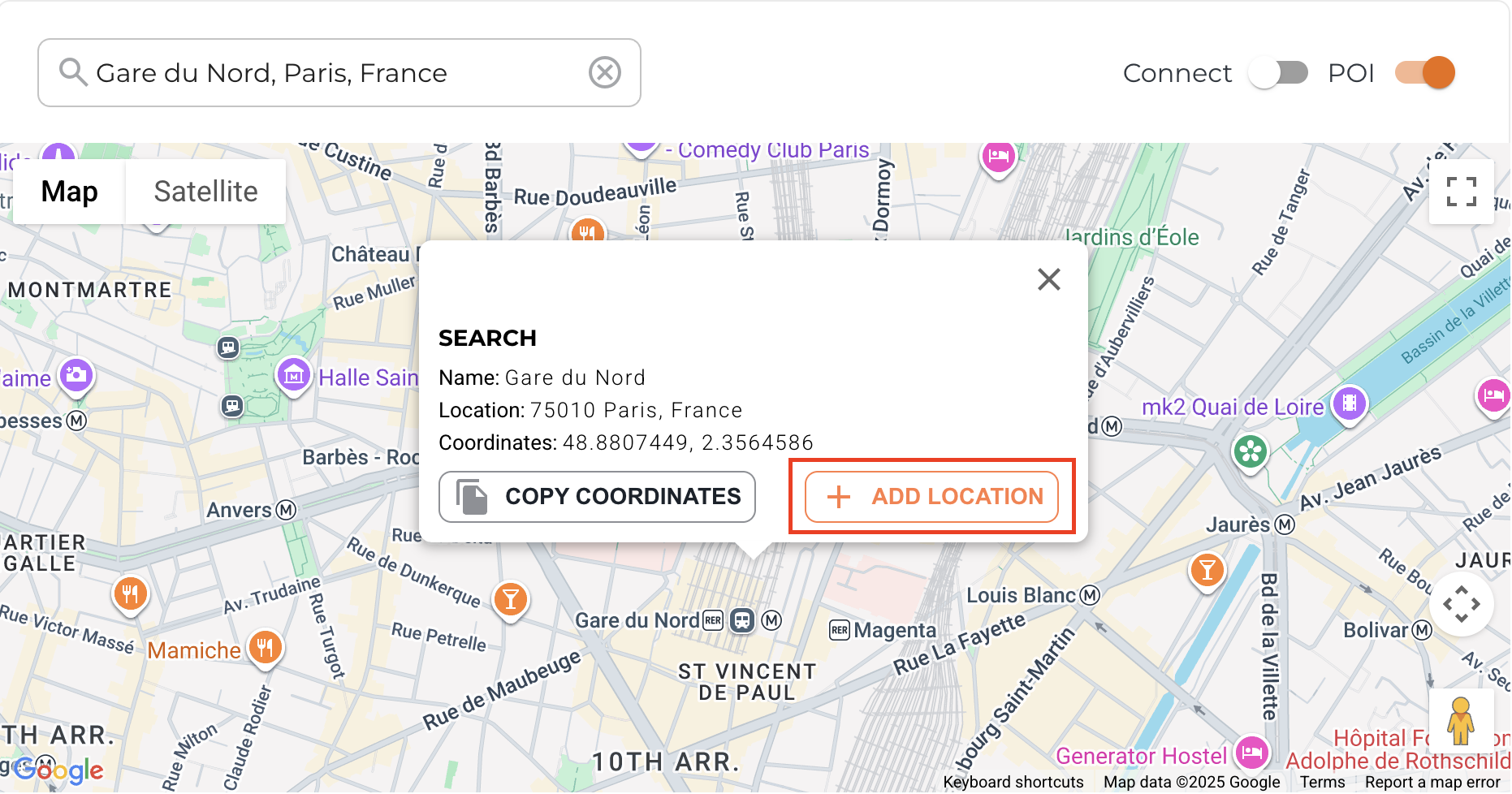
The location will appear on the map. Press Add Location to add it to the trip’s list of locations.
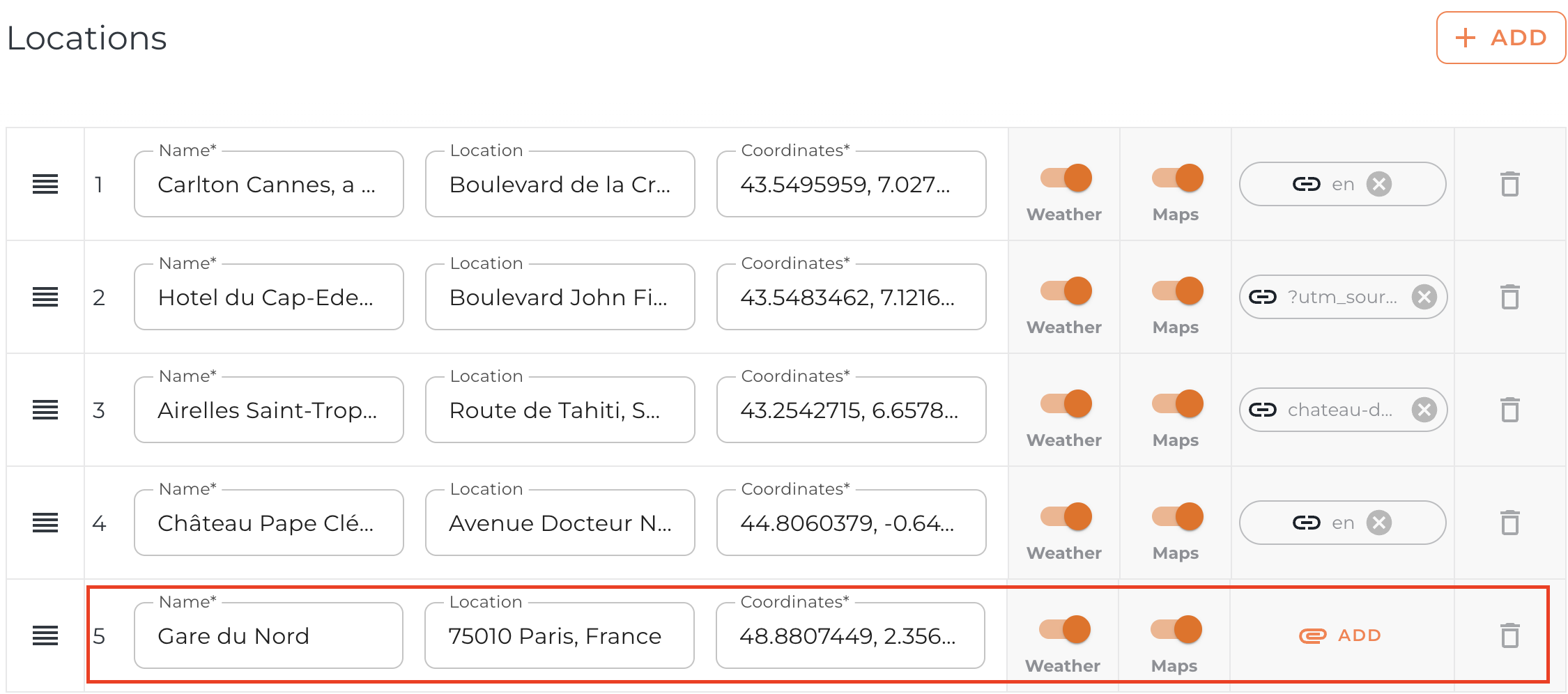
Scroll down to confirm it’s been added, then press SAVE.
TOP TIP: If you can’t find the location, type it exactly as it appears in Google Maps.
Adding a Location with Coordinates
If a location doesn’t appear on Google Maps, scroll down to the list of locations and press ADD.
A blank record will appear — fill in the name, country, and coordinates manually
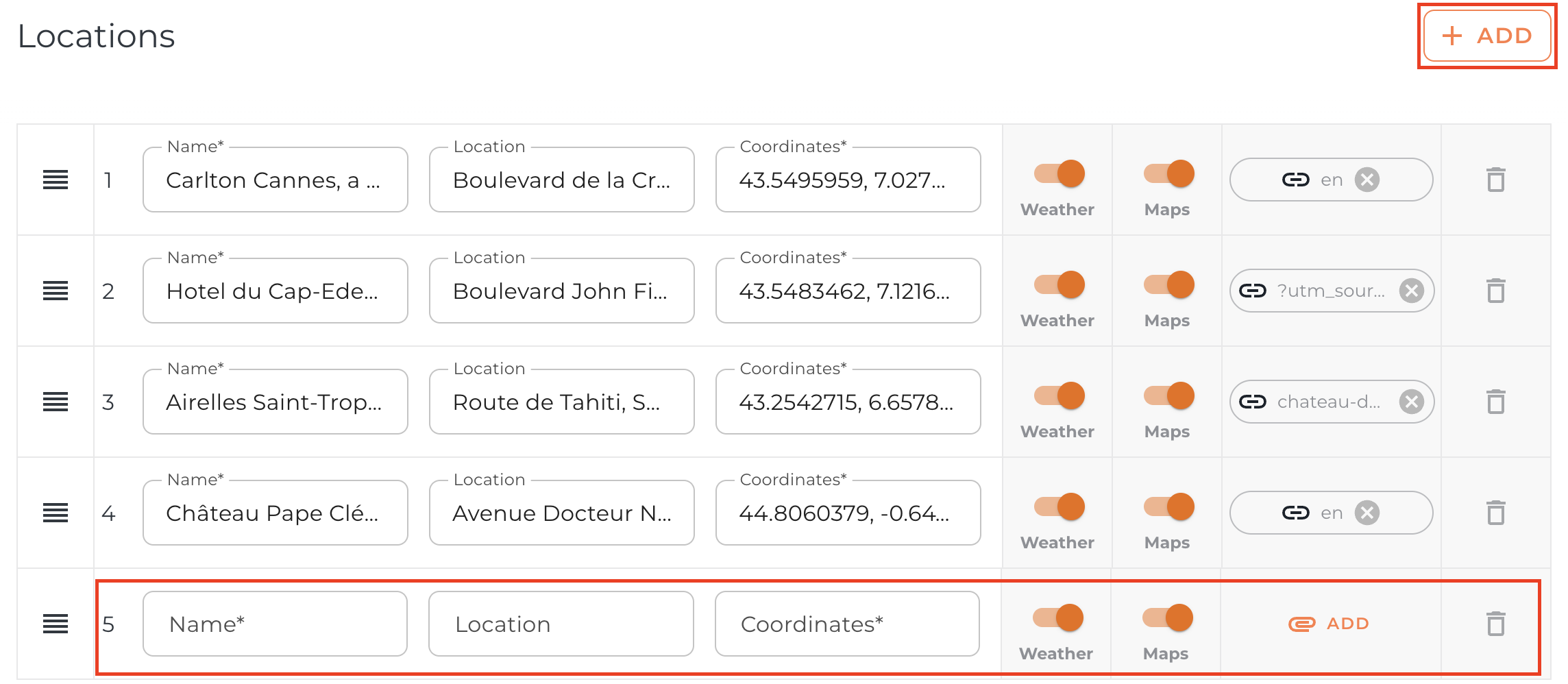
Press SAVE and the location will show on the map.
Adding a Location by Dropping a Pin
You can also add a location by dropping a pin directly on the map.
Right-click anywhere on the map to drop a pin.
Press Add Location to add it to the trip’s list.
Adding More Information About a Location
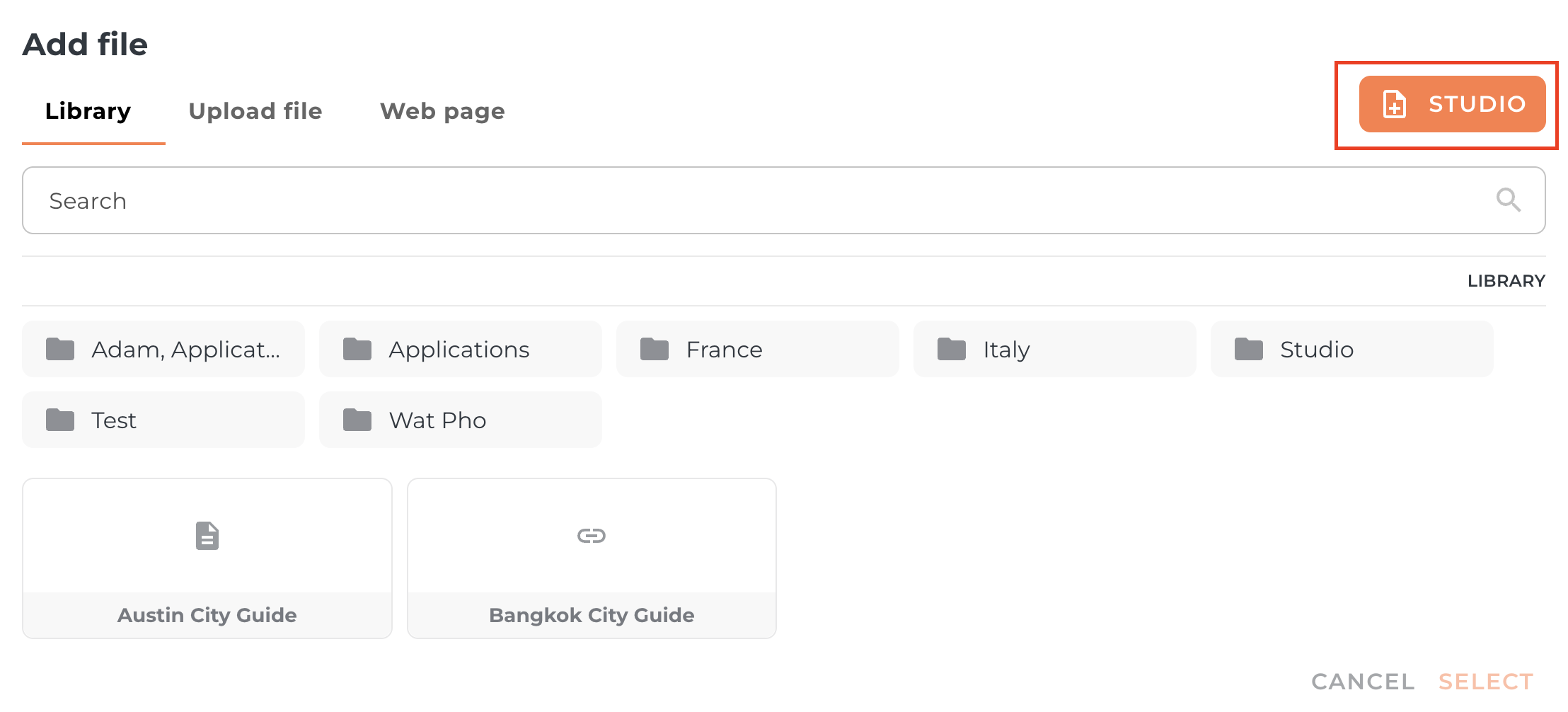
Once locations are added, you can attach more info by pressing Attach/Link and uploading a PDF, URL or Studio Document.

You can create a Studio Document directly in the POI by clicking Studio, create your document and SAVE.
You can also tick or untick the box next to Weather to show or hide the weather for that location.
If you don’t want a location to appear on the map, untick the Maps option — it will still be available for weather or Storyboard linking.
Reordering Locations
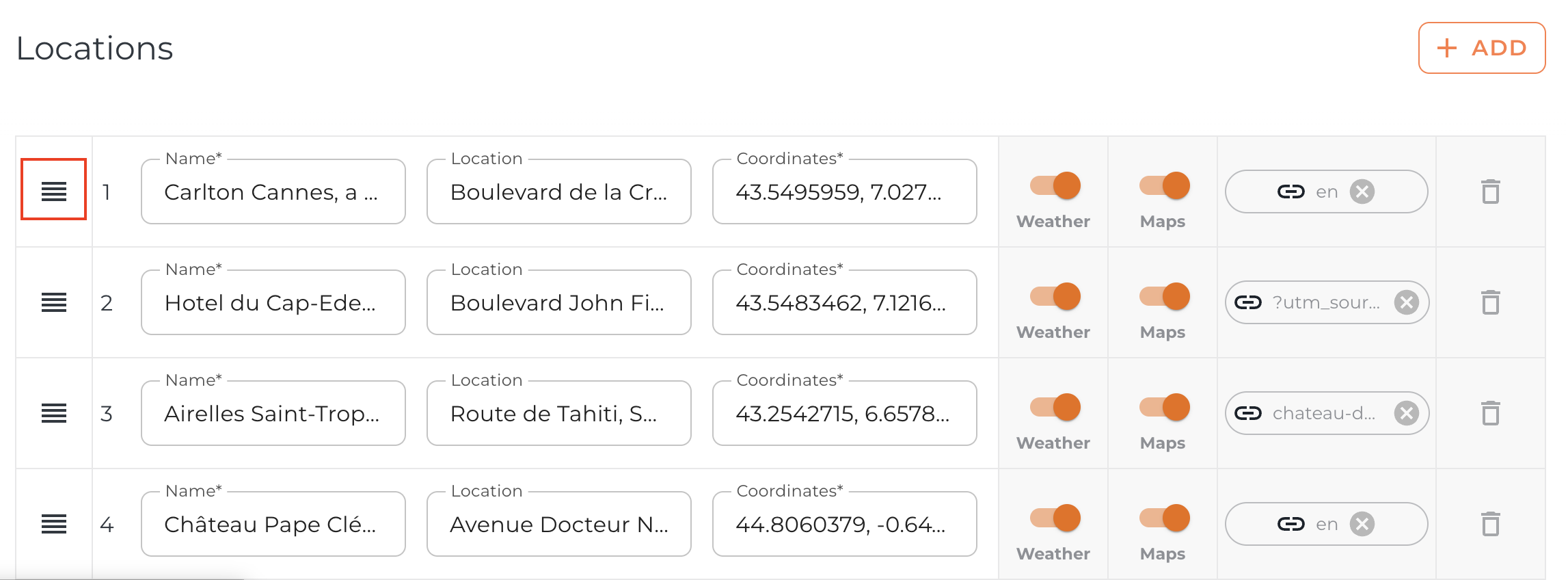
Reorder locations anytime with drag-and-drop.
Click and drag the 3-line handle on the left of a location to move it.
The numbers on the map will automatically update to match the list order.
Driving Instructions to a Location
In the app, when a user taps a location, they’ll see a driving arrow icon.
Clicking the arrow opens an external navigation app with driving directions to that location.
If you’d like to show routes directly in the app, use our GPX Tracks feature.
FAQs
Q: Should I add hotels or cities as my locations?
A: It’s up to you. As a rule of thumb, use Locations for overnight stays and POIs for other places to visit.Q: If I manually add a location, will it be remembered?
A: Yes. Vamoos remembers locations you add. Just press ADD and start typing to reselect it from the dropdown.Q: Do maps work offline?
A: Yes! Once you load the map online, it will be available offline for clients to use.
If you have any further questions or need help with this, contact us at support@vamoos.com.