
Vamoos for events
✅ For travel companies
In this guide, you'll find our top tips and recommendations for maximising Vamoos to enhance your events!
In this article:
Documents
For single-day events: upload venue and area info under Travel Documents (venue map, dining info, transport, accommodation, local guide).
Use Destination Documents for event-specific details: schedule, speakers, tickets, guest list, sponsors, afterparty info.
For multi-day events: add non-event essentials under Travel Documents (boarding passes, local transport, lodging, dining, city guides).
Add event-specific details under Destination Documents (tickets, daily schedules, speaker bios, venue guides, food & dining at the event).
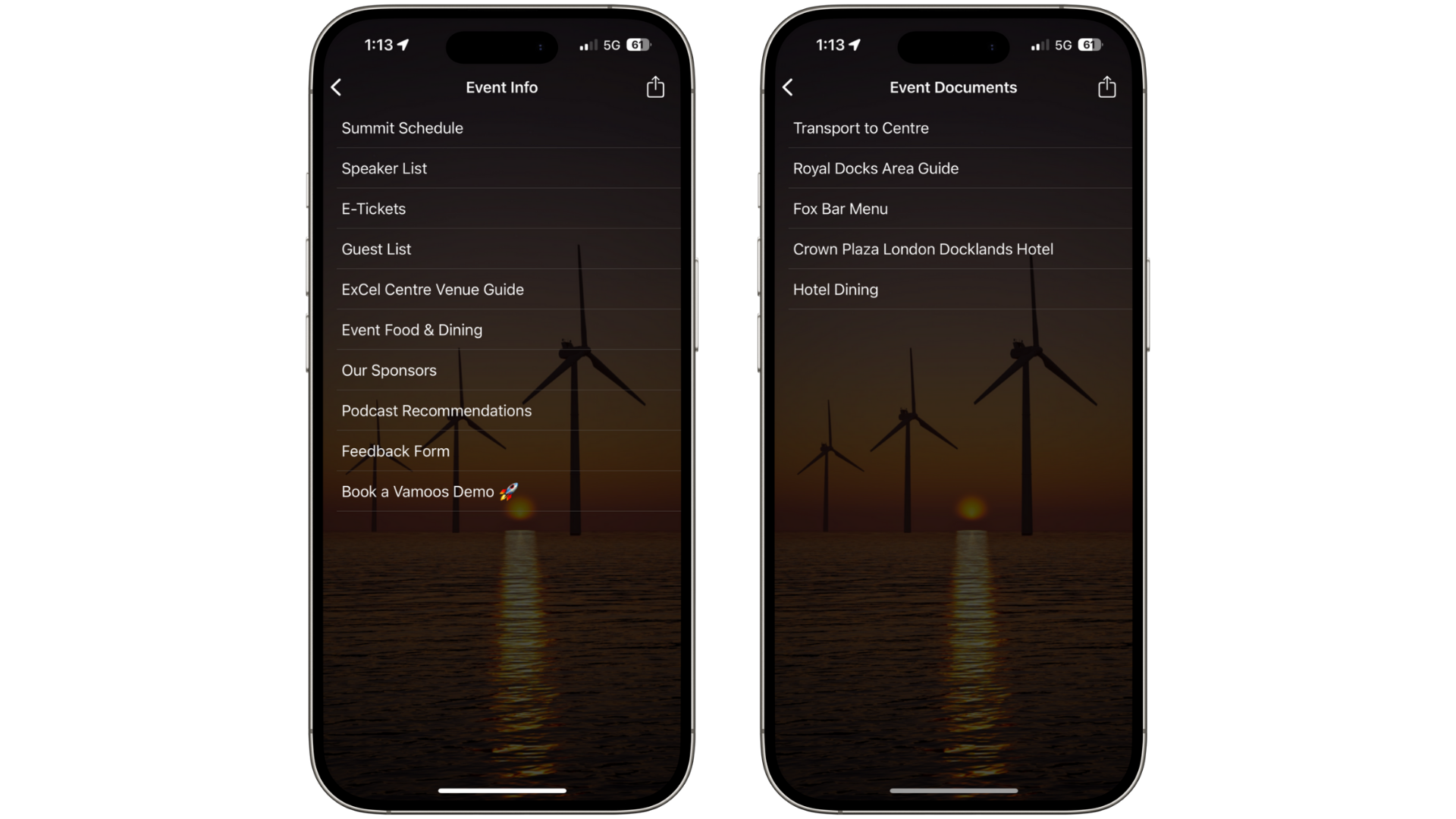
TOP TIP: Rename the document sections to event-specific labels under Shared → Menus & Labels. More info here.
Locations
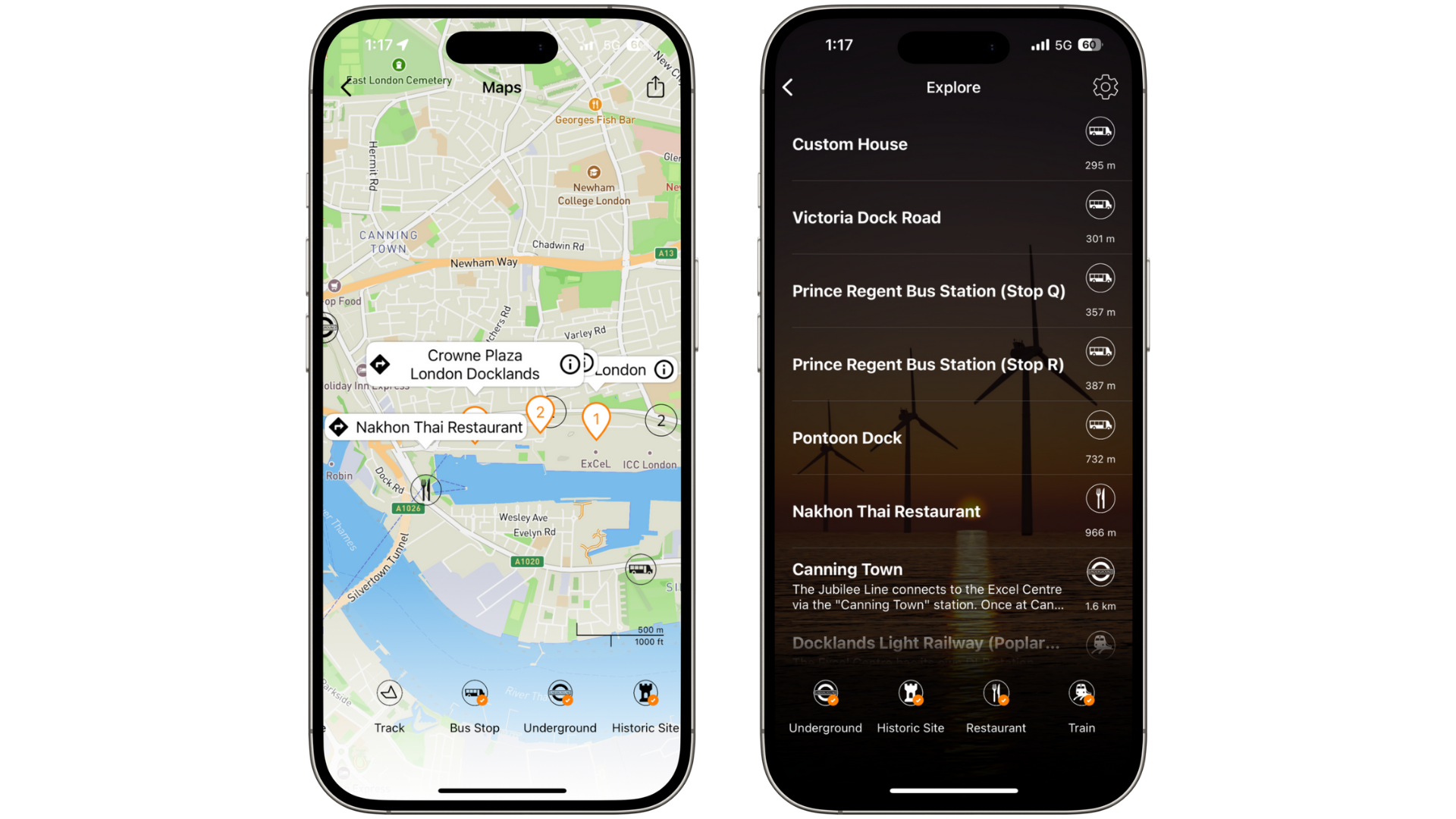
Add the event venue, accommodation, and afterparty venue as primary locations.
For POIs, set a 10–30km range. Include:
Single-day events: transport hubs (airports, metro, bus stops) and nearby dining.
Multi-day events: add local attractions (bars, parks, cultural sites) alongside transport and dining.
Storyboard
Multi-day events: show dates for daily itineraries, but hide dates for info frames. Add schedules, transport, venue guides, dining, and accommodation.
Single-day events: use "Hide dates" and include welcome info, transport, full schedule, and dining details.
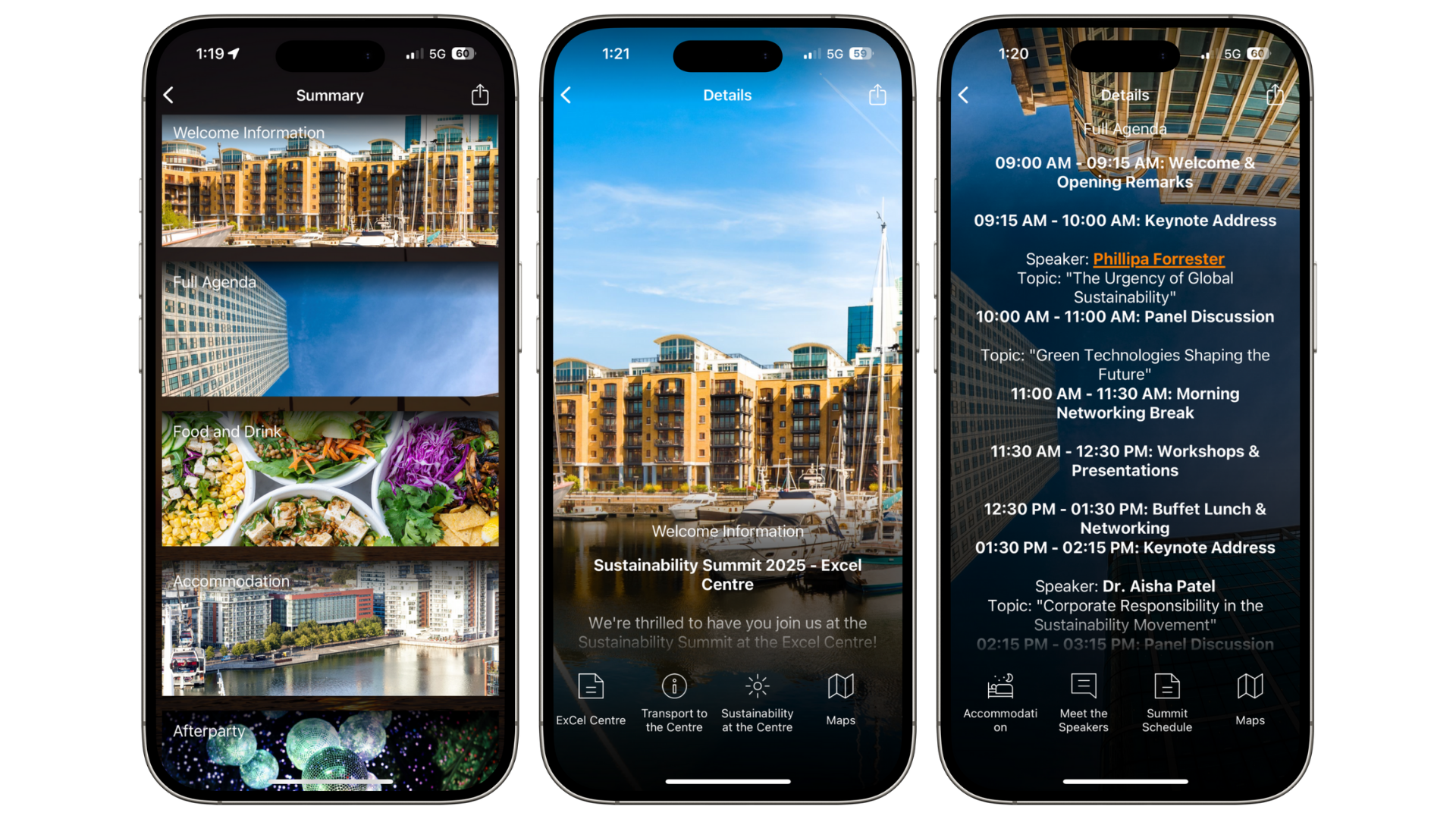
TOP TIP: Hide the date/day number by starting a frame title with a hashtag, e.g. “#Food and Dining”.
Notifications
Send a reminder notification the day before the event, prompting attendees to review documents.
Multi-day events: send nightly reminders with the next day’s schedule.
During the event, send notifications before each session with location details.
TOP TIP: Schedule a post-event notification (1–2 days later) with a linked feedback form.
Additional Tips
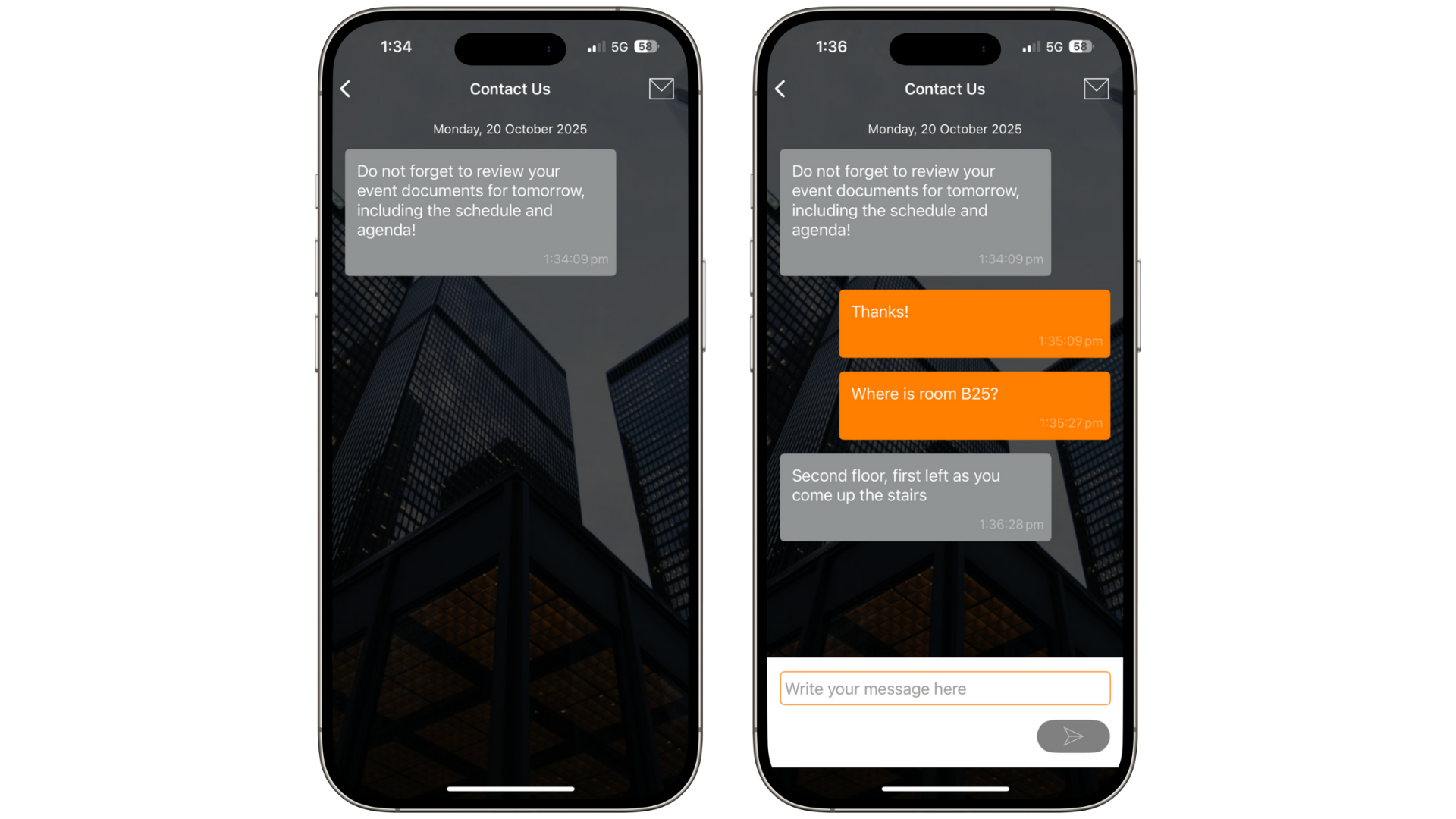
If staff are available, turn on Messaging for the event so attendees can easily reach you.
Under People, add all attendee names. You can bulk add from a spreadsheet by pasting the list.
Use Personalisation to make certain flights, documents, or activities visible only to relevant attendees.
If you have any further questions or need help with this, contact us at support@vamoos.com.